Diagnostics
If you cannot solve a problem with the Troubleshooting tables or the Error Codes, create a diagnostic file on the device. The file collects diagnostic data of the device in one ZIP archive. SICK uses it to analyze the problem.
SOPASair Diagnostics
Open the web interface of the device and go to Diagnostics → Overview. The page shows the current device status, the message log, and the Diagnostic file tile.
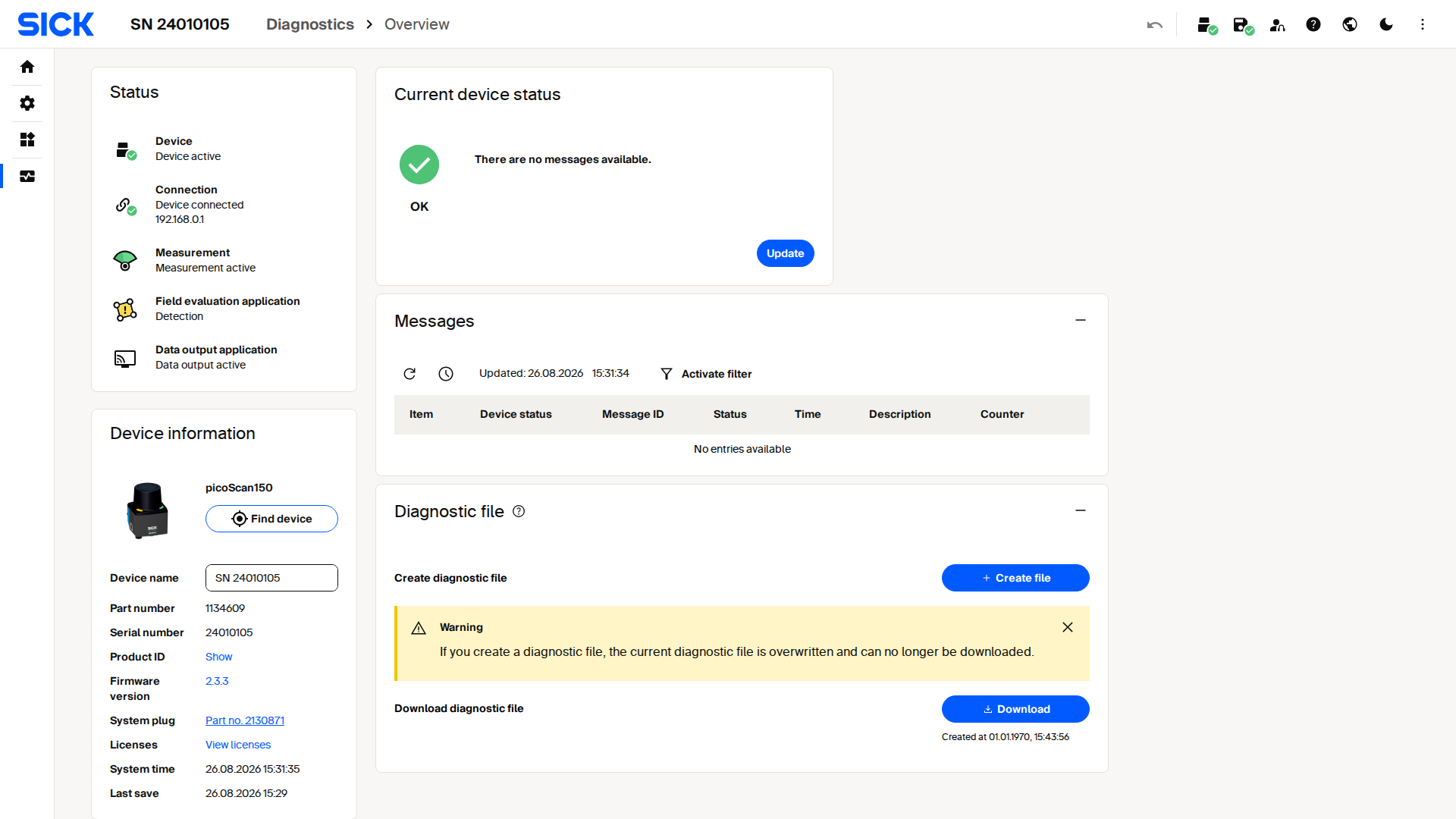
SOPASair Diagnostics → Overview on a picoScan100: status, messages, and the Diagnostic file tile with Create file and Download.
Create and Send a Diagnostic File
- Reproduce the problem, or create the file soon after it occurs.
- Log in with the Service user level or higher.
- In the Diagnostic file tile, click Create file. A new file overwrites the previous one, and the previous file can no longer be downloaded.
- Click Download and save the ZIP file on your computer.
- Send the file to SICK through your local SICK contact for analysis. Add a short description of the problem, the part number, the serial number, and the firmware version. See Contact for the contact options.
You can also create the file over the REST API with DoDiagnosisDump. See the
REST API | OpenAPI page of your device for the available diagnostic endpoints.
The diagnostic file may contain information about your installation. Do not post it in public forums.
More Information
The operating instructions of your device describe the diagnostic functions, the status LEDs, and the messages in more detail. Download them from the Downloads tab of the product page on sick.com, or open the downloads section of your device guide: LRS4000, multiScan100, multiScan200, or picoScan100.