SOPASair Recorder | .sc
The SOPASair Data recorder captures real LiDAR measurement data to a
recording file (.sc) for later analysis and replay. A repeatable scene helps
investigate unexpected detections or missed objects, compare application
behavior after changes, and share the same measurement scenario with
development or support teams.
Open the Data Recorder
In the sensor's SOPASair web interface, open Diagnostics → Data recorder. The page provides an installation file for a separate recorder application:
- Download the data recorder installation file from SOPASair.
- Unzip the downloaded ZIP file and run the EXE.
- In the Connection Wizard, connect the recorder to the device. The recorder interface opens in a new window.
- Use the recorder application to capture the measurement scenario and save
the
.screcording for later use.
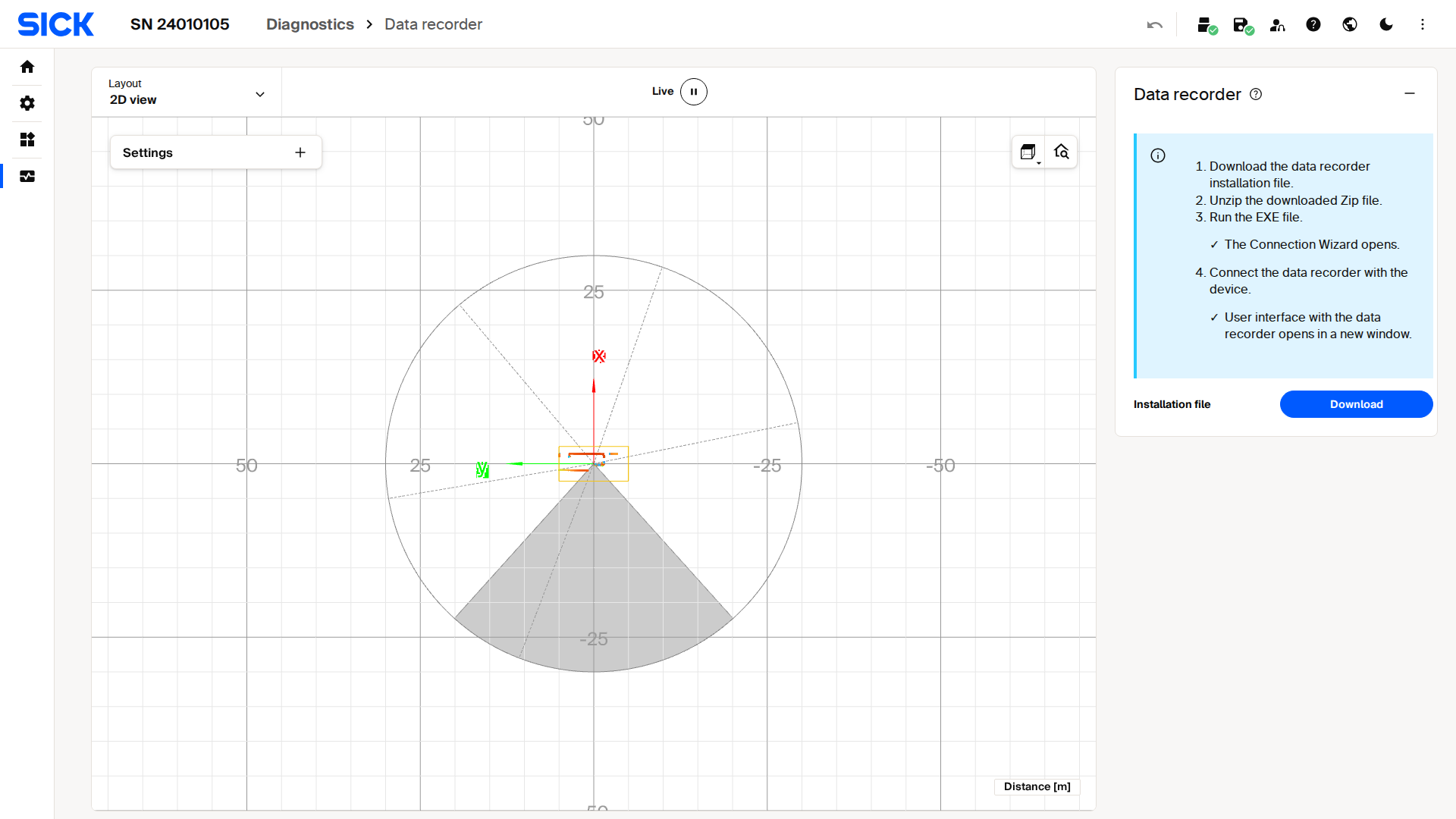
The picoScan100 SOPASair Data recorder page links to the separate recorder application.
When to Use It
- Capture a real scene during operation to investigate an intermittent issue.
- Replay a captured measurement scenario to compare processing results across application changes, rather than returning to the installation site.
- Share a recording with colleagues or SICK support for reproducible analysis.
Recordings capture a particular measurement scenario, not an entire device configuration or raw Ethernet traffic. Save the relevant configuration and firmware details separately when comparing behavior after changes. For a complete device configuration, use Backup & Restore; for raw network traffic, use Wireshark | pcap.
This is the SOPASair Data recorder workflow, not the separate legacy SOPAS ET Excel/CSV recording workflow. The availability of the recorder and replay functions may depend on device and software version; the illustrated entry point is from picoScan100. LRS4000 and multiScan100 also provide the SOPASair Diagnostics → Data recorder entry.