SOPASair Walkthrough
SOPASair is the built-in web interface of the LRS4000. It runs directly on
the sensor, so no software installation is needed. Open http://<sensor-ip>/
in a browser on the same network as the sensor. The factory default address
is 192.168.0.1.
You can view status and settings without logging in. To change settings, log in with the Authorized Client user level using the user icon in the top bar.
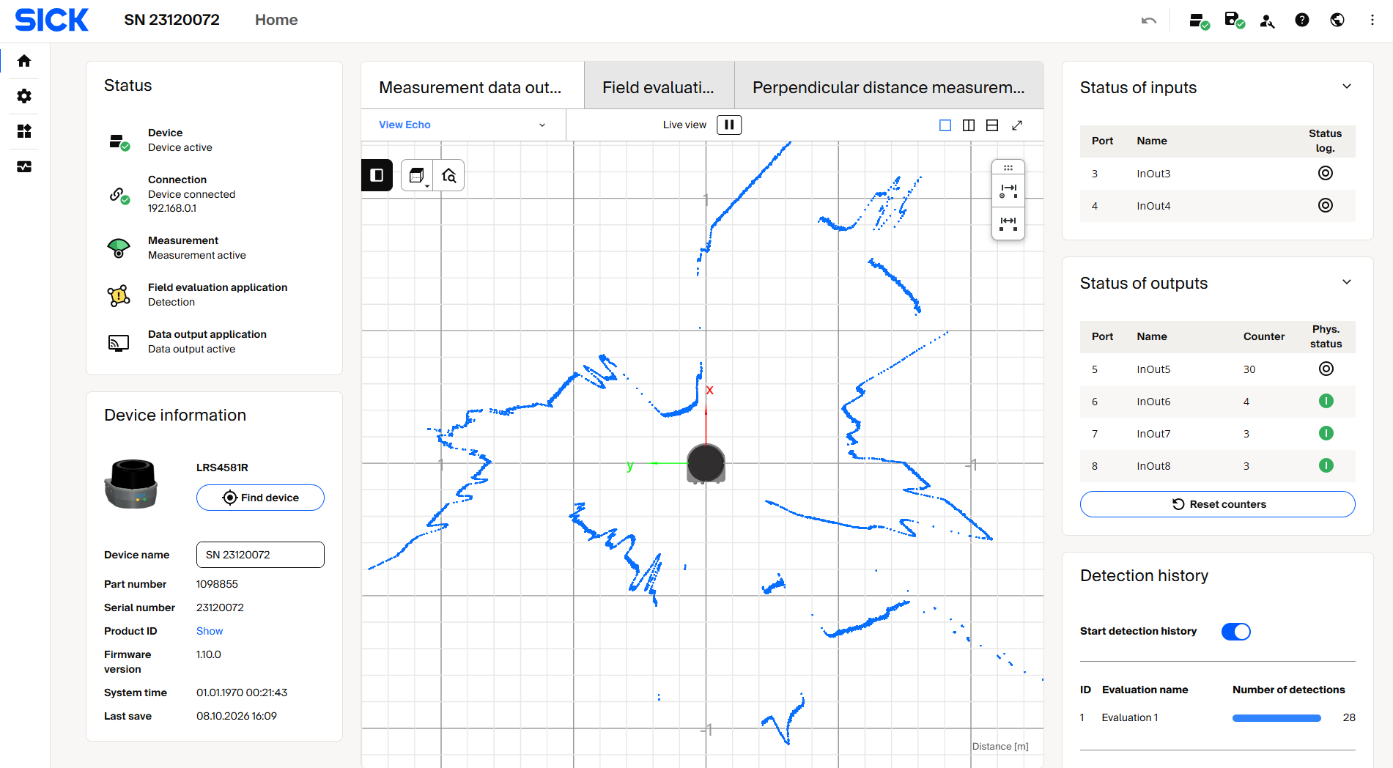
The SOPASair Home dashboard: device status, live scan view, input and output states, and detection history at a glance.
Home
The Home page summarizes the sensor's state. It is a good place to start before you change any settings.
Status shows separate indicators for the device, connection, measurement, field evaluation, and data output. Because each state is reported independently, measurement can be running while external data output is switched off.
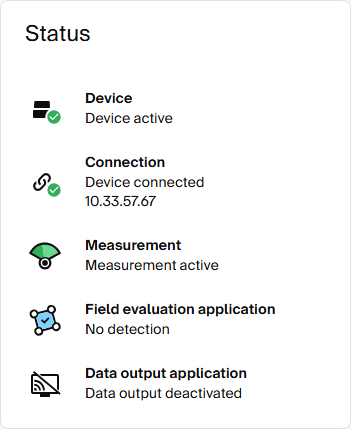
Device and application status indicators.
Device information lists the model, part number, serial number, firmware version, system time, and the time of the last save. Click Find device to make the sensor LEDs blink, so you can identify the unit on site.
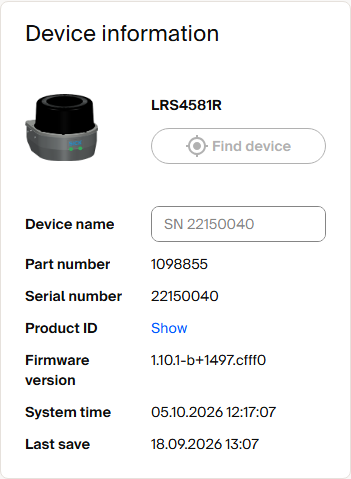
Device identity and installed firmware version.
Configuration
The Configuration menu contains the measurement, filter, network, and I/O settings. For the matching REST parameters and value ranges, see the LRS4000 OpenAPI reference.
Basic Settings
Configuration > Basic settings defines how the sensor scans. Select a scan configuration to set the scan rate and angular resolution. The page also shows the angular range, interlaced mode, and maximum scanning range, and lets you adjust sensitivity, the status LED, and the measurement state.
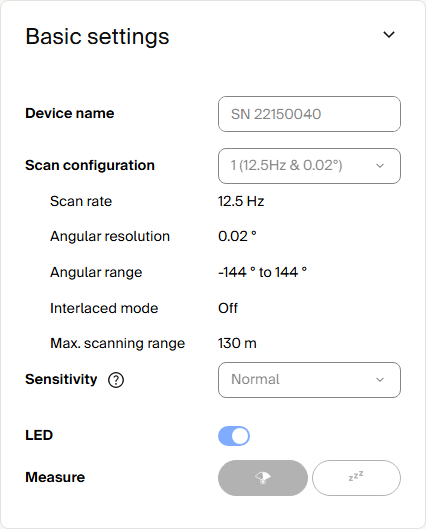
Scan configuration and measurement settings. The values shown are an example configuration.
Date and system time shows the device clock and its synchronization source. Apply computer time sets the sensor clock to your computer's time. For network-based time sources, see Time synchronization.
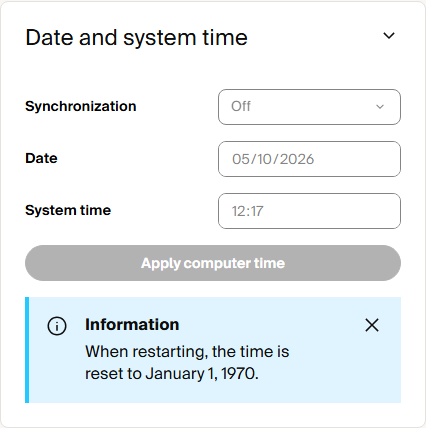
Device clock and time synchronization settings.
Motor synchronization aligns the rotation of several scanners to avoid mutual interference. Select the synchronization source here when you integrate multiple sensors. See Motor synchronization for setup details.
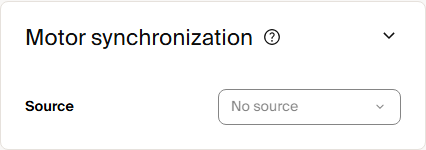
Motor synchronization source.
Filter
Configuration > Filter combines the echo, particle, median, and mean filters. The echo filter selects all, first, or last echoes. Expand each of the other filters to set its threshold, width, or averaging parameters. See Filter details for how each filter affects the measurement data.
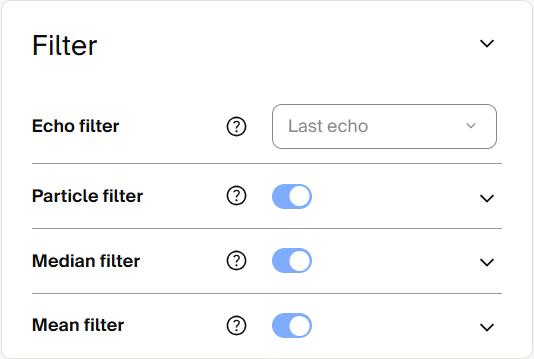
Echo, particle, median, and mean filters.
Contamination Indication
Configuration > Contamination indication monitors the front window for dirt. The sector diagram shows the contamination state per sector, using the color legend below it. You can configure whether a warning or error is output, the sensitivity, the monitored sectors, and the response delay. See Contamination indication for the application background.
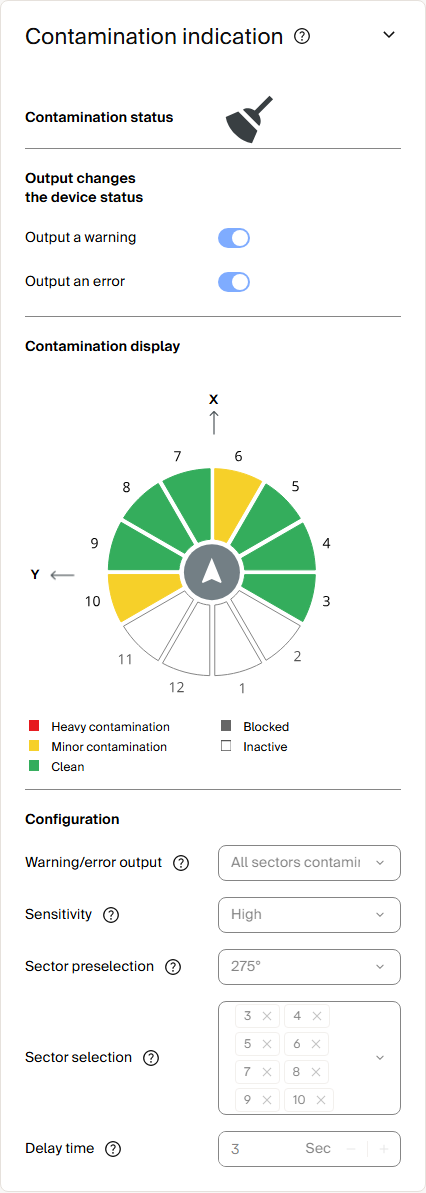
Contamination status per sector and evaluation settings.
Connection Options
Configuration > Connection options contains the Ethernet settings: addressing mode, IP address, subnet mask, default gateway, MAC address, and link speed.
When you click Apply, the new network settings take effect immediately. The browser loses its connection if the sensor moves to an address that your computer cannot reach, so note the new address before applying the change.
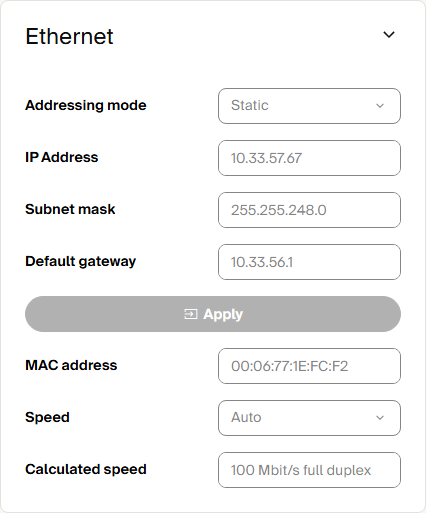
Ethernet addressing and link settings.
Inputs and Outputs
Configuration > Inputs and outputs assigns each port as an input or an output. For outputs, select the signal sources, inversion, logic, and restart behavior. The connector diagram next to each port shows the corresponding pin, and the status indicators show the current physical state. Enable Use encoder if an external encoder is connected.
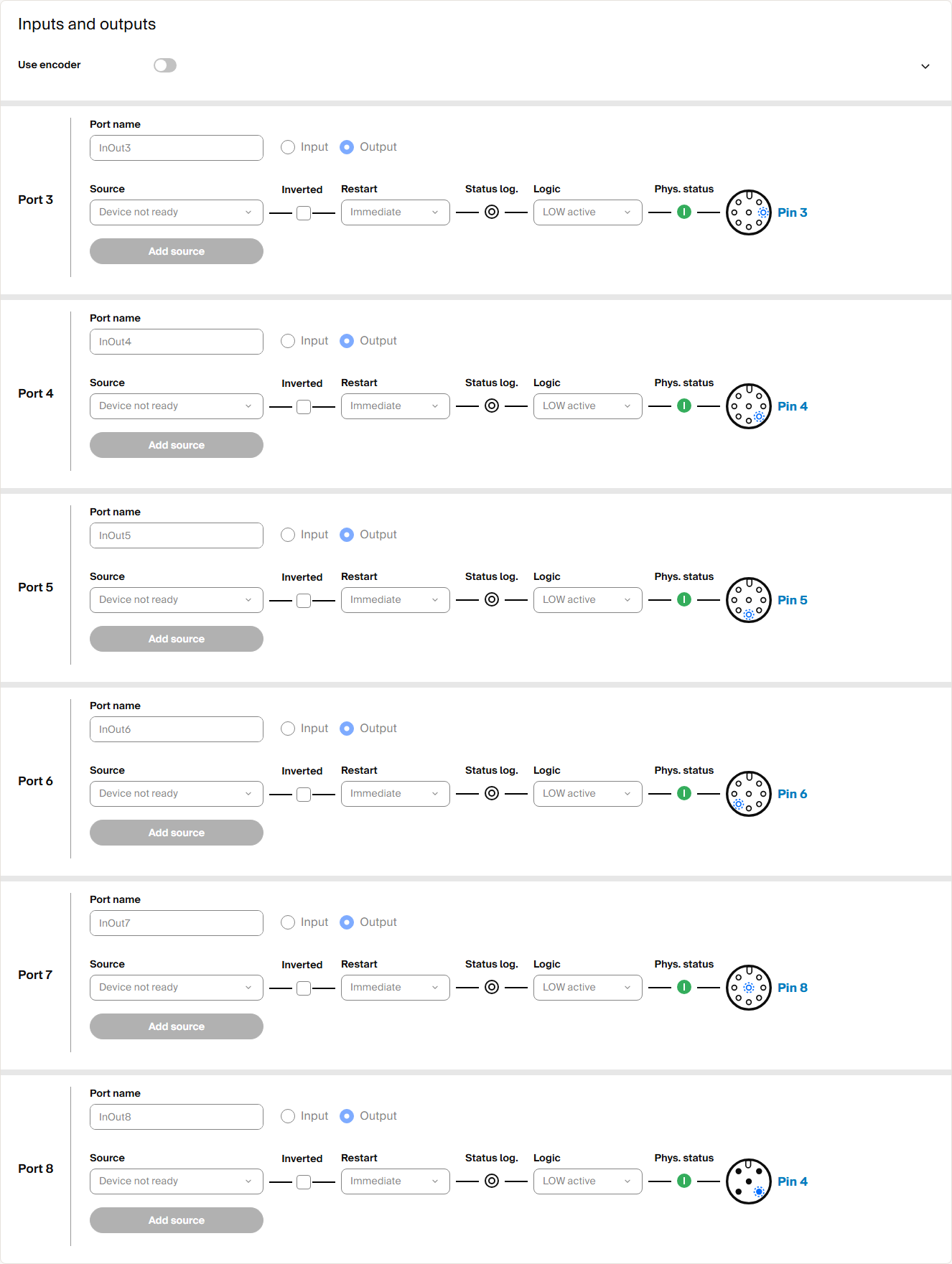
Port assignments with connector pin diagrams.
Applications
The Applications menu contains measurement-data output and the on-device applications: field evaluation, 3D scan recording, and perpendicular distance measurement.
Data Output
Application > Data output selects the output format: Compact, LMDscandata, or Deactivated. The page lists the protocols and ports on which the data is available. See Data streaming for the transport options and parser requirements.
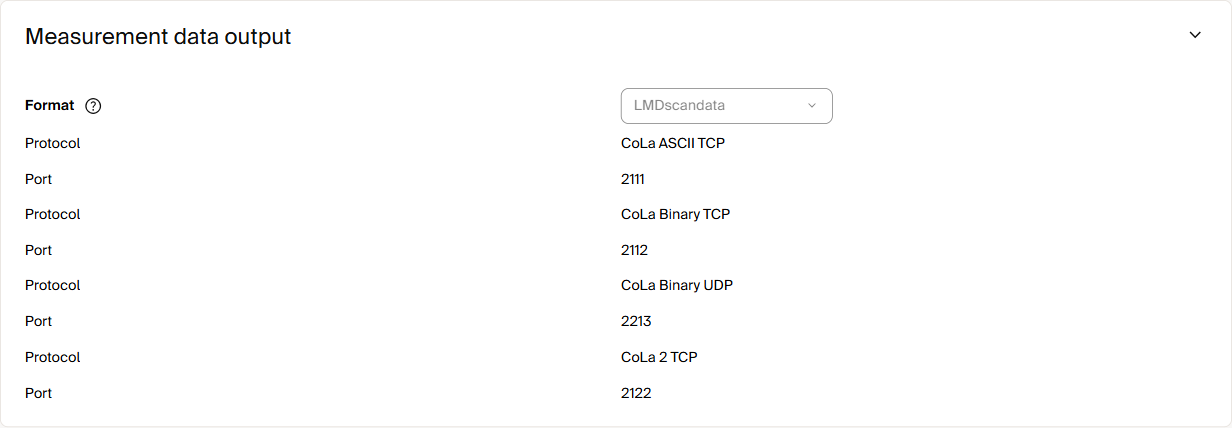
Output format, protocols, and ports.
Output data format selects the optional content of each telegram: device name, time stamp, encoder values, and RSSI. It also sets the output interval and the distance scaling factor.
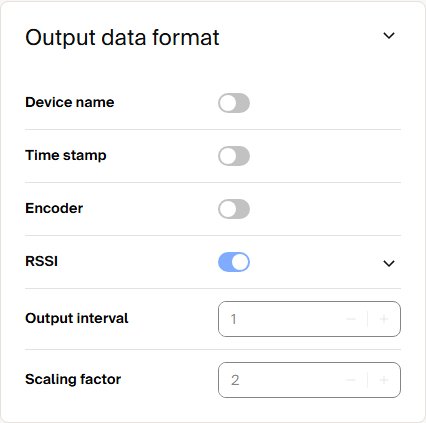
Optional telegram content, output interval, and scaling factor.
Output range limits the output to a start and stop angle.
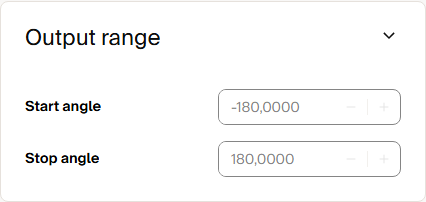
Start and stop angle of the output range.
Range filter removes measurement points outside a distance window.
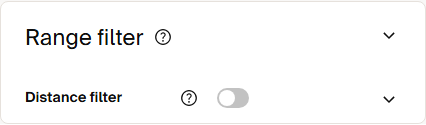
Distance filter.
Field Evaluation
Application > Field evaluation monitors fields for objects and switches outputs when a field is infringed. Each group combines fields, evaluations, and outputs, and has its own activation source. Resource requirements shows how much of the sensor's evaluation capacity is in use, and Detection list shows recent detections.
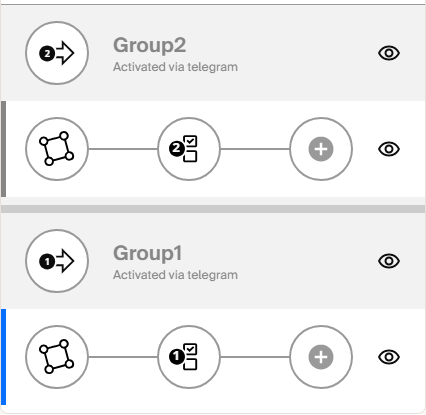
An evaluation group with its field, evaluation, and output.
Teach-in creates a field automatically from the current environment. Set the distances in front of and behind the detected contour and the minimum teach-in time, then start teach-in from the button or a digital input.
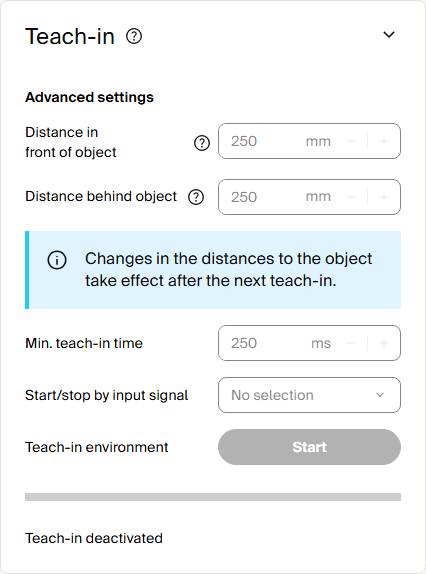
Teach-in parameters and start control.
See Field evaluation for a complete commissioning procedure.
3D Scan Recording
Application > 3D scan recording combines 2D scans with the sensor's rotation to build a 3D point cloud. The rotation comes from the internal IMU or an external encoder. Start the recording with the button or an input signal, and download the resulting point cloud when it is complete.
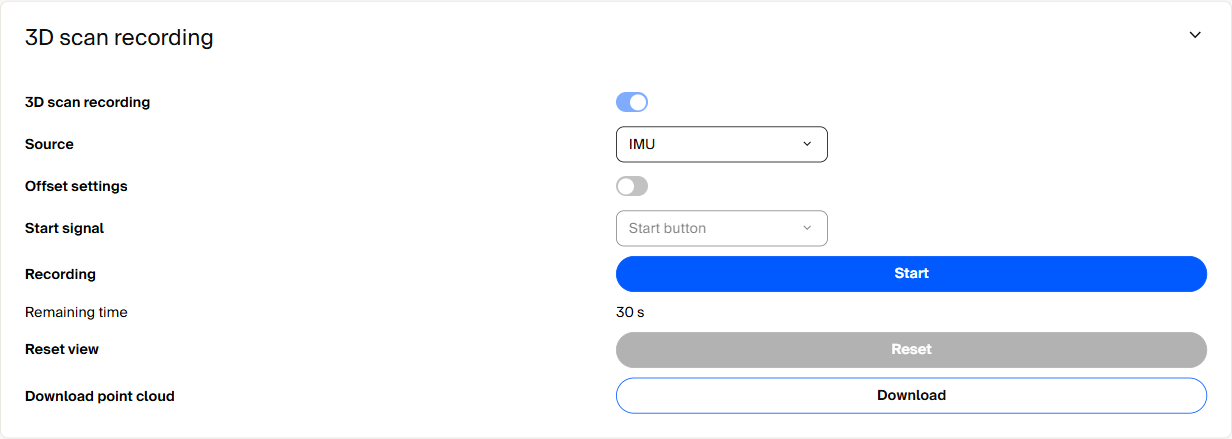
3D scan recording with the internal IMU as rotation source.
Perpendicular Distance Measurement
Application > Perpendicular distance measurement reports the shortest and furthest measuring points within a field, relative to a reference plane. Use Add group to define a new measurement, and Result list for distance measurement to view the results.
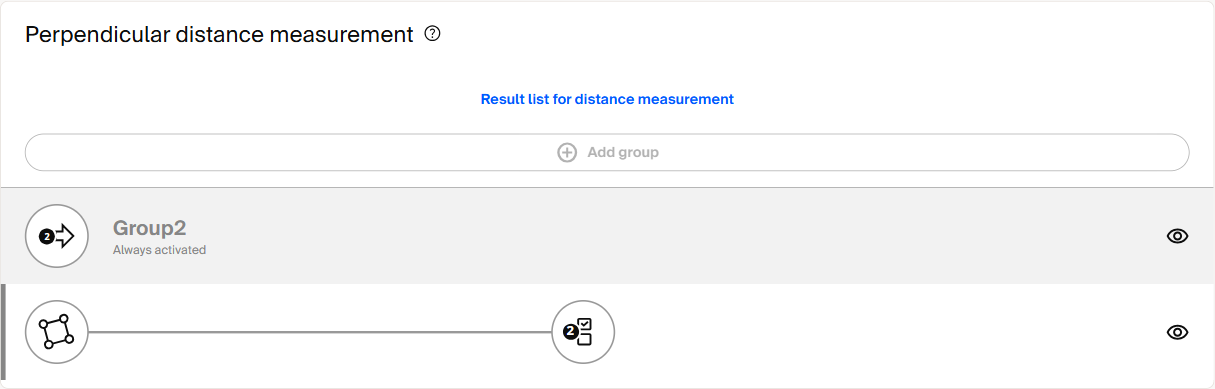
A perpendicular-distance measurement group.
Diagnostics
Overview
Diagnostics > Overview combines status, device identity, operating information, the current device status, and the message log. Expand Operating information to see the number of power-on cycles, the operating hours, and the time of the last parameterization.
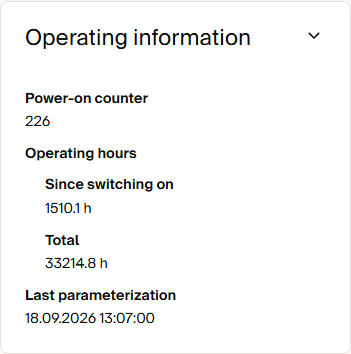
Power-on count, operating hours, and last parameterization.
The message table lists current and past events with their status number and description. If you need support, use Create diagnostic file to collect the device state in one file and send it to SICK. See Contact.
Cybersecurity
Diagnostics > Cybersecurity shows the HTTPS certificate with its fingerprint, serial number, issuer, and expiry date. Use Create certificate to generate a new certificate. The Hash calculator helps you verify file checksums. See HTTPS and certificates for the complete certificate setup.

HTTPS certificate overview.
Data Recorder
Diagnostics > Data recorder explains how to install the SICK data recorder on your computer and connect it to the sensor. Use the recorder to capture measurement data for later analysis or support cases.
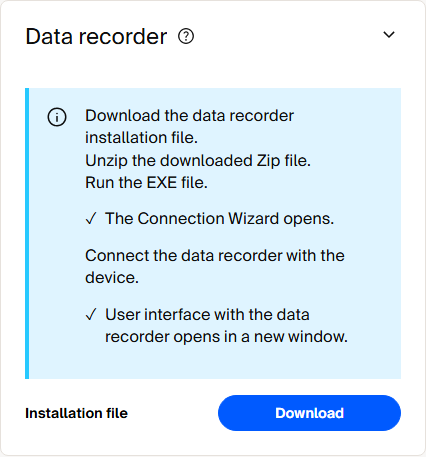
Installation and connection steps for the data recorder.
Detection History
Diagnostics > Detection history records field-evaluation detections. Select the evaluations to include, then start the history. The Statistics section counts the detections per evaluation, and the Detection list shows each event with its time stamp. Use Reset detection history to clear the counters.
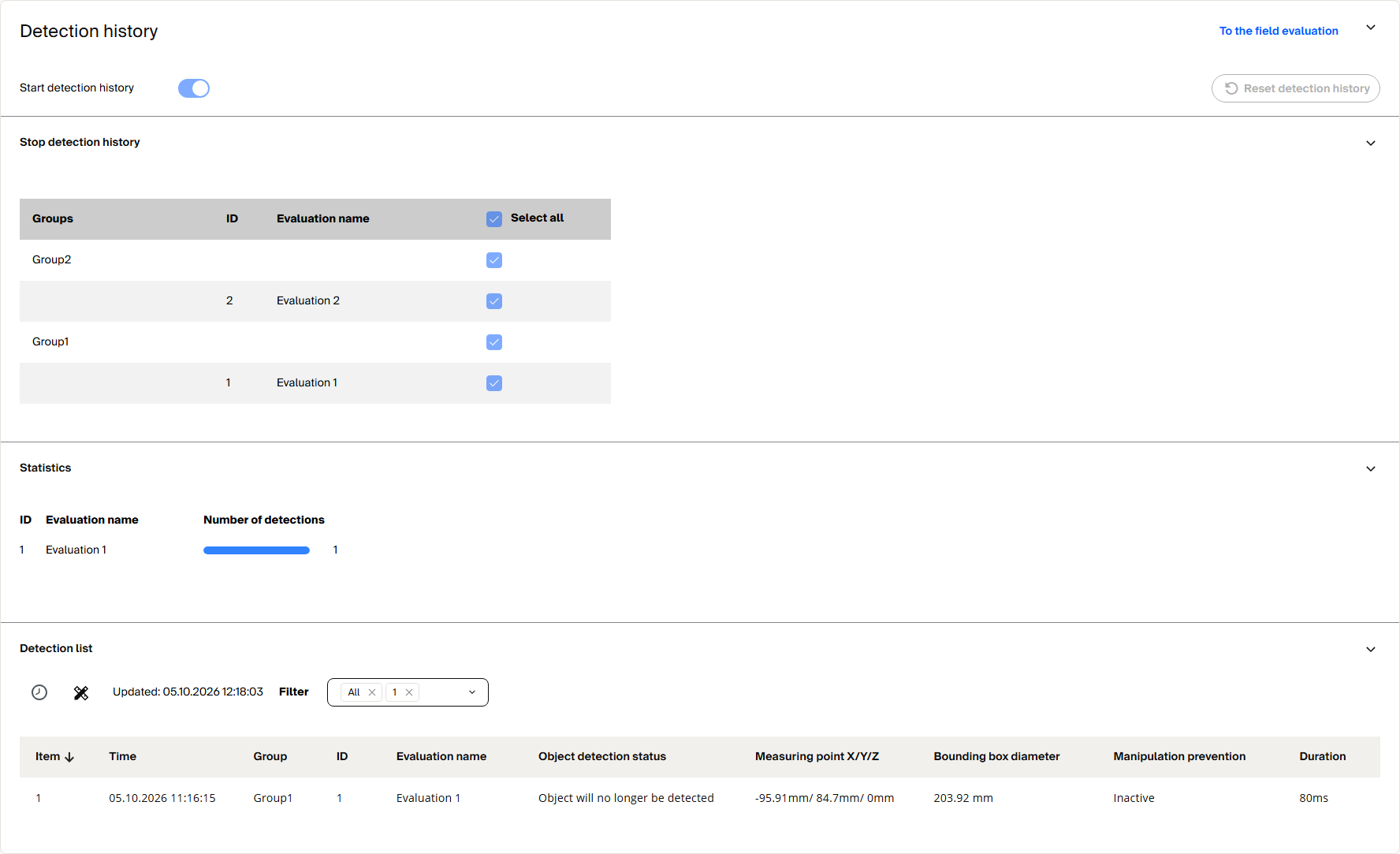
Detection counts per evaluation.