Getting Started
Connect the Sensor
- Connect the sensor directly to the computer with Ethernet. The device must be powered, and at least one LED must be green. For the connector layout and pin assignment, see the electrical connection page for LRS4000, multiScan100, multiScan200, or picoScan100.
- Give the computer's Ethernet adapter a static address in the sensor subnet. Leave the computer's gateway empty.
Connect the Sensor: device, IP address, and subnet mask.
| Device | IP address | Subnet mask |
|---|---|---|
| Sensor | 192.168.0.1 |
255.255.255.0 |
| Computer | 192.168.0.100 |
255.255.255.0 |
The factory sensor address is 192.168.0.1 for LRS4000, multiScan100,
multiScan200, and picoScan100. Check the device label or the saved project
documentation if the sensor does not respond at that address.
On Windows, open Settings → Network & internet → Ethernet → IP assignment → Edit, select Manual, enable IPv4, and enter the computer's values:
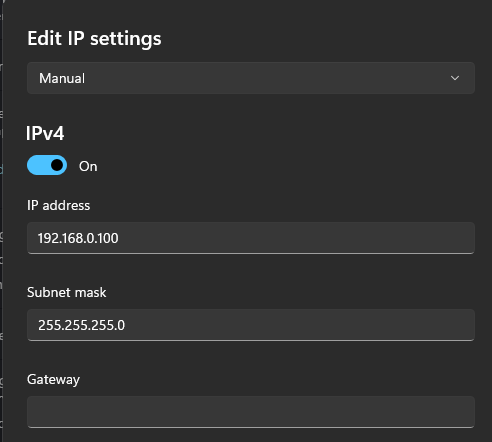
Example Windows configuration for a direct Ethernet connection.
On Windows, also set the network profile of this adapter to Private. A Public profile blocks inbound UDP data and DDS discovery.
Open the Web Interface
Open http://<sensor-ip>/ in Chrome, Edge, or Firefox. With factory settings, use http://192.168.0.1/.
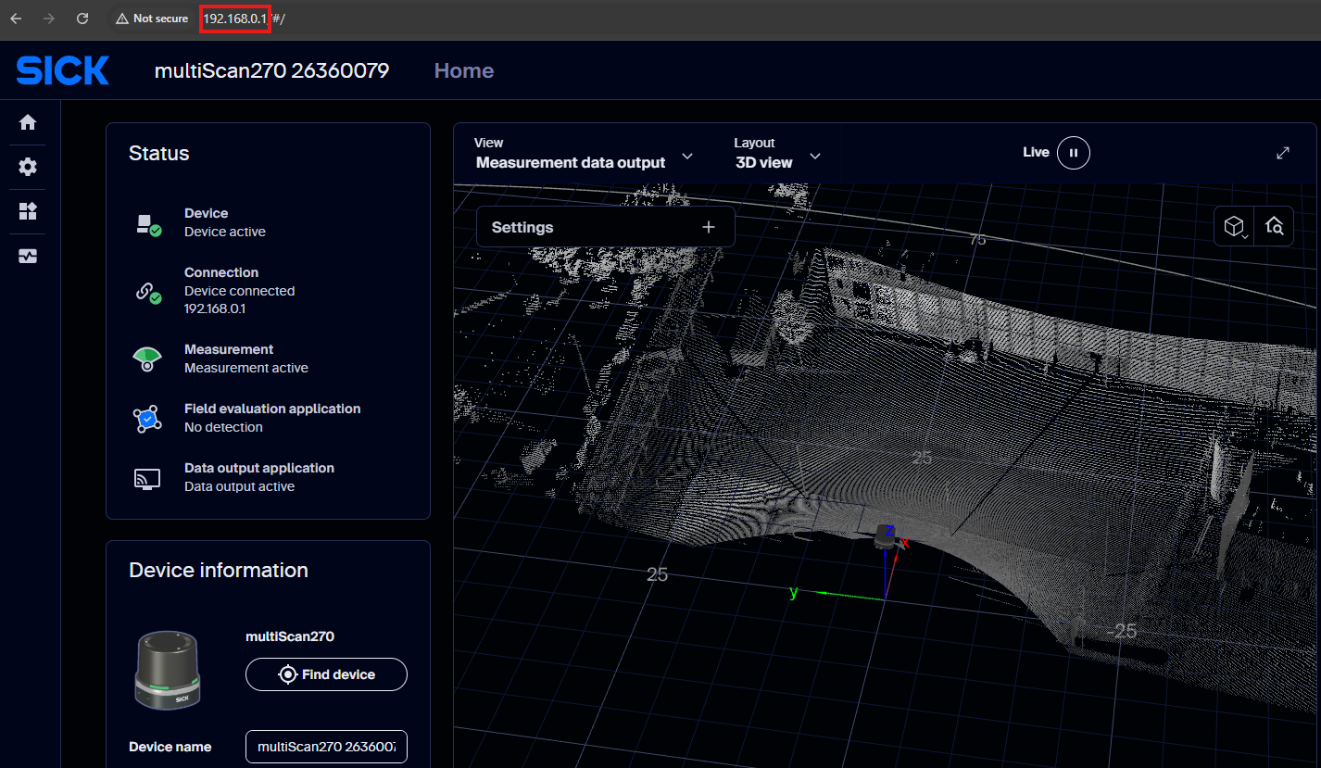
SOPASair Home page opened at 192.168.0.1.
If the page does not load, check the subnet settings above or find the sensor on the network.
Log In
Reading values needs no login. Changing settings requires a login with an enabled user level. On multiScan200 and picoScan100, the factory state has Maintenance and Authorized Client disabled. Log in as Service first, enable only the levels required by the deployment, and change the default passwords during commissioning.
Change the IP Address
To use the sensor in your own network, give it an address in that network:
- In the web interface, log in and open Configuration → Connection options.
- Set Addressing mode to Static, or to DHCP if a DHCP server assigns the address.
- Enter the IP address, Subnet mask, and Default gateway. The IP address must be unique in the network.
- Click Apply. The browser loses the connection to the sensor.
- If the new address is in another subnet, change the computer's Ethernet adapter accordingly. Then open the web interface at the new address and click Save permanently.
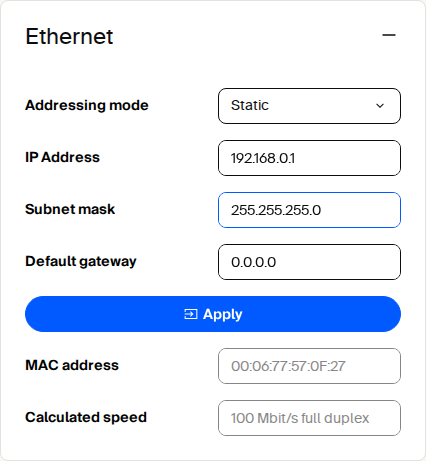
Ethernet settings under Configuration → Connection options.
On the multiScan200, restart the device after changing the static IP address so that Native ROS 2 topics are published correctly.