User Levels
User levels control who can change the sensor configuration. Reading live data and status does not require a login, but configuration changes, methods, and protected API requests do.
User Levels: user level and factory state on multiScan200 and picoScan100.
| User level | Factory state on multiScan200 and picoScan100 |
|---|---|
| Service | Enabled |
| Maintenance | Disabled |
| Authorized Client | Disabled |
For multiScan200 and picoScan100, only Service is enabled in the documented factory state. Check the product documentation for the multiScan100 or LRS4000 variant to confirm its factory state. On devices where the other levels are disabled, a Service-level user must enable them before they can be selected. Activate only the levels required by the deployment, then assign and protect their passwords before handing the system over.
Enabling a User Level
Log in to SOPASair with the Service user level, open the user-level management settings, enable the required level, and set its password. Save the configuration permanently with Write EEPROM so the setting persists after a power cycle.
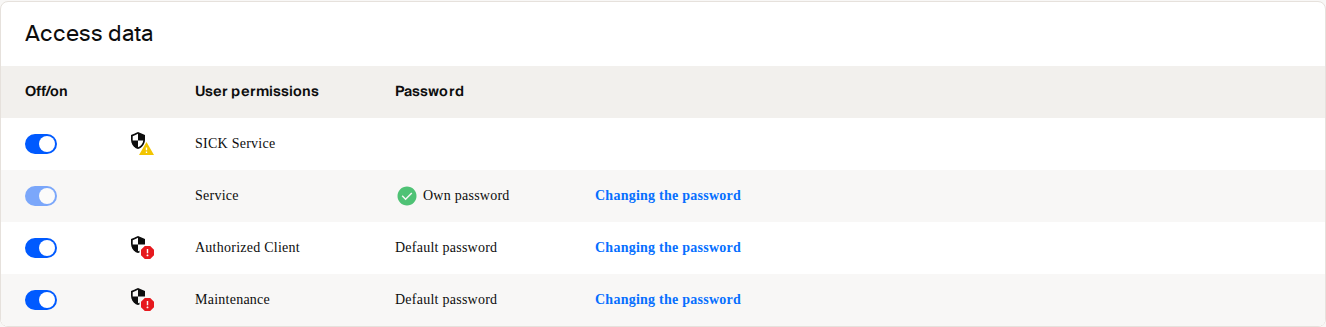
Access this tile in SOPASair via Diagnostic → Cybersecurity.
REST API clients enable or disable REST user levels with EnableUserLevel. In the challenge-response header.user field, write the levels as Service, Maintenance, and AuthorizedClient. CoLa A/B clients use EnableLegacyUserLevel for their respective user levels. Authenticate these changes as Service, and use a fresh challenge-response value for each protected REST request.
See REST API / OpenAPI for REST authentication and Challenge Response Authentication for the request flow.
Resetting the Password
- Establish a connection to the product in the web browser.
- Select Log In.
- Select Password forgotten?.
- Send the device key, serial number, and part number by email to the responsible SICK sales company or the responsible SICK service partner, see sick.com/worldwide.
- Click Next to confirm.
- The window for entering a code appears. You can get the code from the responsible SICK sales company or the responsible SICK service partner. The code is only valid once for the reset process. You can close the window by clicking on the x without interrupting the reset process. If you select Cancel or enter an incorrect code several times, the current reset process is terminated. The requested code is no longer valid. The process must be restarted.
- Optional: close the window. At a later time, open the window for entering the code via Settings and Password forgotten?.
- Enter the code.
- Click Reset to confirm.
- The password is reset to the default password. Parameters are not changed.