LiDAR License Management
Some device functions require a license. Use the device's license manager to transfer an issued license code to the device. The exact screens and available options can vary by device and firmware.
Before You Begin
- Obtain a valid license code for the device. The code is formatted as five groups separated by hyphens.
- Connect to the device and open its web interface.
Activate a License
- In a browser, connect to the device at
http://<device-IP-address>/. On the device overview, choose View licenses.
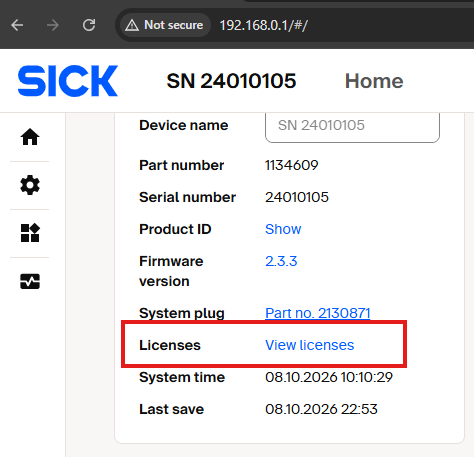
Open the license overview from the device home page.
- In the license overview, choose Activate license.

The license overview also provides the action to deactivate returnable licenses.
- Select whether the device has an internet connection for the transfer, then choose Next.
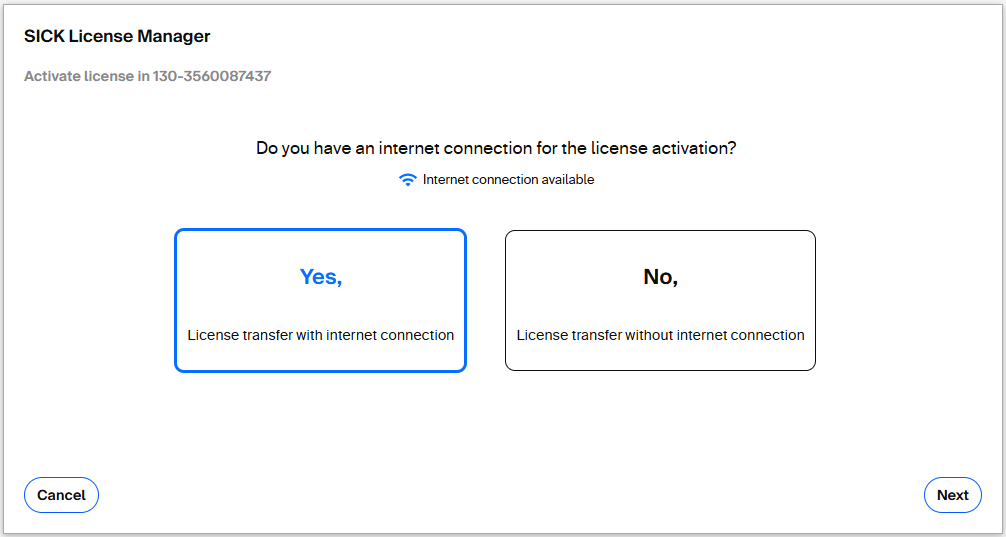
Choose the transfer route that matches the device's network access.
- Enter or copy the license code. If the license ticket contains several entries, select the license entries to transfer, then continue.
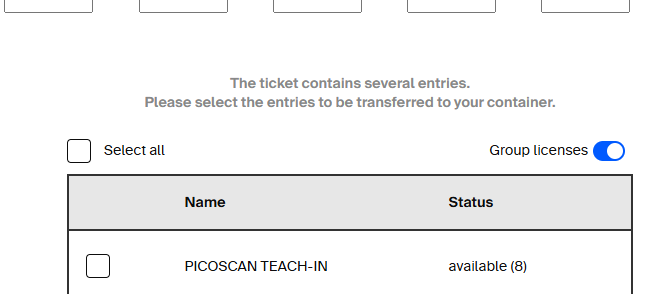
Select the entries that should be transferred to the device.
-
When the transfer succeeds, close the confirmation and check the updated license overview.
-
Reboot the device.
Deactivate or Return a License
In the license overview, choose Deactivate license. During license selection, enter the license code for the license to deactivate, choose a license marked as returnable, then continue and confirm.