Firmware Update
The available update methods depend on the product family and firmware. multiScan100 firmware can be updated through SOPAS ET, Sentio Creator, the web UI (SOPASair), or supported REST endpoints. LRS4000 firmware can be updated through SOPAS ET or SICK AppManager. Check the product-specific release notes before updating.
Where to Get the Package
Download the package that matches your device and target version from the device's product page on sick.com under Downloads / Software.
For multiScan100, multiScan200, and picoScan100, Sentio Creator, which can also provide firmware packages as well.
Read the release notes for your device before you update: LRS4000, multiScan100, multiScan200, or picoScan100.
Web GUI
Open the device's firmware page in SOPASair and follow the update workflow.
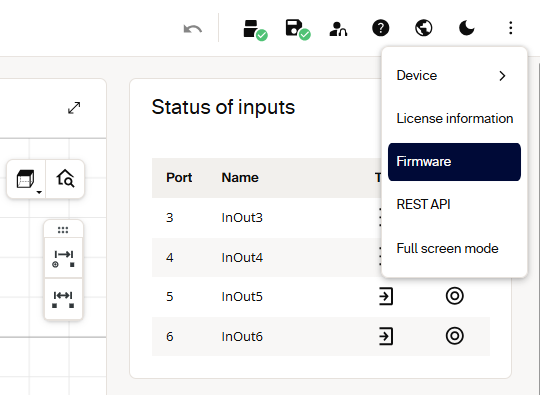
Firmware update in the Web GUI.
Sentio Creator
Use Sentio Creator to discover the device, select the firmware version, and install the update.
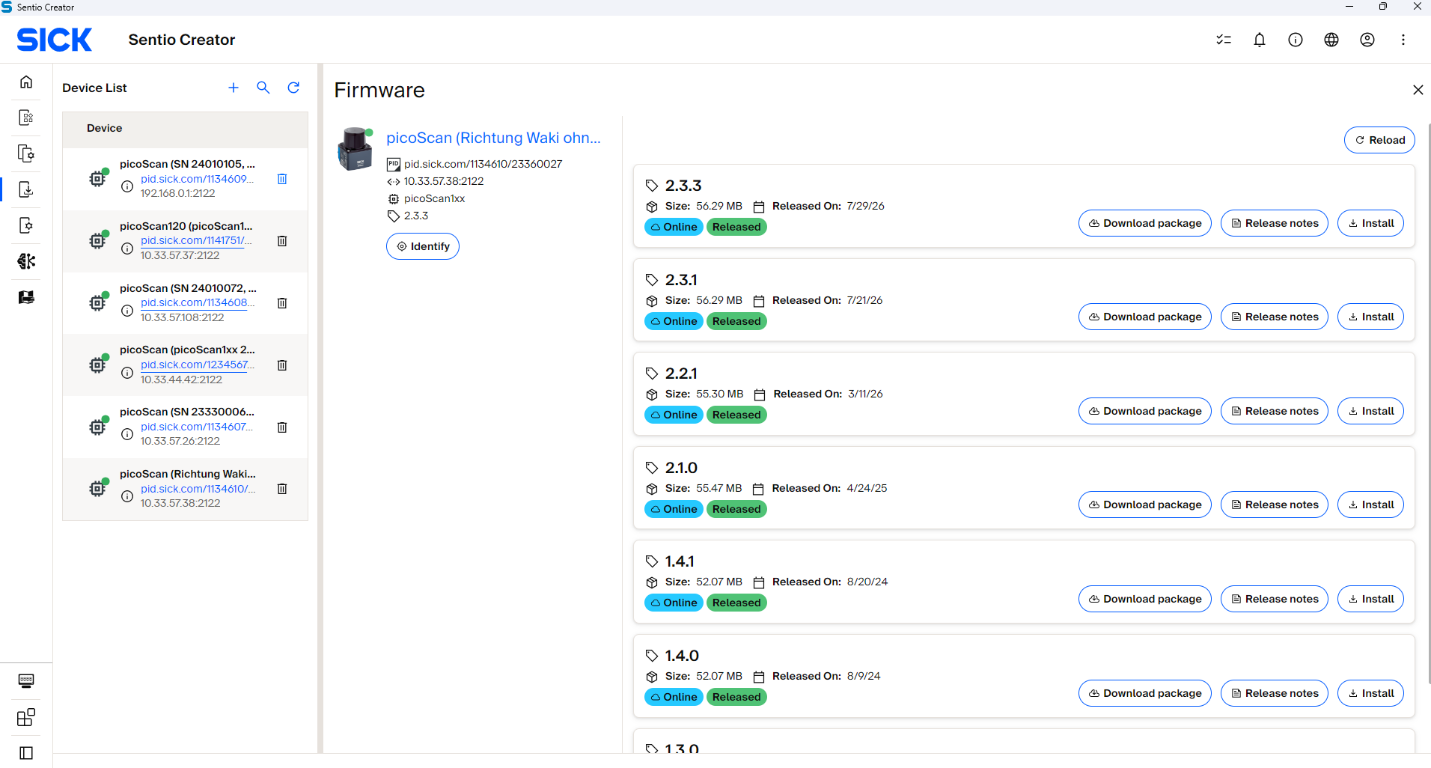
Firmware update in Sentio Creator.
Headless via the REST API
Automate the update with the five steps below. Run them in order; skipping or reordering steps can leave the device in an inconsistent state. After flashing, the device reboots automatically and is unreachable for a few minutes. The update is successful only when the device is back online with the expected version.
Get a Session Token
multiScan200 and picoScan100 use POST /api/CreateSessionToken at Service
level with challenge-response
in the JSON body. This endpoint also accepts HTTP Basic authentication, which
is convenient in scripts:
POST /api/CreateSessionToken
Authorization: Basic <base64(Service:<password>)>
Content-Type: application/json

{}
Basic authentication sends the password only Base64-encoded. Use it only over HTTPS or on an isolated network.
The response contains the session token:
The multiScan100 REST interface documents /update, RunFirmwareUpdate, and
UpdateState, but not CreateSessionToken. Use the authentication flow from
the release notes or the OpenAPI file for the installed firmware.
Upload the Package
PUT /api/update with the firmware file as the binary body. On multiScan200
and picoScan100, the X-Session-Token header authorizes this transfer, so
Basic Auth is not required here.
PUT /api/update
X-Session-Token: <token>
Content-Type: application/octet-stream

<binary firmware file content>
A 200 OK confirms the package was received.
Start the Update
RunFirmwareUpdate is a protected method requiring challenge-response in the JSON body. Basic Auth and the session token are not accepted here, so fetch a fresh challenge immediately before calling it.
Fetch a fresh challenge and compute the hash for POST:RunFirmwareUpdate, then send it in the JSON body:
{
  "header": {
    "nonce": "...",
    "opaque": "...",
    "realm": "...",
    "user": "Service",
    "response": "<computed hash>"
  }
}
Poll the Update State
GET /api/UpdateState every ~5 s until it reaches Finished (2) or the device becomes unreachable (reboot started). Stop on Error (3) and investigate before retrying.
Example response:
Verify the New Version
After the device is back online, read the identity and compare against the expected version:
Example response:
DeviceIdent.Version and GET /api/FirmwareVersion may format the same firmware version slightly differently, so normalize them before comparing.
UpdateState Values
UpdateState Values: value, state, and meaning.
| Value | State | Meaning |
|---|---|---|
| 0 | Initial | No update in progress. Package may be uploaded but flashing hasn't started. |
| 1 | Started | Flashing in progress. Do not power-cycle the device. |
| 2 | Finished | Flash complete; the device reboots automatically. |
| 3 | Error | Update failed. Check package compatibility and retry. Do not power-cycle immediately. |
Error Handling
PUT /api/updatereturns 403: Missing or expired session token. Create a fresh token and addX-Session-Token.RunFirmwareUpdatereturnsheader.status4 (Access Denied) or 10 (Invalid Challenge): Basic Auth or the session token was used instead of challenge-response, or the challenge was invalidated. Use a new challenge forPOST:RunFirmwareUpdate.UpdateState= 3 (Error): Wrong package or an unsigned package on firmware V2.2.0 or later. Download the correct.spk.signedand retry.- Device never returns: Normal reboot takes 2-5 minutes. Wait and keep UDP sockets open across the reboot.
While UpdateState is Started (1), never power-cycle the device. Allow 2-5 minutes total for the flash and reboot. Keep measurement sockets open across the reboot, so the OS doesn't buffer an ICMP port-unreachable message that would break the first recv() call afterwards (on Windows, apply SIO_UDP_CONNRESET).
On picoScan100, subscribe to the UpdateState WebSocket event instead of polling to get progress pushes during the flash. On multiScan200 and picoScan100, verify integrity after the update with the LFTchecksum: a firmware change updates MD5LinuxRoot and MD5App but leaves MD5Parameters and MD5Calibration untouched.
Related Articles
How to perform a firmware update via HTTP.
How to perform a firmware update with SOPASair.
How to perform a firmware update with SOPAS ET.