Time Synchronization
This page describes how to synchronize sensor clocks with NTP or other time sources. Accurate timestamps help you align measurements from multiple sensors and correlate scans with external system events.
NTP Time Synchronization
NTP synchronizes the sensor clock with an NTP server on the network. Use it when timestamps must match a common time base across systems, such as recorded sensor data, logs, or external applications.
An Ubuntu host on the sensor network can provide a shared clock without Internet access. Install and start the NTP service to set up an offline Ubuntu NTP server:
Configure /etc/ntp.conf to use the host's local clock and accept local queries:
Restart the service after changing the configuration:
To configure the sensor as an NTP client in SOPASair, open Configuration → Basic settings → Date and system time, choose the time zone and update rate, and enter the Ubuntu host's IP address. Save the settings and allow time for the next configured update. The sensor status page shows when synchronization completes.
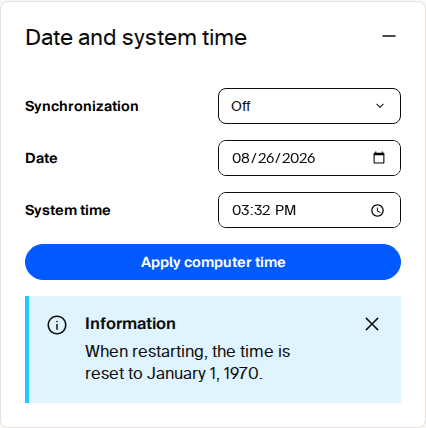
Date and system time tile in SOPASair.
Through the REST API, set TSCRole to 1 for NTP client mode and set TSCTCSrvAddr to the server address. TSCRole accepts 0 (no time synchronization), 1 (NTP client), and 3 (PTP slave); other values are rejected with header.status 9 (Illegal Value). The sensor cannot act as an NTP server. LSPdatetime reads the current sensor time and LSPsetdatetime sets it manually.
To verify connectivity, check the service and local time on Ubuntu with sudo systemctl status ntp and timedatectl. Test the server with ntpdate -q 127.0.0.1, inspect NTP packets with sudo tcpdump -i any udp port 123 -v, and permit NTP through UFW with sudo ufw allow 123/udp when UFW is enabled.
Ensure that the sensor can reach the selected NTP server through the configured network and firewall. See REST API / OpenAPI for parameter access.
PTP Time Synchronization
PTP synchronizes the sensor clock with other devices on a local network using the Precision Time Protocol. Use it for high-precision timestamp alignment when data from multiple sensors or other time-sensitive systems must be fused.
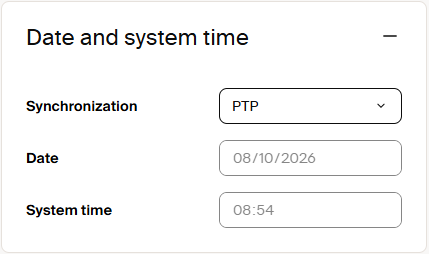
Date and system time settings with PTP selected.
Sensor Settings
The sensor uses fixed IEEE 1588 PTPv2 End-to-End (E2E) settings. It operates as an ordinary clock receiving synchronization from a master. Step mode is detected automatically: software PTP uses one-step operation and hardware PTP uses two-step operation. Its clockClass is 255, indicating slave-only operation.
Master Configuration
Configure the PTP grandmaster with settings compatible with the sensor:
Master Configuration: parameter and required value.
| Parameter | Required value |
|---|---|
| PTP profile | IEEE 1588 PTPv2 E2E |
| Transport protocol | UDPv4 |
logAnnounceInterval |
1 (2 seconds) |
logSyncInterval |
0 (1 second) |
announceReceiptTimeout |
3 |
logMinDelayReqInterval |
0 (1 second) |
| Domain number | 0 |
Enable PTP in the sensor time-synchronization settings, or set TSCRole to 3 through the REST API, then connect it to this compatible PTP grandmaster. All participating devices must use the same domain, and network infrastructure must forward PTP traffic correctly.
With native ROS 2 on multiScan200 and picoScan100, the device publishes its hardware PTP timestamp in each message header. See Native ROS 2 for the available topics.