Smart Shelf
Smart shelves record which compartment goods are taken from or put into. A 2D LiDAR scans a light curtain in front of the rack. The sensor evaluates the data itself and reports where the curtain is crossed. Software turns this position into a compartment and checks if the pick was correct.
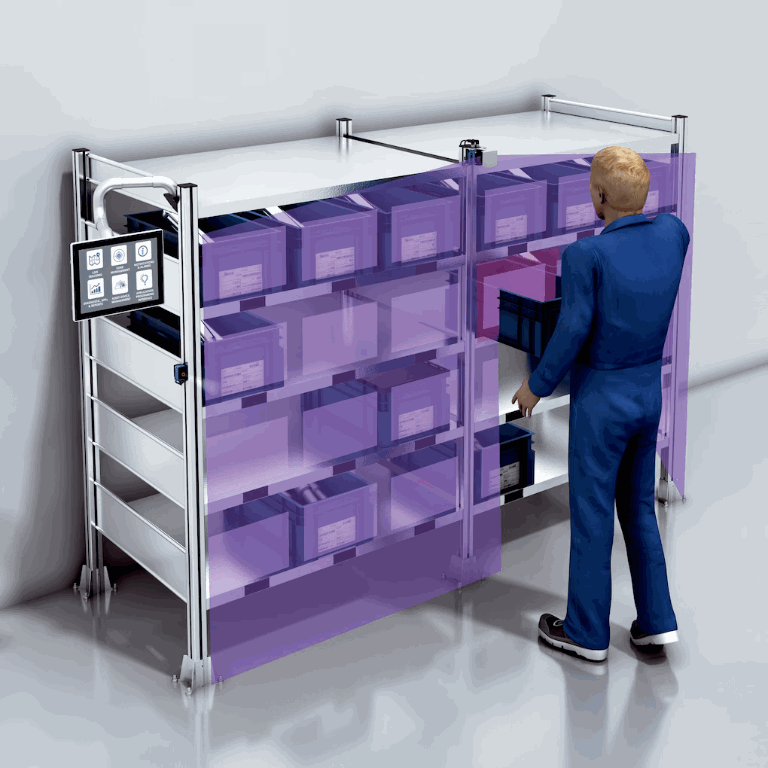
Smart shelf: the scan plane in front of the rack shows where a hand reaches in.
In this project, a picoScan stands in front of a desktop monitor. The browser draws a shelf on the screen. Touch a compartment with a pen and it lights up.
What You'll Learn
- How on-device perpendicular distance turns the scan plane into a light curtain.
- How a browser receives sensor events directly over WebSocket.
- How a three-point teach-in maps sensor coordinates to screen positions.
Before You Start
- A picoScan, for example picoScan150, on the same network as your computer (Getting Started).
- A browser. No server, Python or SICK SDK is needed.
- Place the picoScan on the desk at the lower-left edge of the monitor so the scan plane runs just in front of the screen.
Solution Path
Perpendicular distance on the sensor → WebSocket event → pen position → compartment → dwell time → pick check
- Set up Perpendicular Distance Measurement with a field that covers the screen. Use a small minimum object size, for example 10 mm, so a pen is detected.
- The browser subscribes to
perpendicularDistanceResultonws://192.168.0.1/apievents(WebSocket Events). - The middle of the minimum and maximum distance positions is the pen position in millimeters.
- A three-point teach-in maps sensor millimeters to screen pixels.
- The pen must stay in one compartment for 150 ms to count as a pick.
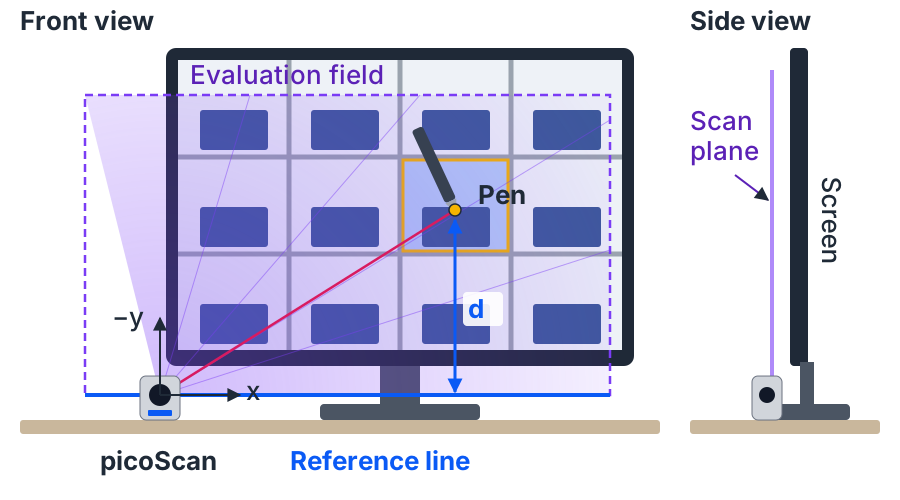
Setup: the picoScan stands at the lower-left screen edge and scans just in front of the screen. The laser beam measures in polar coordinates; the sensor reports the perpendicular distance d to a horizontal reference line.
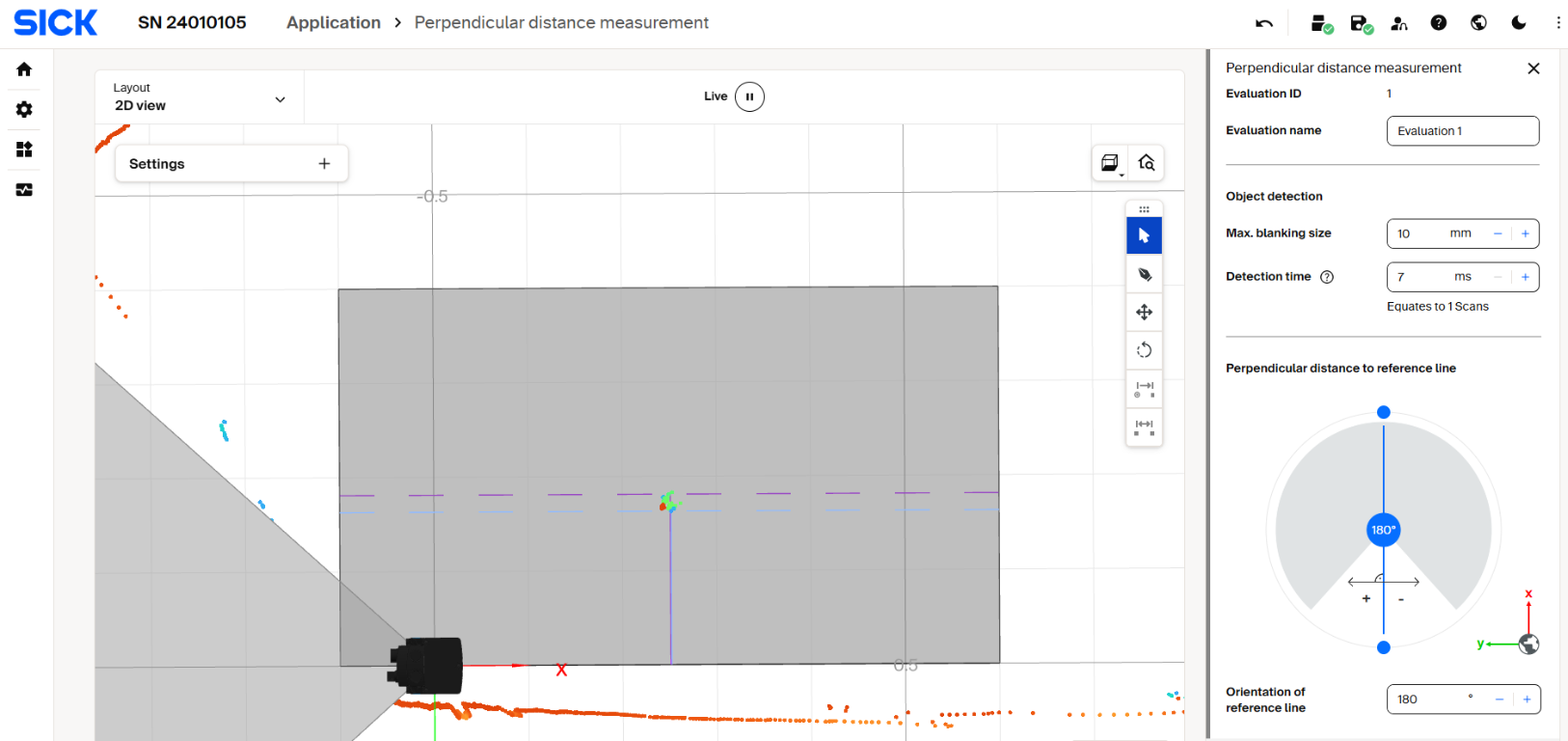
Perpendicular distance field in SOPASair. The field covers the screen in front of the sensor.
The browser connects to the sensor directly. It registers once and then gets an event each time the result changes:
Register message for the perpendicular distance result.
Each event carries one entry per evaluation. Distances and positions are in millimeters:
{
  "type": "event",
  "event": "perpendicularDistanceResult",
  "clientId": 1,
  "status": 0,
  "data": {
    "perpendicularDistanceResult": {
      "timestamp": 4773260000,
      "evaluations": [
        {
          "evaluationId": 1,
          "minimumDistance": 176,
          "maximumDistance": 184,
          "minimumDistancePosition": {"x": 318, "y": -176, "z": 0},
          "maximumDistancePosition": {"x": 322, "y": -184, "z": 0}
        }
      ]
    }
  }
}
Example event with a pen in the field. The pen position is the middle of both positions: x 320 mm, y −180 mm.
minimumDistanceandmaximumDistanceare the smallest and largest perpendicular distances to the reference line inside the field.minimumDistancePositionandmaximumDistancePositionare the scan points with these distances, in sensor coordinates.- The register reply has the same
dataand already holds the current result.
An empty field reports all distances and positions as zero. The app treats this as "no object".
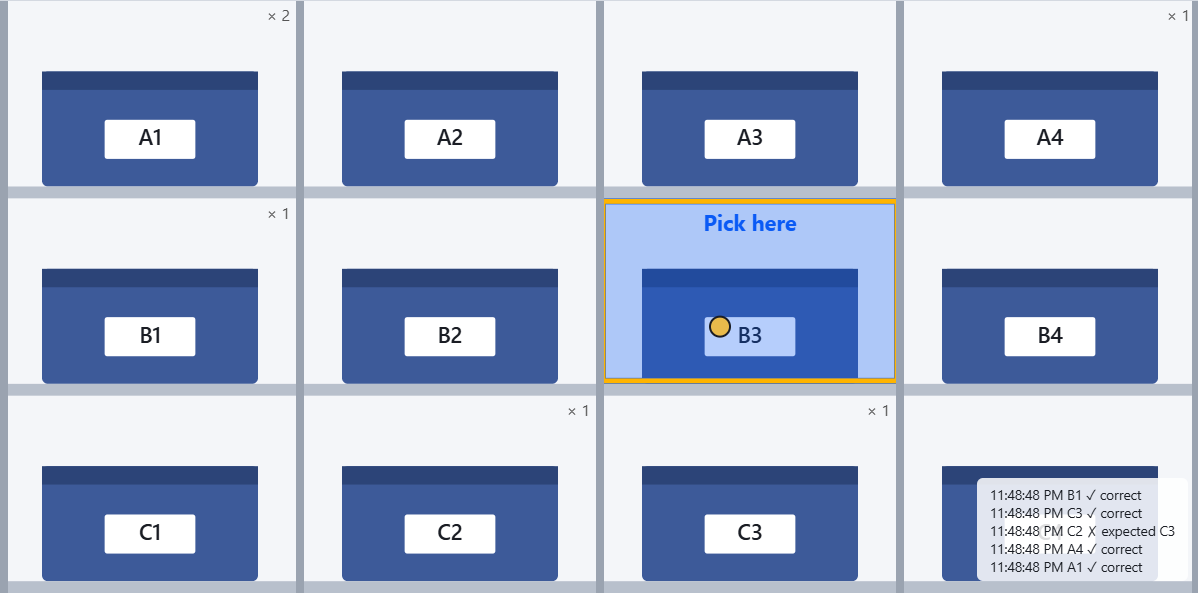
Smart shelf in the browser: the blue compartment is the pick target, the yellow dot is the pen.
Check the Result
- Without a sensor, a mouse drag over a compartment lights it up.
- With the sensor, the status shows "Connected" and the pen position updates when you touch the screen.
- After the teach-in, the yellow dot sits under the pen tip.
- A quick pass through a compartment does not count; holding the pen in one does.
- In pick-to-light mode, the target flashes green and other compartments flash red.
Project Prompt
Paste this prompt into your coding assistant in a new workspace. It asks for the browser app, tests and a README.
Expand to view the complete project prompt
Build a beginner-friendly level-two project called "picoScan Smart Shelf".
A SICK picoScan100 stands at the lower edge of my desktop monitor. Its
perpendicular distance evaluation is already configured on the sensor and
covers the screen. The browser draws a shelf on the screen. When I touch a
compartment with a pen, the compartment lights up.
Deliver working files, not a plan. Work in a new folder outside the
developer guide. Use plain HTML, CSS and JavaScript with Canvas. No build
step, framework, server, Python or SICK SDK. Opening index.html must be
enough. Keep the code easy to follow.

Sensor data:
- Connect the browser directly to ws://<sensor-ip>/apievents. Default IP
  192.168.0.1. WebSockets need no CORS, so this works from file://.
- Send {"type":"register","event":"perpendicularDistanceResult",
  "clientId":1}. The register reply already contains the current result;
  handle it like an event. Reconnect after 2 s when the socket closes.
- Events only arrive when the result changes. Run dwell timing on a timer
  or animation frame, not only on incoming messages.
- Read data.perpendicularDistanceResult.evaluations and pick the entry with
  the configured evaluationId (default 1). Use the middle of
  minimumDistancePosition and maximumDistancePosition (x, y in mm) as the
  pen position. If both positions are 0,0, the field is empty.
- Do not call the REST API from the browser. It sends no CORS headers.

Shelf:
- Draw a shelf with uprights, boards and labeled bins (A1, A2 ... with row A
  at the top). Default 3 rows x 4 columns, filling the canvas.
- Default mapping: the field rectangle x -100..600 mm, y -400..0 mm fills
  the canvas; screen up is negative y.
- Add a teach-in: show three crosshair targets near the top-left,
  top-right and bottom-left corners. I hold the pen on each target. Accept
  a point when it stays within 15 mm for 700 ms and average the samples.
  I must lift the pen before the next target. Esc cancels. Solve an affine
  transform from the three points so any rotation or mirroring works.
  After teach-in, ignore sensor input until the pen is lifted.
- A pick is one visit to a compartment that lasts at least the dwell time
  (default 150 ms). A quick pass through a compartment is not a pick.
- Show the live pen as a yellow dot and outline its compartment. Count
  picks per compartment.
- Toolbar: connection status, pen position and compartment, score, and
  buttons for start picking, teach corners, settings and full screen.
- Settings dialog: sensor IP, evaluation ID, rows, columns, dwell time and
  the field rectangle. Store settings and the teach-in in localStorage.
  Warn if the window size changed since the teach-in.

Put parsing, the affine transform, the compartment lookup and the pick
detector in one pure module and test it with node:test. Include a README
with setup, teach-in and test commands. If you add a Python test client,
disable WebSocket keepalive pings; the sensor does not answer them. Test
with the real sensor and state clearly what was verified with hardware.