Third-Party Tools
Insomnia and Postman are desktop REST clients that can import the sensor's OpenAPI file. They prepare requests for the documented endpoints so you can explore and test the REST API interactively before writing client code. Writes require challenge-response authentication; the following sections describe how to configure each client.
Download the openapi.yaml matching the device and firmware from the SICK
product page under Software. Your computer must be able to reach the sensor,
normally at 192.168.0.1, and you need the password for an enabled user level.
See User levels.
Insomnia
Create a Collection from openapi.yaml
Download the OpenAPI YAML that matches the sensor and firmware: LRS4000, multiScan100, multiScan200, or picoScan100.
In Insomnia:
- Open the workspace and select Import → File.
- Choose the downloaded
openapi.yaml, then select Scan. - Review the detected resources and select Import. Insomnia creates an API Collection and places the OpenAPI definition in its Spec tab.
- In the Spec tab, open the settings menu beside Preview and select Generate Collection to create sendable requests from the specification.
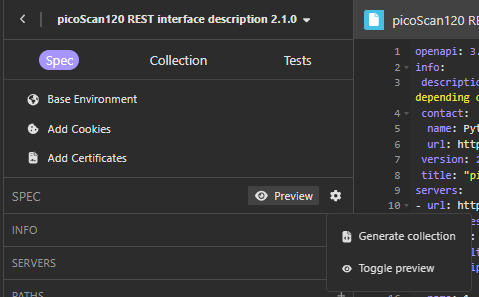
Generate a request collection from the imported OpenAPI specification.
See Insomnia's guide to importing an API specification for screenshots and version-specific details. The generated requests document the endpoints, but write requests still need the SICK challenge-response authentication configured below.
The SICK challenge-response plug-in
calculates the authentication hash for POST requests. Download the plug-in,
then in Insomnia open Application → Preferences → Plugins, install it, and
reload plug-ins.
Set the environment to your sensor address and credentials:
{
  "address": "192.168.0.1",
  "base_url": "http://{{ _.address }}/api",
  "user": "Service",
  "password": "<password>",
  "enableAuthentification": true
}
Replace the example address, user, and password with the values for your
sensor. Keep the variable name enableAuthentification exactly as shown; the
plug-in reads this spelling. The plug-in requests the challenge over plain HTTP
from address. Keep credentials private; do not include them in exported
environments or version control.
Postman
The Postman setup below is intended for demonstration and evaluation; review, test, and adapt it before production use.
Import the OpenAPI File
In Postman, select Import, choose the downloaded openapi.yaml, and import it
as a collection. The collection contains prepared requests for the sensor
endpoints. Imports normally use {{baseUrl}}; configure this variable in an
environment.
Create an Environment
Create an environment named, for example, SICK REST Auth, add the following variables, and select it in Postman's environment selector.
Create an Environment: variable, example value, and purpose.
| Variable | Example value | Purpose |
|---|---|---|
baseUrl |
http://192.168.0.1/api |
Sensor REST API base URL |
user |
Service |
Enabled sensor user level |
password |
Enter in Current value only | Device password |
enableAuthentication |
true |
Enables the script |
challengePath |
/getChallenge |
Challenge endpoint, relative to baseUrl |
Keep the password's Initial value field empty so it is not exported or shared. Mark it as sensitive if available. Do not put credentials in requests, scripts, exported collections, or version control.
Add the Pre-Request Script
Open the imported collection, choose Scripts > Pre-request, paste the following script, and save. A collection-level script applies to every request in that collection; repeat this step after importing a new collection.
(function () {
  "use strict";

  function isTrue(value) {
    return String(value).toLowerCase() === "true";
  }

  function bytesToWordArray(bytes) {
    const words = [];
    for (let index = 0; index < bytes.length; index += 1) {
      words[index >>> 2] |= (bytes[index] & 0xff) << (24 - (index % 4) * 8);
    }
    return CryptoJS.lib.WordArray.create(words, bytes.length);
  }

  function calculateAuthHeader(user, password, challenge, method, endpoint) {
    const hash1 = challenge.salt == null
      ? CryptoJS.SHA256(`${user}:${challenge.realm}:${password}`).toString()
      : CryptoJS.SHA256(
        CryptoJS.enc.Latin1.parse(`${user}:${challenge.realm}:${password}:`)
          .concat(bytesToWordArray(challenge.salt)),
      ).toString();
    const hash2 = CryptoJS.SHA256(`${method}:${endpoint}`).toString();

    return {
      nonce: challenge.nonce,
      opaque: challenge.opaque,
      realm: challenge.realm,
      response: CryptoJS.SHA256(`${hash1}:${challenge.nonce}:${hash2}`).toString(),
      user,
    };
  }

  const method = pm.request.method.toUpperCase();
  const url = pm.variables.replaceIn(pm.request.url.toString());
  if (
    !["POST", "PUT", "PATCH", "DELETE"].includes(method) ||
    url.includes("/getChallenge") ||
    !isTrue(pm.environment.get("enableAuthentication"))
  ) {
    return;
  }

  const baseUrl = pm.environment.get("baseUrl")?.replace(/\/+$/, "");
  const user = pm.environment.get("user");
  const password = pm.environment.get("password");
  if (!baseUrl || !user || !password) {
    throw new Error("[AUTH] Set baseUrl, user, and password in the active environment.");
  }

  const path = new URL(url).pathname.replace(/^\/api\//, "").replace(/^\/+|\/+$/g, "");
  if (!path) {
    throw new Error(`[AUTH] Cannot determine endpoint from ${url}.`);
  }

  const rawBody = pm.variables.replaceIn(pm.request.body?.raw || "{}");
  let body;
  try {
    body = JSON.parse(rawBody);
  } catch {
    throw new Error("[AUTH] The request body must be valid JSON.");
  }

  const challengePath = pm.environment.get("challengePath") || "/getChallenge";
  pm.sendRequest({
    url: `${baseUrl}${challengePath.startsWith("/") ? "" : "/"}${challengePath}`,
    method: "POST",
    header: { "Content-Type": "application/json" },
    body: { mode: "raw", raw: JSON.stringify({ data: { user } }) },
  }, (error, response) => {
    if (error) throw new Error(`[AUTH] Challenge request failed: ${error}`);
    if (!response || response.code !== 200) {
      throw new Error(`[AUTH] Challenge returned HTTP ${response?.code ?? "no response"}.`);
    }

    const challenge = response.json().challenge;
    if (!challenge?.realm || !challenge?.nonce) {
      throw new Error("[AUTH] Unexpected challenge response.");
    }

    pm.request.body.update({
      mode: "raw",
      raw: JSON.stringify({
        header: calculateAuthHeader(user, password, challenge, method, path),
        data: body.data,
      }),
      options: { raw: { language: "json" } },
    });
    pm.request.headers.upsert({ key: "Content-Type", value: "application/json" });
  });
}());
Send an Authenticated Write
Open the POST request for LocationName, set the body type to raw JSON, and
provide only the data object:
With the environment active and enableAuthentication set to true, send the
request. The Postman Console should show a successful POST to getChallenge,
followed by the request to LocationName. A response header with "status": 0
confirms success. Set enableAuthentication to false to verify that the
device rejects the protected write.
The script leaves GET requests unchanged. For each write request, it obtains
a fresh one-time challenge, calculates the SHA-256 challenge-response hash,
and adds the resulting authentication header to the outgoing JSON body. See
Challenge-Response Authentication
for the underlying protocol.
Troubleshooting
Troubleshooting: symptom, likely cause, and fix.
| Symptom | Likely cause | Fix |
|---|---|---|
getaddrinfo ENOTFOUND {{baseUrl}} |
No active environment | Select the environment in the top-right selector. |
Access Denied |
Script did not run, user level is disabled, or credentials are wrong | Confirm the collection-level script and enabled user level; check credentials. |
| Missing-variable error | Environment values are incomplete | Set baseUrl, user, and the Current value for password. |
| No authentication on a write | Authentication is disabled or request is a GET |
Set enableAuthentication to true; GET requests do not need authentication. |
The Postman Console is the first diagnostic step: a healthy protected request
shows a getChallenge call immediately before the endpoint call.