Configuration
Choose the scan configuration and the core measurement behaviour. Resolution, frequency, and range trade off against each other.
Live capture from a picoScan100's web interface. Try it yourself in the Virtual Sensor Lab.
The live scan on the left updates as you change the configuration, which is the quickest way to judge a setting.
Filter
Clean up the scan before it leaves the sensor by suppressing extra echoes, artefacts and airborne particles.
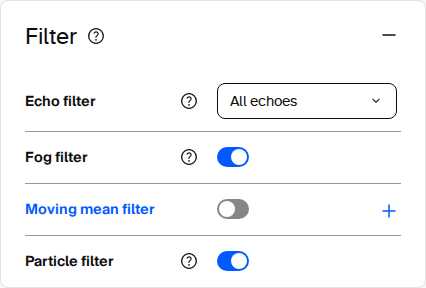
Example filter settings in the picoScan100 web interface. Select parameters according to the requirements of each application.
The echo filter selects the echo to retain from multi-echo targets, such as the first or last echo. The particle filter suppresses rain, snow, dust, and fog for steadier detection. Filtering on the device lowers bandwidth and simplifies your downstream processing.
Inertial measuring unit (IMU)
Use the IMU view to inspect the sensor's current orientation and acceleration.
Live capture from a picoScan100's web interface. Try it yourself in the Virtual Sensor Lab.
The IMU view displays the yaw, pitch, and roll angles in degrees, together with the measured acceleration on the X, Y, and Z axes in meters per second squared. The orientation indicator provides a visual representation of the current sensor position.
Use these values as a guide when checking the sensor installation or interpreting the scan coordinate system.
Contamination indication
Monitor the optics cover for dirt and get a warning before measurement quality drops.
Live capture from a picoScan100's web interface. Try it yourself in the Virtual Sensor Lab.
The contamination status provides a live reading of Clean, Minor, Heavy, or Blocked. The segment wheel identifies where contamination is accumulating around the optics cover. Configure whether contamination triggers a warning, an error, or both, and adjust the sensitivity and outputs for the environment.
Connection options
Give the sensor its permanent Ethernet identity so it fits your network.
Live capture from a picoScan100's web interface. Try it yourself in the Virtual Sensor Lab.
Choose static addressing to enter a fixed IP address, or DHCP to have a server assign the address automatically, according to your application and network requirements. The IP address must be unique on your network. The subnet mask defines which addresses are local, for example 255.255.255.0, and the default gateway provides access to other subnets. The MAC address and calculated speed are read-only values for reference and firewall rules.
- Set the addressing mode to Static.
- Enter the IP, subnet mask, and gateway for your network.
- Press Apply.
- Reconnect the browser at the new address.
Pressing Apply drops your current browser connection.
Inputs and outputs
Configure the multifunction I/O ports and map field-evaluation results and device states to physical outputs.
Live capture from a picoScan100's web interface. Try it yourself in the Virtual Sensor Lab.
Set each port as an input or an output and give it a name. Bind an output to a source, such as a field-evaluation result or a device state. Configure the logic (HIGH or LOW active), inversion, restart behaviour, and status log. The right panel shows the live status and counters for every port.
I/O is a simple way to connect a PLC when you do not want to parse the data stream.