Device discovery
There are three ways to find a sensor:
- Use the default IP for a direct first connection.
- Use SOPAS ET network search when the sensor is already connected to a local network.
- Implement discovery yourself when discovery must be part of an application or provisioning workflow.
1. Default IP
For a direct first connection, connect the sensor to the PC with Ethernet and use the fixed standard IP :
| Parameter | Value |
|---|---|
| Sensor IP address | 192.168.0.1 |
| Subnet mask | 255.255.255.0 |
Set the PC Ethernet adapter to a different address in the same subnet, for example 192.168.0.100, then open http://192.168.0.1/ in a browser. See Connect & set up for the Windows procedure.
2. SOPAS ET network search
SOPAS ET provides a graphical network search for SICK devices. Connect the sensor to the same Ethernet segment as the computer and start the search. The result lists responsive devices with their IP address, MAC address, and device identity.
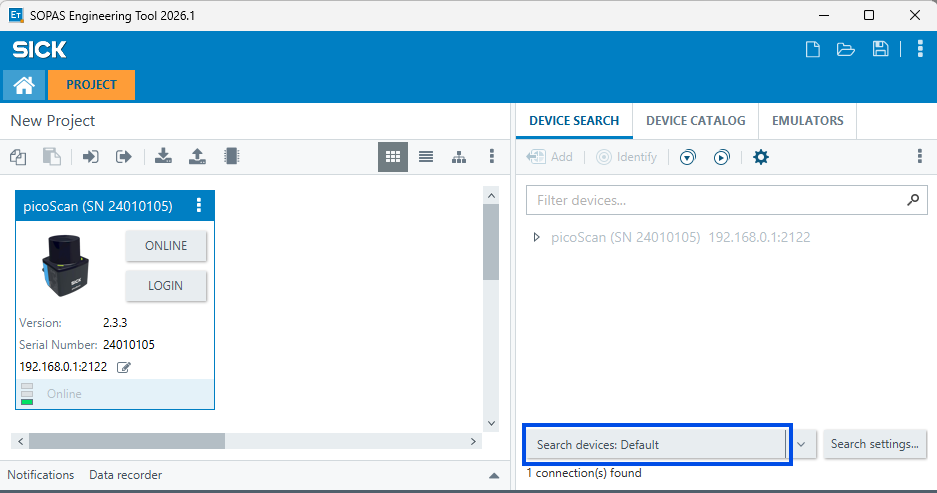
SOPAS ET network search showing a discovered picoScan device.
Use this approach when the sensor is already connected to a switch or when its configured address is unknown. The search uses the same local broadcast principle as the protocol described below; it does not cross routers.
3. Your own implementation
SICK devices answer a UDP broadcast discovery telegram, so a host on the same segment can locate every device without knowing its address in advance. This requires no authentication and no REST call: send one broadcast datagram to 255.255.255.255:30718; every responsive device replies by unicast with its full network configuration.
This is a limited broadcast: it travels only within the local segment and is discarded at every router boundary. If the device is on a different subnet, connect a host to the same segment and set the address explicitly.
Finding an address when discovery is disabled
The picoScan100 can disable SICK's proprietary UDP-broadcast discovery for cybersecurity reasons. When disabled, it does not reply to the standard search in SOPAS ET or AppManager, but it still announces its address through standard network mechanisms such as Gratuitous ARP.
Connect the sensor to your PC or a local network switch, capture packets on the relevant Ethernet interface in Wireshark, and apply the display filter:
Locate an entry whose MAC address begins with 00:06:77, the SICK device prefix, and read its IP address from the ARP packet details.
On Windows, run arp -a from an elevated Command Prompt and locate an address whose MAC begins with 00-06-77. On Linux, run arp -n and locate a MAC beginning with 00:06:77. The corresponding IP address belongs to the sensor. These commands work only when the sensor is in the current subnet; to locate a sensor outside the default subnet, configure the network adapter with a wider subnet mask such as 255.0.0.0.
Request telegram (24 bytes)
Each field is at a fixed position:
| Bytes | Field | Value / source | Description |
|---|---|---|---|
| 0 | CMD | 0x10 |
Command identifier for a scan (discovery) request |
| 1 | isBC | 0x00 |
Unicast/broadcast origin flag, set 0x00 even when broadcasting |
| 2-3 | Length | 0x00 0x08 |
Payload length, big-endian; always 8 for discovery |
| 4-9 | Host MAC | FF:FF:FF:FF:FF:FF |
Sender MAC; all-ones for a broadcast request |
| 10-13 | Request ID | random 4 bytes | Fresh random per telegram; devices echo it so you can match replies |
| 14 | Scan flag | 0x01 |
Marks a scan request; the device ignores the telegram if this isn't 0x01 |
| 15 | Reserved | 0x00 |
Must be zero |
| 16-19 | Interface IP | host address | Host interface IPv4, one byte per octet (big-endian) |
| 20-23 | Subnet mask | host mask | Host subnet mask, one byte per octet (big-endian) |
Sending the broadcast
sock = UDP_socket()
sock.set_option(SO_BROADCAST, 1)
sock.set_option(SO_RCVTIMEO, 5)
sock.bind(interface_ip, port=0)
requestID = random_bytes(4)
telegram = build_telegram(interface_ip, subnet_mask, requestID)
sock.sendto(telegram, dest="255.255.255.255", port=30718)
while True:
    data, sender = sock.recvfrom(1024)
    if timeout:
        break
    device = parse_response(data)
    print(device)
Do not stop after the first reply: keep receiving until the 5 s timeout expires so you collect every device.
Parsing the replies
Each reply is a variable-length packet whose configuration fields are tagged: a 4-byte ASCII tag, a 2-byte internal header, then the field bytes. To extract a field, find its tag, skip 2 bytes, read the defined number of bytes:
index = buffer.find(tag)      # 4-byte ASCII tag
start = index + 4 + 2         # skip tag (4) + internal header (2)
value = buffer[start : start + field_length]
| Tag | Field | Size | Encoding |
|---|---|---|---|
EIPa |
Device IP address | 4 | IPv4 big-endian |
ENMa |
Subnet mask | 4 | IPv4 big-endian |
EDGa |
Default gateway | 4 | IPv4 big-endian |
EDhc |
DHCP flag | 1 | 0x01 = DHCP, 0x00 = static |
EMAC |
MAC address | 6 | hex bytes, MSB-first |
If a tag isn't found, that field isn't present in the response.
Platform notes
Set SO_BROADCAST before sending, or the send fails. On a multi-homed host, bind the socket to the IP of the adapter on the device subnet so the broadcast leaves the correct network interface card. On Windows, set the sensor network profile to Private; a Public profile blocks the inbound unicast replies. See Connect & set up.
SICK's discovery tools perform the same broadcast with a GUI. Use them for a quick look; use the raw telegram above when you need discovery built into your own application or a headless provisioning script.