Getting Started with the Vision Starter Kit
You are now ready to get started with the Vision Starter Kit. Follow along the instruction below to setup the sensor.
Setup Vision Sensor
- Mount the Inspector to the Mounting Frame. Tilt the top bar about 10–15 degrees to avoid reflections.
- Connect the Inspector with the network cable and power supply.
- Connect the network cable to the USB network adapter.
- Choose the correct plug adapter and plug the power supply into an outlet.
- Connect the USB network adapter to the PC.
- Configure the IP address of the adapter.
Detailed instructions
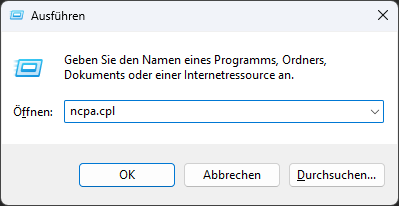
- Shortcut in Windows: "Win + R": "ncpa.cpl"
-
Alternative: Open your operating system's network settings (e.g., Control Panel > Network & Internet in Windows 10/11, or the equivalent in your OS).
Choose Advanced network settings -
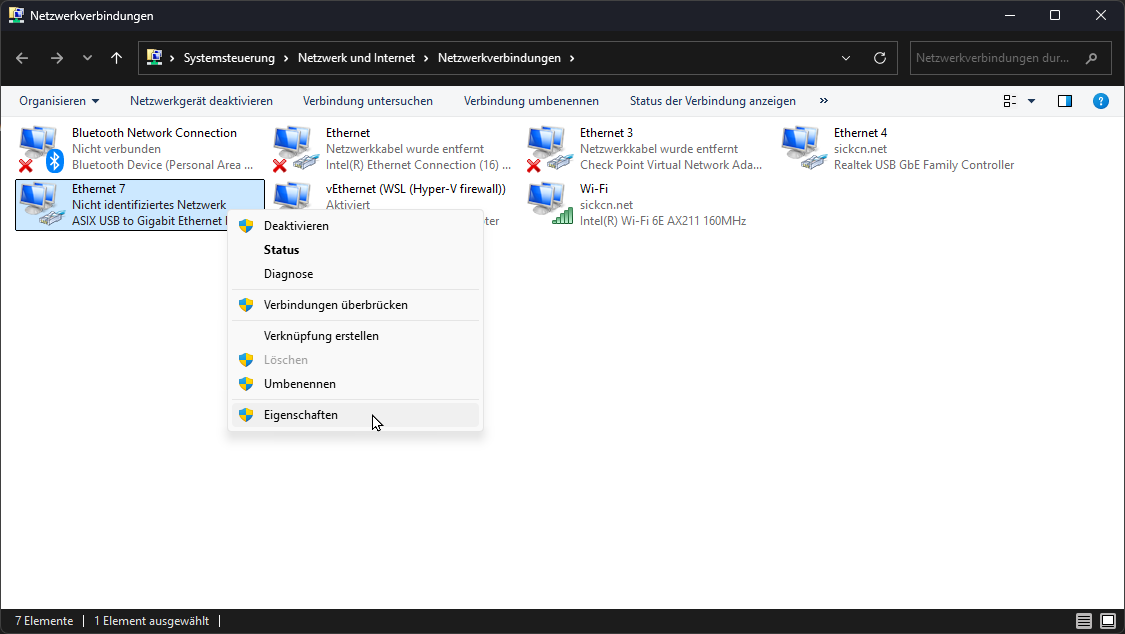
Identify the USB Ethernet adapter (might be listed as ASIX USB to Gigabit Ethernet Family Adapter).
-
Click on the adapter and select Properties / Edit.
-
Enter administrator credentials if necessary.
-
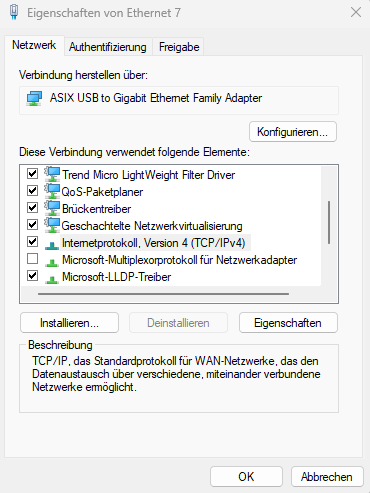
Locate Internet Protocol Version 4 (TCP/IPv4) and select Properties or right-click.
- Change from DHCP to manual IP settings:
Use the following IP address:192.168.0.210
Subnet mask:255.255.0.0
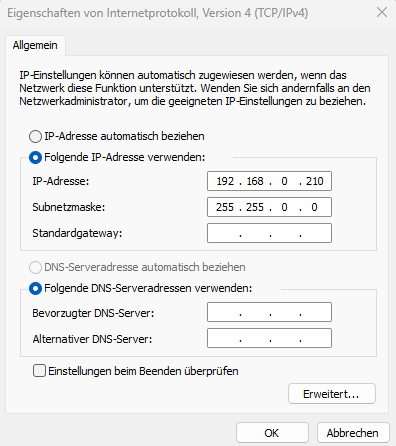
- Save changes by clicking Ok in both windows.
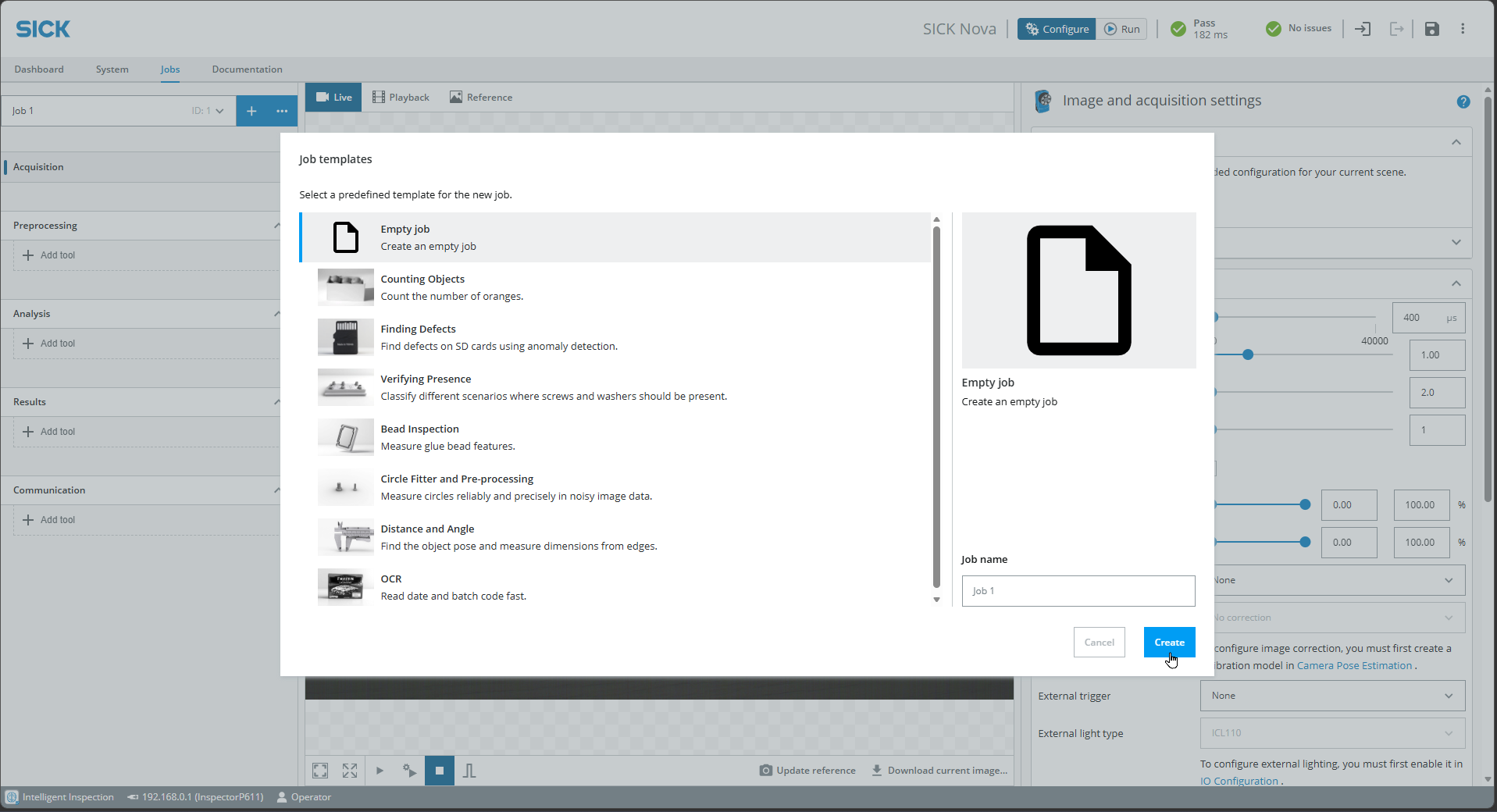
- Open a browser and enter the default IP address 192.168.0.1. You should now see the below UI. Create an Empty Job.
Next Steps
Get started with your first project: Vision Starter Project
Or choose an example project or code snippets or check out the training materials.
Troubleshooting
Troubleshooting
Check out the Operating instructions of the device for more information.
- Make sure you are disconnected from any VPN as this may block the connection to the network device.
- If you can't connect to the sensor, check if the LED "Ready" is green.
If not, the power supply is not correctly established. Wait up to 2 minutes and check if the power supply is connected correctly. -
If you still can’t connect, look up the device IP address via SICK AppManager:
SICK AppManager | SICK
Go to the Advanced section for details. -
If you are already connected and using AI tools:
- The device has a trial license. After 2 hours, restart the device to reset the timer.
-
Unplug and plug in again. Save configuration beforehand.
-
Check the FAQ section: FAQ
-
If you still have issues with the device:
- Go to the Support Portal, register, and create a case to get assistance.