Advanced Usage of the Vision Starter Kit
Short Description
This page provides advanced information for working with the Vision Starter Kit.
It covers useful accessories, the SICK AppManager, firmware and SICK Nova updates, custom image processing options and integration possibilities with external systems.
Advanced Topic Overview
| Topic | Purpose | Recommended for |
|---|---|---|
| Accessories | Extend the Vision Starter Kit with additional hardware. | Users who want to build more advanced setups. |
| SICK AppManager | Find devices, change IP addresses and manage installed apps. | Users who need to configure or maintain the device. |
| Firmware and SICK Nova Updates | Update the device firmware or install a newer SICK Nova version. | Advanced users and maintainers. |
| Custom Image Processing | Create and export custom configurations for further projects. | Users who want to build their own applications. |
| External Integration | Connect the Vision Starter Kit to external systems. | Users working on automation or system integration tasks. |
Engineering Tool SICK AppManager
With the engineering tool "SICK AppManager", you can find out the IP address of your device, change it, or upgrade your firmware.
- Download SICK AppManager
- Install and open SICK AppManager
- Device should automatically show up in the left upper corner
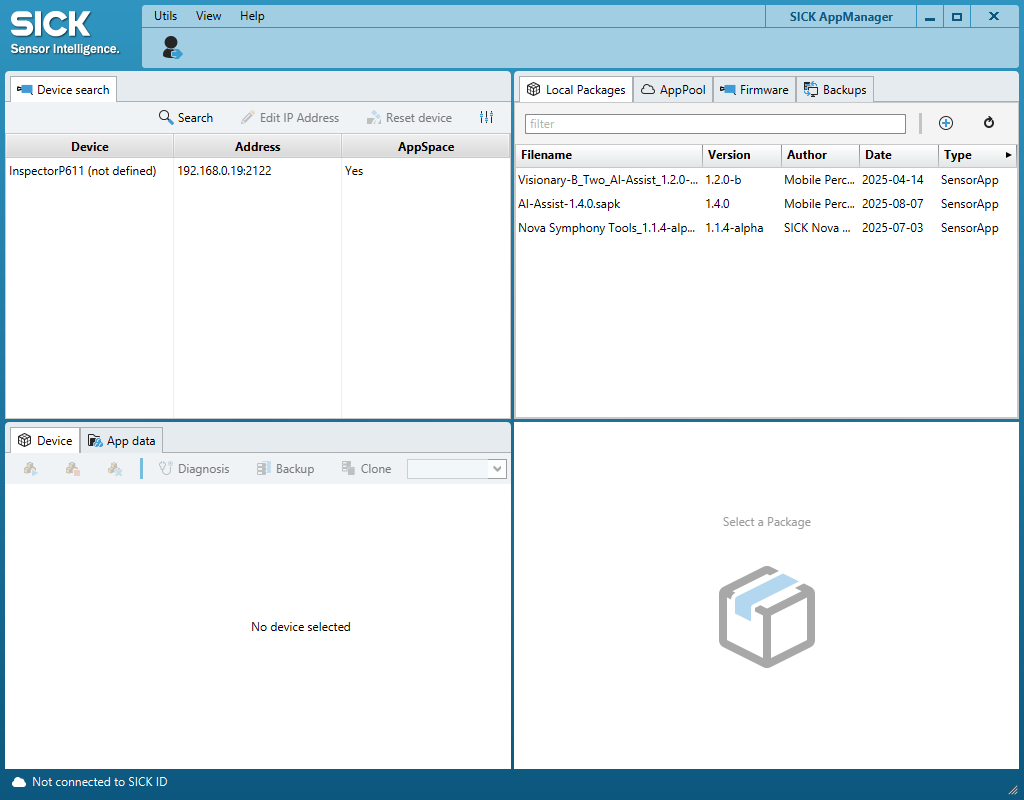
- If not: Click "Search"
- If still not: Click on Settings icon and select all cross boxes within "Ethernet"
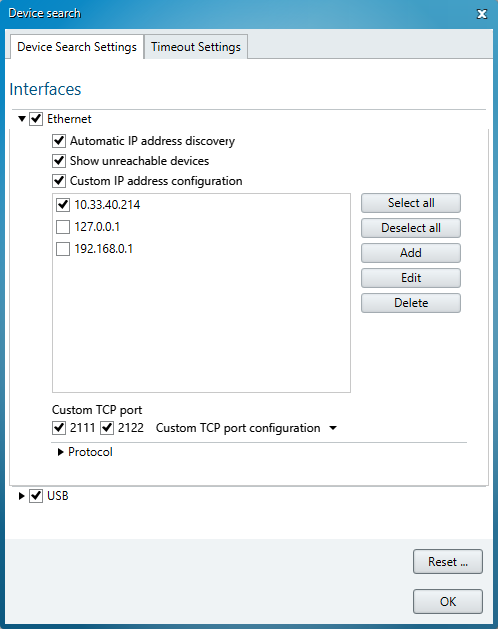
- You can edit the IP address of the device if useful
- Click on device to see the installed apps. Per default, the tools of SICK Nova should be pre-installed as individual apps
Firmware Update
Device:
If you want to upgrade to a newer Firmware version, follow these steps:
- Go to V2D611P-CMWBI4 - InspectorP61x | SICK (product page > Downloads > Software) and download the latest firmware
- Extract the .zip file to access the .spk firmware file
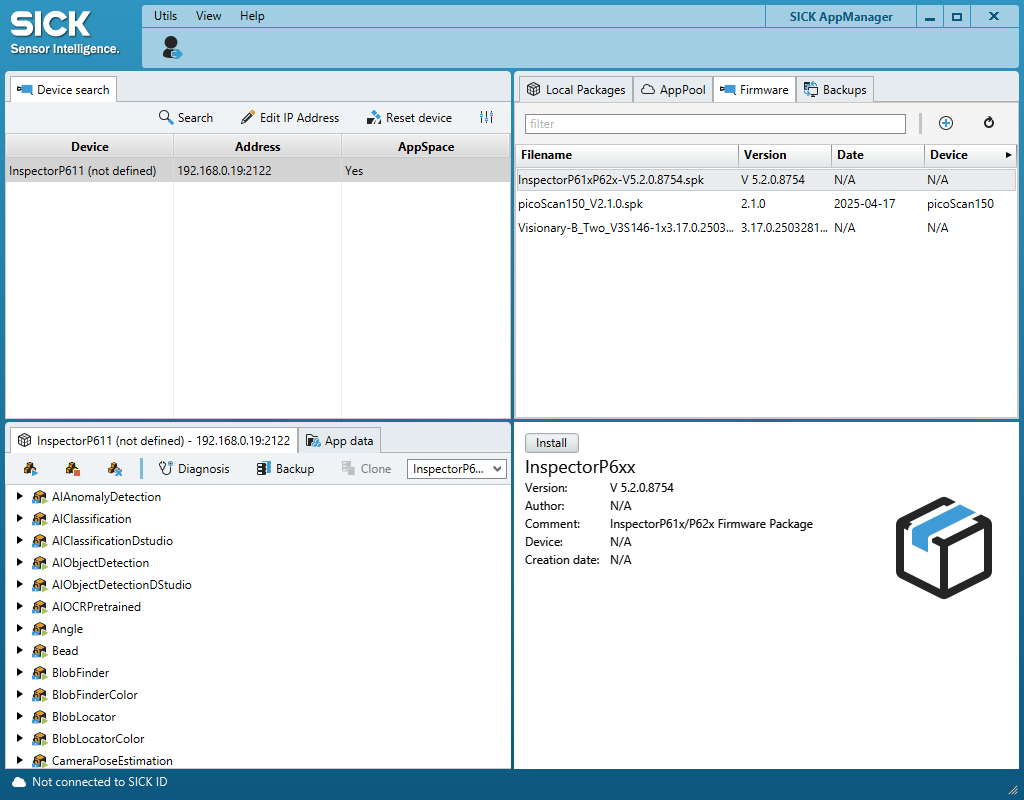
- In the upper right corner of AppManager, select "Firmware"
- Click on the "+"
- Choose the .spk file
- Make sure the device you want to update is selected and click on install in the bottom right corner
SICK Nova:
If you want to upgrade to a newer SICK Nova version, you have two options:
- Go to Nova Inspector in SICK AppPool
- Go to "Versions" and Download the latest version.
- In the upper right corner of AppManager, select "Local packages"
- Click on the "+"
- Choose the .sapk file
- Make sure the device you want to update is selected and click on install in the bottom right corner
Custom Image Processing
- Use Nova to create custom image processing tasks.
- Export configurations for use in other projects.
Integration with External Systems
- Connect the Vision Starter Kit to a PLC or other control systems.
- Use the provided API for advanced automation tasks.
Custom tool generator
- You can adapt existing tools by using the custom tool generator, e.g. if you want to count a big amount of Blobs. Download this zip file and open the search.html file. Nova-API-2.9.0-.zip
Summary
This page introduced advanced options for working with the Vision Starter Kit.
You learned where to find additional product information, how to use SICK AppManager, how firmware and SICK Nova updates can be installed and how the Starter Kit can be extended with accessories, external systems and custom image processing workflows.
These topics are especially useful if you want to move from basic Starter Kit demos toward more advanced applications.
Next Steps
Continue with example projects, basic code examples or the training material.