Trainer
Establishing a connection directly via ethernet cable
-
Open the case, connect it to a power source using the included power supply, and connect it to a laptop via an ethernet cable. We recommend to use the supplied USB Ethernet adapter, as otherwise a simultaneous internet connection may not be possible. The sensor is ready for image acquisition when the Ready LED and LINK TX LED light up green.
-
Verify the sensor connection by entering the default IP address (192.168.0.1) in the browser’s URL field (or the reconfigured IP address if changed in AppManager). If the sensor’s user interface appears, the connection is successful; skip the following steps.
In case the connection is not successful
If you cannot connect to the sensor choose one of the two options to continue
- press “Windows key”+R and enter the command ncpa.cpl
- This will take you to the adapter overview on your Windows PC. If the sensor is connected, there should be a network adapter named Realtek USB GbE Family Controller. If it does not appear, unplug the adapter and reconnect it. The adapter that appeared is the correct one.
- Right-click on the adapter and select Properties
right-click the internet icon in the task bar and select Network and Internet settings, then click Advanced network settings.
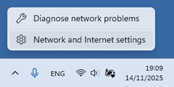

- This will take you to the adapter overview on your Windows PC. If the sensor is connected, there should be a network adapter named Realtek USB GbE Family Controller. If it does not appear, unplug the adapter and reconnect it. The adapter that appeared is the correct one.
- expand it and click the More adapter options’ edit button.
- You might be prompted to type in the admin password to get access.
- Double-click Internet Protocol Version 4, select Use the following IP address and enter
- 192.168.0.X (where X is any value between 1 and 255 that differs from the sensor’s IP address). Remember: This is the adapter’s IP address. The adapter’s IP address must be different from the sensor’s IP address.
- set 255.255.255.0 as the subnet mask.
- Confirm the changes.
- Then try to reconnect to the sensor by typing its default IP address 192.168.0.1 (or different if changed in AppManager) in the URL bar of your browser.