Trainer
Training Preparation
Learning environment
We recommend learning environments where participants work in groups of two to three per educational kit, with one laptop per group. This setup allows participants to experiment collaboratively: one person can read instructions or handle objects in the tray, while another interacts with the software.
The instructor should have a screen to display the next steps and be able to move around the room to observe group progress and provide assistance when needed.
A configuration that enables sharing screen content with the entire group is highly encouraged, as it facilitates discussion, showcases results, and demonstrates the steps taken to achieve them.
Prior knowledge
No prior knowledge is required; however, participants are encouraged to complete the provided e-learning course (see Web-based Training). For advanced exercises, basic programming skills can be helpful but are not mandatory.
Additional Hardware
The set is designed to be used alongside a Windows laptop with admin rights and Google's Chrome browser (one laptop per set). Other operating systems and browsers might work, but are not officially supported. If participants have no admin rights, there is an alternative solution below.
With admin rights, the sensor must be connected to the computer via an Ethernet connection; either directly using the provided Ethernet cable, or through the included USB adapter.
Without admin rights, you can connect the kit’s Ethernet cable to an existing network infrastructure or router.
An internet connection is only necessary when using SICK dStudio in advanced learning scenarios.
You can install a microSD card (up to 32 GB), which is useful for storing large amounts of images locally. This is not necessary.
For additional working space, you can raise the sensor by loosening the screws on the mounting bracket and repositioning it at a higher level.
Metal Buttons
The set came with some metal parts. These are parts that are necessary to produce pin buttons that you can stick to your shirt with customized label on it.
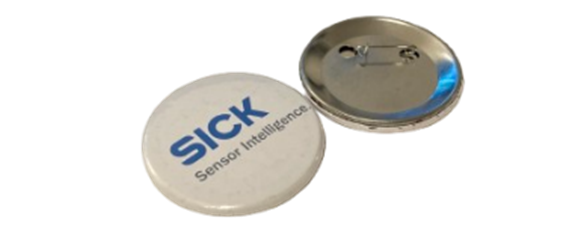
Before starting Exercise 5, you need to create several button defects.
The following types are recommended:
- Bent
- Scratched
- Missing needle
Leave more than half of the pieces untouched, as they can be used for:
- OK samples
- Incorrectly inserted (flipped)
- Manipulation by participants
Software
Before working with the sensor, we recommend installing SICK AppManager on the administrator’s computer to check for firmware and software updates see Resources Downloading new firmware or updates requires a SICK ID see Accounts.
If you are using multiple sensors on a shared network, it’s advisable to manually change the sensors’ default IP addresses or set them to DHCP in AppManager to prevent IP conflicts.
To change a sensor’s IP address or set it up to use DHCP, open SICK AppManager and search for devices. If a sensor is found, double-click the Sensor to edit its IP settings. If AppSpace shows “Yes” (indicating the sensor is on the same subnet as your Ethernet adapter), you should be able to connect to the sensor.
Sample Solutions
The sample solutions for the exercises are hidden and can't be found in the navigation bar. Find the hidden solution page here: https://sickag.github.io/EDU-AI/trainer/solutions.html