Exercises
Exercise 1 - Getting started
Exercise 1.1 - The user interface
Goal: This exercise is meant as an introduction to the GUI. Guide through the basics of the interface. This is a shortened guide that introduces the participants to what is important for the following exercises. If you need a deeper understanding of all the functions available, please click “Documentation” (available as of Nova 2.14) in the gray row below the SICK logo or click "?" to receive detailed info about each tool (both highlighted in red).
Connect to your sensor's IP address in the browser.
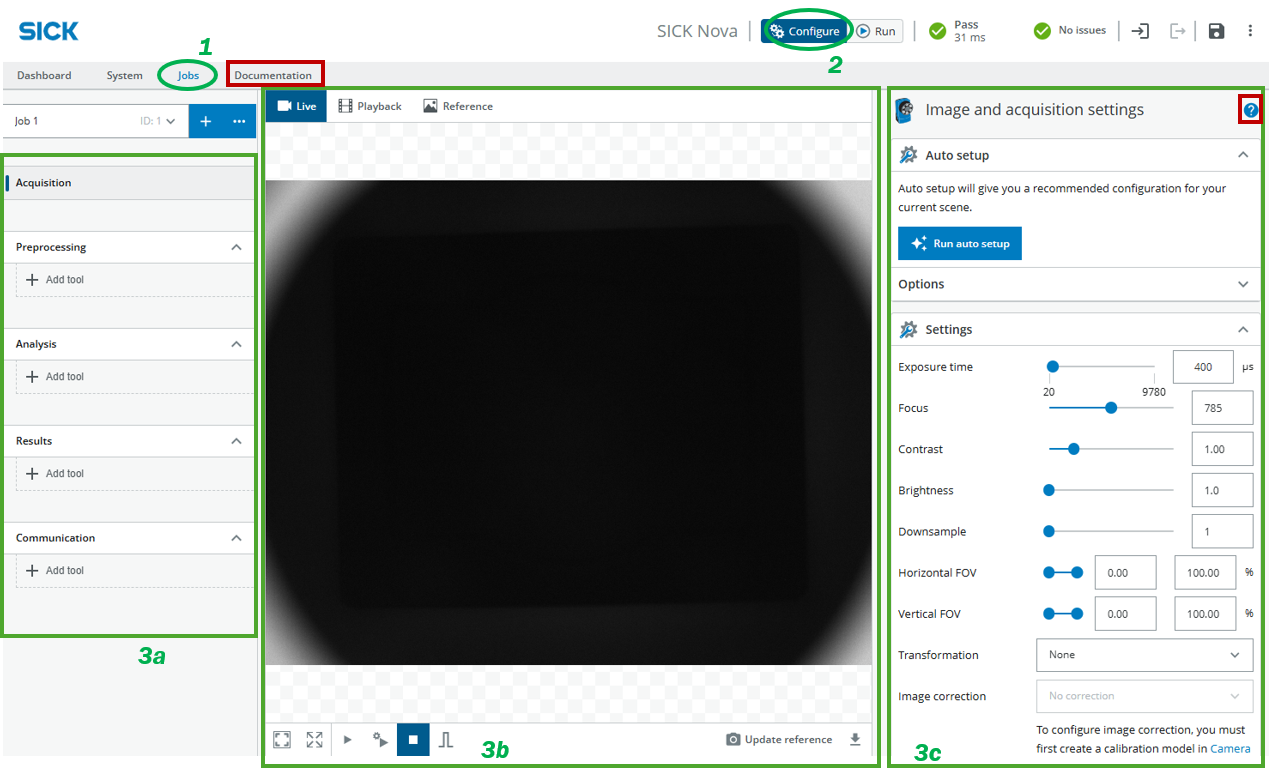
- If prompted, create an empty project, then make sure Jobs is selected. This is where you can select a job/project slot to work in.
- Set the sensor to Configure mode. This enables all the settings.
- The interface is split into three sections (from left to right):
- Processing steps/tools: These are the tool categories Nova provides. From image acquisition to how that image will be processed and analyzed to what to do with the results and how to communicate that final result to other devices. Using these sample exercises, we are mostly working in Step 1: Acquisition and Step 2: Analysis, where all the (AI) tools to analyze the acquired images are located.
- Preview windows: Set to Live and in the bottom row of the section select Free Running for a live image or leave it at Stop to trigger only when needed by clicking .
- Tool options: The content of this section changes based on what tool you have selected in Processing steps/tools. Here you can change the settings of each individual tool.
Exercise 1.2 - Image acquisition
Goal: Acquire images that are suitable for subsequent analysis steps.
Place any available object in the tray. Ignore the auto setup (it may not always deliver optimal results) and experiment with the image acquisition settings. Adjust the value sliders until you achieve a satisfactory image.
Be sure to also explore the first two Integrated Lighting options!
Do not enable record images. When this option is active, the sensor saves every captured image to its internal memory, which can quickly fill up and cause performance issues.
-
Showcase some results in a plenary session. Discuss what the settings are and what they do.
-
Some settings have trade-offs. What are they?
-
What’s the difference between Exposure time and Brightness?
-
What is Downsampling good for? Set it to a value of 3 or 4 if possible, to ensure a smooth user experience.
-
What settings would you use for your object? What should be clearly visible?
-
Compare that to the auto setup. Which one do you think is better for the given object, your settings or the auto settings? Justify your answer.