Getting Started with the Vision Starter Kit
You are now ready to get started with the Vision Starter Kit. Follow along the instruction below to setup the sensor.
Setup Vision Sensor
- Mount the Inspector to the mounting frame (instructions see below). Tilt the top bar about 10–15 degrees to avoid reflections.
- Connect the Inspector with the network cable and power supply.
- Connect the network cable to the USB network adapter.
- Choose the correct plug adapter and plug the power supply into an outlet.
- Connect the USB network adapter to the PC.
- Configure the IP address of the adapter.
Detailed instructions
- Shortcut in Windows: "Win + R": "ncpa.cpl"
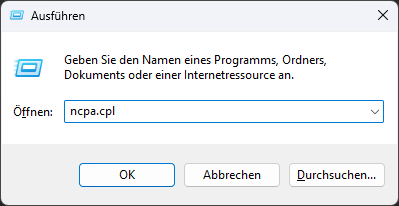
-
Alternative: Open your operating system's network settings (e.g., Control Panel > Network & Internet in Windows 10/11, or the equivalent in your OS).
Choose Advanced network settings -
Identify the USB Ethernet adapter (might be listed as ASIX USB to Gigabit Ethernet Family Adapter).
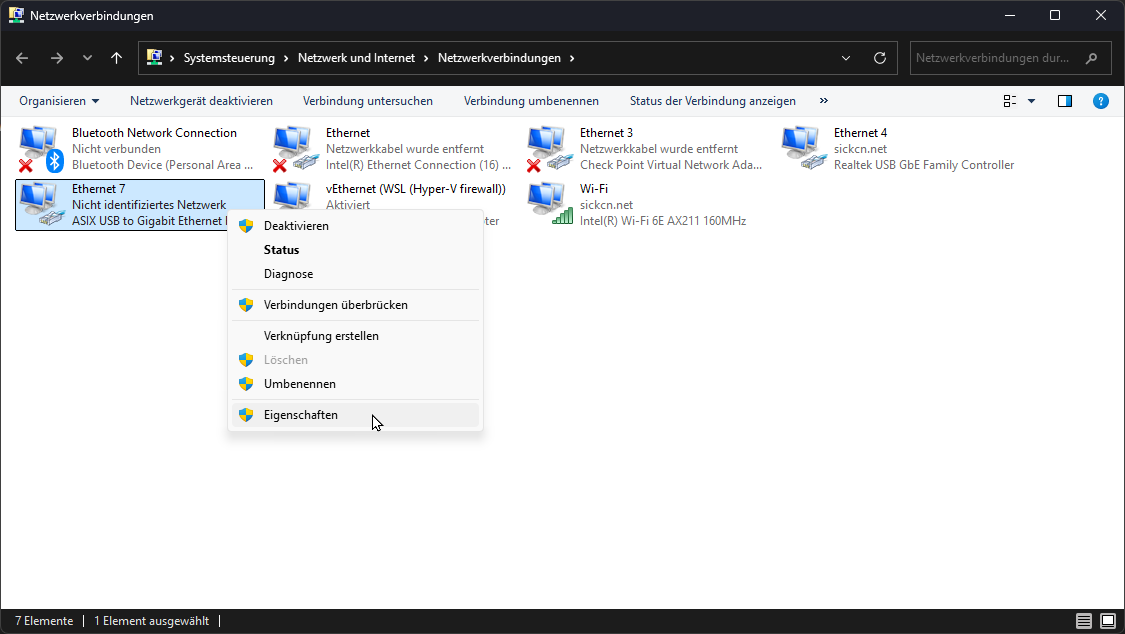
-
Click on the adapter and select Properties / Edit.
-
Enter administrator credentials if necessary.
-
Locate Internet Protocol Version 4 (TCP/IPv4) and select Properties or right-click.
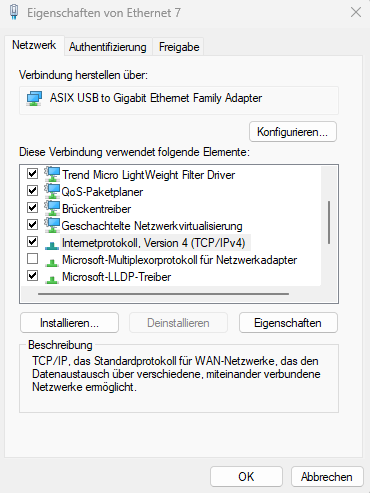
- Change from DHCP to manual IP settings:
Use the following IP address:192.168.0.xxx
Subnet mask:255.255.0.0
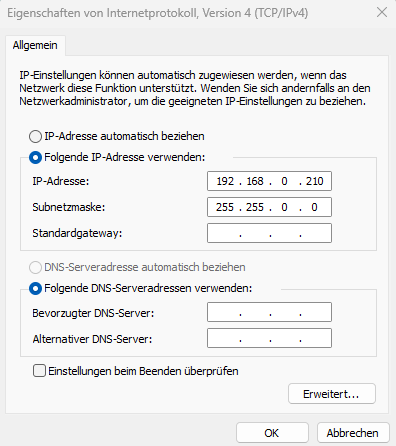
- Save changes by clicking Ok in both windows.
- Open a browser and enter the default IP address 192.168.0.1. You should now see the below UI. Create an Empty Job.
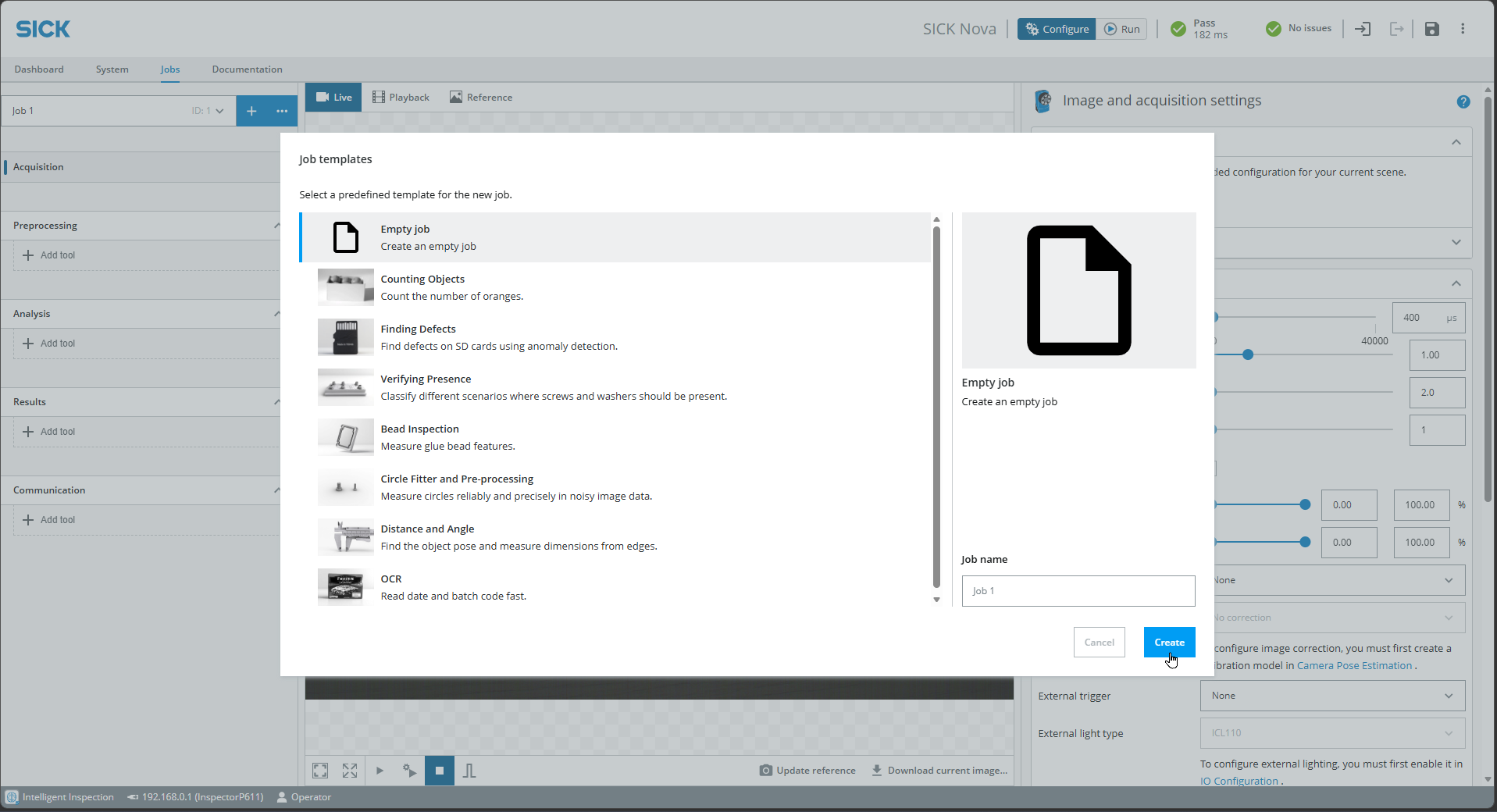
Get started with your first project: Vision Starter Project
Setup Mounting Frame
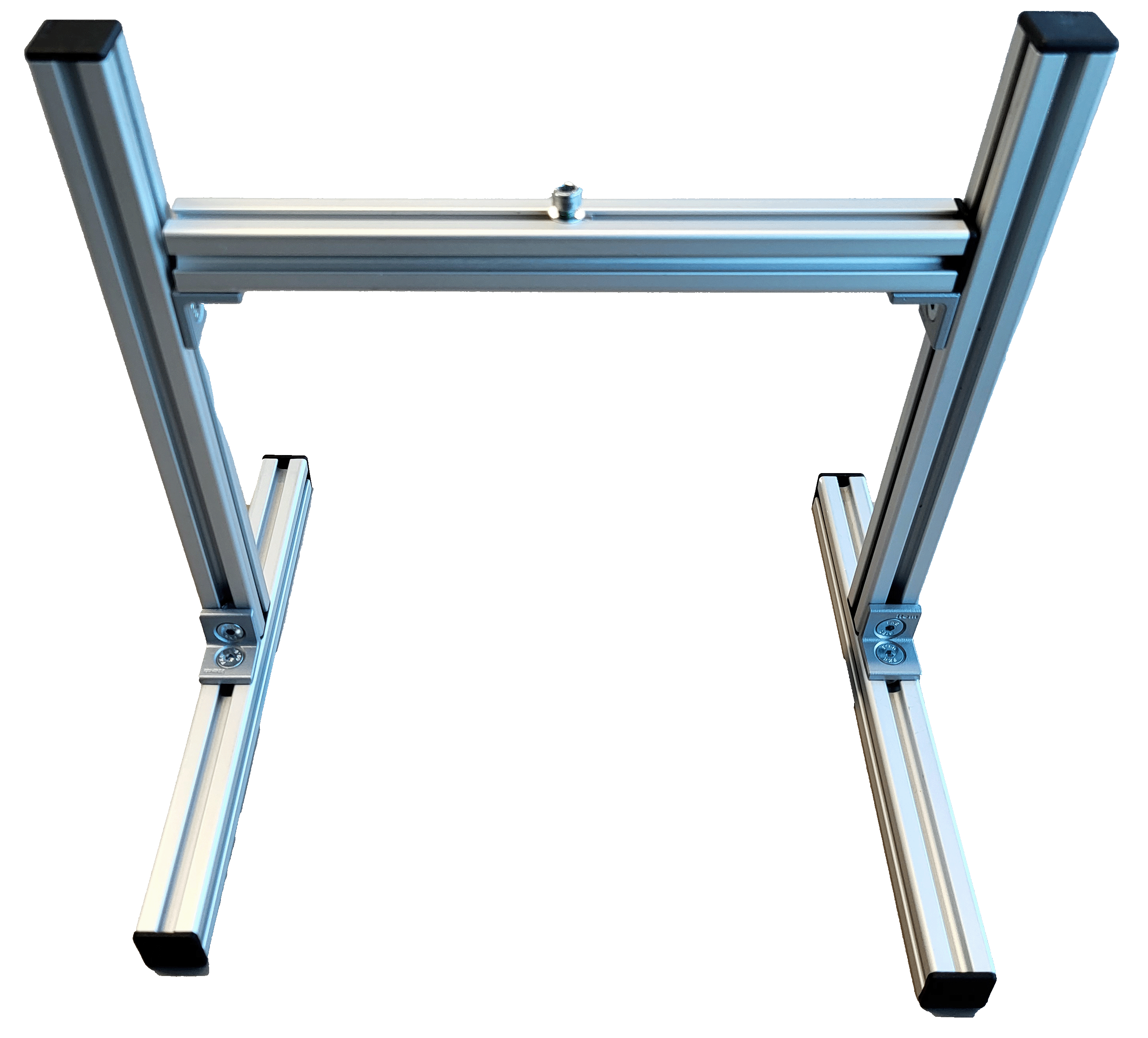
Required Hardware
- 5 × Aluminum profiles
- 8 × End caps
- 8 × Countersunk screws
- 8 × M5 T-slot nuts
- 1 × M4 T-slot nut
- 4 × Angle brackets
- 1 × Hex key (3 mm)
Top Bar
- Take one aluminum profile from the box.
- Insert one M4 T-slot nut into the top groove.
- Insert two M5 T-slot nuts into the bottom groove (opposite side of the M4 nut).
- Attach two angle brackets using countersunk screws and tighten them into the M5 T-slot nuts with a hex key.
- Place end caps on both ends of the profile.
- Slide the angle brackets to both ends of the profile and tighten the screws so that the angle brackets and end caps are aligned.
Bottom Bars (x2)
- Insert one M5 T-slot nut into the center groove of each bar.
- Attach one angle bracket with countersunk screws and tighten using the hex key.
- Place end caps on both ends.
- Position both profiles parallel in front of you, oriented lengthwise, so the ends point toward you and away from you—not sideways across the table.
Vertical Bars (x2)
- Insert one M5 T-slot nut at the bottom end of each bar.
- Mount each vertical bar at a 90° angle to one bottom bar using a countersunk screw and a 3 mm hex key.
- Insert one M5 T-slot nut at the top end of each bar in the groove facing the other bottom bar.
- Place an end cap on the top of each vertical bar. Use the two remaining countersunk screws to mount the top bar between the two vertical bars with the angle brackets and hex key.
- Tip: It may be easier to lay the frame down to mount the top bar.
- Adjust the height and angle of the top bar by loosening and tightening the two inner screws at the top of the vertical bars.
Final Step
- Mount the Inspector61x bracket using the supplied M4 screw and washer to the T-slot nut on top of the top bar.
Now you are ready start, feel free to try out or choose an example project or code snippets or check out the training materials.
Troubleshooting
Check out the Operating instructions of the device for more information.
- Make sure you are disconnected from any VPN as this may block the connection to the network device.
- If you can't connect to the sensor, check if the LED "Ready" is green.
If not, the power supply is not correctly established. Wait up to 2 minutes and check if the power supply is connected correctly. -
If you still can’t connect, look up the device IP address via SICK AppManager:
SICK AppManager | SICK
Go to the Advanced section for details. -
If you are already connected and using AI tools:
- The device has a trial license. After 2 hours, restart the device to reset the timer.
- Unplug and plug in again. Save configuration beforehand.
-
Check the FAQ section: FAQ
-
If you still have issues with the device:
- Go to the Support Portal, register, and create a case to get assistance.
If you want to learn more about the device or SICK Nova, check out this tutorial series