**Reset options:** effect on settings and the corresponding SOPASair menu entries.
| Action | Effect | SOPASair menu entry | | --- | --- | --- | | Factory reset | Restores default parameters, including communication settings. The current connection can be lost. | **Reset to factory settings** | | Application reset | Resets application settings while retaining communication settings, such as the IP configuration. | **Reset and maintain communication interfaces** | After a factory reset, the sensor IP address is **`192.168.0.1`** for LRS4000, multiScan100, multiScan200, and picoScan100. An application reset keeps the current IP configuration. ## Before You Reset 1. Download a [configuration backup](https://sickag.github.io/sick_lidar_developer_guide/configuration/configuration-backup-and-restore/) and keep any required passphrase safe. 2. Record the current IP configuration and check the device's default address so that you can reconnect after a factory reset. 3. Ensure that resetting the configuration will not disrupt production or a safety-related process. ## Perform a Reset ### Device Web Interface Log in at the **Service** user level. Open the three-dot menu, select **Device**, choose the required reset option, and confirm it. Menu labels and availability can vary with firmware. 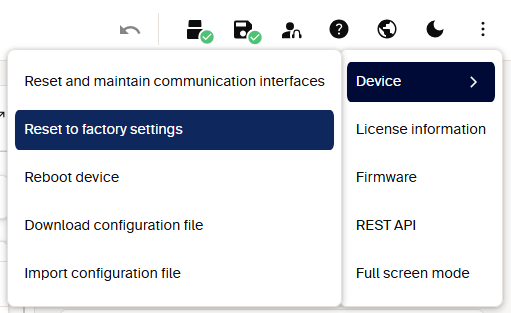 *SOPASair Device menu: application reset retains communication interfaces; factory reset also restores their defaults.* ### REST API or CoLa A/B**Reset methods:** authenticated REST calls and CoLa method telegrams.
| Action | REST method | CoLa A/B method | | --- | --- | --- | | Factory reset | `POST /api/LoadFactoryDefaults` | `sMN mSCloadfacdef` | | Application reset | `POST /api/LoadApplicationDefaults` | `sMN mSCloadappdef` | Choose one method, not both in sequence. Follow the [REST authentication guide](https://sickag.github.io/sick_lidar_developer_guide/configuration/rest-interface/) and the device's REST reference for [LRS4000](https://sickag.github.io/sick_lidar_developer_guide/LRS4000/api-rest-openapi/), [multiScan100](https://sickag.github.io/sick_lidar_developer_guide/multiScan100/api-rest-openapi/), [multiScan200](https://sickag.github.io/sick_lidar_developer_guide/multiScan200/api-rest-openapi/), or [picoScan120/150](https://sickag.github.io/sick_lidar_developer_guide/picoScan100/api-rest-openapi/). For CoLa access levels and framing, see the [LRS4000](https://sickag.github.io/sick_lidar_developer_guide/LRS4000/api-cola-telegrams/), [multiScan100](https://sickag.github.io/sick_lidar_developer_guide/multiScan100/api-cola-telegrams/), [multiScan200](https://sickag.github.io/sick_lidar_developer_guide/multiScan200/api-cola-telegrams/), or [picoScan120/150](https://sickag.github.io/sick_lidar_developer_guide/picoScan100/api-cola-telegrams/) telegram listings. A reset changes parameters, not firmware. **Reboot device** (`SoftReset`) or a power cycle restarts the device without restoring factory defaults; unsaved changes can be lost.