# LiDAR Developer Guide
> Developer guide for SICK LRS4000, multiScan100, multiScan200, and picoScan100 LiDAR sensors, with setup, configuration, data streaming, and integration.
Source: https://sickag.github.io/sick_lidar_developer_guide/
# LiDAR Developer Guide
Integrate SICK LRS4000, multiScan100, multiScan200, and picoScan100 LiDAR sensors into your application. Connect, configure through REST or CoLa, stream measurement data, and use the data in your application. Pick your device, or jump to a topic.
## Device Guides
- [](https://sickag.github.io/sick_lidar_developer_guide/LRS4000/)
LiDAR Sensors
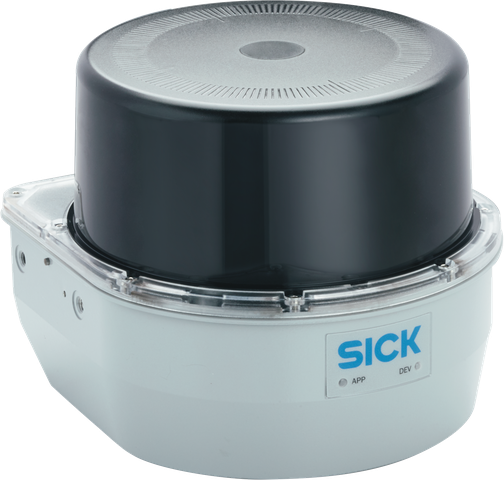
[**LRS4000**](https://sickag.github.io/sick_lidar_developer_guide/LRS4000/)
Long-range 2D LiDAR sensor with motor synchronization and 3D scan recording.
[**View Device Guide →**](https://sickag.github.io/sick_lidar_developer_guide/LRS4000/)
[Specifications on sick.com](https://www.sick.com/de/en/search?text=LRS4000)
- [](https://sickag.github.io/sick_lidar_developer_guide/multiScan100/)
LiDAR Sensors
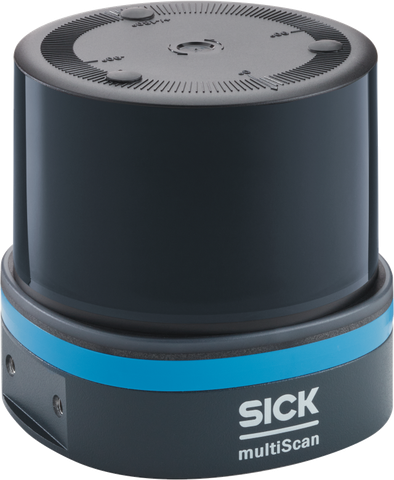
[**multiScan100**](https://sickag.github.io/sick_lidar_developer_guide/multiScan100/)
Multi-layer 3D LiDAR sensor family with segmented scan-data output.
[**View Device Guide →**](https://sickag.github.io/sick_lidar_developer_guide/multiScan100/)
[Specifications on sick.com](https://www.sick.com/de/en/search?text=multiScan100)
- [](https://sickag.github.io/sick_lidar_developer_guide/multiScan200/)
LiDAR Sensors
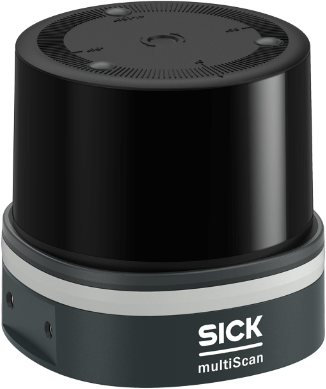
[**multiScan200**](https://sickag.github.io/sick_lidar_developer_guide/multiScan200/)
Compact 3D LiDAR sensor with high detection reliability in harsh environments.
[**View Device Guide →**](https://sickag.github.io/sick_lidar_developer_guide/multiScan200/)
[Specifications on sick.com](https://www.sick.com/de/en/search?text=multiScan200)
- [](https://sickag.github.io/sick_lidar_developer_guide/picoScan100/)
LiDAR Sensors
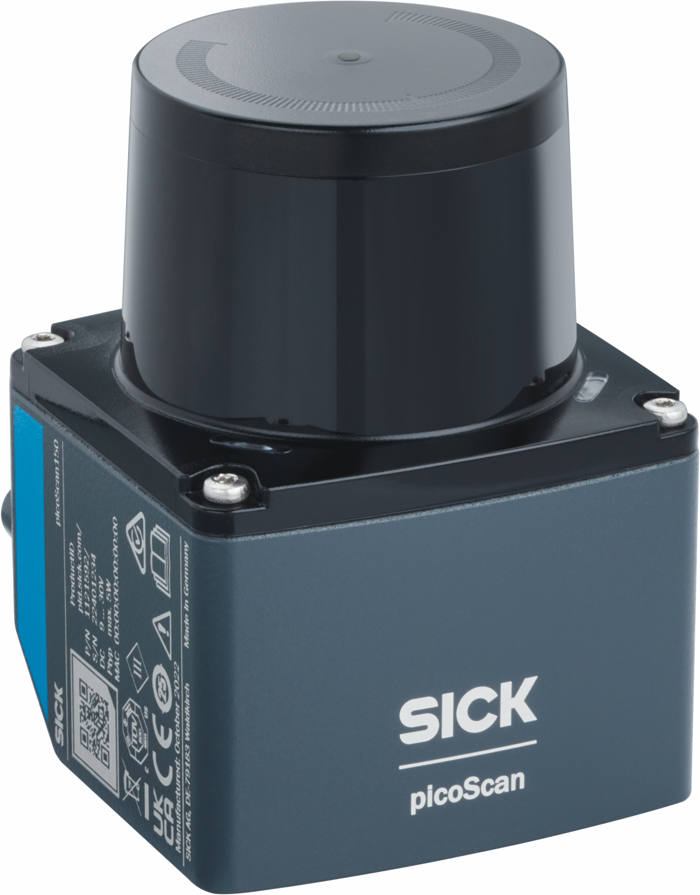
[**picoScan100**](https://sickag.github.io/sick_lidar_developer_guide/picoScan100/)
Powerful and cost-efficient 2D LiDAR sensor in a compact housing.
[**View Device Guide →**](https://sickag.github.io/sick_lidar_developer_guide/picoScan100/)
[Specifications on sick.com](https://www.sick.com/de/en/search?text=picoScan100)
## Topics
- [](https://sickag.github.io/sick_lidar_developer_guide/getting-started/)
[**Getting Started**](https://sickag.github.io/sick_lidar_developer_guide/getting-started/)
Connect your sensor, open its web interface, and receive the first measurement data.
- [](https://sickag.github.io/sick_lidar_developer_guide/integration-notes/model-context/)
[**Model Context**](https://sickag.github.io/sick_lidar_developer_guide/integration-notes/model-context/)
Give your coding assistant local documentation and code context for LiDAR projects.
- [](https://sickag.github.io/sick_lidar_developer_guide/simulation/)
[**Simulation**](https://sickag.github.io/sick_lidar_developer_guide/simulation/)
Try virtual sensors in the lab or NVIDIA Isaac Sim.
- [](https://sickag.github.io/sick_lidar_developer_guide/visualization/)
[**Visualization**](https://sickag.github.io/sick_lidar_developer_guide/visualization/)
Choose a tool to view live scans and point clouds.
- [](https://sickag.github.io/sick_lidar_developer_guide/on-device-applications/)
[**On‑Device Applications**](https://sickag.github.io/sick_lidar_developer_guide/on-device-applications/)
Evaluate fields, measure distances, and monitor contamination.
- [](https://sickag.github.io/sick_lidar_developer_guide/data-streaming/)
[**Data Streaming**](https://sickag.github.io/sick_lidar_developer_guide/data-streaming/)
Choose a transport and decode scan data or device events.
- [](https://sickag.github.io/sick_lidar_developer_guide/configuration/)
[**Configuration**](https://sickag.github.io/sick_lidar_developer_guide/configuration/)
Configure through REST or CoLa, back up settings, and enable HTTPS.
- [](https://sickag.github.io/sick_lidar_developer_guide/recording/)
[**Recording**](https://sickag.github.io/sick_lidar_developer_guide/recording/)
Capture scan data for playback, analysis, and debugging.
- [](https://sickag.github.io/sick_lidar_developer_guide/device-specific/)
[**Device-specific**](https://sickag.github.io/sick_lidar_developer_guide/device-specific/)
Find wiring, interfaces, downloads, and release notes for your sensor family.
- [](https://sickag.github.io/sick_lidar_developer_guide/shared-features/)
[**Shared Features**](https://sickag.github.io/sick_lidar_developer_guide/shared-features/)
Discover devices, update firmware, and manage timing and access.
- [](https://sickag.github.io/sick_lidar_developer_guide/integration-notes/)
[**Integration Notes**](https://sickag.github.io/sick_lidar_developer_guide/integration-notes/)
Connect your application using SDKs, ROS, MATLAB, or a PLC.
- [](https://sickag.github.io/sick_lidar_developer_guide/beginner-projects/)
[**Beginner Projects**](https://sickag.github.io/sick_lidar_developer_guide/beginner-projects/)
Build your first LiDAR application with guided projects for detection, measurement, 3D capture, and ROS 2.
- [](https://sickag.github.io/sick_lidar_developer_guide/troubleshooting/)
[**Troubleshooting**](https://sickag.github.io/sick_lidar_developer_guide/troubleshooting/)
Diagnose connection, configuration, and scan-data problems.
- [](https://sickag.github.io/sick_lidar_developer_guide/glossary/)
[**Glossary**](https://sickag.github.io/sick_lidar_developer_guide/glossary/)
Look up LiDAR terms, acronyms, and interface names.
- [](https://sickag.github.io/sick_lidar_developer_guide/contact/)
[**Contact**](https://sickag.github.io/sick_lidar_developer_guide/contact/)
Find local sales, technical support, and community discussions.
---
# Getting Started with SICK LiDAR Sensors
> Connect a SICK LiDAR sensor, open its web interface at the default IP 192.168.0.1, and check the first measurement data in Wireshark.
Source: https://sickag.github.io/sick_lidar_developer_guide/getting-started/
# Getting Started
Compatible with: LRS4000 multiScan100 multiScan200 picoScan100
Use this page once for every new sensor. It takes you from a powered sensor to
the web interface and to the first measurement data on your computer.
## Connect the Sensor
Connect the sensor to the computer with Ethernet, either with a cable between them or through a network switch. The device must be powered, and at least one LED must be green. For the connector layout and pin assignment, see the electrical connection page for [LRS4000](https://sickag.github.io/sick_lidar_developer_guide/LRS4000/electrical-connection/), [multiScan100](https://sickag.github.io/sick_lidar_developer_guide/multiScan100/electrical-connection/), [multiScan200](https://sickag.github.io/sick_lidar_developer_guide/multiScan200/electrical-connection/), or [picoScan100](https://sickag.github.io/sick_lidar_developer_guide/picoScan100/electrical-connection/).
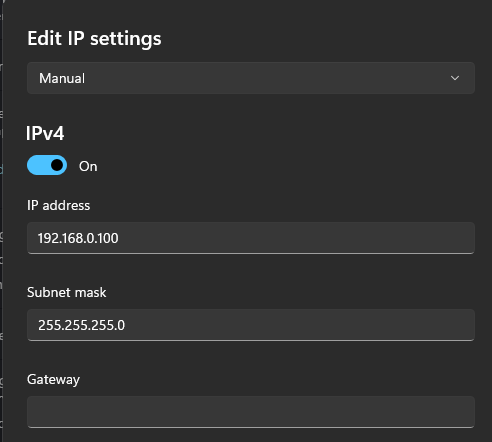
Give the computer's Ethernet adapter a static address in the sensor subnet. No gateway is needed to communicate within this subnet.
**Connect the Sensor:** device, IP address, and subnet mask.
The factory sensor address is `192.168.0.1` for LRS4000, multiScan100,
multiScan200, and picoScan100. Check the device label or the saved project
documentation if the sensor does not respond at that address.
=== "Windows"
Open **Settings → Network & internet → Ethernet → IP assignment → Edit**, select **Manual**, enable IPv4, and enter the computer's values:
{ width="344" }
*Example Windows configuration for an Ethernet connection to the sensor.*
Set the network profile of this adapter to **Private**. A Public profile blocks inbound UDP data, device discovery replies, and DDS discovery. In PowerShell, replace `18` with the interface index that `Get-NetConnectionProfile` reports for the sensor adapter:
```powershell
Get-NetConnectionProfile
Set-NetConnectionProfile -InterfaceIndex 18 -NetworkCategory Private
```
=== "Linux"
Add the computer's address to the adapter connected to the sensor. Replace `eth0` with your interface name from `ip link`. The address is lost on reboot; use `nmcli` for a permanent setting.
```bash
sudo ip addr add 192.168.0.100/24 dev eth0
```
## Open the Web Interface
Open `http:///` in Chrome, Edge, or Firefox. With factory settings, use .
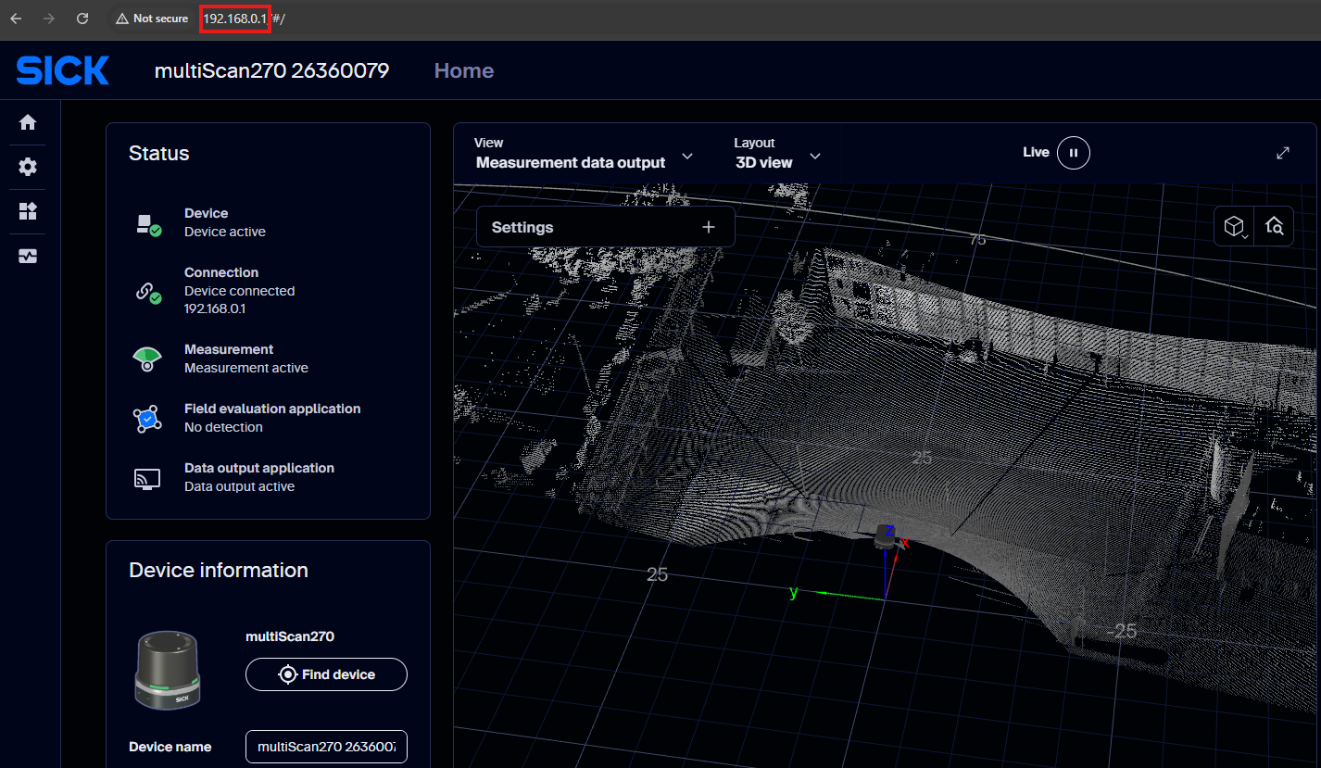
*SOPASair Home page opened at 192.168.0.1.*
If the page does not load, check the subnet settings above or [find the sensor on the network](https://sickag.github.io/sick_lidar_developer_guide/shared-features/device-discovery/).
*picoScan100 example: Connect to the sensor in a web browser after configuring the computer's network adapter.*
## Log In
Reading values needs no login. Changing settings requires a login with an enabled [user level](https://sickag.github.io/sick_lidar_developer_guide/shared-features/user-levels/). On all devices, only **Service** is enabled by default. In SOPASair, open the login dialog, select **Service**, and enter its password. Then enable only the levels required by the deployment. The default passwords are documented in the operating instructions of your device. Do not pass them on, and change them during commissioning.
*SOPASair login: select a user level and enter its password to access configuration settings.*
## Change the IP Address
To use the sensor in your own network, give it an address in that network:
1. In the web interface, log in and open **Configuration → Connection options**.
2. Set **Addressing mode** to **Static**, or to **DHCP** if a DHCP server assigns the address.
3. Enter the **IP address**, **Subnet mask**, and **Default gateway**. The IP address must be unique in the network.
4. Click **Apply**. The browser loses the connection to the sensor.
5. If the new address is in another subnet, change the computer's Ethernet adapter accordingly. Then open the web interface at the new address and click **Save permanently**.
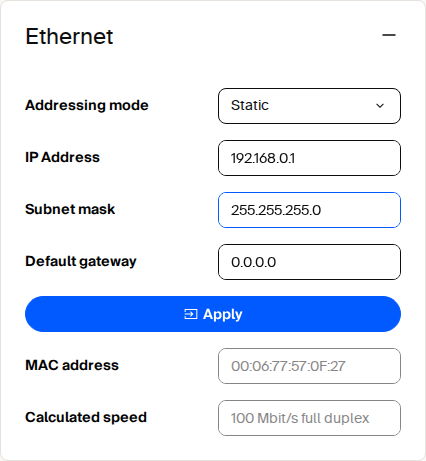{ width="300" }
*Ethernet settings under **Configuration → Connection options**.*
*picoScan100 example: Change the device IP address through the web interface. For restrictions on device search, see the IP Address Assignment page.*
## Receive and Explore Measurement Data
Use Compact for a first measurement-data check on all four devices:
1. In SOPASair, log in, open **Application > Data output**, and set the output
for your device:
=== "LRS4000"
Select **Compact** as the output format.
=== "multiScan100 / picoScan100"
Select **Compact**, set the UDP destination to your computer's IP
address (for example, `192.168.0.100`) and port `2115`, then enable
**Start/stop data output**.
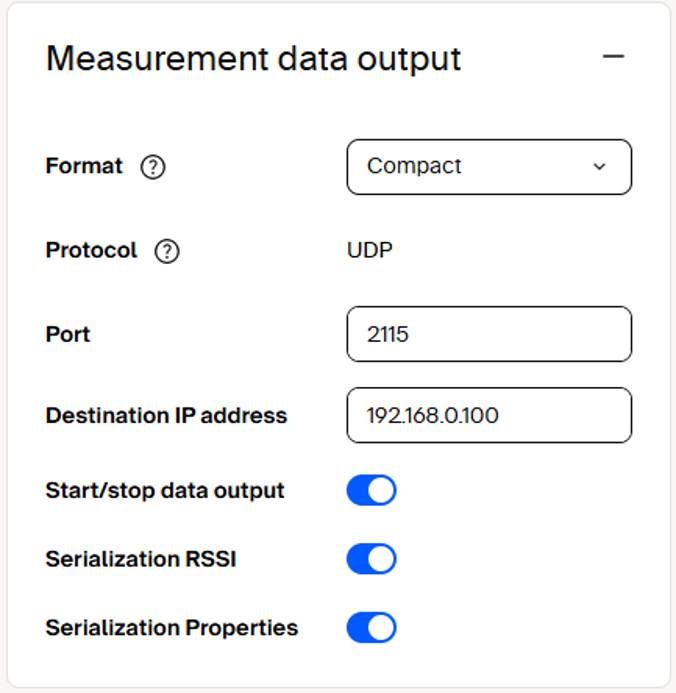{ width="340" }
*picoScan100 example: Compact UDP output to the development computer.*
=== "multiScan200"
Enable **TCP Compact** measurement-data output.
Apply the settings and use **Save permanently** to retain them after a restart.
2. Install [Wireshark](https://www.wireshark.org/download.html) with the
[Compact dissector](https://sickag.github.io/sick_lidar_developer_guide/data-streaming/compact-format/#install-the-dissector),
then capture on the Ethernet interface connected to the sensor.
3. LRS4000 and multiScan200 send Compact over TCP. Connect a TCP client to the
sensor's IP address on port `2115` and keep the connection open.
Wireshark captures traffic but does not open the connection itself.
4. Enter `compact` in Wireshark's display-filter bar. Select a `COMPACT` packet
and expand its decoded fields to inspect distances and scan metadata.
If none appear, clear the filter and check the output settings and connection.
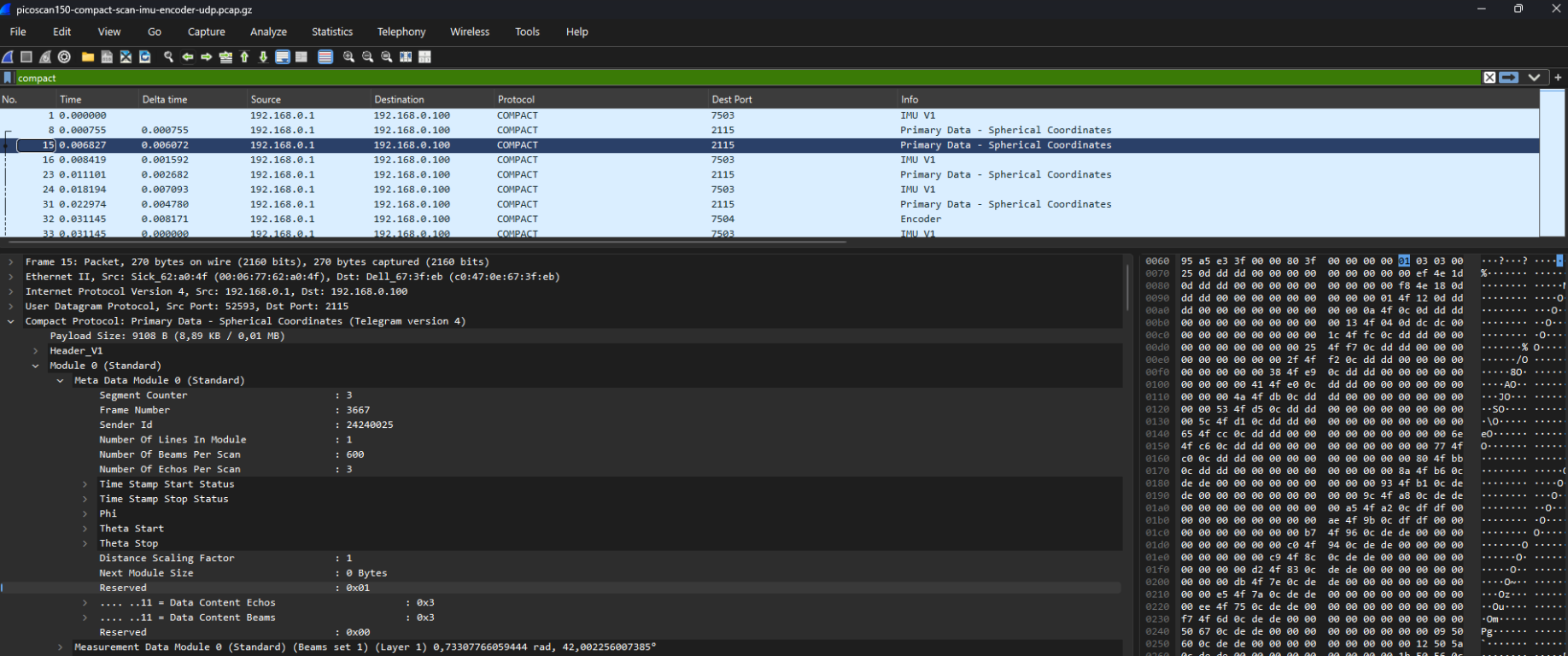
*picoScan150 example: Compact packets and decoded scan metadata in Wireshark.*
Next: [REST Interface](https://sickag.github.io/sick_lidar_developer_guide/configuration/rest-interface/) ·
[Compact Format](https://sickag.github.io/sick_lidar_developer_guide/data-streaming/compact-format/) ·
[ROS Integration](https://sickag.github.io/sick_lidar_developer_guide/integration-notes/ros-integration/)
---
# LiDAR Basics: Time-of-Flight, Echoes, and Scanning
> How LiDAR sensors measure distance with laser pulses, what remission and echoes mean, and how 2D scans and 3D point clouds are created.
Source: https://sickag.github.io/sick_lidar_developer_guide/lidar-basics/
# LiDAR Basics
Compatible with: LRS4000 multiScan100 multiScan200 picoScan100
LiDAR stands for light detection and ranging. A LiDAR sensor sends out laser
pulses and evaluates the light that comes back from objects. Every measurement
produces a distance and the direction the beam pointed in, so the sensor maps
its surroundings without touching anything.
The sensor supplies its own light. It therefore works in daylight, at night,
indoors, and in tunnels. This page explains the measuring principle and the
terms used throughout this guide. Short definitions are collected in the
[glossary](https://sickag.github.io/sick_lidar_developer_guide/glossary/).
## Measuring Distance with Light
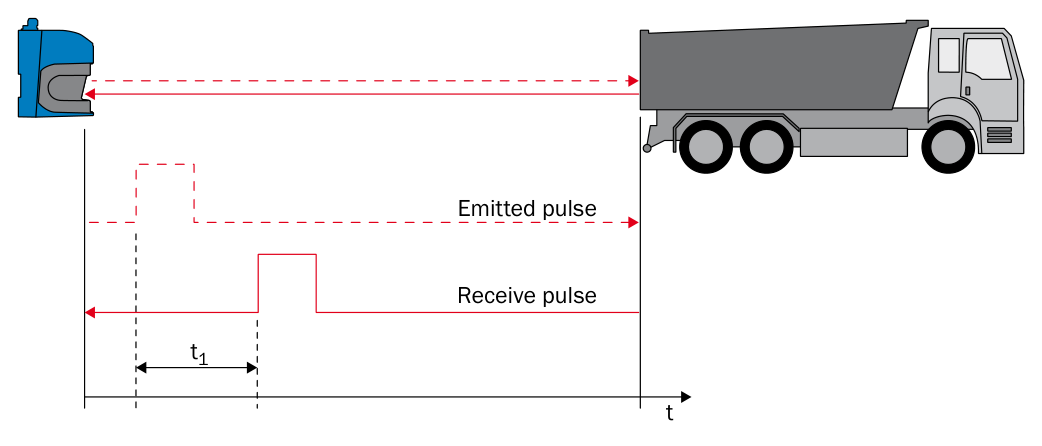{ width="70%" }
*The sensor measures the time between the emitted pulse and the received pulse.*
A pulse leaves the sender, travels to the object, and part of it returns to the
receiver. The sensor measures the elapsed time. Light travels at a known speed
and covers the distance twice, so the distance is half the time-of-flight
multiplied by the speed of light.
The beam follows a straight line, so the sensor reports the shortest distance to
the first object in its path. Two pulse time-of-flight implementations are
relevant here:
**Measuring Distance with Light:** process, how it works, and strength.
| Process | How it works | Strength |
| --------------------------- | ---------------------------------------------------------------------- | --------------------------------------------------------- |
| Single-pulse time-of-flight | Determines a distance from the travel time of one pulse and its echo. | Direct measurement with a short response time. |
| HDDM+ | Combines the returns from many pulses to calculate one distance value. | Reliable readings on dark objects and in poor visibility. |
Both implementations determine distance from the travel time of light. HDDM+
uses the additional measurements to make the result more robust.
## How Much Light Comes Back
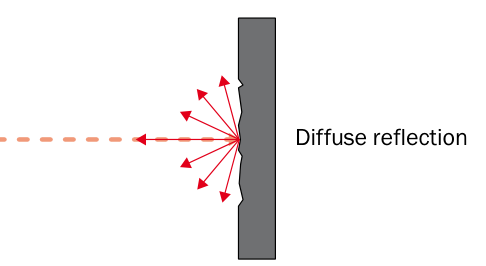{ width="70%" }
*A rough surface scatters the beam, so only a fraction of the light returns to the receiver.*
Most surfaces scatter light in many directions, and only a small part of it
reaches the receiver. The share of light that an object sends back is its
[remission factor](https://sickag.github.io/sick_lidar_developer_guide/glossary/#remission-factor). It determines how far away that object can
still be measured.
**How Much Light Comes Back:** surface and approximate remission.
| Surface | Approximate remission |
| ------------------------ | --------------------- |
| Coal | 5 % |
| Matte black shoe leather | 10 % |
| White drywall | 90 % |
| Reflective tape | Several 1,000 % |
| Retroreflector | Up to 10,000 % |
Scanning ranges are therefore always stated together with a remission factor,
for example 30 m at 10 % remission. A dark object is detected at a shorter
distance than a bright one, and retroreflectors return far more light than a
diffuse surface.
The beam needs a clear line of sight. A LiDAR sensor does not see around
corners and generally cannot measure through glass or film packaging. Such
surfaces create reflections of their own and disturb the measured value.
## One Beam, Several Echoes
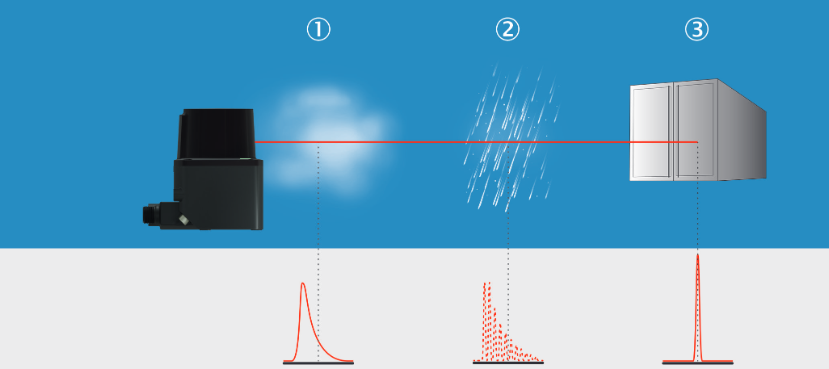{ width="70%" }
*Fog, rain, and the solid object each produce a different return signal.*
A laser pulse is not infinitely thin. When the beam hits a raindrop, a dust
cloud, or the edge of an object, part of the light is reflected early while the
rest travels on to the surface behind. Every reflection that reaches the
receiver is an echo, and the sensor can report more than one echo per beam.
Echoes are what make LiDAR usable outdoors, because reflections from rain,
snow, dust, and hail can be separated from the real target. The
[echo filter](https://sickag.github.io/sick_lidar_developer_guide/data-streaming/filter-details/#echo-filter) selects which echoes
the sensor outputs, for example the first echo, the last echo, or all of them.
## One, Two, and Three Dimensions
**One, Two, and Three Dimensions:** variant, what it measures, and typical sensor.
| Variant | What it measures | Typical sensor |
| ------- | ----------------------------------------------- | ------------------------------------------------- |
| 1D | Distance along a single fixed beam. | Distance sensor aimed at a target or a reflector. |
| 2D | Distance and angle within one plane. | 2D LiDAR sensor, also called a laser scanner. |
| 3D | Distance, horizontal angle, and vertical angle. | Multi-layer sensor, or a 2D sensor that is moved. |
The horizontal angle of a beam is called the azimuth and the vertical angle the
elevation.
## How a 2D Sensor Scans a Plane
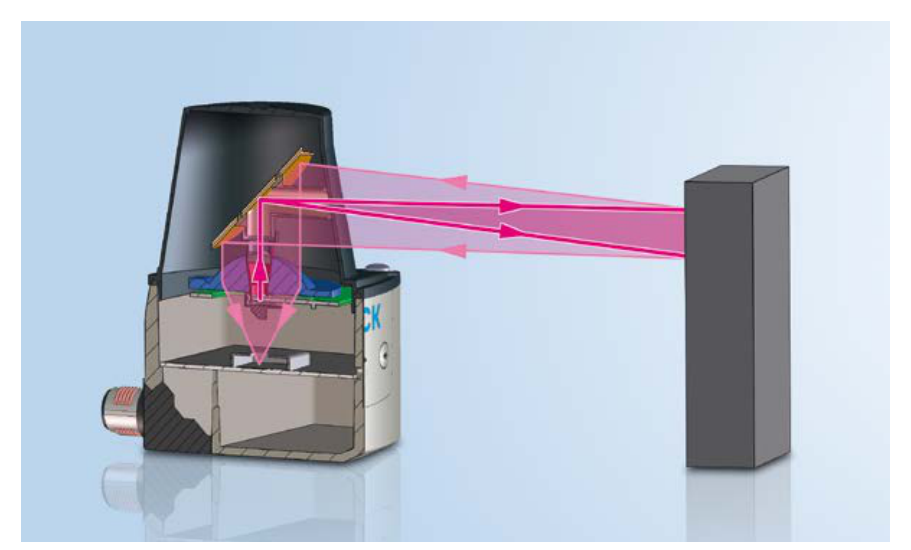{ width="70%" }
*A rotating mirror sweeps the beam of one sender and receiver across a whole plane.*
A 2D sensor deflects its beam with a rotating mirror, so a single sender and
receiver cover an entire plane. The sensor fires its pulses in step with the
mirror rotation. This links three values: the pulse rate of the laser, the
rotation speed of the motor, and the angular resolution.
Angular resolution is the angle between two neighboring measured points.
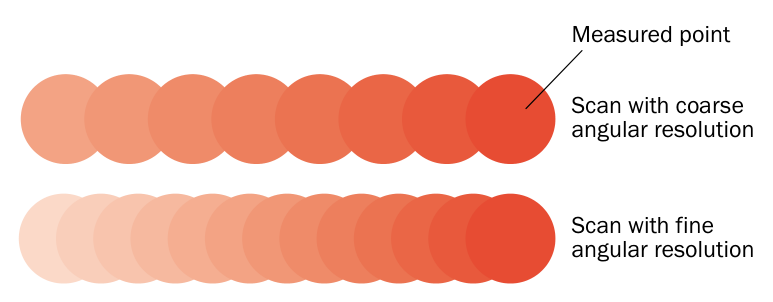{ width="70%" }
*A fine angular resolution places the measured points closer together.*
A fine angular resolution puts the measured points close together and covers the
scan plane without gaps, so even small objects are detected. A coarse angular
resolution produces fewer points per scan. The beam also widens with distance,
so the points move further apart the further away the object is. A scan that
covers an area without gaps nearby can leave gaps at long range.
One full scan of the plane is called a frame. The sensors in this guide output
each frame in segments, and filters can reduce the data before it is sent. See
[Data Streaming](https://sickag.github.io/sick_lidar_developer_guide/data-streaming/) and
[Filter Details](https://sickag.github.io/sick_lidar_developer_guide/data-streaming/filter-details/).
## From Scan Planes to Point Clouds
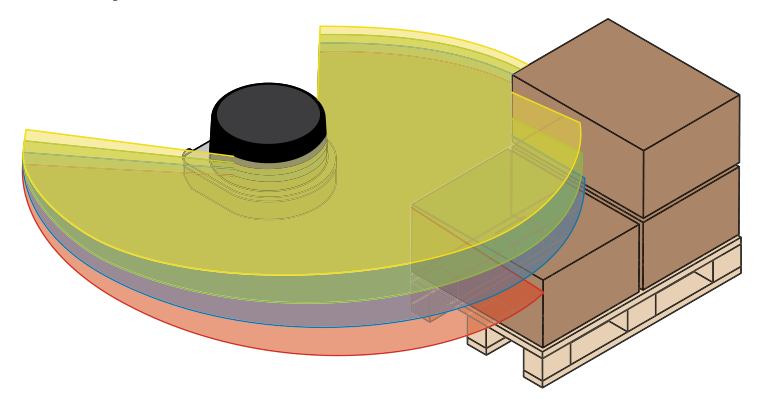{ width="70%" }
*A multi-layer sensor scans several planes at once, each tilted by a fixed angle.*
A 3D sensor adds the vertical angle. Multi-layer sensors contain several sender
and receiver modules aimed at different vertical angles, so one rotation
produces several scan planes, called layers, at the same time. Distance,
azimuth, and elevation together describe every measured point as an XYZ
coordinate. A set of such points is a point cloud.
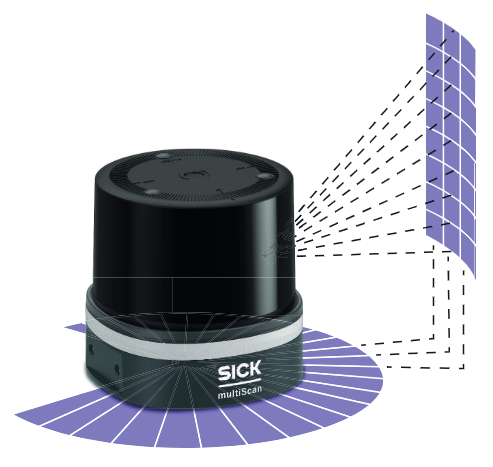{ width="70%" }
*Multiple scan planes provide the spatial coverage needed to build a 3D view.*
A 2D sensor can also produce 3D data when it is moved, for example on a rotating
axis, a linear axis, or a vehicle. The scans carry time stamps, and the known
movement supplies the missing third coordinate. See
[3D With 2D LiDARs](https://sickag.github.io/sick_lidar_developer_guide/integration-notes/3d-with-2d-lidars/).
---
# SICK Virtual Sensor Lab: Try LiDAR Sensors in the Browser
> Use the SICK Virtual Sensor Lab to run virtual LRS4000, multiScan100, multiScan200, and picoScan100 web interfaces in the browser.
Source: https://sickag.github.io/sick_lidar_developer_guide/simulation/virtual-sensor-lab/
# Virtual Sensor Lab
Compatible with: LRS4000 multiScan100 multiScan200 picoScan100
The cloud-based SICK Virtual Sensor Lab runs a live virtual sensor in your browser, so you can explore its web UI without hardware.
Open it at [devices.cloud.sick.com](https://devices.cloud.sick.com/).
- Explore every menu of the web UI and change settings, for example the data output or field-evaluation zones.
- Prepare a configuration offline, export it, and import it into a real device later. Configuration files from real devices can also be loaded and viewed.
- It does not replace commissioning or a function test on the real device. `.sopas` files cannot be imported or exported.
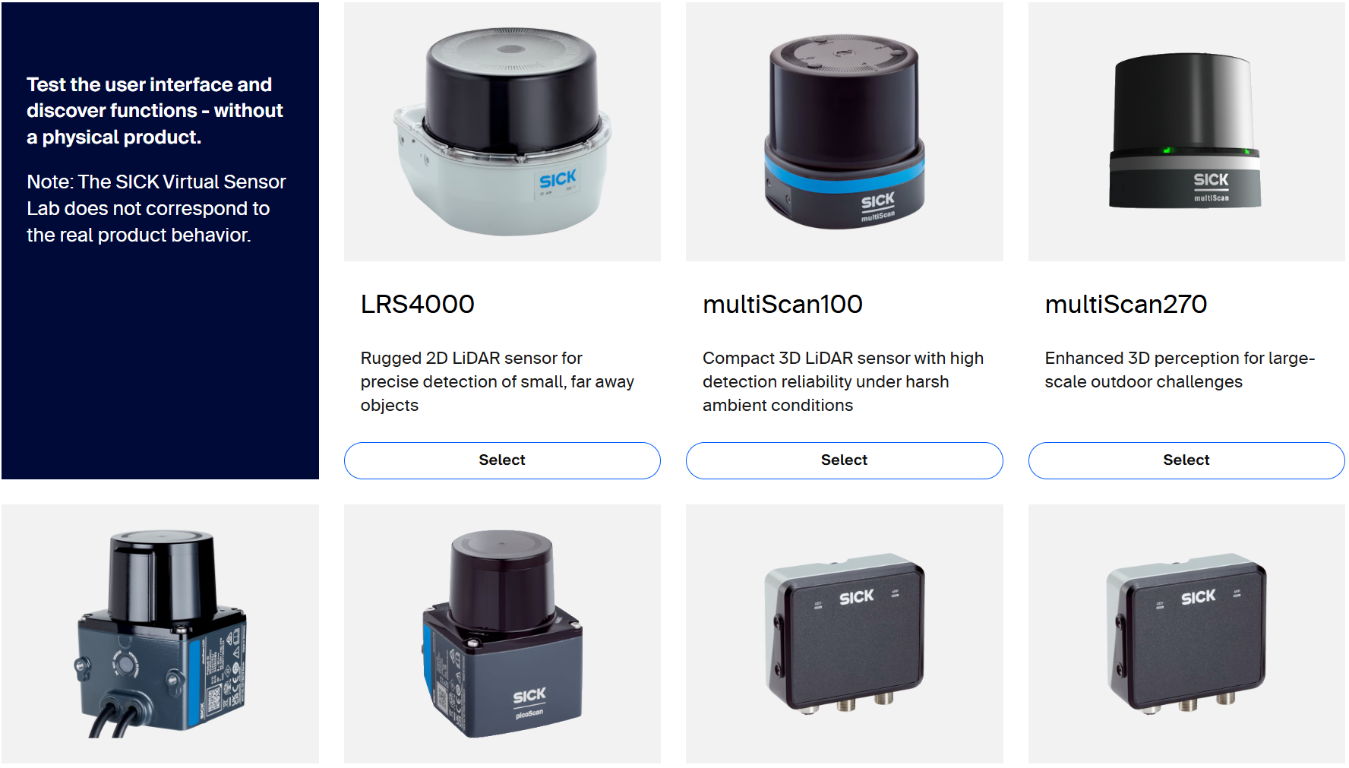
*SICK Virtual Sensor Lab product selection interface.*
---
# LiDAR Simulation Overview
> Explore SICK LiDAR web interfaces in the Virtual Sensor Lab or simulate sensor measurements in NVIDIA Isaac Sim before hardware is available.
Source: https://sickag.github.io/sick_lidar_developer_guide/simulation/
# Simulation
Choose a virtual web interface to explore device configuration, or a robotics
simulator to test sensor models in a scene.
* [Virtual Sensor Lab](https://sickag.github.io/sick_lidar_developer_guide/simulation/virtual-sensor-lab/): run virtual sensor web interfaces in your browser.
* [NVIDIA Isaac Sim](https://sickag.github.io/sick_lidar_developer_guide/simulation/nvidia-isaac-sim/): use SICK LiDAR models in simulated environments.
---
# SICK LiDAR Models in NVIDIA Isaac Sim
> Simulate SICK LRS4000, multiScan100, and picoScan100 LiDAR models in NVIDIA Isaac Sim before hardware is available. multiScan200 is coming soon.
Source: https://sickag.github.io/sick_lidar_developer_guide/simulation/nvidia-isaac-sim/
# NVIDIA Isaac Sim
Compatible with: LRS4000 multiScan100 picoScan100

NVIDIA Isaac Sim provides simulation environments for robotics, industrial automation, and autonomous systems. SICK LiDAR models let you test applications and algorithms before physical hardware is available.
SICK models are available for picoScan150, picoScan120, multiScan136, multiScan165, and LRS4581R. multiScan200 models are coming soon. Find them on the applicable SICK product page under **Downloads > Software** or in NVIDIA Omniverse's sensor library. Configure the mounting position, orientation, field of view, scan frequency, detection range, and environment to match the deployment.
Search for the product family on sick.com:
- [LRS4000](https://www.sick.com/de/en/search?text=LRS4000)
- [multiScan100](https://www.sick.com/de/en/search?text=multiScan100)
- [picoScan100](https://www.sick.com/de/en/search?text=picoScan100)
*Preview of a simulated multiScan270 (multiScan200, coming soon) scanning railway tracks in NVIDIA Omniverse, with the point cloud overlaid on the scene.*
For more details on Isaac Sim, see:
- [What is Isaac Sim](https://docs.isaacsim.omniverse.nvidia.com/latest/index.html)
- [Getting Started Tutorials](https://docs.isaacsim.omniverse.nvidia.com/latest/introduction/quickstart_index.html)
---
# SOPASair: The Built-In LiDAR Web Interface
> SOPASair is the built-in web interface for SICK LRS4000, multiScan100, multiScan200, and picoScan100 sensors.
Source: https://sickag.github.io/sick_lidar_developer_guide/visualization/sopasair/
# SOPASair
Compatible with: LRS4000 multiScan100 multiScan200 picoScan100
SOPASair is the sensor's built-in web UI, served directly from the device at `http://192.168.0.1/` with factory settings. There is nothing to install: point a browser at the sensor. Use it to:
- configure the settings available on the selected device,
- draw or teach in field-evaluation zones where the device supports those functions,
- update firmware through the web UI where supported, or use the documented [REST sequence](https://sickag.github.io/sick_lidar_developer_guide/shared-features/firmware-update/),
- create a diagnostic file if the device provides that option.
Screen-by-screen walkthroughs are available for the [LRS4000](https://sickag.github.io/sick_lidar_developer_guide/LRS4000/graphical-user-interface/), [multiScan100](https://sickag.github.io/sick_lidar_developer_guide/multiScan100/graphical-user-interface/), [multiScan200](https://sickag.github.io/sick_lidar_developer_guide/multiScan200/graphical-user-interface/), and [picoScan100](https://sickag.github.io/sick_lidar_developer_guide/picoScan100/graphical-user-interface/). Available menus and functions vary by product family, variant, and firmware. For standard IP address settings, see [Getting Started](https://sickag.github.io/sick_lidar_developer_guide/getting-started/).
For measurement recordings, see the [SOPASair Data recorder](https://sickag.github.io/sick_lidar_developer_guide/recording/sopasair/) if that function is available on your device.
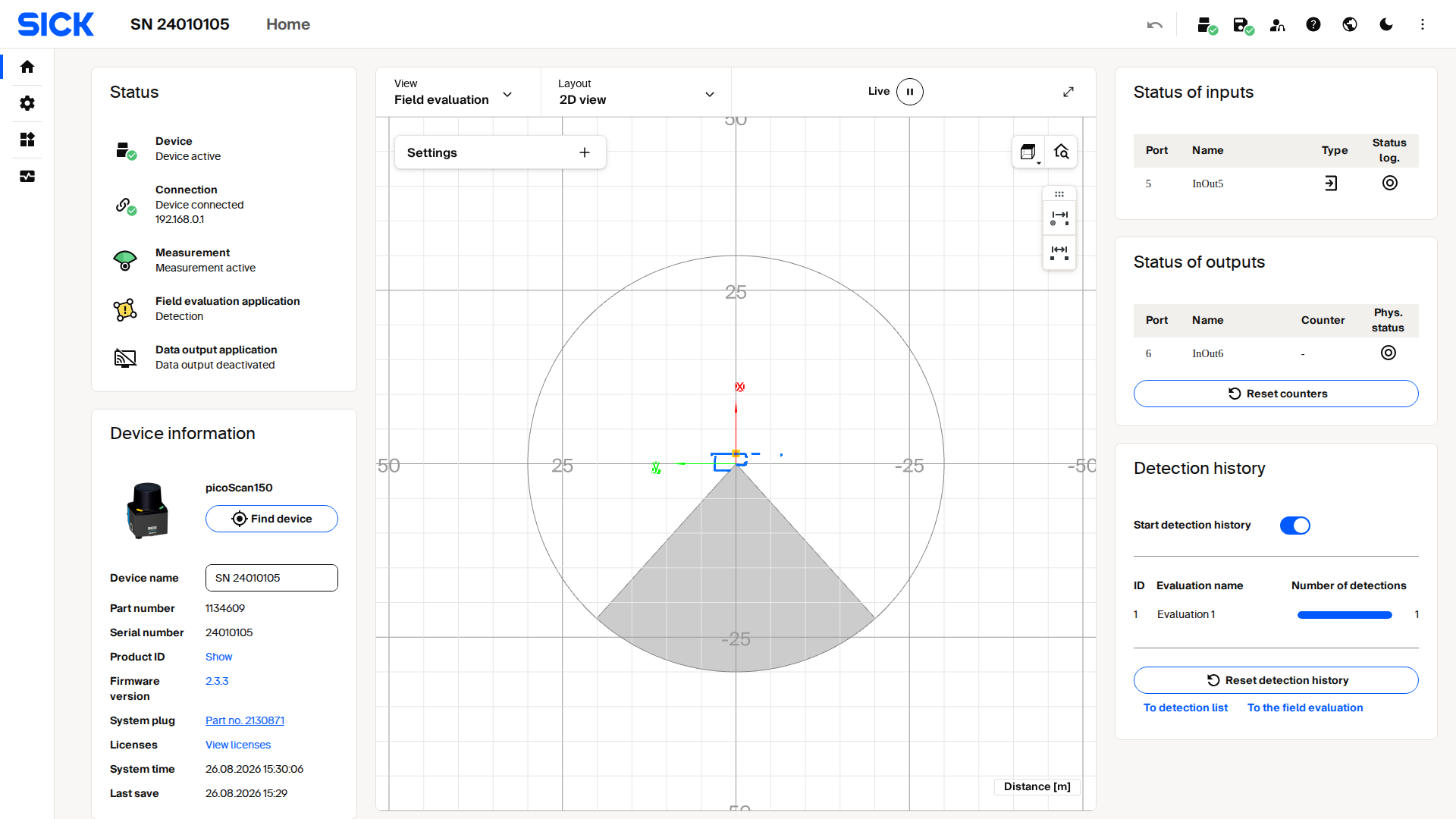
*Live capture from a picoScan100's SOPASair web interface.*
---
# LiDAR Visualization: SOPASair, SOPAS ET, rviz2, and More
> Choose SICK LiDAR software for live sensor setup, device commissioning, ROS topic checks, or offline point-cloud viewing.
Source: https://sickag.github.io/sick_lidar_developer_guide/visualization/
# Choose a Visualization Tool
Choose a tool based on whether you need to configure a live sensor, manage
devices and firmware, locate a device, or inspect point-cloud files.
* [SOPASair](https://sickag.github.io/sick_lidar_developer_guide/visualization/sopasair/): configure and commission a connected sensor in its browser-based interface, including interactive workflows such as field teach-in and firmware update. Start here.
* [ROS 2 rviz](https://sickag.github.io/sick_lidar_developer_guide/visualization/rviz2/): view live ROS 2 topics and point clouds to check data flow, frame alignment, and scan coverage; requires a running ROS 2 setup.
* [CloudCompare](https://sickag.github.io/sick_lidar_developer_guide/visualization/cloudcompare/): inspect and process saved 3D point clouds, including compatible PCD files; for offline work, not live sensor configuration.
* [Sentio Creator](https://sickag.github.io/sick_lidar_developer_guide/visualization/sentio-creator/): discover and commission SICK devices and find matching firmware packages; requires installing the SICK software.
* [SOPAS ET](https://sickag.github.io/sick_lidar_developer_guide/visualization/sopas-et/): use the legacy engineering tool across all device families for network discovery and CoLa commands; use SOPASair for supported device setup.
---
# View LiDAR Point Clouds (PCD) in CloudCompare
> Open and inspect .pcd point clouds from 3D scan recording or the sick_perception_sdk in the free CloudCompare viewer.
Source: https://sickag.github.io/sick_lidar_developer_guide/visualization/cloudcompare/
# CloudCompare
Compatible with: LRS4000 multiScan100 multiScan200 picoScan100

CloudCompare is a free, open-source 3D point-cloud viewer and processing tool. You can use it to visualize `.pcd` files produced by 3D scan recording or by the [sick_perception_sdk](https://sickag.github.io/sick_lidar_developer_guide/recording/sick-perception-sdk/), without writing any viewer code yourself.
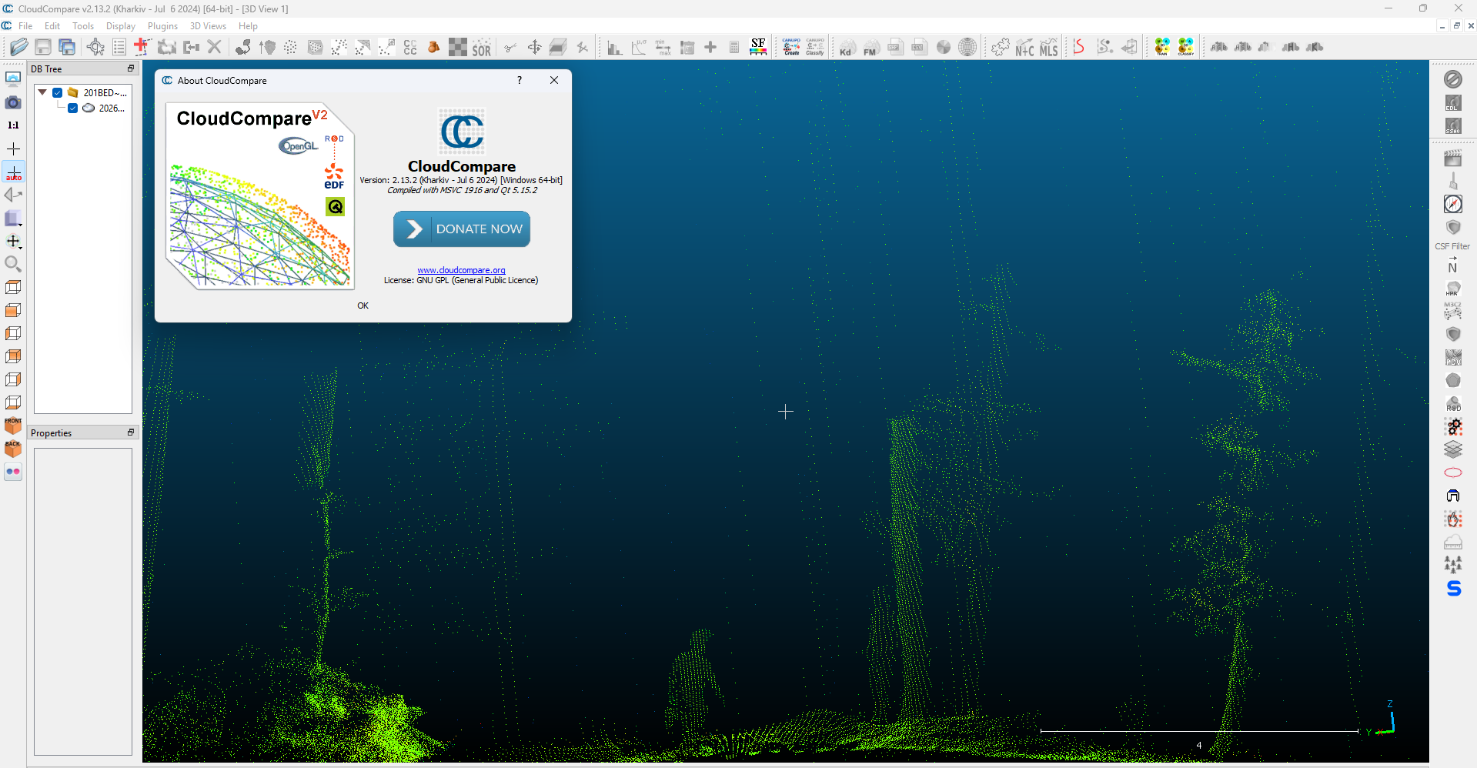
*LiDAR point cloud displayed in CloudCompare 2.13.2.*
1. Open the `.pcd` file with **File → Open**.
2. If the file contains intensity, select the cloud and set **Colors** to **Scalar field** with intensity as the active field in the **Properties** panel.
3. Use the **Point picking** tool to measure the distance between two points.
---
# ROS 2 rviz: Visualize LiDAR Data
> Use rviz2 to visualize SICK LiDAR point clouds and topics in ROS 2 before any custom application code is written.
Source: https://sickag.github.io/sick_lidar_developer_guide/visualization/rviz2/
# ROS 2 rviz
Compatible with: LRS4000 multiScan100 multiScan200 picoScan100

Use `rviz2` to inspect SICK LiDAR point clouds, laser scans, and coordinate
frames from native ROS 2 or `sick_scan_xd`.
1. Configure the sensor for ROS 2 output as described in [ROS Integration](https://sickag.github.io/sick_lidar_developer_guide/integration-notes/ros-integration/).
2. Start the ROS 2 middleware and sensor publisher. For native ROS 2, use
Cyclone DDS; for `sick_scan_xd`, start the driver on the host.
3. Confirm that ROS 2 can see the sensor topics:
```bash
ros2 topic list
```
For native ROS 2, `/cloud/all_points` is the combined point cloud. A
`sick_scan_xd` launch can use different topic names; select the
`sensor_msgs/msg/PointCloud2` or `sensor_msgs/msg/LaserScan` topic shown by
`ros2 topic list`.
4. Launch `rviz2` in the same sourced ROS 2 environment:
```bash
rviz2
```
5. In the left panel, add a display such as:
- `PointCloud2` for a dense 3D point cloud,
- `LaserScan` for 2D planar output,
- `TF` to verify coordinate frames,
- `Axes` to confirm sensor orientation.
6. Select the published topic, set the fixed frame, and check the sensor data
against the expected field of view.
Set **Reliability Policy** to match the publisher when rviz2 reports an
incompatible QoS profile. Check that data arrives on the topic:
```bash
ros2 topic info --verbose /cloud/all_points
ros2 topic echo --once /cloud/all_points
```
Replace the topic for a `sick_scan_xd` launch. If data arrives but rviz2 shows a
**No transform** error, set **Fixed Frame** to the message's
`header.frame_id`, or publish the required static transform.
---
# Sentio Creator for SICK LiDAR Sensors
> Use SICK Sentio Creator to commission supported SICK devices and obtain firmware packages for LRS4000, multiScan100, multiScan200, and picoScan100.
Source: https://sickag.github.io/sick_lidar_developer_guide/visualization/sentio-creator/
# Sentio Creator
Compatible with: LRS4000 multiScan100 multiScan200 picoScan100
Sentio Creator is a SICK software tool, published on [sick.com](https://www.sick.com/de/en/search?text=sentio-creator), used to configure and commission supported SICK devices. Alongside the device's product page, it is also a source for firmware update packages. Use it to obtain the correct package for your device variant before running a [firmware update](https://sickag.github.io/sick_lidar_developer_guide/shared-features/firmware-update/).
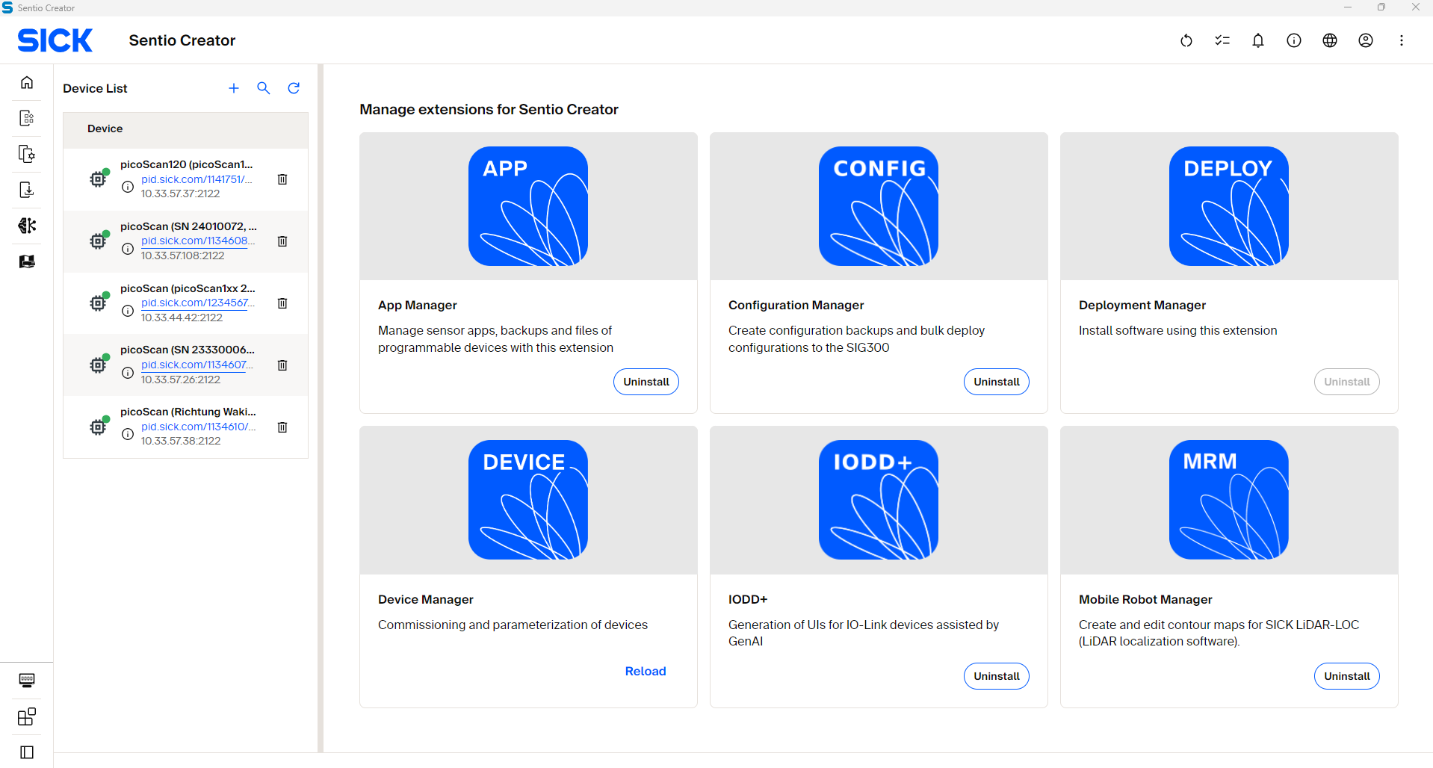
*Sentio Creator software interface displaying device list and extensions manager.*
---
# SOPAS ET: Legacy Engineering Tool and Device Search
> Find SICK LiDAR sensors on the local network with SOPAS ET. Use SOPAS ET Terminal to send CoLa A and CoLa B commands over TCP.
Source: https://sickag.github.io/sick_lidar_developer_guide/visualization/sopas-et/
# SOPAS ET
Compatible with: LRS4000 multiScan100 multiScan200 picoScan100
SOPAS ET is a legacy SICK engineering tool that works with all device families in this guide. Use SOPASair for supported device setup and configuration workflows.
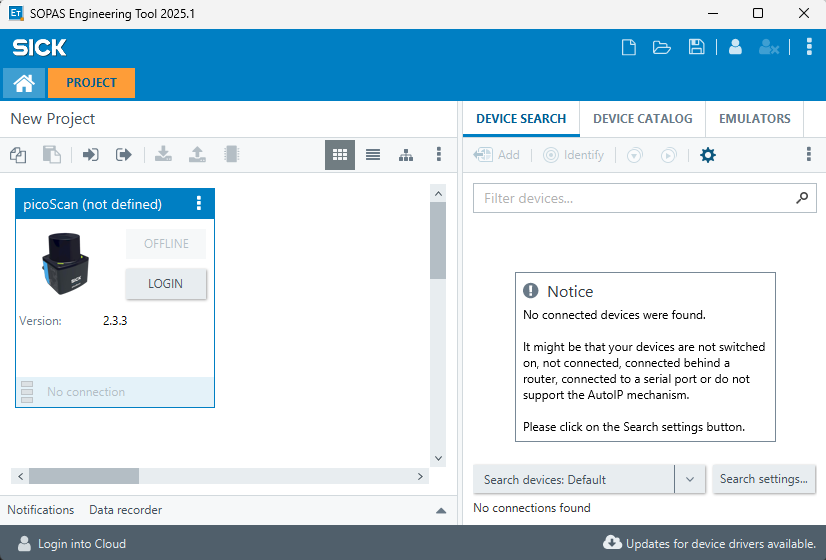
*SOPAS Engineering Tool interface with device search and project view.*
SOPAS ET can still be useful for discovering sensors on the local network. Use its network search to locate a device when its IP address is unknown, then continue commissioning in SOPASair or through the [REST API](https://sickag.github.io/sick_lidar_developer_guide/configuration/rest-interface/).
SOPAS ET also includes the **SOPAS ET Terminal** feature, which can send
[CoLa A and CoLa B commands](https://sickag.github.io/sick_lidar_developer_guide/configuration/cola-interface/) to sensors over TCP.
*SICK knowledge base video: search for the device with SOPAS ET.*
---
# LiDAR On-Device Applications Overview
> Explore SICK LiDAR field evaluation, object detection, perpendicular-distance measurement, contamination indication, and 3D scan recording.
Source: https://sickag.github.io/sick_lidar_developer_guide/on-device-applications/
# On-Device Applications
Use sensor-side processing to obtain application results without processing
every scan point on a host. Check each page for supported devices and limits.
* [Field Evaluation](https://sickag.github.io/sick_lidar_developer_guide/on-device-applications/field-evaluation/): configure evaluation fields and read their results.
* [Object Evaluation](https://sickag.github.io/sick_lidar_developer_guide/on-device-applications/object-evaluation/): use multiScan100 object properties to make decisions based on object criteria.
* [Perpendicular Distance Measurement](https://sickag.github.io/sick_lidar_developer_guide/on-device-applications/perpendicular-distance-measurement/): measure distance relative to a reference plane.
* [Contamination Indication](https://sickag.github.io/sick_lidar_developer_guide/on-device-applications/contamination-indication/): monitor dirt on the optics cover.
* [3D Scan Recording](https://sickag.github.io/sick_lidar_developer_guide/on-device-applications/3d-scan-recording/): record a 3D point cloud with a rotating 2D sensor.
---
# LiDAR Field Evaluation: Polygons, Teach-In, and REST API
> Configure on-device field evaluation on LRS4000, multiScan100, multiScan200, and picoScan100: evaluation groups, polygons via GUI, REST, or CoLa, and teach-in.
Source: https://sickag.github.io/sick_lidar_developer_guide/on-device-applications/field-evaluation/
# Field Evaluation
Compatible with: LRS4000 multiScan100 multiScan200 picoScan100
The sensor evaluates detection zones on the device. Field evaluation checks whether scan points enter a configured polygon and reports whether the field is free or infringed. The result can drive a digital output and can be read through REST, CoLa, or WebSocket events. In SOPASair, field evaluation is the **Object Detection** application; both names mean the same function.
**Field Evaluation:** term and meaning.
| Term | Meaning |
| --- | --- |
| Evaluation | One field (polygon) with its detection parameters, stored in an evaluation slot |
| Evaluation slot | Numbered storage place for one evaluation, for example `Eval001` |
| Group | One or more evaluations that are activated together |
| Activation type | When a group is evaluated: always, by digital inputs, or by telegram |
| Result | Per evaluation: free or infringed; per group: active, inactive, or not configured |
*picoScan100: How to draw fields and detect objects?*
## Configure in the Web GUI
Open the **Object Detection** application in SOPASair to create and edit polygon points directly. This is the quickest method for commissioning and manual adjustments. The field editor also supports teach-in.
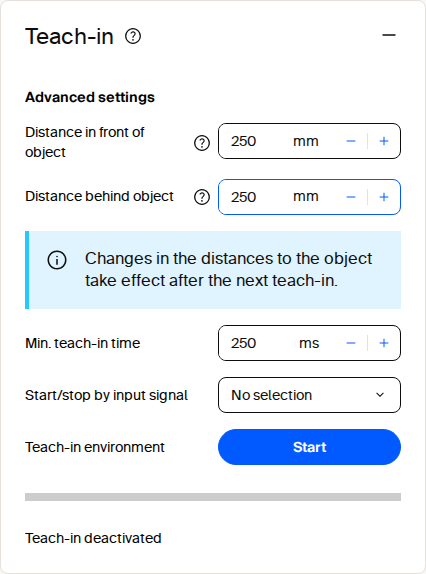
*Field evaluation teach-in tile in SOPASair.*
For bulk coordinate changes, open the Field settings dialog and select JSON in its footer toolbar. The editor switches from the coordinate table to a JSON text field. Paste the prepared polygon to replace all points at once:
```json
{
"points": [
{ "x": -5, "y": 531 },
{ "x": 837, "y": 565 },
{ "x": 907, "y": -637 },
{ "x": 12, "y": -590 }
]
}
```
### Copy to Other Devices
Use the top-right SOPASair menu to download the complete configuration from a commissioned sensor. It includes field geometries and can be imported into another compatible device, making it suitable for repeatable commissioning and replacement devices. Keep a versioned, validated backup for each deployed configuration.
## Teach In
Teach-in captures the current environment and uses the measured contour as a field for object detection. Use it during commissioning when the surrounding geometry should define the detection field instead of drawing a polygon manually.
Open the **Object Detection** application in SOPASair and select **Teach-in** in the field configuration. Set the distances in front of and behind the object, choose the minimum teach-in time, and click **Start**. Stop the teach-in when the environment has been captured, then save the field evaluation configuration.
*Teach-in configuration in SOPASair.*
The configured distances take effect during the next teach-in. Keep the intended environment stable while the contour is captured.
Teach-in uses the same evaluation group and output mechanism as a manually configured field. After the contour has been captured, monitor the evaluation result through the configured output, REST, CoLa, or WebSocket events.
## Minimum Object Size
The farther an object is, the wider apart the beams are, so small objects can fall between them.
Select a device family, scan configuration, target, and object size to estimate up to which range the object is still detected.
Device presets fill in the model-specific values from the operating instructions. Select **Custom Values** to adjust angular resolution, beam divergence, minimum spot size, and scanning range.
Result
Maximum range ?
Smallest of the width limit, enabled height limit and target scanning range. This is a geometric planning estimate, not a detection guarantee.
–
Range limit from the width ?
Geometric range supported by the entered width, before applying the height check or target scanning-range cap.
–
Range limit from the height ?
Geometric range supported by the entered height, before applying the width check or target scanning-range cap. Height 0 disables this check.
–
Scanning range for the target ?
Preset range cap for the selected target. picoScan diffuse-target values are typical at 10 klx; multiScan100 values use 10 klx. Footnote 1 marks a working-range fallback, not a specified target range.
–
Minimum object width at maximum range ?
Minimum width from the selected model at the calculated maximum range. If no positive range exists, it is shown at the scanning-range cap instead.
–
Minimum object height at maximum range ?
Minimum height at the calculated range, using layer gaps or the LRS4000 vertical spot. Shown only when the height check is enabled. The multiScan model follows the published size table.
–
Spot width at maximum range ?
Horizontal beam footprint at the calculated range: initial spot plus divergence times distance. This is separate from the minimum object width. Blank means the preset has no verified divergence for this mode.
–
Spot height at maximum range ?
Vertical beam footprint at the calculated range: initial spot plus vertical divergence times distance. A 2D scanner still has a vertical beam footprint.
–
1) Not specified for this target; the working range is shown.
*Minimum object size over the range. The maximum range is where the curve reaches the object size, capped by the scanning range for the selected target.*
These results are estimates only. Testing the individual object in its actual position and operating conditions is necessary; the calculator does not guarantee detection. The LRS4000, multiScan100, and picoScan100 presets use the corresponding model-specific operating-instruction data and formulas.
## Activate and Monitor a Group
**Activate and Monitor a Group:** REST resource and purpose.
| REST resource | Purpose |
| --- | --- |
| `ActivateEvaluationGroup` | Activates or deactivates a `TELEGRAM`-controlled group |
| `FieldEvaluationGroupState` | Group state: not configured, active, or inactive |
| `FieldEvaluationResult` | Current result: `FREE`, `INFRINGED`, or a transitional state; also available as a [WebSocket event](https://sickag.github.io/sick_lidar_developer_guide/data-streaming/websocket-events/) |
A typical application creates the groups once, persists the configuration, and at runtime reads the group state and result, updates contours when necessary, and switches telegram-controlled groups.
For full payloads, see the [LRS4000](https://sickag.github.io/sick_lidar_developer_guide/LRS4000/api-rest-openapi/), [multiScan100](https://sickag.github.io/sick_lidar_developer_guide/multiScan100/api-rest-openapi/), [multiScan200](https://sickag.github.io/sick_lidar_developer_guide/multiScan200/api-rest-openapi/), and [picoScan100](https://sickag.github.io/sick_lidar_developer_guide/picoScan100/api-rest-openapi/) REST API references and the CoLa telegram listings for [LRS4000](https://sickag.github.io/sick_lidar_developer_guide/LRS4000/api-cola-telegrams/), [multiScan100](https://sickag.github.io/sick_lidar_developer_guide/multiScan100/api-cola-telegrams/), [multiScan200](https://sickag.github.io/sick_lidar_developer_guide/multiScan200/api-cola-telegrams/), and [picoScan100](https://sickag.github.io/sick_lidar_developer_guide/picoScan100/api-cola-telegrams/).
Activation types (`Activation.Type` of a group). `ActivateEvaluationGroup` only switches `TELEGRAM` groups:
**Activate and Monitor a Group:** value, type, and behavior.
| Value | Type | Behavior |
| --- | --- | --- |
| `0` | Deactivated | The group is never evaluated. |
| `1` | Always | The group is active as soon as it is stored. `ActivateEvaluationGroup` returns `false` for it and cannot switch it off. |
| `2` | Inputs | Digital inputs activate the group. |
| `3` | Telegram | The group starts in the state set by `InitialActivationStateTelegram` and is switched with `ActivateEvaluationGroup`. |
`FieldEvaluationGroupState` returns one value per group: `0` not configured, `1` active, `2` inactive. `FieldEvaluationResult` returns one state per evaluation: `0` not configured, `1` inactive, `2` free, `3` detecting infringed, `4` infringed, `5` detecting free.
## Configure over the API
On all devices, create the evaluations in SOPASair or restore them from a [configuration file](https://sickag.github.io/sick_lidar_developer_guide/configuration/configuration-backup-and-restore/); REST and CoLa can then change them. On the picoScan100, REST and CoLa can also build complete evaluations from scratch. The following workflow applies to picoScan150 with firmware V2.3.3. Some of these variables, such as `Eval001`–`Eval048` and `EvaluationGroupMapping`, are not listed in the published OpenAPI file, but can be read and written as REST variables (`GET` / `POST /api/`).
**Configure over the API:** variable or method, purpose, and devices.
| Variable or method | Purpose | Devices |
| --- | --- | --- |
| `Eval001`–`Eval048` | Detection parameters of one evaluation slot: mode, minimum object size, timing, and the referenced volume (`VolumeList`) | picoScan100 |
| `SetFieldEvaluationContour` / `GetFieldEvaluationContour` | Writes or reads the polygon of an evaluation | LRS4000, multiScan100, multiScan200, picoScan100 |
| `SetFieldEvaluationConfiguration` / `GetFieldEvaluationConfiguration` | Writes or reads evaluation parameters | multiScan200 |
| `EvaluationGroupMapping` | Groups evaluations and sets the activation type of each group | picoScan100 |
| `EvaluationGroupType` | Selects field evaluation or perpendicular-distance mode | LRS4000, picoScan100 |
| `PortConfiguration` | Assigns an evaluation result to a digital output | LRS4000, multiScan100, multiScan200, picoScan100 |
| `WriteEeprom` (REST) / `mEEwriteall` (CoLa) | Stores the configuration permanently | LRS4000, multiScan100, multiScan200, picoScan100 |
To create an evaluation on the picoScan100, log in as **Authorized client** or **Service** and write the variables in this order:
1. Write `EvalNNN` with the detection mode, the minimum object size, and `VolumeList = [NNN]`.
2. Write the polygon with `SetFieldEvaluationContour`. It returns error `1` (invalid evaluation) if `VolumeList` of the slot is empty, so write the slot first.
3. Write `EvaluationGroupMapping`. The whole array is replaced on every write: read the current mapping first and include every group you want to keep.
4. Optional: write `PortConfiguration` to switch a digital output when the evaluation is infringed. Outputs refer to evaluations (sources `EG01`–`EG48`), not to groups, and the whole port array must be written.
5. Call `WriteEeprom`. The device re-initializes; wait about 1 s before reading the state.
6. For a `TELEGRAM` group, switch it on with `ActivateEvaluationGroup`.
To delete an evaluation, remove its group from `EvaluationGroupMapping`, clear `VolumeList` and the name of the slot, and call `WriteEeprom`. The group state returns to not configured.
The coordinates are in millimeters in the sensor coordinate system: `x` points forward (depth) and `y` to the side.
**Detection modes** (`EvaluationParamsCommon.Mode` of the evaluation slot):
**Configure over the API:** value, mode, and the field is infringed when.
| Value | Mode | The field is infringed when |
| --- | --- | --- |
| `0` | Blanking | An object at least as large as the minimum object size is inside the field. This is the most common mode. |
| `1` | Reflector only | A highly reflective object such as a retroreflector is inside the field. |
| `2` | Contour | The scan deviates from the taught-in contour by more than the tolerance. Requires a valid [teach-in](https://sickag.github.io/sick_lidar_developer_guide/on-device-applications/field-evaluation/#teach-in-over-the-api). |
### Change a Polygon
The REST API exposes `SetFieldEvaluationContour` to update a polygon. The evaluation must already exist. Use `GetFieldEvaluationContour` to confirm the stored geometry and persist the change with `WriteEeprom`. See the [REST client example](https://github.com/SICKAG/sick_scan_rest_client/blob/public/examples/sick_scan_rest_client_object_detection_example.py).
CoLa provides the same `SetFieldEvaluationContour` function through its telegram interface. Use it when the integration already uses CoLa, such as a PLC or legacy client; see [CoLa](https://sickag.github.io/sick_lidar_developer_guide/configuration/cola-interface/).
The `sick_perception_sdk` uses the REST interface and provides an application-level option for changing contours. See the [object-detection example](https://github.com/SICKAG/sick_perception_sdk/blob/main/examples/shared/object_detection.cpp).
## Teach in over the API
A teach-in evaluation is an evaluation slot with mode `2` (contour). The polygon written with `SetFieldEvaluationContour` is not the detection field: it is the region of interest in which teach-in learns the reference contour. `GetFieldEvaluationContour` therefore returns this region, not the learned contour.
Teach-in is global; it is not bound to an evaluation slot. Set the parameters, then start and stop the teach-in:
**Teach in over the API:** variable or method and purpose.
| Variable or method | Purpose |
| --- | --- |
| `TeachInToleranceFront` / `TeachInToleranceBack` | Tolerance in front of and behind the taught contour, in mm (default 250) |
| `TeachInMinimumTimeMs` | Minimum teach-in time, 100 to 60000 ms (default 250) |
| `TeachInActivationInput` | Digital input that starts the teach-in; `0` = software only |
| `StartTeachIn` / `StopTeachIn` | Starts and stops the teach-in |
| `TeachInActive` | `1` while the teach-in runs |
| `TeachInContourValid` | `1` after a teach-in produced a valid contour |
Keep the scene stable for at least the minimum teach-in time, stop the teach-in, check `TeachInContourValid`, and call `WriteEeprom`. To change the field later, repeat the teach-in, for example with a larger tolerance; the region of interest stays the same.
## Distance-Dependent
The **Distance-dependent** parameter determines whether two detected objects are evaluated separately or merged into one object based on their axial separation. It works with the configured **Blanking** width to avoid triggering a field evaluation when separate small objects would otherwise appear as one large object.
*picoScan100: 2D Object Detection Parameter Distance-dependent.*
The video uses two objects: a foreground object approximately 60 mm wide, a background object approximately 250 mm wide, and about 450 mm of axial separation. The standard blanking width is 300 mm.
**Example:** configuration, result, and explanation.
| Configuration | Result | Explanation |
| --- | --- | --- |
| Distance-dependent off | Field infringed | Both objects merge into one contiguous object wider than 300 mm. |
| Distance-dependent on; threshold 300 mm | Field not infringed | The objects are at least 300 mm apart and are evaluated separately; neither is wider than 300 mm. |
| Distance-dependent on; threshold 500 mm | Field infringed | The objects are less than 500 mm apart, so they merge and exceed the blanking width. |
Set the separation threshold to the distance at which nearby objects should be merged for your application.
## Ground Filter (multiScan100)
The ground filter uses upper and lower ground thresholds to reduce false
field-evaluation triggers caused by the ground. When configured correctly, it
retains small objects such as forklift tines and can be used indoors and
outdoors. The filter also affects perpendicular-distance evaluations. See
[Ground Filter](https://sickag.github.io/sick_lidar_developer_guide/data-streaming/filter-details/#ground-filter) for
availability and API settings.
*multiScan1xx: Ground-filter behavior in a field application.*
---
# LiDAR Object Evaluation with multiScan100
> Configure multiScan100 object evaluation using tracked object properties, spatial regions, motion criteria, and REST result states.
Source: https://sickag.github.io/sick_lidar_developer_guide/on-device-applications/object-evaluation/
# Object Evaluation
Compatible with: multiScan100
**Object Evaluation** combines 3D object tracking with configurable criteria.
The tracker estimates each object's track ID, horizontal and vertical size,
speed, direction of movement, and age. An evaluation checks those properties
within a configured region and reports whether its criteria are met. This lets
an application respond to relevant movement without processing every scan
point on a host.
*multiScan100 Object Evaluation overview: tracked objects are evaluated against configured regions and criteria.*
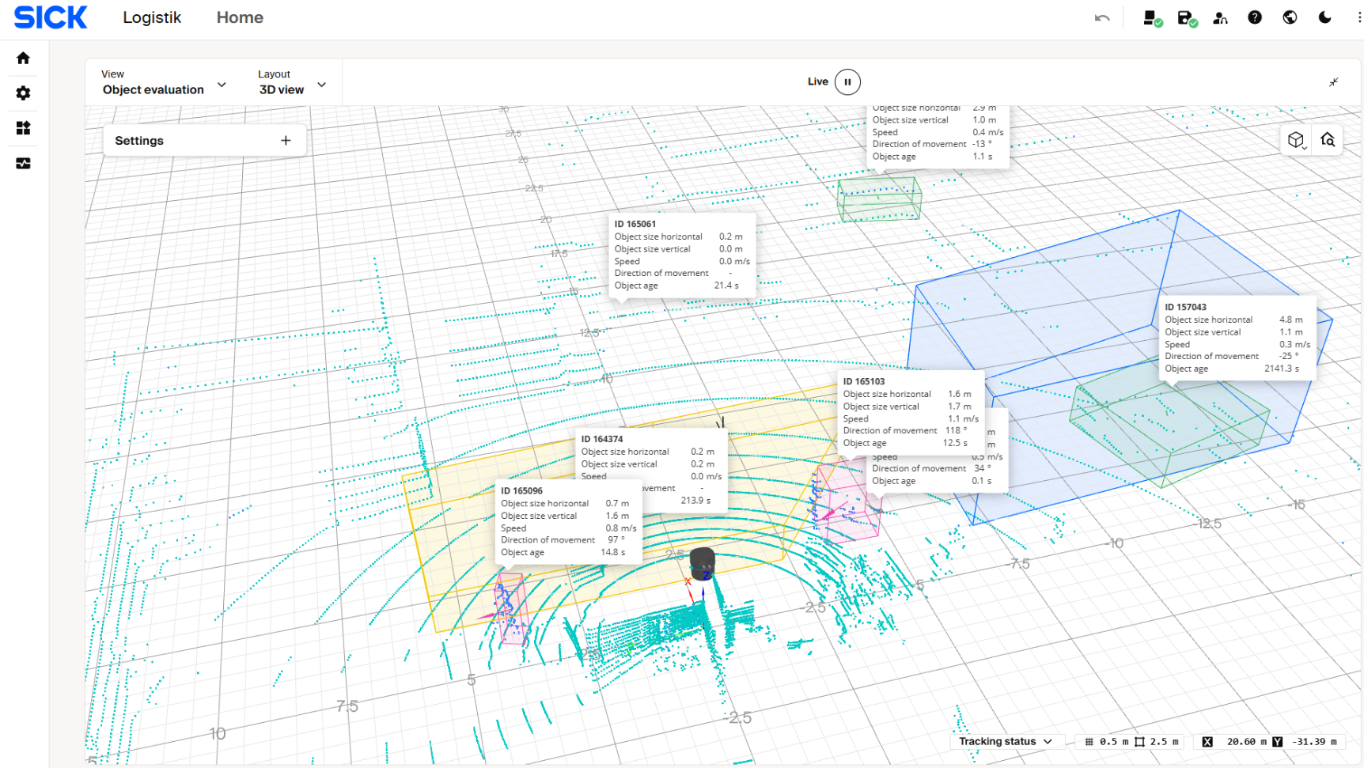
*The multiScan100 3D view displays tracked-object IDs, dimensions, speed, direction of movement, and age alongside the configured evaluation regions.*
Object Evaluation is available from multiScan100 firmware 2.5.0 and requires
the **3D Object Detection Advanced** package. Check the device variant,
firmware, and installed license before commissioning. See the
[firmware 2.5.0 release notes](https://sickag.github.io/sick_lidar_developer_guide/multiScan100/release-notes/#firmware-250)
and [multiScan100 license list](https://sickag.github.io/sick_lidar_developer_guide/multiScan100/licenses/).
Object Evaluation filters tracked objects by measurable properties; it does
not return semantic object-class labels. Validate any application decision
against the real objects and operating conditions.
## How an Evaluation Works
Object tracking estimates object properties over successive scans. An
evaluation then applies its spatial region and criteria to those tracks. The
result is a state for each configured evaluation, not a class label for each
object.
**Object Evaluation criteria:** region and track properties used to determine whether an evaluation is infringed.
| Criterion | How it affects the evaluation |
| --- | --- |
| Region of interest | A polygon in the scan plane, with lower and upper Z limits, defines where objects are evaluated. |
| Object size | Minimum horizontal and vertical sizes can be set. An optional maximum-size filter rejects objects that exceed the configured maximum dimensions. |
| Motion state | `ALL` accepts moving and stationary tracks; `MOVING` or `STATIONARY` restricts the evaluation to that motion state. |
| Speed | An optional minimum and maximum speed range filters tracks. |
| Direction | An optional direction filter uses a configured direction and uncertainty range. |
| Object age | A minimum age can exclude tracks until they have been observed long enough. |
| Hidden time | A maximum hidden time controls how long a temporarily unobserved track can remain part of the evaluation. |
Use SOPASair for the displayed units and the
[multiScan100 REST API reference](https://sickag.github.io/sick_lidar_developer_guide/multiScan100/api-rest-openapi/) for
numeric constraints and enum values. The REST configuration uses
`EvaluationId` to associate a contour and criteria with an evaluation.
## Configure and Validate
1. Confirm that the sensor has firmware 2.5.0 or later and the **3D Object
Detection Advanced** package.
2. In **Configuration > Basic settings**, turn off interlaced mode. Object
evaluation is unavailable in interlaced mode; the sensor reports
[error 211](https://sickag.github.io/sick_lidar_developer_guide/troubleshooting/error-codes/).
3. Open the **Object Evaluation** application in SOPASair. Define the region
of interest and choose the motion, size, speed, direction, and age criteria
that match the application.
4. Activate the configured evaluation group. A group can be activated or
deactivated through the REST API as well as the device interface.
5. Test representative objects and movements in the intended region. Confirm
that qualifying tracks produce the expected result and that excluded tracks
do not.
6. Monitor the application, group, configuration, and evaluation states
described below.
## Read and Interpret Results
Use these read-only REST endpoints to check whether the application is
available, the group is active, and the evaluation result matches the scene.
**Object Evaluation status endpoints:** REST path and returned status.
| REST endpoint | Meaning |
| --- | --- |
| `GET /api/ObjectEvaluationApplicationState` | Application state: `0` DEACTIVATED, `1` ACTIVE, `2` CONFIGURING, or `3` ERROR. |
| `GET /api/ObjectEvaluationGroupState` | Activation state for configured groups: `0` NOT_CONFIGURED, `1` ACTIVE, or `2` INACTIVE. |
| `GET /api/ObjectEvaluationResult` | Results for configured evaluations. `EvaluationResultList` contains one state per evaluation. |
| `GET /api/ObjectEvaluationConfigState` | Reports whether active beam and evaluation limits are `0` OK, `1` WARNING, or `2` EXCEEDED. |
Each state in `EvaluationResultList` has a distinct meaning:
**Evaluation result states:** numeric value and interpretation.
| Value | State | Meaning |
| ---: | --- | --- |
| `0` | `NOT_CONFIGURED` | No evaluation is configured for this entry. |
| `1` | `INACTIVE` | The evaluation is configured but not active. |
| `2` | `FREE` | No qualifying object infringes the evaluation. |
| `3` | `DETECTING_INFRINGED` | The sensor is confirming an infringement. |
| `4` | `INFRINGED` | A qualifying object infringes the evaluation. |
| `5` | `DETECTING_FREE` | The sensor is confirming that the infringement has cleared. |
Treat `DETECTING_INFRINGED` and `DETECTING_FREE` as transitional states, not
stable results. The application state, group state, configuration state, and per-evaluation
result are separate. Check the relevant status endpoints when diagnosing an
unexpected output.
## Configure Through REST
The REST API provides operations to get and set each evaluation's contour and
criteria, and to activate or deactivate a group. The get/set contour and
configuration operations require at least the **Authorized Client** user
level. Review the request schemas and error codes in the
[multiScan100 REST API reference](https://sickag.github.io/sick_lidar_developer_guide/multiScan100/api-rest-openapi/) before
writing configuration.
**Object Evaluation configuration operations:** REST method and purpose.
| REST operation | Purpose |
| --- | --- |
| `POST /api/GetObjectEvaluationContour` | Read an evaluation's polygon and lower/upper Z limits. |
| `POST /api/SetObjectEvaluationContour` | Set an evaluation's polygon and lower/upper Z limits. |
| `POST /api/GetObjectEvaluationConfiguration` | Read an evaluation's name and criteria. |
| `POST /api/SetObjectEvaluationConfiguration` | Set an evaluation's name and criteria. |
| `POST /api/ActivateObjectEvaluationGroup` | Activate or deactivate an evaluation group. |
The `Get...` operations above use HTTP `POST` with an evaluation ID in the
request body. Do not confuse them with the read-only `GET` status endpoints.
After changing settings, read them back and verify the live result in SOPASair.
## Configure Through CoLa
The same status variables and operations are available as CoLa telegrams, for
example for a PLC. See the
[Object Evaluation telegrams](https://sickag.github.io/sick_lidar_developer_guide/multiScan100/api-cola-telegrams/#object-evaluation)
in the multiScan100 CoLa telegram listing for the structures and copyable
CoLa A and CoLa B examples.
`ActivateObjectEvaluationGroup` switches only groups with the activation type
Telegram. For a group with the activation type Always, the device confirms
the request, but the group stays active. Read `ObjectEvaluationGroupState`
to confirm the change. Changes made through CoLa or REST are lost on restart
unless you save them permanently.
---
# Perpendicular Distance Measurement on SICK LiDAR Sensors
> Review perpendicular-distance availability on LRS4000, multiScan100, and picoScan100, with a detailed picoScan100 configuration and API workflow.
Source: https://sickag.github.io/sick_lidar_developer_guide/on-device-applications/perpendicular-distance-measurement/
# Perpendicular Distance Measurement
Compatible with: LRS4000 multiScan100 picoScan100
Perpendicular distance evaluation measures object distances relative to a
reference line in the scan plane. Define a field and reference line in the
application; the sensor evaluates the points in that field and
reports the minimum and maximum perpendicular distances and the positions of
the corresponding measuring points.
*multiScan1xx: Perpendicular distance application demonstration.*
## Configure a Measurement
1. Open **Application > Perpendicular distance measurement** in SOPASair and
add an evaluation group.
2. Draw the zone in which objects should be measured.
3. Set **Max. blanking size** and **Detection time** under Object detection to
balance measurement stability and response time for the target.
4. Save the configuration to the device.
5. Check the live minimum and maximum distances and their measuring-point
coordinates in the result list.
The evaluation runs on the sensor, so the host receives measurement results
without having to detect objects from the raw scan itself. See the
[SOPASair configuration walkthrough](https://sickag.github.io/sick_lidar_developer_guide/picoScan100/graphical-user-interface/#perpendicular-distance-measurement)
for the interface details.
*picoScan100 example: Output a field's perpendicular distance after configuring the measurement field; use the interfaces below to read the results in your application.*
## Read Results
The REST endpoint `GET /api/perpendicularDistanceResult` returns a timestamp
and an `evaluations` array. Each result contains an evaluation ID, minimum and
maximum distance, and the 3D position of each corresponding measuring point.
The `evaluations` array is empty when no object is measured. The result is read-only; see the [picoScan100 REST API reference](https://sickag.github.io/sick_lidar_developer_guide/picoScan100/api-rest-openapi/).
CoLa clients can poll `sRN perpendicularDistanceResult` for the current
measurement or subscribe with `sEN perpendicularDistanceResult` for event
updates. The telegram reports the shortest and furthest measuring point in
the range relative to the reference plane. See the
[picoScan100 CoLa Telegram Listing](https://sickag.github.io/sick_lidar_developer_guide/picoScan100/api-cola-telegrams/).
## Configure over the API (picoScan100)
REST and CoLa expose every variable needed to create, change, and delete a
perpendicular distance evaluation without SOPASair. The following workflow
applies to picoScan150 with firmware V2.3.3. Some of these variables are
not listed in the published OpenAPI file, but can be read and written as REST
variables (`GET` / `POST /api/`).
A perpendicular distance evaluation has two parts, as in SOPASair:
**Configure over the API (picoScan100):** part, variables, and content.
| Part | Variables | Content |
| --- | --- | --- |
| Object detection | `EvalNNN`, `VolumeNNN` | Detection parameters (blanking mode, minimum object size, detection time) and the field in which objects are measured |
| Reference line | `perpDistNNN` | Normal vector of the line in the scan plane and its signed distance from the sensor, in mm |
To create an evaluation, log in as **Authorized client** or **Service** and
write the variables in this order, using the same slot number `NNN`
throughout:
1. Set the slot to perpendicular distance: write `EvaluationGroupType` with
all 48 values and `1` at the slot position (`0` = field evaluation).
2. Write `EvalNNN` with `VolumeList = [NNN]`.
3. Write the field polygon directly to `VolumeNNN`. Do not use
`SetFieldEvaluationContour` here: it returns success for perpendicular
distance slots but is not reliable for them.
4. Write the reference line to `perpDistNNN`. The normal vector sets the
orientation, for example `(1, 0, 0)` for a line across the forward
direction, and the distance sets its position. Because the picoScan100 is a
2D sensor, the `z` component is always `0`. The no-data mode sets the
output when no object is measured: `0` zero, `1` hold the last value, or
`2` a user-defined substitution distance.
5. Add the group to `EvaluationGroupMapping` with `EvalIds = [NNN]`. The whole
array is replaced on every write, so include every group you want to keep.
6. Call `WriteEeprom` and wait about 1 s before reading the result.
Keep in mind:
- Perpendicular distance groups need their own slots; they cannot share a
slot with a field evaluation group.
- If the field is missing (empty `VolumeList` or empty `VolumeNNN`) or the
group references no evaluation, the device reports a recoverable error
(`DeviceStatus` = `7` instead of `3`) and the result stays empty.
- Perpendicular distance results are not assigned to digital outputs; read
them from `perpendicularDistanceResult`.
- Group activation (`ALWAYS`, `INPUTS`, `TELEGRAM`) and `ActivateEvaluationGroup`
work as for [field evaluation](https://sickag.github.io/sick_lidar_developer_guide/on-device-applications/field-evaluation/#configure-over-the-api).
To delete the evaluation, remove the group from `EvaluationGroupMapping`,
clear `EvalNNN`, `VolumeNNN`, and `perpDistNNN`, set the slot in
`EvaluationGroupType` back to `0`, and call `WriteEeprom`.
For output and evaluation-group concepts shared with field evaluation, see
[Field Evaluation](https://sickag.github.io/sick_lidar_developer_guide/on-device-applications/field-evaluation/).
---
# LiDAR Contamination Indication: Monitor the Optics Cover
> Monitor dirt on the optics cover of LRS4000, multiScan100, multiScan200, and picoScan100 sensors by sector, and read or configure contamination results via REST.
Source: https://sickag.github.io/sick_lidar_developer_guide/on-device-applications/contamination-indication/
# Contamination Indication
Compatible with: LRS4000 multiScan100 multiScan200 picoScan100
Contamination indication monitors the sensor's optics cover for dirt that
could reduce measurement quality. It evaluates contamination per sector of the
optics cover, so maintenance can target the affected area before the optics
become too dirty. The number of sectors depends on the device. The SOPASair
sector display shows where contamination is accumulating, with overall states
such as **Clean**, **Minor**, **Heavy**, and **Blocked**.
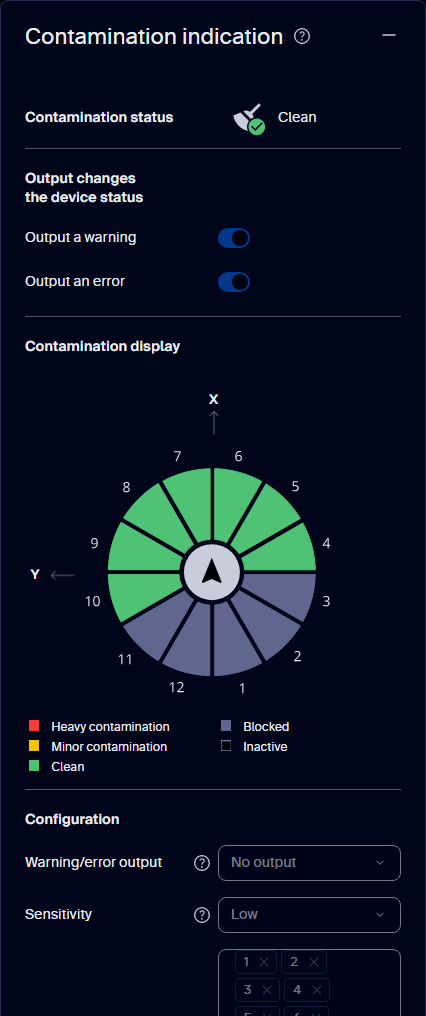
*Contamination indication tile in SOPASair, captured live from a multiScan270: overall status, sector display, and configuration.*
Configure the sensitivity, response time, warning threshold, and active
sectors for the installation. The device can expose the result through its
GUI and REST API; depending on configuration, it can also be monitored
through CoLa or mapped to digital outputs. The warning and error behavior,
and whether blocked sectors count as errors, are configurable. Use the
indication as a maintenance signal and inspect and clean the optics according
to the product documentation.
All contamination settings and results are available through the REST API.
The endpoints are listed under **Contamination Indication** in the
[LRS4000 REST API](https://sickag.github.io/sick_lidar_developer_guide/LRS4000/api-rest-openapi/),
[multiScan100 REST API](https://sickag.github.io/sick_lidar_developer_guide/multiScan100/api-rest-openapi/),
[multiScan200 REST API](https://sickag.github.io/sick_lidar_developer_guide/multiScan200/api-rest-openapi/), and
[picoScan100 REST API](https://sickag.github.io/sick_lidar_developer_guide/picoScan100/api-rest-openapi/) references.
Writes require the Authorized Client user level and challenge-response
authentication. Persist configuration changes with `WriteEeprom`; otherwise,
they may be lost after a power cycle.
picoScan100 CoLa clients can read configuration and sector data and subscribe
to event-driven contamination updates. See the
[picoScan100 CoLa Telegram Listing](https://sickag.github.io/sick_lidar_developer_guide/picoScan100/api-cola-telegrams/).
For the interface walkthrough, see
[Contamination Indication in SOPASair](https://sickag.github.io/sick_lidar_developer_guide/picoScan100/graphical-user-interface/#contamination-indication).
*picoScan100 example: Compare optics-cover contamination states with the sector indications described above.*
---
# 3D Scan Recording: On-Device Point Clouds from a 2D LiDAR
> Record a 3D point cloud on an LRS4000 or picoScan150 that rotates on an axis, using the IMU or an encoder, and download it as a PCD file.
Source: https://sickag.github.io/sick_lidar_developer_guide/on-device-applications/3d-scan-recording/
# 3D Scan Recording
Compatible with: LRS4000 picoScan100
3D scan recording turns a rotating 2D LiDAR into a 3D scanner without host-side
geometry code. While the sensor rotates on an axis, it combines consecutive 2D
scans with the rotation angle and stores one point cloud as a `.pcd` file on
the device. The angle comes from the built-in IMU or from an encoder on the
axis. Open the result in [CloudCompare](https://sickag.github.io/sick_lidar_developer_guide/visualization/cloudcompare/).
The device keeps only the most recent point cloud, and there is no continuous
3D output. For continuous 3D data or custom transforms, process the scans on
the host as described in [3D With 2D LiDARs](https://sickag.github.io/sick_lidar_developer_guide/integration-notes/3d-with-2d-lidars/).
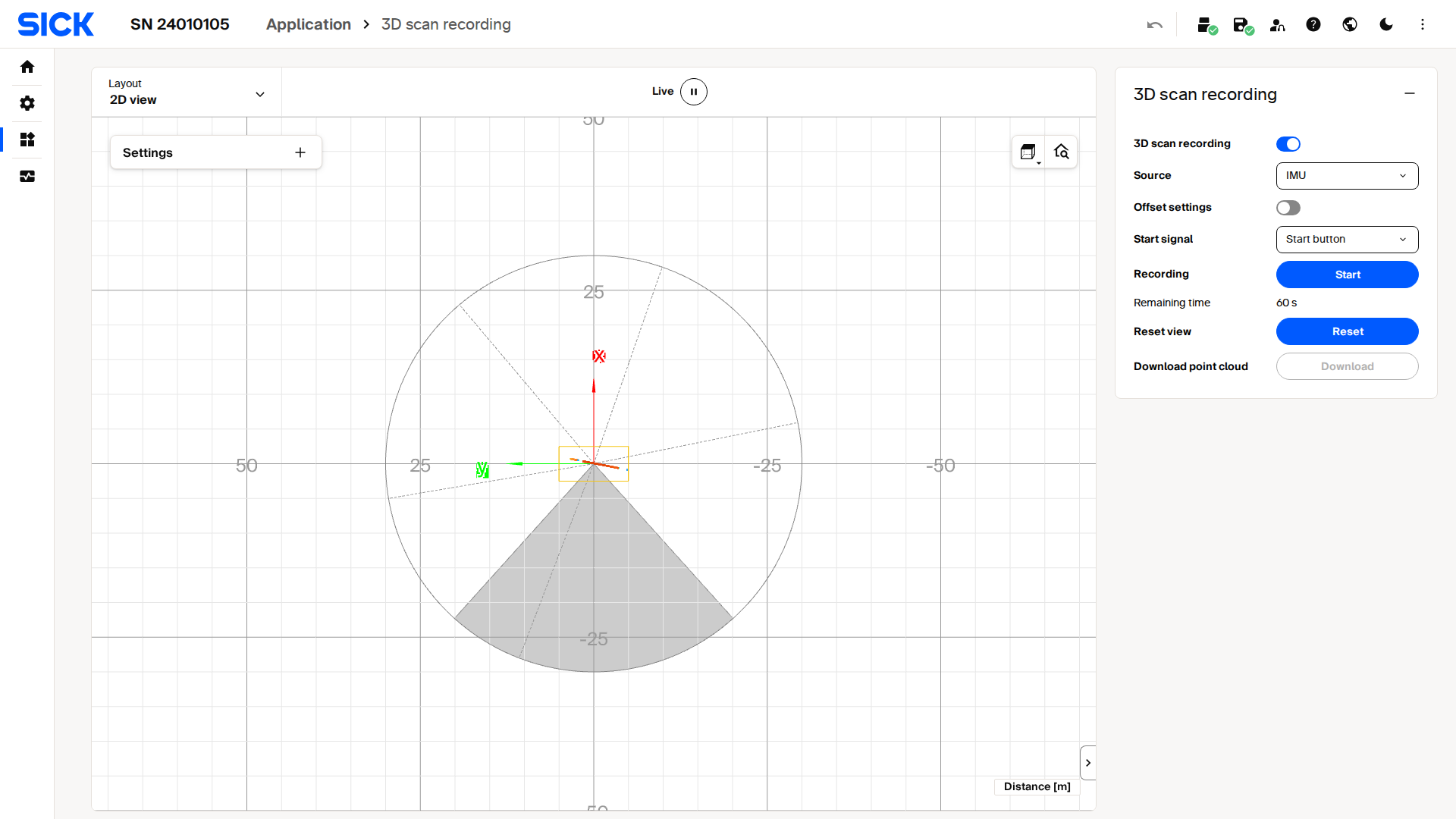
*Live capture of the 3D scan recording interface on a picoScan100.*
## Record in SOPASair
1. Mount the sensor so its scan plane sweeps the area of interest as it rotates.
2. Open **Application → 3D scan recording**, select the rotation source (IMU or
encoder), and enter the sensor offset from the rotation axis.
3. Start the recording, rotate the sensor through the sweep, and stop the
recording.
4. Download the point cloud when saving is complete.
## Record over the REST API
Writing parameters and calling methods requires
[challenge-response authentication](https://sickag.github.io/sick_lidar_developer_guide/configuration/rest-interface/#challenge-response-authentication).
**Record over the REST API:** parameter and values.
| Parameter | Values |
| ------------------- | -------------------------------------------------------------- |
| `ScanMergerEnabled` | `true` / `false` |
| `ScanMergerSource` | `0` IMU, `1` ENCODER |
| `ScanMergeTrigger` | `0` METHOD; on the LRS4000 also `1` DIGITAL_INPUT |
| `RotationOffset` | `{x, y, z}` in mm: sensor offset from the rotation axis |
1. Write the parameters and persist them with `POST /api/WriteEeprom`.
2. picoScan150 only: `POST /api/ResetScanMergeView` to clear the previous recording.
3. `POST /api/StartScanMerge` and move the axis through the sweep. With
`ScanMergeTrigger = 1`, a digital input starts and stops the recording instead.
4. `POST /api/StopScanMerge`.
5. picoScan150 only: poll `GET /api/MergeSaving` until it changes from `true` back to `false`.
6. Download the point cloud. On the picoScan150, use port 80 outside `/api/`:
`curl http://192.168.0.1/cloud.pcd -o cloud.pcd`. On the LRS4000, download it
in SOPASair under **Application → 3D scan recording**.
The endpoints are listed in the [LRS4000](https://sickag.github.io/sick_lidar_developer_guide/LRS4000/api-rest-openapi/) and
[picoScan100](https://sickag.github.io/sick_lidar_developer_guide/picoScan100/api-rest-openapi/) REST API references. For a
complete example, see the [House 3D Capture](https://sickag.github.io/sick_lidar_developer_guide/beginner-projects/house-3d-capture/)
project.
---
# LiDAR Data Streaming: Compact, MSGPACK, LMDscandata
> Choose a SICK LiDAR data format or event interface for measurement streams, notifications, and on-sensor filtering.
Source: https://sickag.github.io/sick_lidar_developer_guide/data-streaming/
# Choose a Data Streaming Option
* [Compact Format](https://sickag.github.io/sick_lidar_developer_guide/data-streaming/compact-format/): start here for new integrations needing low-bandwidth, low-latency binary scan, IMU, and encoder data; the parser must know the layout.
* [MSGPACK Format](https://sickag.github.io/sick_lidar_developer_guide/data-streaming/msgpack-format/): self-describing scan data parsed with standard libraries; useful for quick Python prototypes.
* [LMDscandata Format](https://sickag.github.io/sick_lidar_developer_guide/data-streaming/lmdscandata-format/): CoLa scan telegrams for PLCs and existing CoLa integrations; less suited to high data rates.
* [WebSocket Events](https://sickag.github.io/sick_lidar_developer_guide/data-streaming/websocket-events/): low-latency JSON notifications for changing device values, state, and results—not scan data.
* [Filter Details](https://sickag.github.io/sick_lidar_developer_guide/data-streaming/filter-details/): configure on-sensor filters to reduce bandwidth or suppress unwanted points; some filters affect output rate or represent filtered points as zero.
Format availability, transport, and filters depend on the device family,
variant, and firmware. Filters apply to the supported measurement formats.
Use the [Bandwidth Calculator](https://sickag.github.io/sick_lidar_developer_guide/data-streaming/compact-format/#bandwidth-calculator) to
estimate Compact scan frame sizes, segment counts, and traffic for your output
and filter settings.
**Choose a Data Streaming Option:** device family, Compact, MSGPACK, LMDscandata, and WebSocket events.
| Device family | Compact | MSGPACK | LMDscandata | WebSocket events |
| --- | --- | --- | --- | --- |
| LRS4000 | Yes | No | Yes | No |
| multiScan100 | Yes | Yes | No | No |
| multiScan200 | Yes | No | No | Yes |
| picoScan100 | Yes | Yes | Yes | Yes |
Customer Application
REST
WebSocket
Compact
Configuration
Notifications
Data
A typical application combines REST for configuration, WebSocket for change notifications where supported, and Compact for measurement data.
See [REST Interface](https://sickag.github.io/sick_lidar_developer_guide/configuration/rest-interface/) for configuration requests.
---
# SICK Compact Format: Parse LiDAR Scan, IMU, Encoder Data
> Parse the SICK Compact binary format over UDP or TCP: frame layout, scan telegrams, IMU and encoder data, multiScan200 formats, and Wireshark decoding.
Source: https://sickag.github.io/sick_lidar_developer_guide/data-streaming/compact-format/
# Compact Format
Compatible with: LRS4000 multiScan100 multiScan200 picoScan100
The Compact format is SICK's binary format for measurement data. It uses the least bandwidth of all formats and can be parsed very efficiently, for example by copying the bytes into a C struct with `memcpy`. The fields are not self-describing: your parser must know the layout, which SICK publishes as [Kaitai Struct](https://kaitai.io/) definitions.
The authoritative definitions are in the [`formats` folder on GitHub](https://github.com/SICKAG/KaitaiStructDescriptions/tree/public/formats). Paste a captured telegram into the browser-based [Kaitai Web IDE](https://ide.kaitai.io/) to inspect it field by field, or [generate a parser](https://sickag.github.io/sick_lidar_developer_guide/integration-notes/kaitai-struct-parsers/) for your application.
To receive Compact data without writing your own parser, use the C++ [sick_perception_sdk](https://sickag.github.io/sick_lidar_developer_guide/recording/sick-perception-sdk/). It receives the scan, IMU, and encoder data and provides the scans as point clouds.
## Frames and Segments
The multiScan100 and picoScan100 send each scan segment in a UDP datagram.
The LRS4000 and multiScan200 carry it as a framed telegram in the TCP stream.
Every segment can be processed on its own, which keeps latency low. To work
with a full scan (frame), collect all segments with the same `frame_number`.
The Compact format is organized as one frame definition that dispatches to the
individual telegram types. Types 3, 4, 6, and 7 also share the standard header:
```mermaid
---
config:
flowchart:
nodeSpacing: 8
rankSpacing: 30
padding: 4
---
flowchart LR
CF["Compact frame"]
T1["Type 1: Scan data"]
T2["Type 2: IMU"]
T3["Type 3: Ambient light"]
T4["Type 4: Encoder"]
T6["Type 6: Scan data (multiScan200)"]
T7["Type 7: IMU"]
CH["Standard header"]
CF --> T1
CF --> T2
CF --> T3
CF --> T4
CF --> T6
CF --> T7
T3 --> CH
T4 --> CH
T6 --> CH
T7 --> CH
```
*Compact parser structure: the frame definition selects the telegram-specific parser. Types 3, 4, 6, and 7 reuse the standard header definition.*
## Transport
The multiScan100 and picoScan100 send Compact data over UDP; the LRS4000 and
multiScan200 send it over TCP. For a comparison of UDP unicast, UDP multicast,
and TCP, see [UDP Unicast / Multicast](https://sickag.github.io/sick_lidar_developer_guide/shared-features/udp-unicast-multicast/).
=== "LRS4000"
Select Compact with the `ScanDataFormat` REST parameter or in the data-output
settings. Connect a TCP client to port `2115`. [LMDscandata](https://sickag.github.io/sick_lidar_developer_guide/data-streaming/lmdscandata-format/)
is available as an alternative TCP format.
=== "multiScan100"
Select **Compact** or MSGPACK in the data-output settings and set the
destination IP address and port. UDP multicast supports Compact only. The
REST API exposes the same Ethernet destination settings.
=== "multiScan200"
Select **TCP Compact** as data output mode (`sWN dataOutputMode 1`); see the
[multiScan200 CoLa Telegram Listing](https://sickag.github.io/sick_lidar_developer_guide/multiScan200/api-cola-telegrams/#set-data-output-mode-swn-dataoutputmode).
The sensor uses a separate TCP port per content:
**Transport:** multiScan200 TCP port, content, and telegram type.
| TCP port | Content | Telegram type |
| -------- | ------------------------------------------------ | ------------------------------------- |
| `2115` | Distance and RSSI, optionally with ambient light | [6](https://sickag.github.io/sick_lidar_developer_guide/data-streaming/compact-format/#type-6-scan-data-multiscan200) |
| `2116` | Ambient light only | [3](https://sickag.github.io/sick_lidar_developer_guide/data-streaming/compact-format/#type-3-ambient-light) |
| `2117` | IMU | [7](https://sickag.github.io/sick_lidar_developer_guide/data-streaming/compact-format/#type-7-imu-with-standard-header) |
=== "picoScan100"
Select **Compact** or MSGPACK in the data-output settings and set the
destination IP address and port. The factory default destination is
`192.168.0.100:2115`. The REST API exposes the same Ethernet destination
settings.
*picoScan100 example: Enable Compact measurement data over UDP unicast and set the receiver destination address.*
For UDP multicast, set the destination to an address from `224.0.0.0` to
`239.255.255.255`. The network requirements are on
[UDP Unicast / Multicast](https://sickag.github.io/sick_lidar_developer_guide/shared-features/udp-unicast-multicast/#udpip-multicast).
## Wireshark Dissector
SICK provides a Wireshark dissector for Compact measurement and IMU data, so you can inspect the stream field by field instead of reading raw bytes. It supports the Compact format only. Use it to confirm framing, ports, CRCs, and decoded values before you debug your own parser.
### Install the Dissector
1. Download and install [Wireshark](https://www.wireshark.org/download.html).
2. Download the dissector: [COMPACT_Dissector.lua](https://sickag.github.io/sick_lidar_developer_guide/assets/data-streaming/COMPACT_Dissector.lua).
3. In Wireshark, open **Help > About Wireshark > Folders** and copy the file to the **Personal Lua Plugins** folder.
4. Restart Wireshark.
### Decode Compact Data
1. Configure the sensor to output Compact data. For multiScan100 and picoScan100, select UDP and set the destination to your PC's IP address and listening port. For LRS4000 and multiScan200, use the [TCP connection](https://sickag.github.io/sick_lidar_developer_guide/data-streaming/compact-format/#transport).
2. Open Wireshark and double-click the Ethernet interface connected to the sensor to start capturing.
3. Enter `compact` in the display-filter bar and press Enter. Decoded packets show `COMPACT` in the **Protocol** column.
4. Select a packet and expand the Compact tree in the packet-details pane. Inspect the telegram type, header, and measurement values, such as distance. For an IMU telegram, inspect acceleration and angular velocity instead.
On Windows, the sensor adapter must use the Private network profile; see [Getting Started](https://sickag.github.io/sick_lidar_developer_guide/getting-started/#connect-the-sensor).
If no Compact packets appear, clear the display filter first to check whether traffic arrives at all. Verify the sensor's output format, destination address, and port. If you use a non-default port, add it to the corresponding port list near the top of the Lua file, such as `CompactPorts` or `IMUPorts`, and restart Wireshark.
To disable the plug-in temporarily, choose **Analyze > Enabled Protocols** and clear its checkbox. See [Frame Layout](https://sickag.github.io/sick_lidar_developer_guide/data-streaming/compact-format/#frame-layout) for the telegram structure and [Wireshark | pcap](https://sickag.github.io/sick_lidar_developer_guide/recording/wireshark-pcap/) for recording traffic.
### IMU Example
Enable IMU output on a supported sensor and capture its IMU stream as well as the measurement stream. The video shows how to receive and inspect IMU telegrams in Wireshark.
*How to receive IMU data and dissect it with Wireshark.*
## Frame Layout
All multi-byte values are little-endian. The frame contains a start marker, a
telegram type, the type-specific payload, and a CRC32 checksum. Verify the
checksum before processing the payload. Use the authoritative
[`compact_frame.ksy` definition on GitHub](https://github.com/SICKAG/KaitaiStructDescriptions/blob/public/formats/compact_frame.ksy)
for the complete frame layout.
## Standard Header
Telegram types 3, 4, 6, and 7 start their payload with the same header. Types
1 and 2 do not. For the complete field layout, use the authoritative
[`compact_header.ksy` definition on GitHub](https://github.com/SICKAG/KaitaiStructDescriptions/blob/public/formats/compact_header.ksy).
For type 4 with `telegram_version` 1, `payload_length` includes `sender_id`; from version 2 onwards it does not.
## Type 1: Scan Data
The scan payload is a header followed by one or more modules. Each module carries per-layer metadata plus the beam data for its layers. Read the first module size from the telegram header, then use each module's `next_module_size` to find the next one; zero marks the last module. Do not assume all modules have the same size.
Read `telegram_version`, `data_content_echos`, and `data_content_beams` before parsing beam data. Versions 3 and 4 have different beam-field ordering; version 4 also adds a distance scaling factor to the module metadata. For version 4, convert a raw distance to millimeters as `distance_mm = distance_raw × distance_scaling_factor`. All segments of one scan share `frame_number` and differ by segment index. The authoritative definition is [`type_1_primary_data_spherical_coordinates.ksy` on GitHub](https://github.com/SICKAG/KaitaiStructDescriptions/blob/public/formats/type_1_primary_data_spherical_coordinates.ksy).
The following annotated dump shows the first bytes of a real type 1 telegram
from the [picoScan150 sample capture](https://sickag.github.io/sick_lidar_developer_guide/data-streaming/compact-format/#sample-packet-captures). All values are
little-endian. Offsets are decimal.
```txt
Offset Bytes Field Value
0 02 02 02 02 start_of_frame
4 01 00 00 00 telegram_type 1 (scan data)
8 a1 47 00 00 00 00 00 00 telegram_counter 18337
16 24 07 d4 07 00 00 00 00 transmit_timestamp 131335972 µs
24 04 00 00 00 telegram_version 4
28 70 23 00 00 size_module_0 9072 bytes
32 02 00 00 00 00 00 00 00 segment_counter 2
40 53 0e 00 00 00 00 00 00 frame_number 3667
48 99 df 71 01 sender_id 24240025 (serial number)
52 01 00 00 00 58 02 00 00 lines, beams per scan 1 layer, 600 beams
60 03 00 00 00 number_of_echos_per_beam 3
64 56 d8 d3 07 00 00 00 00 timestamp_start 131323990 µs (16 bytes with timestamp_stop)
80 00 00 00 00 phi 0.0 rad
84 78 d9 a0 be 06 36 3b 3f theta_start, theta_stop -0.3142 rad (-18°), 0.7313 rad (41.9°)
92 00 00 80 3f distance_scaling_factor 1.0
96 00 00 00 00 next_module_size 0 (last module)
100 01 03 03 00 reserved, echo/beam flags distance + RSSI, azimuth + properties
104 6e 00 e5 e5 beam 1, echo 1 distance 110 mm, RSSI 58853
108 00 00 00 00 00 00 00 00 beam 1, echoes 2 and 3 no echo
116 00 9a 39 properties, theta 0, 14746 → -18.0°
119 ... beams 2 to 600 15 bytes each
9104 5c 7d ab ce CRC32 over bytes 0 to 9103
```
The beam azimuth converts to radians as `(theta - 16384) / 5215`.
`phi` is the beam elevation above the XY plane of the scan coordinate system,
and `theta` is the beam azimuth in that plane, measured from +X towards +Y.
They are not the IMU orientation angles roll, pitch, and yaw, and the
conversion below does not transform points into a world coordinate system.
To convert a beam to a 3D point, use `phi` (elevation), `theta` (azimuth), and the distance `d`:
```txt
x = d · cos(phi) · cos(theta)
y = d · cos(phi) · sin(theta)
z = d · sin(phi)
```
## Type 2: IMU
A flat, fixed-size payload from the integrated inertial measurement unit. It
has no standard Compact header and no optional fields. IMU output is available
on multiScan100 and picoScan100; sampling and available fields depend on the
product. The LRS4000 provides IMU data through CoLa events or
`GET /api/InertialMeasurementUnit`, not as a Compact telegram. The authoritative Compact layout is
[`type_2_imu.ksy` on GitHub](https://github.com/SICKAG/KaitaiStructDescriptions/blob/public/formats/type_2_imu.ksy).
The data is specified in the following coordinate system based on the DIN 70000
system: The x-axis lies on the 90° beam of the 0° plane. The y-axis is
perpendicular to the x-axis and lies in the 0° plane. The y-values increase in
the counter rotation direction (right-handed system). The z-axis is
perpendicular to the y-axis and the top of the device points towards increasing
z-values.
Roll, pitch, and yaw are rotations about X, Y, and Z. They describe the sensor
orientation, not the beam angles of the [scan data](https://sickag.github.io/sick_lidar_developer_guide/data-streaming/compact-format/#type-1-scan-data).
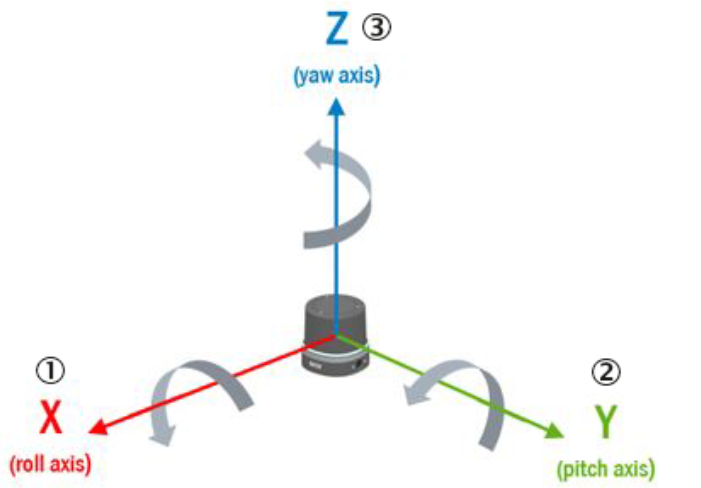{ width="520" }
*IMU axes and roll, pitch, and yaw rotation directions based on DIN 70000; these are distinct from scan-beam angles.*
## Type 3: Ambient Light
The ambient-light image of the multiScan200 is sent as a separate telegram.
The sensor captures it passively through the same receiver as the distance
data. It follows the [standard header](https://sickag.github.io/sick_lidar_developer_guide/data-streaming/compact-format/#standard-header).
Distance and ambient-light data measured at the same time share the same
`frame_number`. Use the authoritative
[`type_3_ambient_light.ksy` definition on GitHub](https://github.com/SICKAG/KaitaiStructDescriptions/blob/public/formats/type_3_ambient_light.ksy)
for the complete payload layout.
## Type 4: Encoder
Reports an external rotary encoder attached to a moving axis (picoScan150).
One encoder telegram is sent per scan frame and linked to it by `frame_number`.
It follows the [standard header](https://sickag.github.io/sick_lidar_developer_guide/data-streaming/compact-format/#standard-header).
See [3D With 2D LiDARs](https://sickag.github.io/sick_lidar_developer_guide/integration-notes/3d-with-2d-lidars/) for how to fuse encoder and scan data.
Use the authoritative [`type_4_encoder.ksy` definition on GitHub](https://github.com/SICKAG/KaitaiStructDescriptions/blob/public/formats/type_4_encoder.ksy) for the complete payload layout.
## Type 6: Scan Data (multiScan200)
The scan data of the multiScan200. One telegram carries one segment: a block
of columns (slots), each with all layers. It follows the [standard
header](https://sickag.github.io/sick_lidar_developer_guide/data-streaming/compact-format/#standard-header).
Convert each pixel to a 3D point with the [formula for type 1](https://sickag.github.io/sick_lidar_developer_guide/data-streaming/compact-format/#type-1-scan-data), using the elevation angle of its layer as `phi` and the azimuth angle of its column as `theta`. Use the authoritative [`type_6_primary_data_multiscan200.ksy` definition on GitHub](https://github.com/SICKAG/KaitaiStructDescriptions/blob/public/formats/type_6_primary_data_multiscan200.ksy) for the complete segment header and data-block layout.
For interlaced scan configurations, `number_of_interlace_steps` is greater than 1 and consecutive frames must be combined to cover the full field of view; `current_interlace_index` identifies each frame's position in that sequence. Configured data reduction can also leave zero-filled distance and RSSI values in the fixed-size Compact segment, including for angles outside the selected range. A zero value alone therefore does not mean that the beam or column is absent.
## Type 7: IMU with Standard Header
The IMU data of the multiScan200. The content matches [type 2](https://sickag.github.io/sick_lidar_developer_guide/data-streaming/compact-format/#type-2-imu), but the payload starts with the [standard header](https://sickag.github.io/sick_lidar_developer_guide/data-streaming/compact-format/#standard-header) and has no `telegram_version` field of its own:
Use the authoritative [`type_7_imu_standard_header.ksy` definition on GitHub](https://github.com/SICKAG/KaitaiStructDescriptions/blob/public/formats/type_7_imu_standard_header.ksy) for the complete payload layout.
## Measurement Data Conventions
### Azimuth Angles
The `theta` values within a segment are monotonically
increasing. For a 360° sensor, a segment that crosses the +180°/−180° boundary
can therefore continue beyond 180° instead of wrapping immediately to a
negative value. In the example below, the blue segment runs from 160° to 189°,
while the following green segment uses −170° to −141°. Preserve this ordering
while parsing; normalize the angles only afterwards if your application needs
the range (−180°, 180°].
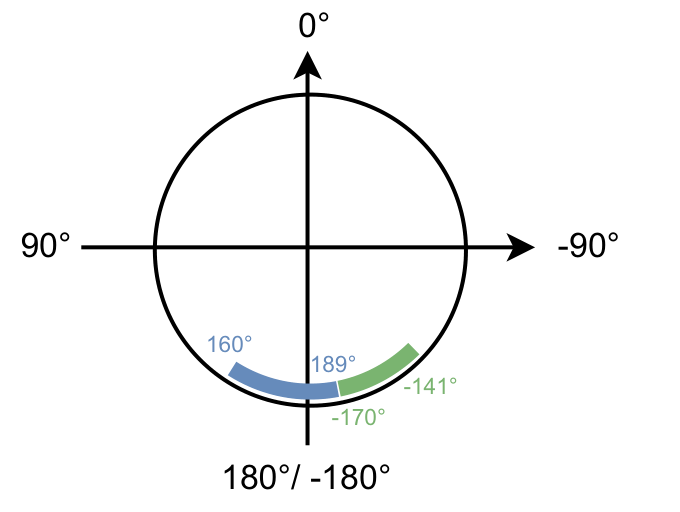{ width="360" }
*Azimuth values remain monotonically increasing within a segment.*
### Segment Counters
Normally, the segment counter is between `0` and
`number_of_segments - 1` and increases with the azimuth. The multiScan100 has
one exception: when most beams in a segment lie beyond 180°, that segment
belongs to the next frame and receives counter `0`. With 30° segments, an
angle-only calculation would produce counter `12`, which wraps to `0`. Use the
transmitted counter rather than deriving it from `theta`.
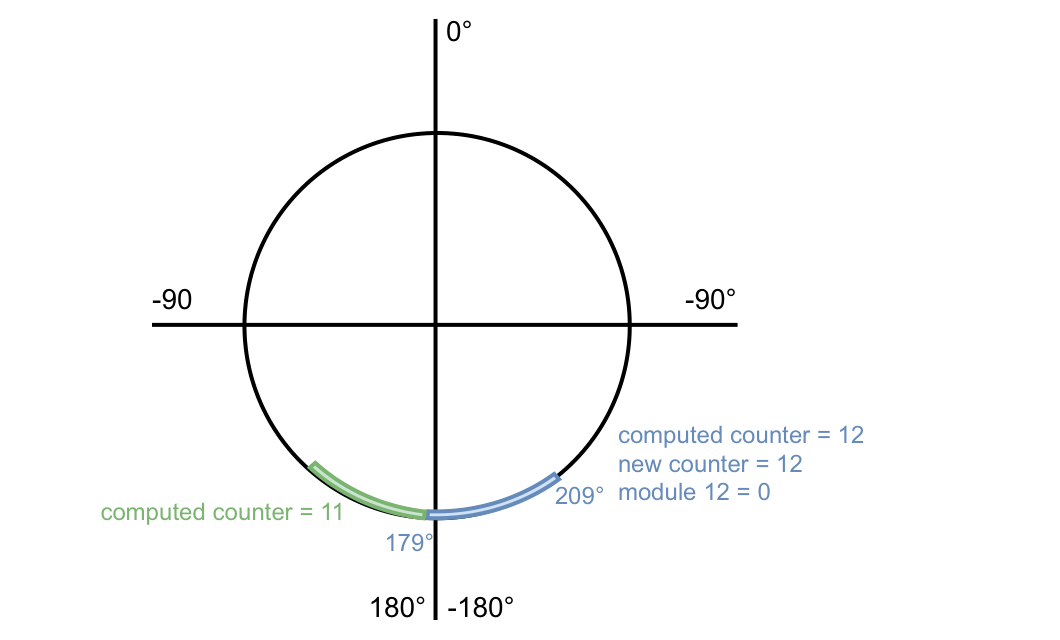{ width="480" }
*The blue segment belongs mainly to the next frame and therefore receives counter 0.*
### RSSI Values
Compact and MSGPACK represent RSSI as a dimensionless 16-bit
unsigned integer. Treat the full range from `0` to `65535` as valid, although a
device may never reach the maximum. RSSI is not standardized, so absolute
values are not directly comparable between device families.
Some device outputs scale an internally measured 8-bit RSSI value depending on
the output format:
**RSSI Values:** format, bit depth, and conversion.
| Format | Bit depth | Conversion |
| --- | --- | --- |
| Compact type 1 | 16-bit | `16bit = (8bit / 255) × 65535` |
| MSGPACK | 16-bit | `16bit = (8bit / 255) × 65535` |
| `LMDscandata` (CoLa) | 8-bit | none; value `254` = reflector detected; this representation is compatible with TiM5/7 |
For example, an internal 8-bit value of `1` becomes `257` (`0x0101`) in
16-bit output. The low byte equals the high byte (for example `0xe6e6`), which
is expected.
### Bit Fields and Beam Properties
`data_content_echos`,
`data_content_beams`, and each beam's `properties` value are bit fields. Test
bit `i` with `(value & (1 << i)) != 0`; do not interpret the complete decimal
value as a single state. In `properties`, bit 0 means that a reflector was
detected for at least one echo of the beam. This can be treated as applying to
the last echo because a reflector echo is not physically followed by another
echo on the same beam. Bits 1 through 7 are reserved and must be ignored.
### Segments (LRS4000)
LRS4000 sends one Compact scan telegram per frame. The `DataOutputRange`
setting replaces measurements outside the selected angles with zeros; it does
not reduce the telegram size.
### Segments (picoScan100)
The picoScan100 scans a range of 276°. One 276° rotation of the scan layer is one scan (frame). For output, each scan is split into segments of a fixed angular size:
**Segments (picoScan100):** scanning frequency, segment size, and segments at 276°.
| Scanning frequency | Segment size | Segments at 276° |
| --- | --- | --- |
| ≤ 25 Hz | 30° | 10 |
| ≥ 30 Hz | 60° | 5 |
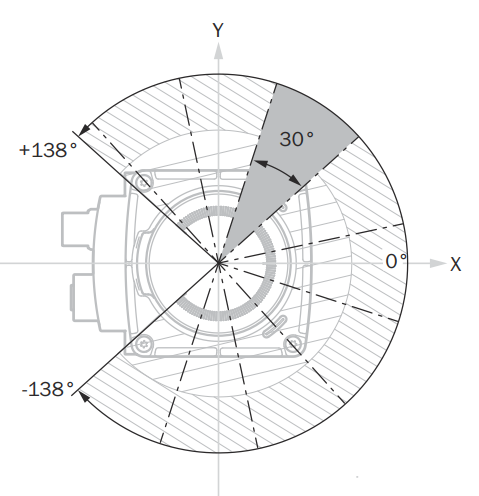
*Example of 30° scan segments within the 276° scan range.*
Segment boundaries do not move when you reduce the scan range. Measured values in hidden angle ranges are filled with zeros, and a segment that is completely hidden is not sent. Example: 180° (−90° to +90°) at 40 Hz gives 4 segments.
### Segments (multiScan100)
The multiScan100 captures a 360° frame across its scan layers and divides the
output into time-based segments. Each segment contains data from all scan
layers, but the azimuth ranges of those layers do not necessarily line up
spatially. Raw output keeps the original layer timing. Rectified output aligns
the layer start angles as closely as possible and adds at least one segment
interval of latency. See the [multiScan100 overview](https://sickag.github.io/sick_lidar_developer_guide/multiScan100/)
for device-specific output context.
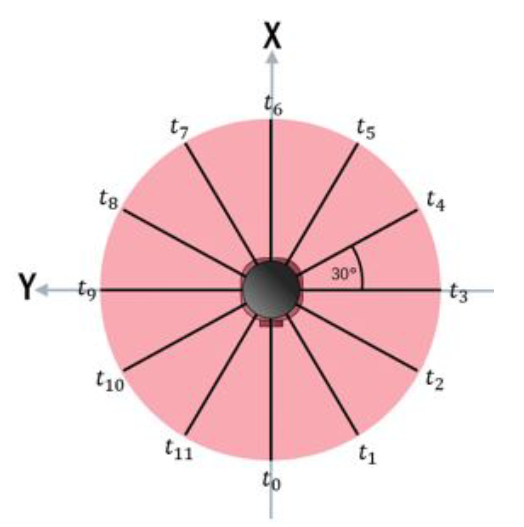
*A 360° frame split into twelve 30° segments, each with its own time stamp.*
Each segment covers a different time within the rotation, so `t0` to `t11`
increase in the scan direction. Use the per-segment time stamps rather than the
frame time when you fuse the data with motion or another sensor.
## Sample Packet Captures
Open these one-second `.pcap.gz` recordings directly in Wireshark with the
[Compact dissector](https://sickag.github.io/sick_lidar_developer_guide/data-streaming/compact-format/#wireshark-dissector). All recordings contain only measurement traffic,
with original packet bytes and timestamps.
In every sample, `192.168.0.1` is the sensor and `192.168.0.100` is the
receiver; your PC does not need matching addresses for offline inspection.
The tables describe recorded settings, not required defaults.
Enable IPv4 reassembly for UDP and TCP stream reassembly for TCP.
UDP scan frames can be partial at the recording boundaries; group segments
by `frame_number`. For TCP, use **Follow TCP Stream**: a telegram spans
multiple packets. Reference pictures show scene context, not synchronized
PCAP frames.
Compact sample availability and transport by device family.
| Device family | Sample | Compact transport |
| --- | --- | --- |
| LRS4000 | [LRS4000 scan capture (gzip PCAP, 605 KB)](https://sickag.github.io/sick_lidar_developer_guide/assets/data-streaming/lrs4000-compact-scan-tcp.pcap.gz) | TCP |
| multiScan100 | [multiScan165 scan and IMU capture (gzip PCAP, 1.16 MB)](https://sickag.github.io/sick_lidar_developer_guide/assets/data-streaming/multiscan165-compact-scan-imu-udp.pcap.gz) | UDP unicast |
| multiScan200 | [multiScan270 scan, ambient-light, and IMU capture (gzip PCAP, 13.4 MB)](https://sickag.github.io/sick_lidar_developer_guide/assets/data-streaming/multiscan270-compact-scan-ambient-imu-tcp.pcap.gz) | TCP |
| picoScan100 | [picoScan150 scan, IMU, and encoder capture (gzip PCAP, 327 KB)](https://sickag.github.io/sick_lidar_developer_guide/assets/data-streaming/picoscan150-compact-scan-imu-encoder-udp.pcap.gz) | UDP unicast |
### LRS4000 Capture Settings
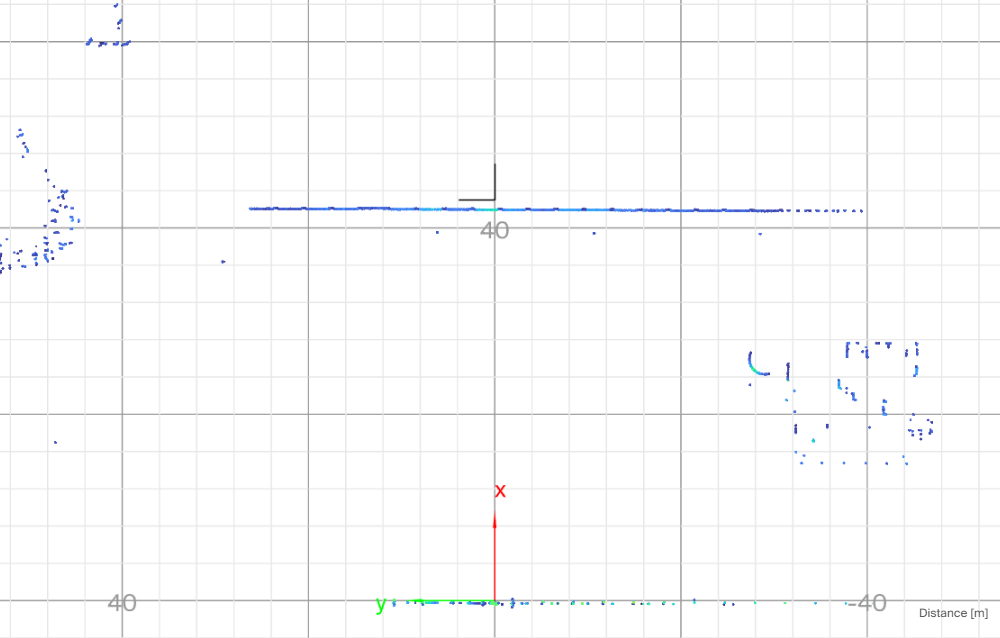
*LRS4000 reference view: planar scan points on a grid, with distance in meters.*
LRS4000 settings and recorded TCP scan data.
| Setting | Value in this recording |
| --- | --- |
| Device and firmware | LRS4581R-230001, firmware `1.10.0.0R` |
| Scan connection | Sensor TCP port `2115` → receiver port `49455`; Compact (`ScanDataFormat = 2`) |
| Scan telegrams | 13 complete type 1 telegrams, version 4; no partial telegrams |
More recorded settings
Additional recorded settings.
| Setting | Value in this recording |
| --- | --- |
| Duration | 0.994874 s |
| Scan configuration | 12.5 Hz, 0.04°; −180° to +180° |
| Scan geometry | One module, one layer, 9,000 beams, three echoes per frame |
| Filters | All echoes; particle, mean, median, and radial-distance filters disabled |
| Distance scale | `ScanDataScaleFactor = 2` |
Wireshark filter: `ip.addr == 192.168.0.1 && tcp.port == 2115`.
### multiScan165 Capture Settings
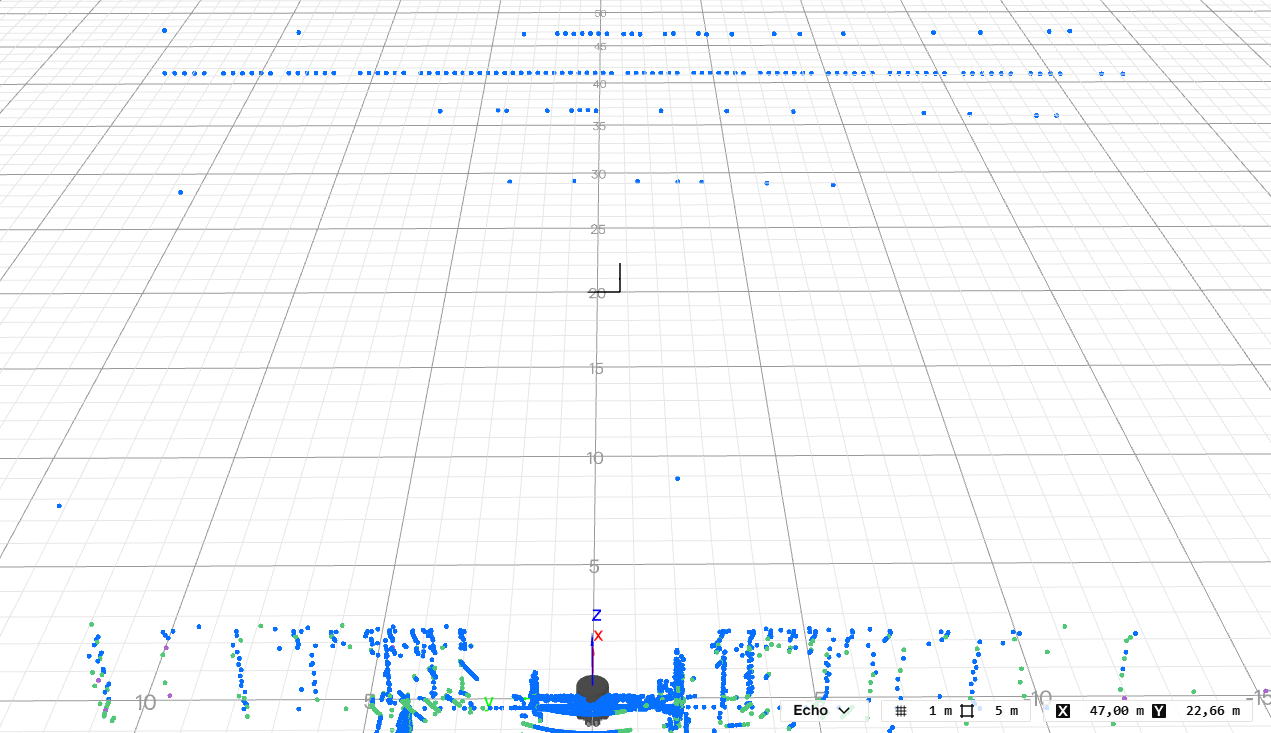
*multiScan165 reference view: scan points on a perspective grid, colored by echo.*
multiScan165 settings and recorded UDP scan and IMU data.
| Setting | Value in this recording |
| --- | --- |
| Device and firmware | multiScan165, firmware `2.5.0.0R` |
| Scan connection | Sensor UDP port `39493` → receiver port `2115`; Compact (`ScanDataFormat = 2`) |
| Scan telegrams | 242 type 1 telegrams, version 4; 20 complete 12-segment frames and one partial frame |
| IMU connection and telegrams | Sensor UDP port `58362` → receiver port `7503`; 101 type 2 telegrams |
More recorded settings
Additional recorded settings.
| Setting | Value in this recording |
| --- | --- |
| Duration | 0.998802 s |
| Scan configuration | 20 Hz, 0.5° angular resolution; configured azimuth range −180° to +180° |
| Recorded scan geometry | Two modules of eight layers each; 60 beams per layer per segment; three echoes; 12 segments per complete frame |
| Echo filter | All echoes (`FREchoFilter = 1`) |
| Angle, layer, radial-distance, and interval filters | Disabled; all 16 layers selected |
Wireshark filter:
`ip.src == 192.168.0.1 && (udp.dstport == 2115 || udp.dstport == 7503)`.
### multiScan270 Capture Settings
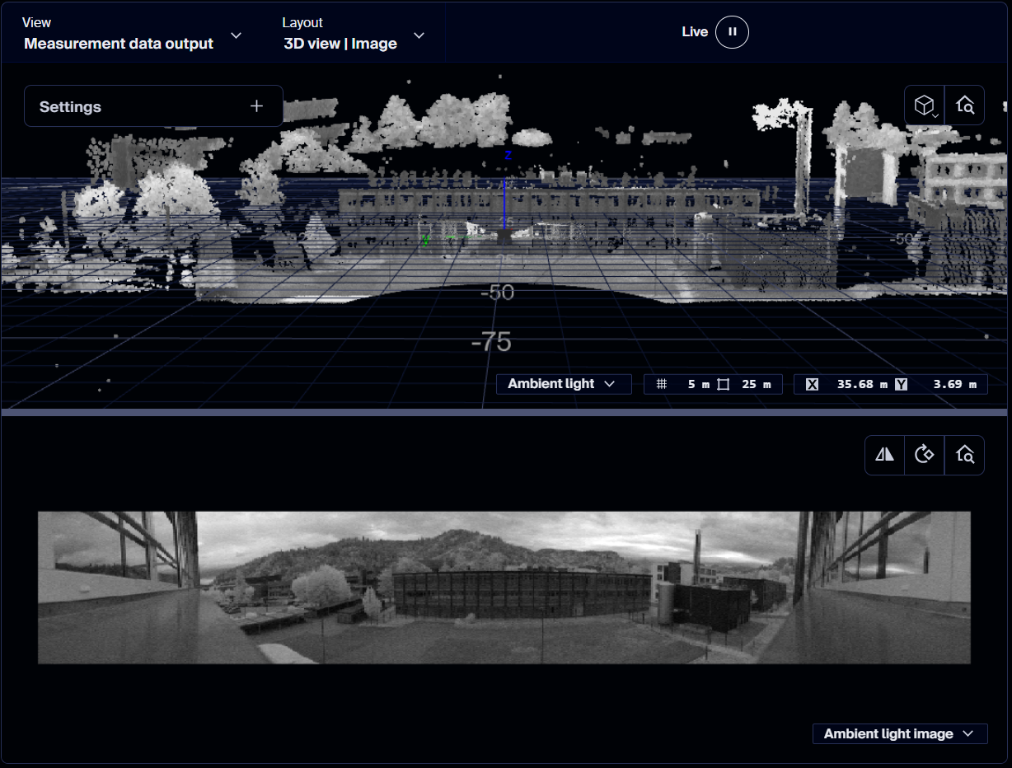
*multiScan270 reference view: SOPASair point cloud above the ambient-light image.*
multiScan270 settings and recorded TCP scan, ambient-light, and IMU data.
| Setting | Value in this recording |
| --- | --- |
| Device and firmware | multiScan270, firmware `1.1.0.0R` |
| Output mode | TCP Compact (`dataOutputMode = 1`) |
| Scan connection | Sensor `192.168.0.1:2115` to receiver port `59003`; 19 complete type 6 telegrams, version 1 |
| Ambient-light connection | Sensor `192.168.0.1:2116` to receiver port `59004`; 19 complete type 3 telegrams, version 1; 592 × 192 pixels |
| IMU connection | Sensor `192.168.0.1:2117` to receiver port `59005`; 97 complete type 7 telegrams, version 1 |
More recorded settings
Additional recorded settings.
| Setting | Value in this recording |
| --- | --- |
| Duration | 0.991826 s |
| Scan content | Distance, RSSI, echo properties, and ambient light |
| Scan geometry | One segment per frame; 592 columns, 192 layers, three echoes; 192 ambient-light layers included |
| Performance profile | `12`: 20 Hz frame rate; four interlace steps per full scan (5 Hz full-scan rate) |
| Configured angular range and resolution | Azimuth −138° to +138°, 0.4662° per frame; elevation −22.5° to +22.5°, 0.2344° |
| Ambient-light vertical setting | Matching (`ambientPixelCountVertical = 1`), not full vertical pixel count |
| Echo and particle filters | All echoes (`FREchoFilter = 1`); particle filter enabled, minimum one neighbor, `distanceThreshold = 500` |
| Other filters | Interval, angle-range/focus, and blooming filters disabled |
| Recording boundary | Scan and ambient-light streams each end partway through one additional telegram; these tails are not counted as complete telegrams |
Wireshark filter:
`ip.addr == 192.168.0.1 && (tcp.port == 2115 || tcp.port == 2116 || tcp.port == 2117)`.
Combine the four interlace indices before treating the scan as full coverage.
### picoScan150 Capture Settings
Encoder positions use fixed-velocity mode, not physical encoder measurements.
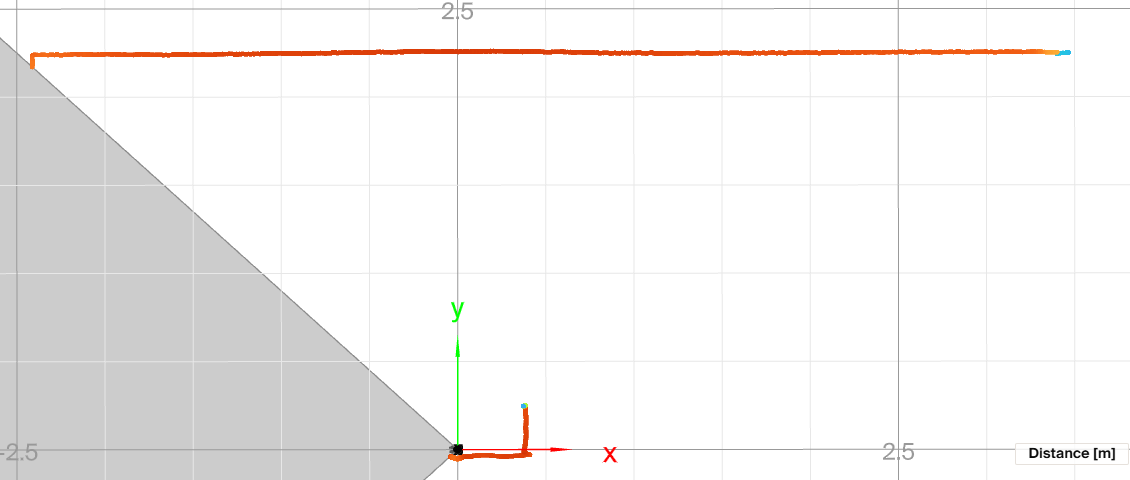
*picoScan150 reference view: planar scan points on an XY grid, with distance in meters.*
picoScan150 settings and recorded UDP scan, IMU, and encoder data.
| Setting | Value in this recording |
| --- | --- |
| Device and firmware | picoScan150, firmware `2.3.3.0R` |
| Scan connection | Sensor UDP port `52593` → receiver port `2115`; Compact (`ScanDataFormat = 2`) |
| Scan telegrams | 150 type 1 telegrams, version 4; 29 complete five-segment frames and two partial frames |
| IMU connection and telegrams | Sensor UDP port `46180` → receiver port `7503`; 99 type 2 telegrams |
| Encoder connection and telegrams | Sensor UDP port `41656` → receiver port `7504`; 30 type 4 telegrams, version 1 |
More recorded settings
Additional recorded settings.
| Setting | Value in this recording |
| --- | --- |
| Duration | 0.999805 s |
| Performance profile | `6`: 30 Hz, 0.1°; −138° to +138° |
| Echo filter | All echoes (`FREchoFilter = 1`); three echoes per beam |
| Angle, distance, interval, and averaging filters | Disabled |
| Encoder settings | Fixed velocity (`EncSetting = 4`); reported speed `1000`; `EncResolution = 1` |
Wireshark filter:
`ip.src == 192.168.0.1 && (udp.dstport == 2115 || udp.dstport == 7503 || udp.dstport == 7504)`.
## Bandwidth Calculator
Estimate Compact scan frame sizes, segment counts, and network traffic for
supported devices and scan settings. The optional IMU and encoder estimates
model IMU output at 100 Hz independently of the scan rate and encoder output
once per scan frame.
Estimated Result
Loading the calculator…
Remarks:
* The calculator provides an estimate of bandwidth requirements. It considers scan data and selected IMU or encoder telegrams, but not additional configuration traffic.
* Ensure that your network infrastructure can handle the estimated bandwidth to avoid data loss or latency issues.
---
# LiDAR Filters: Echo, Fog, Particle, and Moving Average
> How SICK LiDAR on-sensor filters change measurement data, including echo, particle, ground, averaging, layer, field-of-view, and distance filters.
Source: https://sickag.github.io/sick_lidar_developer_guide/data-streaming/filter-details/
# Filter Details
Filters run on the sensor and change the measurement data before it is sent. Use them to reduce bandwidth, remove unwanted points, and keep the data your application needs. The available filters and their settings differ between devices; each section lists the devices it applies to.
**Filter Details:** filter, effect, side effect, and devices.
| Filter | Effect | Side effect | Devices |
| --- | --- | --- | --- |
| [Interval](https://sickag.github.io/sick_lidar_developer_guide/data-streaming/filter-details/#interval-filter) | Sends only every n-th scan | Lower output rate | multiScan100, multiScan200, picoScan150 |
| [Fog](https://sickag.github.io/sick_lidar_developer_guide/data-streaming/filter-details/#fog-filter) | Removes fog echoes at close range | - | multiScan100, picoScan150 |
| [Echo](https://sickag.github.io/sick_lidar_developer_guide/data-streaming/filter-details/#echo-filter) | Selects which echoes are sent | - | LRS4000, multiScan100, multiScan200, picoScan150 |
| [Particle](https://sickag.github.io/sick_lidar_developer_guide/data-streaming/filter-details/#particle-filter) | Removes dust, rain, and snow hits | Device-specific settings and latency | LRS4000, multiScan100, multiScan200, picoScan100 |
| [Moving average](https://sickag.github.io/sick_lidar_developer_guide/data-streaming/filter-details/#moving-average-filter) | Averages distances over several scans | Delayed output | multiScan100, multiScan200, picoScan150 |
| [Blooming](https://sickag.github.io/sick_lidar_developer_guide/data-streaming/filter-details/#blooming-filter) | Removes blooming artifacts next to highly reflective objects | - | multiScan200 |
| [Angle range](https://sickag.github.io/sick_lidar_developer_guide/data-streaming/filter-details/#angle-range-filter) | Limits horizontal output; multiScan200 also supports vertical ROI | Partly masked Compact segments retain their size | multiScan100, multiScan200, picoScan150 |
| [Layer](https://sickag.github.io/sick_lidar_developer_guide/data-streaming/filter-details/#layer-filter) | Removes complete scan layers from the output | Reduced vertical coverage | multiScan100 |
| [Vertical FoV](https://sickag.github.io/sick_lidar_developer_guide/data-streaming/filter-details/#vertical-fov-filter) | Keeps nested vertical regions at different resolutions | Raw stream only | multiScan200 |
| [Angle range focus](https://sickag.github.io/sick_lidar_developer_guide/data-streaming/filter-details/#angle-range-focus-filter) | Keeps a 3D angle range with an optional full-resolution region | Raw stream only | multiScan200 |
| [Rectangular](https://sickag.github.io/sick_lidar_developer_guide/data-streaming/filter-details/#rectangular-filter) | Keeps points inside an X/Y rectangle | Other points set to 0; data size unchanged | multiScan100, picoScan150 |
| [Distance](https://sickag.github.io/sick_lidar_developer_guide/data-streaming/filter-details/#distance-filter) | Keeps points inside a radial range | Other points set to 0; data size unchanged | LRS4000, multiScan100, picoScan150 |
| [Ground](https://sickag.github.io/sick_lidar_developer_guide/data-streaming/filter-details/#ground-filter) | Filters ground returns with configurable thresholds | Variant and configuration dependent | multiScan100 |
| [Sensitivity mode](https://sickag.github.io/sick_lidar_developer_guide/data-streaming/filter-details/#sensitivity-mode) | Trades receiver sensitivity against robustness | Higher sensitivity adds noise in ambient light | LRS4000, multiScan200, picoScan150 |
| Mean and median | Median removes outliers; mean averages over several scans. Settings `LFPmedianfilter` and `MeanFilter` in the [OpenAPI](https://sickag.github.io/sick_lidar_developer_guide/LRS4000/api-rest-openapi/) | Delayed output | LRS4000 |
Active filters run one after another, each on the result of the previous one, in this order:
**Filter Details:** device and filter processing order.
| Device | Processing order |
| --- | --- |
| LRS4000 | Particle → echo → median → mean |
| multiScan100 | Fog → echo → particle → moving average → data reduction |
| multiScan200 | Echo → particle → interval → blooming → angle range ([details](https://sickag.github.io/sick_lidar_developer_guide/multiScan200/graphical-user-interface/#filter)) |
| picoScan100 | Fog → echo → particle → moving average → data reduction and region of interest |
Each active filter adds processing time and therefore output latency. For exact parameter names and value ranges, see the product's OpenAPI reference: [LRS4000](https://sickag.github.io/sick_lidar_developer_guide/LRS4000/api-rest-openapi/), [multiScan100](https://sickag.github.io/sick_lidar_developer_guide/multiScan100/api-rest-openapi/), [multiScan200](https://sickag.github.io/sick_lidar_developer_guide/multiScan200/api-rest-openapi/), or [picoScan100](https://sickag.github.io/sick_lidar_developer_guide/picoScan100/api-rest-openapi/).
## Interval Filter
Compatible with: multiScan100 multiScan200 picoScan100
The interval filter reduces the scan output rate by a configurable reduction
factor from 2 to 50. For example, a factor of three outputs only every third
scan, reducing the output rate to one third. On picoScan100, this REST setting
is exposed by the picoScan150 OpenAPI.
## Fog Filter
Compatible with: multiScan100 picoScan100
The fog filter removes unwanted echoes at close range (approximately 3 m). This
reduces false activations in fog. On picoScan100, this REST setting is exposed
by the picoScan150 OpenAPI. The multiScan200 has no configurable fog filter.
## Echo Filter
Compatible with: LRS4000 multiScan100 multiScan200 picoScan100
The echo filter suppresses measurement data caused by edge hits, rain, dust,
snow, and other ambient conditions. Pulses attributed to undesirable ambient
conditions are not output. The selectable echoes differ by device:
**Echo Filter:** device and selectable echoes.
| Device | Selectable echoes |
| --- | --- |
| picoScan150 | First echo, last echo, or all echoes |
| multiScan200 | First echo, last echo, strongest echo, all echoes, or all echoes with the strongest first |
| LRS4000, multiScan100 | Read the selectable echo options for the installed firmware in the device's OpenAPI description. |
On the multiScan200, field evaluation always uses a single echo. If all echoes
are selected, field evaluation uses the first echo.
*Example of retaining or suppressing an echo caused by ambient conditions.*
*picoScan100 example: Use multi-echo to suppress a glass-pane return and retain measurements of objects behind it.*
## Particle Filter
Compatible with: LRS4000 multiScan100 multiScan200 picoScan100
The particle filter suppresses small, irrelevant reflection pulses caused by
dust, raindrops, snowflakes, and similar particles. The filter settings differ
by device.
**Particle Filter:** device and settings.
| Device | Settings |
| --- | --- |
| LRS4000 | On/off and a distance-step threshold from 500 to 5000 mm |
| multiScan100 | On/off and a distance-step threshold from 20 to 5000 mm |
| multiScan200 | On/off, a distance threshold from 20 to 2000 mm, and the minimum number of neighbors from 0 to 8 |
| picoScan100 | On/off and a distance-step threshold from 20 to 5000 mm |
For LRS4000, multiScan100, and picoScan100, the threshold is the required
distance step between the echo to be filtered and the echoes of surrounding
beam angles. On multiScan200, a point needs at least the configured number of
neighboring measurements within the distance threshold. In interlaced
multiScan200 scan configurations (10 to 12), the filter compares measurements
from different angular positions, so its effect can change. In the Compact
format (telegram type 6), bit 6 of the multiScan200 echo properties marks
points detected as particles.
## Moving Average Filter
Compatible with: multiScan100 multiScan200 picoScan100
On picoScan150, the moving average filter smooths distance values by calculating the arithmetic
mean over several scans of the same point. Configure an averaging depth of two
to four scans. The first value is output only after the configured number of
scans; invalid distance values (`0`) are excluded from the average.
Example of a four-scan moving average for representative angular positions
(distance values in mm):
**Moving Average Filter:** scan/output, angle 3, angle 4, angle 5, angle 6, angle 7, and angle 8.
| Scan/output | Angle 3 | Angle 4 | Angle 5 | Angle 6 | Angle 7 | Angle 8 |
| --- | ---: | ---: | ---: | ---: | ---: | ---: |
| Scan 1 | 1100 | 1100 | 1150 | 1150 | 1380 | 1380 |
| Scan 2 | 1200 | 1200 | 1190 | 950 | 1500 | 1500 |
| Scan 3 | 1150 | 1450 | 1200 | 1200 | 1450 | 1450 |
| Scan 4 | 1170 | 1170 | 1220 | 1220 | 1470 | 1150 |
| 1. Output (scans 1–4) | 1155 | 1230 | 1190 | 1130 | 1450 | 1370 |
| Scan 5 | 0 | 1110 | 1150 | 1150 | 1380 | 1380 |
| 2. Output (scans 2–5) | 1173 | 1233 | 1190 | 1130 | 1450 | 1370 |
| Scan 6 | 1200 | 1210 | 1190 | 0 | 1500 | 1500 |
| 3. Output (scans 3–6) | 1173 | 1235 | 1190 | 1190 | 1450 | 1370 |
| Scan 7 | 1150 | 0 | 1200 | 1200 | 1450 | 1450 |
| 4. Output (scans 4–7) | 1173 | 1163 | 1190 | 1190 | 1450 | 1370 |
Individual outliers still influence the average. Invalid distance values (`0`)
are excluded, so fewer scans contribute at those positions (for example angle 3
in the 2nd output: (1200 + 1150 + 1170) / 3 = 1173).
On multiScan200, the moving average filter is called high precision mode and
can only be switched on or off. It averages the distance of each point over
several scans, which reduces distance noise while the output rate stays the
same. The output is delayed by about 0.5 s. If the distance of an object
changes significantly, averaging stops for that object. Use it for static
scenes only. It has no effect in interlaced scan configurations (10 to 12).
On multiScan100, the REST API exposes `LFPmovingAveragingFilter`. Check the
OpenAPI description for the available averaging depth and limits for the
installed firmware.
## Blooming Filter
Compatible with: multiScan200
Highly reflective objects such as retroreflectors can create false points next
to the object (blooming). The blooming filter removes them. Select the strength
low, medium (default), or strong. In the Compact format (telegram type 6),
bit 2 of the echo properties marks points detected as blooming.
## Angle Range Filter
Compatible with: multiScan100 multiScan200 picoScan100
The available angle range controls depend on the device. multiScan100 and
picoScan150 use horizontal start/stop angles; multiScan100 uses the layer
filter for vertical coverage. multiScan200 also supports vertical regions
and focus settings. A beam increment subsamples the selected data.
**Angle Range Filter:** comparison criterion, multiScan100, multiScan200, and picoScan150.
| | multiScan100 | multiScan200 | picoScan150 |
| --- | --- | --- | --- |
| Horizontal range | −180° to +180° | −180° to +180° | −138° to +138° |
| Vertical range | Use the layer filter | −90° to +90° | Not applicable (2D) |
| Beam increment | 1 to 20 | 1 to 50, separately for horizontal and vertical | 1 to 20 |
Complete Compact segments outside the horizontal range are not transmitted.
Partly selected segments can retain zero-filled measurements and their full
byte size. The exact savings from subsampling, vertical ROI, and focus depend
on the serialized layout; verify them in a capture. The ambient-light image is
limited by the configured data-reduction settings too.
## Layer Filter
Compatible with: multiScan100
The multiScan100 layer filter removes complete scan layers from the output
data. Configure one Boolean value per layer through `LFPlayerFilter`; only
enabled layers are serialized. This reduces the data volume when an application
needs only part of the sensor's vertical coverage. The filter changes the
output, not the physical scan performed by the sensor.
## Vertical FoV Filter
Compatible with: multiScan200
The multiScan200 CoLa command `verticalAngleRangeFilter` restricts raw
streaming data to an outer vertical region of interest (ROI). An optional inner
ROI must lie completely inside the outer ROI. Each region has its own layer
increment from 1 to 50, so the inner region can retain more vertical detail
while the surrounding region is subsampled more strongly. Layers outside the
outer ROI are not transmitted.
The filter also limits ambient-light data. In **Full** mode, the remaining
ambient-light region keeps its full vertical resolution. In **Matching** mode,
its vertical resolution matches the primary measurement data, with one
ambient-light pixel per beam.
## Angle Range Focus Filter
Compatible with: multiScan200
The multiScan200 `angleRangeFocusFilter` restricts raw streaming data to a 3D
field of view defined by horizontal (`theta`) and vertical (`phi`) limits.
Beams outside this range are not transmitted. Separate horizontal and vertical
increments from 1 to 50 can subsample the remaining data.
An optional focus region preserves full resolution inside a smaller horizontal
or vertical region while the surrounding data remains subsampled. This filter
affects raw data streaming only and does not affect field evaluation.
## Rectangular Filter
Compatible with: multiScan100 picoScan100
After the measurement filters, data-reduction settings and the region of
interest filter limit the points passed on for further processing. On
picoScan100, this REST setting is exposed by the picoScan150 OpenAPI.
When the rectangular filter is active, only scan parts within the rectangle are retained. The filter does not reduce the data; points outside the rectangle are set to zero. Adjust the rectangle by setting the minimum and maximum X and Y values in millimeters.
## Distance Filter
Compatible with: LRS4000 multiScan100 picoScan100
The distance filter limits the measured radial distance and therefore affects a
circular area around the product. It does not reduce the data; points outside
the selected radial range are set to zero. To keep a circular area, set the
maximum range to the required radius in millimeters. To keep a ring, set the
maximum range to the required radius and the minimum range to a value greater
than 0 mm. On picoScan100, this REST setting is exposed by the picoScan150
OpenAPI.
## Ground Filter
Compatible with: multiScan100
The multiScan100 REST API exposes `groundFilterEnable`,
`groundFilterThresholds`, and `groundFilterType`. The filter can reduce false
field-evaluation triggers caused by the ground while retaining detection of
small objects when configured correctly. The ground filter is not applied to
the raw measurement-data streaming path. Availability can depend on the
variant and software package. See
[multiScan100 release notes](https://sickag.github.io/sick_lidar_developer_guide/multiScan100/release-notes/) and the
[multiScan100 OpenAPI reference](https://sickag.github.io/sick_lidar_developer_guide/multiScan100/api-rest-openapi/).
## Sensitivity Mode
Compatible with: LRS4000 multiScan200 picoScan100
The REST variable `SensitivityMode` sets the sensitivity of the receiver. A
higher sensitivity increases the scanning range but also measurement noise,
especially in ambient light. The LRS4000 offers `0` NORMAL, `1` INCREASED, and
`2` HIGHEST. The multiScan200 and picoScan150 offer `0` MAXIMUM_ROBUSTNESS, `1`
STANDARD (recommended), and `2` MAXIMUM_DETECTIVITY. For the ambient-light
limits, see the [LRS4000 release notes](https://sickag.github.io/sick_lidar_developer_guide/LRS4000/release-notes/).
---
# LMDscandata: CoLa Scan Data Telegram over TCP
> LMDscandata is the CoLa measurement telegram for SICK LiDAR sensors over TCP. Learn when to use it instead of Compact or MSGPACK.
Source: https://sickag.github.io/sick_lidar_developer_guide/data-streaming/lmdscandata-format/
# LMDscandata Format
Compatible with: LRS4000 picoScan100
`LMDscandata` is a scan data telegram of SICK's [CoLa interface](https://sickag.github.io/sick_lidar_developer_guide/configuration/cola-interface/). LRS4000 and picoScan100 expose it as a selectable scan data format. On picoScan100 it is sent over a TCP connection that the client opens to the sensor, so delivery is ordered and error-checked. Use it for PLCs and integrations that already use CoLa. For new high-rate integrations, use [Compact](https://sickag.github.io/sick_lidar_developer_guide/data-streaming/compact-format/) or [MSGPACK](https://sickag.github.io/sick_lidar_developer_guide/data-streaming/msgpack-format/) over the transport supported by the device.
## Receive LMDscandata
1. Select **LMDscandata** as the measurement data output format (`sWN ScanDataFormat`, or in SOPASair under **Application > Data output**).
2. Open a TCP connection to the sensor: port `2111` for CoLa A or `2112` for CoLa B.
3. Request data:
**Receive LMDscandata:** telegram and result.
| Telegram | Result |
| --- | --- |
| `sRN LMDscandata` | Returns one scan (polling) |
| `sEN LMDscandata 1` | Starts continuous output: one telegram per scan |
| `sEN LMDscandata 0` | Stops continuous output |
No data is sent during boot-up or in some error states (for example Device Not Ready). A login session does not block the output. RSSI in LMDscandata is 8-bit; the value `254` marks a detected reflector.
If the output format is not set to LMDscandata, `sRN LMDscandata` still returns an `sRA LMDscandata` telegram, but every field is `0`. There is no error code, so check the output format first when you only receive zeros.
*picoScan100 example: Enable LMDscandata output over CoLa A and TCP, following the receive-and-subscribe steps above.*
## Angle Reference
LMDscandata uses the CoLa angle convention: `90°` points straight ahead along the sensor X axis. Compact, MSGPACK, and the REST API use `0°` for straight ahead. The same full scan of the picoScan100 therefore starts at `-48°` in LMDscandata and at `-138°` in Compact. Subtract `90°` from an LMDscandata angle to compare it with Compact or MSGPACK data. The start angle and the angular step in the telegram are given in 1/10000°.
## Configure and Parse
- Configure the picoScan100 telegram content, such as the echoes and RSSI, with [`sWN LMDscandatacfg`](https://sickag.github.io/sick_lidar_developer_guide/picoScan100/api-cola-telegrams/#configure-the-data-content-for-the-scan-swn-lmdscandatacfg). Smaller telegrams reduce PLC load.
- The picoScan100 field layout is in the [picoScan100 CoLa Telegram Listing](https://sickag.github.io/sick_lidar_developer_guide/picoScan100/api-cola-telegrams/#poll-one-telegram-srn-lmdscandata).
- For TCP stream parsing (partial and concatenated telegrams), follow [PLC Integration](https://sickag.github.io/sick_lidar_developer_guide/integration-notes/plc-integration/#polling-and-cola-b-framing).
*picoScan100 example: Read an LMDscandata telegram and understand its fields before implementing a parser.*
---
# MSGPACK Data Format for SICK LiDAR Scan Data
> Decode SICK MSGPACK scan data: framing, CRC32, uint8 keyword codes, ScanSegment and Scan structures, and binary array encoding.
Source: https://sickag.github.io/sick_lidar_developer_guide/data-streaming/msgpack-format/
# MSGPACK Format
Compatible with: multiScan100 picoScan100
MSGPACK encodes the measurement data with the [MessagePack](https://msgpack.org/) standard. Unlike [Compact](https://sickag.github.io/sick_lidar_developer_guide/data-streaming/compact-format/), it is self-describing: every field has a keyword, so any standard MessagePack library can parse it without knowing the exact layout. The price is more bandwidth than Compact.
Like Compact, each data package carries one scan segment. Each segment can be processed on its own for low latency; collect all segments with the same `FrameNumber` to get a complete scan. See [multiScan100 segments](https://sickag.github.io/sick_lidar_developer_guide/data-streaming/compact-format/#segments-multiscan100) and [picoScan100 segments](https://sickag.github.io/sick_lidar_developer_guide/data-streaming/compact-format/#segments-picoscan100) for device-specific behavior.
SICK's Python [ScanSegmentAPI](https://github.com/SICKAG/ScanSegmentAPI) (`scansegmentapi/msgpack.py`) is the reference implementation of this format.
## Framing
Each MSGPACK buffer is wrapped in a frame. Size and checksum are little-endian `uint32` values.
**Framing:** offset, size, and content.
| Offset | Size | Content |
| --- | --- | --- |
| 0 | 4 bytes | `02 02 02 02` (4 × ``) |
| 4 | 4 bytes | Size n of the MSGPACK buffer in bytes (without the checksum) |
| 8 | n bytes | MSGPACK buffer |
| 8 + n | 4 bytes | CRC32 over the MSGPACK buffer only, without the STX bytes and the size |
## MSGPACK Keywords
To save bandwidth, keywords are encoded as `uint8` codes instead of strings. Map the codes back to names with the table below. After removing the framing, parse the buffer with a standard MessagePack parser. Some parsers must be told to accept integer map keys; in Python:
```python
unpacked = msgpack.unpackb(msgpack_buffer, strict_map_key=False)
```
### Used MSGPACK Keywords and Associated uint8 Codes
Names follow the SICK reference implementation. Some examples use different
capitalization, such as `TimeStampStart` or `PropertyValues`; on the wire only
the code is sent.
**Used MSGPACK Keywords and Associated uint8 Codes:** keyword name, code, and description.
| Keyword name | Code | Description |
| --- | --- | --- |
| `class` | `0x10` | Class name of the map: `Scan` or `ScanSegment` ([ScanSegment](https://sickag.github.io/sick_lidar_developer_guide/data-streaming/msgpack-format/#serialization-of-the-scansegment-class), [Scan](https://sickag.github.io/sick_lidar_developer_guide/data-streaming/msgpack-format/#serialization-of-the-scan-class)) |
| `data` | `0x11` | Data part of a ScanSegment, Scan, or array ([arrays](https://sickag.github.io/sick_lidar_developer_guide/data-streaming/msgpack-format/#serialization-of-arrays)) |
| `numOfElems` | `0x12` | Number of elements in an array |
| `elemSz` | `0x13` | Size of one array element in bytes |
| `endian` | `0x14` | Endianness of the array elements |
| `elemTypes` | `0x15` | Type of the array elements |
| `little` | `0x30` | Value: little-endian |
| `float32` | `0x31` | Value: data type float32 |
| `uint32` | `0x32` | Value: data type uint32 |
| `uint8` | `0x33` | Value: data type uint8 |
| `uint16` | `0x34` | Value: data type uint16 |
| `int16` | `0x35` | Value: data type int16 |
| `ChannelTheta` | `0x50` | Channel with azimuth angles |
| `ChannelPhi` | `0x51` | Channel with elevation angles |
| `DistValues` | `0x52` | Channel with distance values |
| `RssiValues` | `0x53` | Channel with RSSI values |
| `PropertiesValues` | `0x54` | Channel with beam properties, for example reflector |
| `Scan` | `0x70` | Class name `Scan` |
| `TimestampStart` | `0x71` | Time stamp of the first beam of a scan |
| `TimestampStop` | `0x72` | Time stamp of the last beam of a scan |
| `ThetaStart` | `0x73` | Azimuth angle of the first beam of a scan |
| `ThetaStop` | `0x74` | Azimuth angle of the last beam of a scan |
| `ScanNumber` | `0x75` | Scan number |
| `ModuleID` | `0x76` | ID of the measuring module |
| `BeamCount` | `0x77` | Number of beams in a scan |
| `EchoCount` | `0x78` | Number of echoes in a scan |
| `ScanSegment` | `0x90` | Class name `ScanSegment` |
| `SegmentCounter` | `0x91` | Segment number |
| `FrameNumber` | `0x92` | Frame number |
| `Availability` | `0x93` | Availability of a segment |
| `SenderId` | `0x94` | Sender ID (device serial number) |
| `SegmentSize` | `0x95` | Segment size |
| `SegmentData` | `0x96` | Array with the measurement data per layer |
| `LayerId` | `0xA0` | Array with layer IDs |
| `TelegramCounter` | `0xB0` | Telegram counter |
| `TimestampTransmit` | `0xB1` | Transmit time stamp |
## Serialization of a Segment
Each data package carries one ScanSegment. Its `SegmentData` array holds one [Scan](https://sickag.github.io/sick_lidar_developer_guide/data-streaming/msgpack-format/#serialization-of-the-scan-class) per layer of the sensor:
```text
ScanSegment
├── TelegramCounter
├── TimestampTransmit
├── SegmentCounter
├── FrameNumber
├── Availability
├── SenderId
├── LayerId
└── SegmentData
├── Scan 1
├── Scan 2
├── ...
└── Scan N
```
Metadata fields are plain MessagePack values. Measurement arrays (distances, RSSI, angles, properties) are an exception: they are stored as binary blobs, see [Serialization Of Arrays](https://sickag.github.io/sick_lidar_developer_guide/data-streaming/msgpack-format/#serialization-of-arrays).
### Notation Used
The following notes on the notation used relate to the description of the structures encoded in MSGPACK:
- `msgpack_map_header` denotes the header of a MessagePack map, see the [MessagePack specification](https://github.com/msgpack/msgpack/blob/master/spec.md#map-format-family).
- Names correspond to the [keyword table](https://sickag.github.io/sick_lidar_developer_guide/data-streaming/msgpack-format/#used-msgpack-keywords-and-associated-uint8-codes); on the wire, each name is its `uint8` code.
- Angle brackets mark placeholders, for example `` for the number of array elements.
- The structures are written in a JSON-like notation, but the data is encoded according to the [MessagePack specification](https://github.com/msgpack/msgpack/blob/master/spec.md).
### Serialization of the ScanSegment Class
The ScanSegment class is represented as a nesting of MSGPACK maps as follows:
```msgpack-schema
msgpack_map_header {
"class": ScanSegment,
"data": msgpack_map_header {
"TelegramCounter": ,
"TimestampTransmit": ,
"SegmentCounter": ,
"FrameNumber": ,
"Availability": ,
"SenderId": ,
"LayerId": ,
"SegmentData":
}
}
```
The meaning of the individual fields is shown in the following table.
**Serialization of the ScanSegment Class:** name, type, and description.
| Name | Type | Description |
| ------ | ------ | ------------- |
| TelegramCounter | MSGPACK int | Counts all telegrams with measurement data sent in MSGPACK format since switching on the device. The counter starts at 1. |
| TimestampTransmit | MSGPACK int | Sensor system time in µs since 1.1.1970 00:00 in UTC. |
| SegmentCounter | MSGPACK int | Index of the segment within the frame. |
| FrameNumber | MSGPACK int | Counts the number of full revolutions since the device was started. |
| Availability | MSGPACK int | Reserved |
| SenderId | MSGPACK int | Device serial number. It can be used to detect on the recipient which sensor the data was sent from. |
| LayerId | MSGPACK array of int | Array of layer indices. The layer indices start at 1 and increase with decreasing elevation angle. |
| SegmentData | MSGPACK array of scans | Array of elements of the Scan class (see [Serialization Of The Scan Class](https://sickag.github.io/sick_lidar_developer_guide/data-streaming/msgpack-format/#serialization-of-the-scan-class)) that contain the actual measurement data. The following applies: The scan at position i has the layer number LayerId[i]. |
The arrays LayerId and SegmentData are MSGPACK arrays as per the MSGPACK specification and are not represented like arrays containing measurement data (see "[Serialization of arrays](https://sickag.github.io/sick_lidar_developer_guide/data-streaming/msgpack-format/#serialization-of-arrays)").
### Serialization of the Scan Class
The Scan class is represented as a nesting of MSGPACK maps as follows:
```msgpack-schema
msgpack_map_header {
"class": Scan,
"data": msgpack_map_header {
"TimestampStart": ,
"TimestampStop": ,
"ThetaStart": ,
"ThetaStop": ,
"ScanNumber": ,
"ModuleID": ,
"ChannelTheta": ,
"ChannelPhi": ,
"DistValues": ,
"RssiValues": ,
"PropertiesValues": ,
"BeamCount": ,
"EchoCount":
}
}
```
The meaning of the individual fields is shown in the following table:
**Serialization of the Scan Class:** name, type, and description.
| Name | Type | Description |
| ------ | ------ | ------------- |
| TimestampStart | MSGPACK int | Acquisition time of the first beam of the scan in µs. The device's internal time base is used or, if the sensor offers the feature, the time set externally. |
| TimestampStop | MSGPACK int | Acquisition time of the last beam of the scan in µs. The device's internal time base is used or, if the sensor offers the feature, the time set externally. |
| ThetaStart | MSGPACK int | Azimuth angle of the first beam of the scan in radians. |
| ThetaStop | MSGPACK int | Azimuth angle of the last beam of the scan in radians. |
| ScanNumber | MSGPACK int | Not used. |
| ModuleID | MSGPACK int | Number of the physical module that generated the data. In the case of the multiScan100, for example, this is one of the two measuring modules. |
| ChannelTheta | array of float32 | Array of azimuth angles of a specific beam in radians. The encoding of the data in this array is described in "[Serialization of arrays](https://sickag.github.io/sick_lidar_developer_guide/data-streaming/msgpack-format/#serialization-of-arrays)". The user can configure whether the array is present in the data structure. |
| ChannelPhi | array of float32 | Array with the elevation angle of the scan in radians. Each Scan covers one layer, so this array contains one element. The encoding of the data in this array is described in "[Serialization of arrays](https://sickag.github.io/sick_lidar_developer_guide/data-streaming/msgpack-format/#serialization-of-arrays)". The user can configure whether the array is present in the data structure. |
| DistValues | array of (array of float32) | Array containing an array of distance values for each echo of the scan. The number of sub-arrays corresponds to the number of echoes in the scan, see also the EchoCount field below. The distance values are specified in mm. The encoding of the data in this array is described in "[Serialization of arrays](https://sickag.github.io/sick_lidar_developer_guide/data-streaming/msgpack-format/#serialization-of-arrays)". The user can configure whether the array is present in the data structure. |
| RssiValues | array of (array of uint16) | Array containing an array of RSSI values for each echo of the scan. The number of sub-arrays corresponds to the number of echoes in the scan, see also the EchoCount field below. For the representation of RSSI values, see [RSSI scaling](https://sickag.github.io/sick_lidar_developer_guide/data-streaming/compact-format/#type-1-scan-data). The encoding of the data in this array is described in "[Serialization of arrays](https://sickag.github.io/sick_lidar_developer_guide/data-streaming/msgpack-format/#serialization-of-arrays)". The user can configure whether the array is present in the data structure. |
| PropertiesValues | array of uint8 | Array with additional properties, for example "reflector", for each beam of a scan. The encoding of the data in this array is described in "[Serialization of arrays](https://sickag.github.io/sick_lidar_developer_guide/data-streaming/msgpack-format/#serialization-of-arrays)". This array is optional. |
| BeamCount | MSGPACK int | Number of beams in the current scan. |
| EchoCount | MSGPACK int | Number of echoes in the current scan. |
For more details about the MSGPACK int format family, see the [official msgpack specification](https://github.com/msgpack/msgpack/blob/master/spec.md#int-format-family).
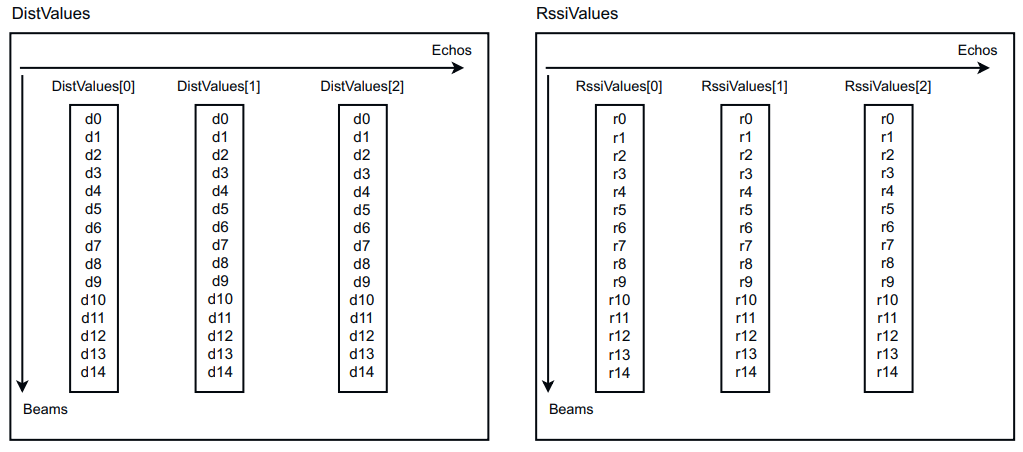
*DistValues and RssiValues array structure.*
The diagram illustrates the nested array structure with 3 echoes and 15 beams, showing how each beam contains values for all echoes in both DistValues and RssiValues arrays.
### Serialization of Arrays
Arrays of measurement data (ChannelTheta, ChannelPhi, DistValues, RssiValues, and PropertiesValues) are encoded as follows:
```msgpack-schema
msgpack_map_header {
"numOfElems": ,
"elemSz": ,
"endian": little,
"elemTypes": ,
"data":
}
```
The meaning of the individual fields of the Array class are shown in the following table.
**Serialization of Arrays:** name and description.
**Advanced: Throttle and Queue:** field, values, default, and meaning.
| Field | Values | Default | Meaning |
| --- | --- | --- | --- |
| `priority` | `HIGH`, `MID`, `LOW` | `MID` | Processing priority among events on this connection |
| `maxSize` | integer | 1 | Maximum buffered events |
| `discardIfFull` | `OLDEST`, `NEWEST` | `OLDEST` | Which event to drop when full |
## Subscribable Events
Event names are case-sensitive. Full data schemas are in the OpenAPI spec under the matching `GET` endpoint.
**Subscribable Events:** event, typical trigger, and devices.
| Event | Typical trigger | Devices |
| --- | --- | --- |
| `DeviceStatus` | Device operational state changes | multiScan200, picoScan100 |
| `SCdevicestate` | Safety controller state | multiScan200, picoScan100 |
| `FieldEvaluationResult` | Object enters/leaves a detection field | multiScan200, picoScan150 |
| `perpendicularDistanceResult` | Perpendicular-distance result changes | picoScan150 |
| `OutputState` / `PortState` | Digital I/O state changes (`PortState` preferred) | multiScan200, picoScan100 |
| `InputState` | Digital input state changes | multiScan200, picoScan150 |
| `ContaminationData` / `ContaminationResult` | Lens contamination per sector / global result | multiScan200, picoScan150 |
| `InertialMeasurementUnit` | Live IMU data | multiScan200, picoScan150 |
| `CurrentTempDev` | Device temperature (°C) | multiScan200, picoScan100 |
| `temperatureAlarmStatus` | Temperature alarm threshold crossed | multiScan200 |
| `UpdateState` | Firmware-update progress | multiScan200, picoScan100 |
| `LSPdatetime` | Device clock tick (every second) | multiScan200, picoScan100 |
"picoScan100" means both the picoScan120 and the picoScan150. The message examples above use `temperatureAlarmStatus`; on the picoScan100, use `CurrentTempDev` instead.
## Test with Insomnia
Before wiring subscriptions into your app, verify them interactively in [Insomnia](https://insomnia.rest/):
1. Create a WebSocket request to `ws:///apievents` and click **Connect**.
2. Send one register message, for example `{ "type": "register", "event": "CurrentTempDev", "clientId": 1 }`.
3. Check the received messages: the registration reply with the current value comes first, then one `event` message per change.
## Reliability and Reconnect
The device may close the connection on network interruption or firmware restart, and no subscription state is preserved across connections. On a close event, wait, reconnect, and re-register every subscription.
## Troubleshooting
**Troubleshooting:** symptom, likely cause, and fix.
| Symptom | Likely cause | Fix |
| --- | --- | --- |
| Connection refused | Wrong IP / not reachable | Ping the device; check firewall |
| Resets after first registration | Register frames sent too fast | ≥ 200 ms between `register` messages |
| Closes immediately (error 1002) | Frame or extension negotiation mismatch | Check `Sec-WebSocket-Extensions` and firmware; use a client compatible with the negotiated extensions |
| "Event not found" | Wrong name (case-sensitive) or absent on this firmware | Check the exact name; confirm firmware |
| No events after registration | Value hasn't changed; events are change-driven | Expected; the initial value is still sent on registration |
| Stale app state at startup | Dispatch filter only accepts `type == "event"` | Also dispatch `type == "register"` with `status == 0` |
| Frequent drops | Read timeout too short | Set read timeout ≥ 300 s; events can be infrequent |
Test subscriptions from a plain browser (Chrome/Edge) or from Insomnia/Postman before wiring them into your app. Wireshark on the sensor interface shows the raw WebSocket traffic.
---
# SICK LiDAR REST API: Requests, Authentication, OpenAPI
> Configure SICK LiDAR sensors over REST: base URL, JSON envelope, persistence, challenge-response authentication, and session tokens.
Source: https://sickag.github.io/sick_lidar_developer_guide/configuration/rest-interface/
# REST Interface
Compatible with: LRS4000 multiScan100 multiScan200 picoScan100
The REST API is the primary interface to configure and control the sensor. It is JSON over HTTP on port 80, or port 443 with [HTTPS](https://sickag.github.io/sick_lidar_developer_guide/configuration/https-and-certificates/).
For endpoints and request examples, open the reference for your device:
[LRS4000](https://sickag.github.io/sick_lidar_developer_guide/LRS4000/api-rest-openapi/),
[multiScan100](https://sickag.github.io/sick_lidar_developer_guide/multiScan100/api-rest-openapi/),
[multiScan200](https://sickag.github.io/sick_lidar_developer_guide/multiScan200/api-rest-openapi/),
[picoScan120](https://sickag.github.io/sick_lidar_developer_guide/picoScan100/api-rest-openapi/#picoscan120-rest-api), or
[picoScan150](https://sickag.github.io/sick_lidar_developer_guide/picoScan100/api-rest-openapi/#picoscan150-rest-api).
## Base URL and JSON Envelope
```txt
http[s]:///api/
```
Every response uses the same envelope. `header.status` = `0` means success:
```json
{
"header": { "status": 0, "message": "Ok" },
"data": { "LocationName": "picoScan150 25420067" }
}
```
The example is the response to `GET /api/LocationName`. The key inside `data` always matches the endpoint name exactly, including capitalization.
## Reading vs. Writing
**Reading vs. Writing:** operation, method, and authentication.
| Operation | Method | Authentication |
| --- | --- | --- |
| Read a parameter | `GET /api/` | None |
| Write a parameter | `POST /api/` | [Challenge-response](https://sickag.github.io/sick_lidar_developer_guide/configuration/rest-interface/#challenge-response-authentication) |
| Call a protected method (reboot, defaults, teach-in, …) | `POST /api/` | [Challenge-response](https://sickag.github.io/sick_lidar_developer_guide/configuration/rest-interface/#challenge-response-authentication) |
| Binary file transfer (backup, firmware) | `GET`/`PUT /api/parameterbackup`, `PUT /api/update` where supported | [Session token](https://sickag.github.io/sick_lidar_developer_guide/configuration/rest-interface/#session-token-authentication) where required by firmware |
A `POST` to a parameter changes only the working copy in RAM. The change is lost at the next power cycle unless you call `POST /api/WriteEeprom`, as in the [script below](https://sickag.github.io/sick_lidar_developer_guide/configuration/rest-interface/#challenge-response-authentication). `RebootDevice` also persists RAM to EEPROM before it reboots. `SoftReset` and a power cycle discard unsaved changes. See [Checksums](https://sickag.github.io/sick_lidar_developer_guide/shared-features/checksums/#ram-vs-persistent-storage) for how this shows in `MD5Parameters`.
## User Levels
Writes require an enabled [user level](https://sickag.github.io/sick_lidar_developer_guide/shared-features/user-levels/). By default, only Service is enabled.
## Authentication
**Authentication:** method, use case, and reference.
**Status Codes and Errors:** status, message, typical cause, and fix.
| Status | Message | Typical cause | Fix |
| --- | --- | --- | --- |
| 0 | Ok | Request succeeded | - |
| 1 | Parsing Failed | Body is not valid JSON, or a required `data` field is missing | Compare the body with the OpenAPI schema |
| 2 | Invalid Data | The `data` key does not match the endpoint name (case-sensitive), or a value has the wrong type | Use the endpoint name as `data` key |
| 3 | Internal Server Error | For example, `getChallenge` with an unknown user name | Use `Service`, `Maintenance`, or `AuthorizedClient` |
| 4 | Access Denied | Wrong password, missing or wrong `header`, hash computed for another endpoint, user level not enabled, or authentication temporarily locked | Check the password, the user level, and the hash; see the lock below |
| 5 | Not Found | Unknown endpoint, or wrong HTTP method, for example `GET` on a method | Check the endpoint name and method in the OpenAPI file |
| 6 | Out Of Range | Value outside the allowed range | Check the limits in the OpenAPI file |
| 7 | Out Of Bounds | Value outside the allowed bounds, for example the user name `Authorized Client` with a space | Check the allowed values |
| 8 | Read Only | Write to a read-only variable | Only read the variable |
| 9 | Illegal Value | Value not in the allowed set, for example an undefined enum value | Use a value listed in the OpenAPI file |
| 10 | Invalid Challenge | The challenge was invalidated by a challenge for another user level | Fetch a new challenge and retry once |
| 11 | Out Of Connections | Too many simultaneous connections | Close idle connections and retry |
After five failed logins in a row, the device locks authentication for 30 seconds. During the lock, `getChallenge` itself answers with `header.status` 4, so even the correct password fails. Bursts of many `getChallenge` requests in a short time are rejected in the same way for a few seconds. Wait at least 30 seconds before retrying instead of retrying immediately.
Real HTTP error codes occur only for binary file transfers:
**Status Codes and Errors:** HTTP status, cause, and fix.
| HTTP status | Cause | Fix |
| --- | --- | --- |
| 403 | `GET` or `PUT /api/parameterbackup` without a valid `X-Session-Token` | Create a new session token |
| 404 | `GET /api/parameterbackup` before a backup file has been created | Call `CreateParameterBackup` first |
## OpenAPI
OpenAPI (formerly Swagger) is a machine-readable description of every REST endpoint: paths, parameters, and request and response schemas. Use it to generate a typed client in almost any language, or import it into a REST client.
SICK publishes an OpenAPI file for each firmware. Download it from the SICK product page under *Software*, or use the files in this guide:
- [picoScan100 REST API reference](https://sickag.github.io/sick_lidar_developer_guide/picoScan100/api-rest-openapi/)
- [multiScan100 REST API reference](https://sickag.github.io/sick_lidar_developer_guide/multiScan100/api-rest-openapi/)
- [multiScan200 REST API reference](https://sickag.github.io/sick_lidar_developer_guide/multiScan200/api-rest-openapi/)
- [LRS4000 REST API reference](https://sickag.github.io/sick_lidar_developer_guide/LRS4000/api-rest-openapi/)
The OpenAPI file does not describe the challenge-response authentication. Configure your client to compute it, or use [Insomnia or Postman](https://sickag.github.io/sick_lidar_developer_guide/configuration/third-party-tools/) with the prepared SICK plug-in or script.
## Related Articles
*How to use the OpenAPI file with Insomnia.*
---
# LiDAR Configuration Interfaces: REST, CoLa, Backup, HTTPS
> Choose how to configure SICK LiDAR sensors using REST, CoLa, backups, HTTPS, or interactive API clients.
Source: https://sickag.github.io/sick_lidar_developer_guide/configuration/
# Choose a Configuration Option
Start with the REST interface: it covers reading and writing parameters for
applications and scripts. The other options cover legacy integrations,
configuration files, security, and interactive testing.
* [REST Interface](https://sickag.github.io/sick_lidar_developer_guide/configuration/rest-interface/): use the HTTP/JSON API to read and write parameters or call device methods from applications and scripts. Writes require challenge-response authentication.
* [CoLa Interface](https://sickag.github.io/sick_lidar_developer_guide/configuration/cola-interface/): send SICK commands and telegrams, especially for PLCs, legacy integrations, or systems already using CoLa.
* [Backup & Restore](https://sickag.github.io/sick_lidar_developer_guide/configuration/configuration-backup-and-restore/): save, recover, or deploy a complete configuration file; restore only to a matching device type.
* [HTTPS & Certificates](https://sickag.github.io/sick_lidar_developer_guide/configuration/https-and-certificates/): protect REST traffic with TLS and let clients verify the sensor using a trusted certificate.
* [Third-Party Tools](https://sickag.github.io/sick_lidar_developer_guide/configuration/third-party-tools/): import OpenAPI into Insomnia or Postman to explore endpoints and test requests interactively.
Insomnia and Postman are clients of the REST interface, not separate device protocols.
---
# LiDAR Configuration Backup and Restore via GUI and REST
> Back up and restore a complete multiScan100, multiScan200, or picoScan100 configuration file through SOPASair or the REST API, with optional passphrase encryption.
Source: https://sickag.github.io/sick_lidar_developer_guide/configuration/configuration-backup-and-restore/
# Backup & Restore
Compatible with: multiScan100 multiScan200 picoScan100
A configuration file contains the complete device configuration. Use it to roll back to a known-good state, replace a device, or copy a validated configuration to identical sensors. Encryption with a passphrase is optional.
## In the Web GUI
Open the **Device** menu at the top right and select **Download configuration file**. The same menu imports a file.
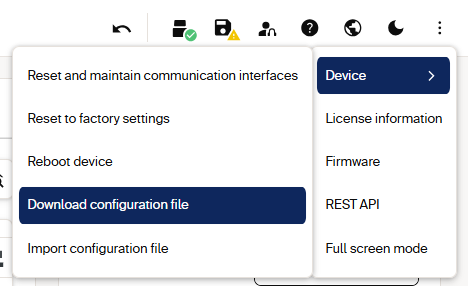
*Access the configuration backup from the Device menu.*
## REST Endpoints
See the device-specific [multiScan100](https://sickag.github.io/sick_lidar_developer_guide/multiScan100/api-rest-openapi/),
[multiScan200](https://sickag.github.io/sick_lidar_developer_guide/multiScan200/api-rest-openapi/), and
[picoScan100](https://sickag.github.io/sick_lidar_developer_guide/picoScan100/api-rest-openapi/) REST API references.
**REST Endpoints:** action, method and path, device families, and authentication.
| Action | Method and path | Device families | Authentication |
| --- | --- | --- | --- |
| Create a session token | `POST /api/CreateSessionToken` | multiScan200, picoScan100 | [Challenge-response](https://sickag.github.io/sick_lidar_developer_guide/configuration/rest-interface/#challenge-response-authentication), Service |
| Create the backup file | `POST /api/CreateParameterBackup` | multiScan100, multiScan200, picoScan100 | Challenge-response, Service |
| Check the create result | `GET /api/CreateParameterBackupResult` | multiScan200, picoScan100 | None |
| Download the file | `GET /api/parameterbackup` | multiScan100, multiScan200, picoScan100 | `X-Session-Token` header where required by firmware |
| Upload a file | `PUT /api/parameterbackup` | multiScan100, multiScan200, picoScan100 | `X-Session-Token` header where required by firmware |
| Apply the uploaded file | `POST /api/RestoreParameterBackup` | multiScan100, multiScan200, picoScan100 | Challenge-response, Service |
| Check the restore result | `GET /api/RestoreParameterBackupResult` | multiScan200, picoScan100 | None |
The session token protects binary transfers where the firmware exposes that
mechanism. `CreateParameterBackup` and `RestoreParameterBackup` accept an
optional `Passphrase` (up to 256 characters). It is independent of the login
password. A file created with a passphrase can only be restored with the same
passphrase.
```json
{ "header": { "...": "challenge-response fields" }, "data": { "Passphrase": "your-passphrase" } }
```
Every `POST` below needs a fresh [challenge-response](https://sickag.github.io/sick_lidar_developer_guide/configuration/rest-interface/#challenge-response-authentication) at Service level.
## Download a Configuration
=== "multiScan200 / picoScan100"
1. `POST /api/CreateSessionToken` and store `data.token`.
2. `POST /api/CreateParameterBackup`, optionally with a passphrase.
3. Poll `GET /api/CreateParameterBackupResult` until `data.Status` is `1`
(Finished), and check that `data.Result` is `true`.
4. Download the file with the token:
```http
GET /api/parameterbackup HTTP/1.1
Host: 192.168.0.1
X-Session-Token: dKVwNYUkHsHS...
```
The response is `HTTP 200` with the binary file (about 86 KB). Without
the token header, the device returns `HTTP 403`.
=== "multiScan100"
1. `POST /api/CreateParameterBackup`, optionally with a passphrase, and
wait for the request to finish.
2. `GET /api/parameterbackup` with the file-transfer authentication
described in the multiScan100 OpenAPI file.
## Restore a Configuration
=== "multiScan200 / picoScan100"
1. `POST /api/CreateSessionToken` and store `data.token`.
2. Upload the file with the token:
```http
PUT /api/parameterbackup HTTP/1.1
Host: 192.168.0.1
X-Session-Token: dKVwNYUkHsHS...
Content-Type: application/octet-stream
```
3. `POST /api/RestoreParameterBackup` with the passphrase used to create the file.
4. Poll `GET /api/RestoreParameterBackupResult` until the restore is
finished, and check the result.
=== "multiScan100"
1. `PUT /api/parameterbackup` with the file-transfer authentication
described in the multiScan100 OpenAPI file.
2. `POST /api/RestoreParameterBackup` with the passphrase used to create the file.
On all devices, persist the result with `POST /api/WriteEeprom`, then confirm the
[checksums](https://sickag.github.io/sick_lidar_developer_guide/shared-features/checksums/) and key parameters.
## Error Handling
**Error Handling:** symptom, cause, and fix.
| Symptom | Cause | Fix |
| --- | --- | --- |
| HTTP 403 on `GET`/`PUT parameterbackup` | Missing or expired session token | Create a new token; send the `X-Session-Token` header |
| Download returns an empty or partial file | File read before creation finished | Poll `CreateParameterBackupResult` before downloading |
| Restore rejected | Wrong passphrase, or a file from a different device type | Use the same passphrase; restore only onto a matching device type |
| `header.status` 4 or 10 on `Create*` or `Restore*` | Wrong password, user level not enabled, or the challenge was invalidated | Fetch a new [challenge](https://sickag.github.io/sick_lidar_developer_guide/configuration/rest-interface/#challenge-response-authentication) per request; use Service |
## Roll Out a Configuration to Many Sensors
Configure and validate one "golden" device, download its configuration file, and restore it on every identical sensor. This also transfers [field evaluation](https://sickag.github.io/sick_lidar_developer_guide/on-device-applications/field-evaluation/) groups, which you can then modify over REST. Use the [`LFTchecksum`](https://sickag.github.io/sick_lidar_developer_guide/shared-features/checksums/) to confirm that a restore changed only what you expected. [Firmware Update](https://sickag.github.io/sick_lidar_developer_guide/shared-features/firmware-update/) uses the same session-token pattern.
## Related Articles
*How to create a device configuration offline and import it.*
*How to import and export configuration with SOPAS ET.*
---
# CoLa A and CoLa B Protocol: SICK Command Language Reference
> SICK CoLa protocol reference: CoLa A (ASCII) and CoLa B (binary) framing, checksum, command types, variable types, TCP ports 2111 and 2112, and error codes.
Source: https://sickag.github.io/sick_lidar_developer_guide/configuration/cola-interface/
# CoLa Interface
Compatible with: LRS4000 multiScan100 multiScan200 picoScan100
CoLa (Command Language) is SICK's telegram protocol for reading and writing sensor parameters, calling methods, and subscribing to events over TCP. Use it for PLCs and existing SICK integrations; for new integrations, prefer the [REST API](https://sickag.github.io/sick_lidar_developer_guide/configuration/rest-interface/).
**CoLa Interface:** variant, encoding, TCP port, framing, and checksum.
| Variant | Encoding | TCP port | Framing | Checksum |
| --- | --- | --- | --- | --- |
| CoLa A | ASCII | `2111` | `` … `` (`02` … `03`) | None |
| CoLa B | Binary | `2112` | `02 02 02 02` + 4-byte big-endian length | 1-byte XOR |
On picoScan100, CoLa A and CoLa B (together called CoLa1) can be disabled for security; see [Cybersecurity](https://sickag.github.io/sick_lidar_developer_guide/integration-notes/cybersecurity/#legacy-protocols-cola).
## Command Basics
Every telegram starts with a command type, followed by a space and the command
name. The device answers with the matching answer type:
**Command Basics:** command type, request, answer, and hex value of the request.
| Command type | Request | Answer | Request in hex |
| --- | --- | --- | --- |
| Read a variable | `sRN` | `sRA` | `73 52 4E` |
| Write a variable | `sWN` | `sWA` | `73 57 4E` |
| Call a method | `sMN` | `sAN` | `73 4D 4E` |
| Register for an event | `sEN` | `sEA`, then `sSN` per event | `73 45 4E` |
An error is answered with `sFA` and an [error code](https://sickag.github.io/sick_lidar_developer_guide/configuration/cola-interface/#cola-error-codes).
The framing differs between the two variants:
**Command Basics:** framing element, CoLa A, and CoLa B.
| Element | CoLa A (ASCII) | CoLa B (binary) |
| --- | --- | --- |
| Start | `` = `02` | `02 02 02 02` + 4-byte length |
| End | `` = `03` | 1-byte XOR checksum |
| Separator | `{SPC}` = `20` | `20` after the command name only |
If values are divided into two parts (e.g. measurement data), they are documented according to LSB 0 (e.g. 00 07), output however is according to MSB (e.g. 07 00).
## ASCII Telegram (CoLa A)
CoLa A is the plain-text alternative. It is convenient for manual tests and parametrization. For PLCs, CoLa B is still recommended because CoLa A telegrams have a variable length.
A CoLa A telegram has two parts: the framing and the data part. `` (`02`) starts and `` (`03`) ends each telegram.
The data part contains the command in plain text, then the parameter values. Values are hexadecimal by default, or decimal with a leading `+`. Fixed values with a specific meaning are always hexadecimal. Example: 25 Hz = `+2500` (decimal) = `9C4` (hex).
Leading zeros are removed in CoLa A, so a space is required between every command part and every parameter.
Without the `+` sign, a numeric parameter is read as **hexadecimal**. For single digits 0-9 this makes no difference, but from 10 upwards it does: `10` and `010` are both read as 0x10 = 16, while `+10` is decimal 10. Write every decimal value greater than 9 with a leading `+` (for example `+10`, `+48`, `+2500`).
You can also send the whole telegram as hex bytes, converting every character, including digits, through the ASCII table.
The device always answers with parameter values in hexadecimal, regardless of the format you sent.
**Example: ASCII telegram**
**ASCII Telegram (CoLa A):** format, start, data, and stop.
| Format | Start | Data | Stop |
| --- | --- | --- | --- |
| ASCII | `` | `sMN{SPC}SetAccessMode{SPC}03{SPC}` | `` |
| Hex | `02` | `73 4D 4E 20 53 65 74 41 63 63 65 73 73 4D 6F 64 65 20 30 33 20 ` | `03` |
This is again an example telegram for setting the user level "Authorized Client". As only fixed hexadecimal parameter values are needed, the option to use parameter values in decimal code with special indicator cannot be applied here:
- Framing = = telegram start = 02 (Hex)
- Data:
- sMN = start of SOPAS command (and blank) = 73 4D 4E 20 (Hex)
- SetAccessMode = the actual command for setting the user level (and blank) = 53 65 74 41 63 63 65 73 73 4D 6F 64 65 20 (Hex)
- 03 = fixed Hex value meaning user level "Authorized Client" (and blank) = 30 33 20 (Hex)
- `` = 8 hex characters: the hash of the password for the selected user level
- Framing = = telegram stop = 03 (Hex)
The default passwords are documented in the operating instructions of your device. Do not pass them on, and change them during commissioning.
## Binary Telegram (CoLa B)
A CoLa B telegram has four parts: header, data length, data, and checksum. All values are bytes, shown in hexadecimal. CoLa B is recommended for PLCs: the transmitted data is about half the size of CoLa A, and the length field makes parsing simple.
- Header: four STX bytes, `02 02 02 02`.
- Data length: 4 bytes, big-endian, the number of bytes in the data part. The maximum is 2³² − 1 = 4,294,967,295 bytes.
- Data: the command as ASCII bytes, followed by the parameters as binary values. There is always a space (`20`) between the command and the parameters, but not between parameter values.
- Checksum: 1 byte, the XOR of all bytes in the data part.
**Example: Binary telegram**
**Binary Telegram (CoLa B):** component and value.
| Component | Value |
| --- | --- |
| Header | `02 02 02 02` |
| Length | `00 00 00 17` |
| Data | `73 4D 4E 20 53 65 74 41 63 63 65 73 73 4D 6F 64 65 20 03 ` |
| CS | XOR of the data bytes |
This is an example telegram for setting the user level "Authorized Client":
- Header = 02 02 02 02
- Length = 23 bytes (17h)
- Data:
- 73 4D 4E 20 = sMN = start of SOPAS command (and space)
- 53 65 74 41 63 63 65 73 73 4D 6F 64 65 20 = SetAccessMode = the actual command for setting the user level (and space)
- 03 = fixed Hex value meaning user level "Authorized Client"
- `` = 4 bytes: the hash of the password for the selected user level
- Checksum = the XOR of all 23 data bytes
## Validate a CoLa B Checksum
CoLa B is transported over TCP, so one TCP read is not necessarily one complete
telegram. Buffer incoming bytes, locate the four-byte sync header, read the
following 4-byte big-endian payload length, and wait until the complete frame
has arrived. The frame consists of the 8-byte header and length, the payload,
and one checksum byte; therefore its total size is `9 + payload_length`.
The checksum is the XOR of every payload byte, excluding the sync header,
length field, and checksum byte. For a complete frame in a byte array
`frame`, calculate it as follows:
```python
xor_sum = 0
for byte in frame[8:-1]:
xor_sum ^= byte
checksum_valid = xor_sum == frame[-1]
```
Show full Python checksum example
The following dummy `LMDscandata` response is an example captured from a
picoScan150 with firmware V2.1.0. It demonstrates frame separation and XOR
validation; it contains a small number of beams and is not a production
measurement sample.
The length bytes in this sample are `00 00 00 77`, which encode a 119-byte
payload in big-endian order. The checksum is `BB`.
```python
tcp_payload = [
0x02, 0x02, 0x02, 0x02, 0x00, 0x00, 0x00, 0x77,
0x73, 0x52, 0x41, 0x20, 0x4c, 0x4d, 0x44, 0x73,
0x63, 0x61, 0x6e, 0x64, 0x61, 0x74, 0x61, 0x20,
0x00, 0x01, 0x00, 0x01, 0x01, 0x64, 0x72, 0x18,
0x00, 0x00, 0x59, 0x89, 0x69, 0x97, 0xbb, 0x9d,
0xc5, 0x02, 0xbb, 0x9e, 0x82, 0xcc, 0x00, 0x00,
0x00, 0x00, 0x00, 0x00, 0x00, 0x00, 0x05, 0xdc,
0x00, 0x00, 0x00, 0x00, 0x00, 0x00, 0x00, 0x01,
0x44, 0x49, 0x53, 0x54, 0x31, 0x40, 0x00, 0x00,
0x00, 0x00, 0x00, 0x00, 0x00, 0x00, 0x0d, 0xe2,
0xb0, 0x13, 0x88, 0x00, 0x03, 0x00, 0x00, 0x3a,
0xdb, 0x3a, 0xda, 0x00, 0x01, 0x52, 0x53, 0x53,
0x49, 0x31, 0x3f, 0x80, 0x00, 0x00, 0x00, 0x00,
0x00, 0x00, 0x00, 0x0d, 0xe2, 0xb0, 0x13, 0x88,
0x00, 0x03, 0x00, 0x35, 0x39, 0x00, 0x00, 0x00,
0x00, 0x00, 0x00, 0x00, 0x00, 0x00, 0x00, 0xbb,
]
xor_sum = 0
for byte in tcp_payload[8:-1]:
xor_sum ^= byte
if xor_sum == tcp_payload[-1]:
print("Checksum valid")
else:
print("Checksum invalid")
```
## Device-Specific Telegram Listing
For device-specific commands and parameter telegrams, see the [LRS4000 Telegram Listing](https://sickag.github.io/sick_lidar_developer_guide/LRS4000/api-cola-telegrams/), [multiScan100 Telegram Listing](https://sickag.github.io/sick_lidar_developer_guide/multiScan100/api-cola-telegrams/), [multiScan200 Telegram Listing](https://sickag.github.io/sick_lidar_developer_guide/multiScan200/api-cola-telegrams/), and [picoScan100 Telegram Listing](https://sickag.github.io/sick_lidar_developer_guide/picoScan100/api-cola-telegrams/).
Every write command (`sWN`) has a read (`sRN`) counterpart, even if the Telegram Listing does not describe it. Use it to verify the current value, for example read the IP address with `sRN EIIpAddr`.
## Variable Types
**Variable Types:** variable type, length, value range, and sign.
| Variable type | Length (byte) | Value range | Sign |
| --- | --- | --- | --- |
| Bool_1 | 1 | 0 or 1 | No |
| Uint_8 | 1 | 0 … 255 | No |
| Int_8 | 1 | -128 … +127 | Yes |
| Uint_16 | 2 | 0 … 65,535 | No |
| Int_16 | 2 | -32,768 … +32,767 | Yes |
| Uint_32 | 4 | 0 … 4,294,967,295 | No |
| Int_32 | 4 | -2,147,483,648 … +2,147,483,647 | Yes |
| ULInt_64 | 8 | 0 … 18,446,744,073,709,551,615 | No |
| Enum_8 | 1 | Certain values defined in a list of Choices (0 … 255) | No |
| Enum_16 | 2 | Certain values defined in a list of Choices (0 … 65535) | No |
| String | Context-dependent | Strings are not terminated in zeroes | |
| FlexString | array of visible characters with preceding current length (UInt length) (array of 8 bit) | See description of String and FlexArray | |
| Real | 4 | Float according to IEEE 754 (see the [IEEE 754 converter](https://www.h-schmidt.net/FloatConverter/IEEE754.html)) | Yes |
Data length is always given in bytes.
**Variable Types:** compound type and description.
| Type | Description |
| --- | --- |
| *Struct* | A structure is a sequence of further types. These types can be of a BasicType, Structs again or an Array. |
| *Array* | An Array is a repetition of a type. The length of the array is defined with each Array. The types can be of a BasicType, a Struct or an Array again (n-dimensional). |
| *Flex Array* | A FlexArray is a repetition of a type with a variable length. The maximum length of the array is defined with each FlexArray. The current length of the FlexArray is transferred as a UInt preceding the Array itself. The types can be of a BasicType, a Struct or an Array again (n-dimensional). |
## CoLa Error Codes
An `sFA` response reports a SOPAS error. The error code is returned as a
decimal value in CoLa A and as a hexadecimal value in CoLa B.
**CoLa Error Codes:** symbol, description, decimal, and hexadecimal value.
| Symbol | Description | Dec. | Hex. |
| --- | --- | ---: | ---: |
| `Sopas_Ok` | No error | 0 | `0` |
| `Sopas_Error_METHODIN_ACCESSDENIED` | Wrong user level; access to the method is not allowed | 1 | `1` |
| `Sopas_Error_METHODIN_UNKNOWNINDEX` | Method index is unknown | 2 | `2` |
| `Sopas_Error_VARIABLE_UNKNOWNINDEX` | Variable index is unknown | 3 | `3` |
| `Sopas_Error_LOCALCONDITIONFAILED` | A local condition was violated, such as a value outside the allowed range | 4 | `4` |
| `Sopas_Error_INVALID_DATA` | Invalid variable data; deprecated and no longer used | 5 | `5` |
| `Sopas_Error_UNKNOWN_ERROR` | Unknown error; deprecated | 6 | `6` |
| `Sopas_Error_BUFFER_OVERFLOW` | Communication buffer was too small for the serialized data | 7 | `7` |
| `Sopas_Error_BUFFER_UNDERFLOW` | More data was expected, but the buffer could not be filled | 8 | `8` |
| `Sopas_Error_ERROR_UNKNOWN_TYPE` | Variable has an unknown type | 9 | `9` |
| `Sopas_Error_VARIABLE_WRITE_ACCESSDENIED` | Variable is read-only | 10 | `A` |
| `Sopas_Error_UNKNOWN_CMD_FOR_NAMESERVER` | Nameserver does not understand the command | 11 | `B` |
| `Sopas_Error_UNKNOWN_COLA_COMMAND` | Command is not defined by the CoLa specification | 12 | `C` |
| `Sopas_Error_METHODIN_SERVER_BUSY` | Another command is already being processed | 13 | `D` |
| `Sopas_Error_FLEX_OUT_OF_BOUNDS` | Array was accessed beyond its maximum length | 14 | `E` |
| `Sopas_Error_EVENTREG_UNKNOWNINDEX` | Event index is unknown | 15 | `F` |
| `Sopas_Error_COLA_A_VALUE_OVERFLOW` | Value is too large for the field | 16 | `10` |
| `Sopas_Error_COLA_A_INVALID_CHARACTER` | Character is unknown or not alphanumeric | 17 | `11` |
| `Sopas_Error_OSAI_NO_MESSAGE` | No operating-system message could be created for a GET request | 18 | `12` |
| `Sopas_Error_OSAI_NO_ANSWER_MESSAGE` | No operating-system message could be created for a PUT request | 19 | `13` |
| `Sopas_Error_INTERNAL` | Internal firmware error | 20 | `14` |
| `Sopas_Error_HubAddressCorrupted` | SOPAS hub address is too short or too long | 21 | `15` |
| `Sopas_Error_HubAddressDecoding` | SOPAS hub address has invalid syntax | 22 | `16` |
| `Sopas_Error_HubAddressAddressExceeded` | Hub address contains too many hubs | 23 | `17` |
| `Sopas_Error_HubAddressBlankExpected` | Expected blank is missing in the hub address | 24 | `18` |
| `Sopas_Error_AsyncMethodsAreSuppressed` | Asynchronous methods are suppressed on the device | 25 | `19` |
| `Sopas_Error_ComplexArraysNotSupported` | Device does not support the received complex array | 26 | `1A` |
---
# Enable HTTPS on SICK LiDAR Sensors: Certificates and TLS
> Enable HTTPS on supported SICK LiDAR sensors: certificate requirements, OpenSSL commands for a CA and leaf certificate, and REST endpoints for upload and removal.
Source: https://sickag.github.io/sick_lidar_developer_guide/configuration/https-and-certificates/
# HTTPS & Certificates
Compatible with: LRS4000 multiScan100 multiScan200 picoScan100
By default the REST API is served over plain HTTP on port 80. Activating HTTPS
makes the API available on port 443; HTTP on port 80 remains available unless
separately disabled. Use HTTPS with certificate verification to protect
configuration commands and API data with TLS. Enforce your network-security
policy for HTTP separately; enabling HTTPS does not disable HTTP.
There is no separate enable/disable toggle: the device turns HTTPS on as soon as a valid certificate bundle is installed. Removing the bundle turns HTTPS off only after the next reboot.
## The Four Endpoints
**The Four Endpoints:** endpoint, method, auth, and purpose.
| Endpoint | Method | Auth | Purpose |
| ------------------------------ | ------ | ------- | ---------------------------------------------------- |
| `/api/httpsStatus` | GET | none | Read HTTPS enabled state and error code |
| `/api/certificateBundleInfo` | GET | none | Inspect subject, issuer, validity dates, fingerprint |
| `/api/setCertificateBundle` | POST | Service | Upload the PEM certificate bundle + private key |
| `/api/removeCertificateBundle` | POST | Service | Remove the bundle (HTTPS off after the next reboot) |
On LRS4000 firmware 1.10.0, the REST API provides only `httpsStatus` and
`certificateBundleInfo`. `setCertificateBundle` and `removeCertificateBundle`
are not available.
## Certificate Requirements
Uploads that don't meet these are rejected with `success: false`.
**Certificate Requirements:** property and requirement.
| Property | Requirement |
| -------------------------- | ------------------------------------------------------------------- |
| Port | 443 (fixed) |
| Format | X.509 PEM (`.pem`, `.crt`, `.cer`) |
| Minimum key size | RSA ≥ 3072 bits, ECDSA ≥ 250 bits, or Curve25519 / Curve448 |
| Maximum chain length | root CA → intermediate → leaf (3 levels); 2-level chain recommended |
| `contentCertificateBundle` | 10 000 characters max |
| `contentPrivateKey` | 4 000 characters max |
| Mutual TLS | Not supported (server-side certificate only) |
Three pieces of material are involved:
- Certificate bundle (`contentCertificateBundle`): uploaded to the device. It contains the leaf (server) certificate first, then any intermediates; the root CA may optionally be appended.
- Private key (`contentPrivateKey`): uploaded with the bundle. It must match the public key of the leaf certificate.
- CA certificate: stays on the client to verify the device during the TLS handshake. For a self-signed root CA, this is the root `ca.pem`.
## Create a Self-Signed Chain (OpenSSL)
A two-level hierarchy (self-signed root CA → leaf) is the recommended minimum. Replace `192.168.0.1` with your device IP.
```bash
# Root CA key + certificate
openssl genrsa -out ca.key 4096
openssl req -new -x509 -key ca.key -out ca.pem -days 365 \
-subj "/CN=My Sensor Root CA/O=My Organisation/C=DE" \
-addext "basicConstraints=critical,CA:TRUE" \
-addext "keyUsage=critical,keyCertSign,cRLSign"
```
```bash
# Server key + CSR
openssl genrsa -out server.key 4096
openssl req -new -key server.key -out server.csr \
-subj "/CN=My Sensor/O=My Organisation/C=DE"
```
```bash
# Sign the leaf as a TLS server certificate for the device IP
cat > server.ext <<'EOF'
subjectAltName=IP:192.168.0.1
basicConstraints=critical,CA:FALSE
keyUsage=critical,digitalSignature,keyEncipherment
extendedKeyUsage=serverAuth
authorityKeyIdentifier=keyid,issuer
subjectKeyIdentifier=hash
EOF
openssl x509 -req -in server.csr -CA ca.pem -CAkey ca.key \
-CAcreateserial -out leaf.pem -days 365 -extfile server.ext
```
The extensions are required by strict TLS clients. For example, Python 3.13 and later reject a leaf without `authorityKeyIdentifier` and a CA without `keyUsage`. In Windows PowerShell, write `server.ext` as ASCII, for example with `Set-Content server.ext -Encoding ascii`; OpenSSL cannot read the UTF-16 files that `>` creates in Windows PowerShell 5.1.
```bash
# Build the bundle (leaf + root CA)
cat leaf.pem ca.pem > server.pem # Linux / macOS
# Get-Content leaf.pem, ca.pem | Set-Content server.pem # Windows PowerShell
```
You end up with three files:
**Create a Self-Signed Chain (OpenSSL):** file, contents, and used by.
| File | Contents | Used by |
| ------------ | --------------------------- | ------------------------------------------ |
| `ca.pem` | Root CA certificate | Clients (verify the server) |
| `server.pem` | Leaf + root CA (PEM bundle) | Device upload: `contentCertificateBundle` |
| `server.key` | Leaf private key | Device upload: `contentPrivateKey` |
TLS clients match the certificate against the address they connect to. Without `subjectAltName=IP:`, verification fails. Add every address you'll use to reach the device.
## Upload the Bundle
`POST /api/setCertificateBundle` requires Service-level [challenge-response](https://sickag.github.io/sick_lidar_developer_guide/configuration/rest-interface/#challenge-response-authentication). Both PEM blocks go in the `data` object as plain-text strings:
```http
POST /api/setCertificateBundle
Content-Type: application/json
```
```json
{
"header": { "user": "Service", "realm": "",
"nonce": "", "opaque": "",
"response": "" },
"data": {
"contentCertificateBundle": "",
"contentPrivateKey": ""
}
}
```
A success looks like:
```json
{ "header": { "status": 0, "message": "Ok" },
"data": { "success": true, "errorCode": { "error": "None" } } }
```
As soon as a valid bundle is accepted, HTTPS becomes available on port 443.
HTTP on port 80 remains available unless separately disabled.
## Read Status and Connect
```http
GET /api/httpsStatus # enabled state + error code
GET /api/certificateBundleInfo # subject, issuer, validity, fingerprint
```
Then use the API over TLS, trusting your `ca.pem`:
```bash
curl --cacert ca.pem https://192.168.0.1/api/DeviceIdent
```
On Windows, if the root CA is already trusted in the OS certificate store, clients use it automatically.
## Remove the Bundle
```http
POST /api/removeCertificateBundle # Service auth
POST /api/RebootDevice # Service auth; HTTPS is off after the reboot
```
Until the device restarts, port 443 keeps serving the removed certificate and `httpsStatus` still reports `enabled: true`. `RebootDevice` also saves pending parameter changes permanently, so make sure no unwanted changes are pending before you reboot.
Keep port 80 available while you validate the certificate. If an upload leaves HTTPS refusing connections, read `httpsStatus` over HTTP to see the error code, fix the certificate, and re-upload. See the [Cybersecurity Hardening Guide](https://sickag.github.io/sick_lidar_developer_guide/integration-notes/cybersecurity/) for wider hardening guidance.
## Video Tutorial
*How to create SSL certificates to enable HTTPS communication.*
---
# SICK LiDAR Test Tools: Insomnia, Postman, and Hercules
> Test REST requests with Insomnia or Postman and challenge-response authentication, or send CoLa telegrams over TCP with Hercules.
Source: https://sickag.github.io/sick_lidar_developer_guide/configuration/third-party-tools/
# Third-Party Tools
Compatible with: LRS4000 multiScan100 multiScan200 picoScan100
Use Insomnia or Postman for the REST API, or
[Hercules](https://sickag.github.io/sick_lidar_developer_guide/configuration/third-party-tools/#hercules) for manual CoLa telegram testing over TCP.
Insomnia and Postman are desktop REST clients that can import the sensor's
OpenAPI file. They prepare requests for the documented endpoints so you can
explore and test the REST API interactively before writing client code. Writes
require challenge-response authentication; the following sections describe
how to configure each client.
Download the `openapi.yaml` matching the device and firmware from the SICK
product page under Software. Your computer must be able to reach the sensor,
normally at `192.168.0.1`, and you need the password for an enabled user level.
See [User levels](https://sickag.github.io/sick_lidar_developer_guide/shared-features/user-levels/).
## Insomnia
*How to use the OpenAPI file with Insomnia.*
### Create a Collection from `openapi.yaml`
Download the OpenAPI YAML that matches the sensor and firmware:
[LRS4000](https://sickag.github.io/sick_lidar_developer_guide/LRS4000/api-rest-openapi/),
[multiScan100](https://sickag.github.io/sick_lidar_developer_guide/multiScan100/api-rest-openapi/),
[multiScan200](https://sickag.github.io/sick_lidar_developer_guide/multiScan200/api-rest-openapi/), or
[picoScan100](https://sickag.github.io/sick_lidar_developer_guide/picoScan100/api-rest-openapi/).
In Insomnia:
1. Open the workspace and select **Import** → **File**.
2. Choose the downloaded `openapi.yaml`, then select **Scan**.
3. Review the detected resources and select **Import**. Insomnia creates an
API Collection and places the OpenAPI definition in its **Spec** tab.
4. In the **Spec** tab, open the settings menu beside **Preview** and select
**Generate Collection** to create sendable requests from the specification.
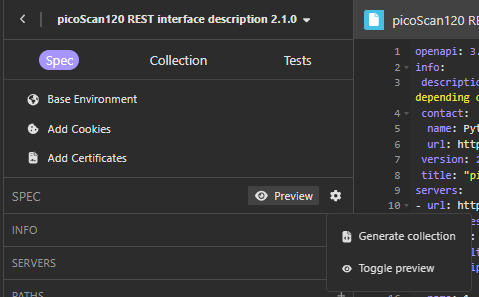
*Generate a request collection from the imported OpenAPI specification.*
See Insomnia's guide to
[importing an API specification](https://developer.konghq.com/how-to/import-an-api-spec/)
for screenshots and version-specific details. The generated requests document
the endpoints, but write requests still need the SICK challenge-response
authentication configured below.
The [SICK challenge-response plug-in](https://sickag.github.io/sick_lidar_developer_guide/assets/configuration/sick_rest_insomnia_plugin.rar)
calculates the authentication hash for `POST` requests. Download the plug-in,
then in Insomnia open Application → Preferences → Plugins, install it, and
reload plug-ins.
Set the environment to your sensor address and credentials:
```json
{
"address": "192.168.0.1",
"base_url": "http://{{ _.address }}/api",
"user": "Service",
"password": "",
"enableAuthentification": true
}
```
Replace the example address, user, and password with the values for your
sensor. The plug-in reads the variable name `enableAuthentification`, so keep
this spelling. The Postman script below uses `enableAuthentication` instead.
The plug-in requests the challenge over plain HTTP
from `address`. Keep credentials private; do not include them in exported
environments or version control.
## Postman
The Postman setup below is intended for demonstration and evaluation; review,
test, and adapt it before production use.
### Import the OpenAPI File
In Postman, select Import, choose the downloaded `openapi.yaml`, and import it
as a collection. The collection contains prepared requests for the sensor
endpoints. Imports normally use `{{baseUrl}}`; configure this variable in an
environment.
### Create an Environment
Create an environment named, for example, SICK REST Auth, add the following
variables, and select it in Postman's environment selector.
**Create an Environment:** variable, example value, and purpose.
**Troubleshooting:** symptom, likely cause, and fix.
| Symptom | Likely cause | Fix |
| --- | --- | --- |
| `getaddrinfo ENOTFOUND {{baseUrl}}` | No active environment | Select the environment in the top-right selector. |
| `Access Denied` | Script did not run, user level is disabled, or credentials are wrong | Confirm the collection-level script and enabled user level; check credentials. |
| Missing-variable error | Environment values are incomplete | Set `baseUrl`, `user`, and the Current value for `password`. |
| No authentication on a write | Authentication is disabled or request is a `GET` | Set `enableAuthentication` to `true`; `GET` requests do not need authentication. |
The Postman Console is the first diagnostic step: a healthy protected request
shows a `getChallenge` call immediately before the endpoint call.
## Hercules
[Hercules SETUP utility](https://www.hw-group.com/software/hercules-setup-utility)
is a freeware Windows terminal from HW group that runs as a single executable
without installation. Use its **TCP Client** tab mainly to send and inspect
[CoLa telegrams](https://sickag.github.io/sick_lidar_developer_guide/configuration/cola-interface/).
Connect to the sensor IP address (factory default `192.168.0.1`) on port
`2111` for CoLa A or `2112` for CoLa B. For CoLa A, send the ASCII command
between actual STX (`02`) and ETX (`03`) bytes, not the literal text
`` and ``. For CoLa B, send the complete binary frame, including
length and XOR checksum. The terminal does not add CoLa framing for you.
---
# LiDAR Recording Methods: SOPASair, pcap, ROS Bag, JSON
> Choose how to capture SICK LiDAR data, from raw packets and ROS topics to structured recordings and custom applications.
Source: https://sickag.github.io/sick_lidar_developer_guide/recording/
# Choose a Recording Method
Choose a recording approach based on what you need to preserve and how you
plan to inspect or replay it. The Recording section currently covers five
options:
* [SOPASair Recorder \| .sc](https://sickag.github.io/sick_lidar_developer_guide/recording/sopasair/): save sensor measurement scenarios for repeatable analysis, replay, or support; the documented workflow uses picoScan100.
* [Wireshark \| pcap](https://sickag.github.io/sick_lidar_developer_guide/recording/wireshark-pcap/): capture raw Ethernet traffic for network or protocol troubleshooting and preserve exactly what was transmitted.
* [ROS Bag \| db3](https://sickag.github.io/sick_lidar_developer_guide/recording/ros-bag-db3/): record ROS topics for familiar playback and repeatable robotics testing; requires a running ROS setup.
* [ScanSegmentAPI \| JSON](https://sickag.github.io/sick_lidar_developer_guide/recording/scansegmentapi-json/): store Compact or supported MSGPACK measurements as portable JSON for offline analysis and automated tests.
* [sick_perception_sdk](https://sickag.github.io/sick_lidar_developer_guide/recording/sick-perception-sdk/): build custom C++ applications that acquire Compact data, create point clouds, and convert output such as PCD; requires a development setup.
These methods capture at different layers and are not interchangeable. A
SOPASair Recorder saves measurement scenarios; a packet capture is useful
when you need the exact wire traffic; a ROS bag stores ROS messages;
ScanSegmentAPI stores structured measurement data; and the SDK is a
development library for building a custom application.
If you are unsure, start with [SOPASair Recorder](https://sickag.github.io/sick_lidar_developer_guide/recording/sopasair/) for a
supported measurement scenario, [ROS Bag](https://sickag.github.io/sick_lidar_developer_guide/recording/ros-bag-db3/) when your
application already runs in ROS, [Wireshark](https://sickag.github.io/sick_lidar_developer_guide/recording/wireshark-pcap/) for a
communication problem, or [ScanSegmentAPI](https://sickag.github.io/sick_lidar_developer_guide/recording/scansegmentapi-json/) for
JSON recordings.
---
# LiDAR ROS Bag (db3) Recording and Sample Downloads
> Record SICK LiDAR ROS topics with ros2 bag, replay them, and download picoScan150 sample recordings for SLAM, perception, and AMR validation.
Source: https://sickag.github.io/sick_lidar_developer_guide/recording/ros-bag-db3/
# ROS Bag | db3
Compatible with: LRS4000 multiScan100 multiScan200 picoScan100

ROS bag recordings capture sensor topics in a ROS environment. They support scenario replay, integrate with robotics frameworks, and suit algorithm development for AMR validation, SLAM, and AI or perception projects. ROS 1 saves them as `.bag` files, ROS 2 as bag databases (`.db3` or `.mcap`). The picoScan150 samples below are ROS 1 `.bag` files; convert them before replaying them in ROS 2.
To get the sensor data into ROS 2, use [Native ROS 2](https://sickag.github.io/sick_lidar_developer_guide/integration-notes/ros-integration/#native-ros-2) where the device supports sensor-side DDS publishing, or [sick_scan_xd](https://sickag.github.io/sick_lidar_developer_guide/integration-notes/ros-integration/#sick_scan_xd) for host-side publishing.
## Record Sensor Topics
With the sensor publishing in ROS 2, record the topics you need. Record only the topics your application uses, because point clouds produce large files.
```bash
ros2 bag record -o my_recording /cloud/all_points
```
List the available topics with `ros2 topic list`. Stop the recording with ++ctrl+c++.
## Replay a Recording
Play the recording back and visualize it in `rviz2`:
```bash
ros2 bag play my_recording
```
Use `ros2 bag info my_recording` to check the recorded topics, message counts, and duration.
*picoScan100 example: Record and play back measurement data as a ROS 2 bag (.db3), before trying the sample recordings below.*
## picoScan150 Sample Recordings
SICK provides sample recordings of a picoScan150 on a mobile robot, together with a camera image, in indoor production and logistics scenarios. Use them to test your processing pipeline before a sensor is available. The seven recordings total about 3.4 GB.
**picoScan150 Sample Recordings:** scenario, length, size, and download.
| Scenario | Length | Size | Download |
| --- | --- | --- | --- |
| Electronic production: static scenario | ~15 s | 376 MB | [picoScan150_S1.bag](https://sickdistribution.jfrog.io/artifactory/ros-bag-data-generic-local/picoScan150/picoScan150_S1.bag) |
| Electronic production: dynamic scenario | ~15 s | 376 MB | [picoScan150_S2.bag](https://sickdistribution.jfrog.io/artifactory/ros-bag-data-generic-local/picoScan150/picoScan150_S2.bag) |
| Electronic production: dynamic scenario with a person walking by | ~15 s | 376 MB | [picoScan150_S3.bag](https://sickdistribution.jfrog.io/artifactory/ros-bag-data-generic-local/picoScan150/picoScan150_S3.bag) |
| Electronic production: approaching a manufacturing cell | ~15 s | 376 MB | [picoScan150_S4.bag](https://sickdistribution.jfrog.io/artifactory/ros-bag-data-generic-local/picoScan150/picoScan150_S4.bag) |
| Logistics: approaching a pallet | ~15 s | 376 MB | [picoScan150_S5.bag](https://sickdistribution.jfrog.io/artifactory/ros-bag-data-generic-local/picoScan150/picoScan150_S5.bag) |
| Logistics: long corridor | ~30 s | 759 MB | [picoScan150_S6.bag](https://sickdistribution.jfrog.io/artifactory/ros-bag-data-generic-local/picoScan150/picoScan150_S6.bag) |
| Electronic production: AMR driving by | ~30 s | 759 MB | [picoScan150_S7.bag](https://sickdistribution.jfrog.io/artifactory/ros-bag-data-generic-local/picoScan150/picoScan150_S7.bag) |
All recordings share these properties:
**picoScan150 Sample Recordings:** property and value.
| Property | Value |
| --- | --- |
| Sensor | picoScan150 (2D LiDAR) and a camera |
| Application | Mobile robot, indoor |
| Format | ROS 1 bag (`.bag`) |
| Topics | `cloud_unstructured_fullframe` (`sensor_msgs/PointCloud2`), `cv_camera/image_raw` (`sensor_msgs/Image`) |
Convert them for ROS 2, for example with the [rosbags](https://pypi.org/project/rosbags/) Python package:
```bash
pip install rosbags
rosbags-convert --src picoScan150_S1.bag --dst picoScan150_S1
ros2 bag play picoScan150_S1
```
## multiScan100 Sample Recordings
SICK provides multiScan100 sample recordings from production and logistics environments. Use them to validate perception pipelines, object detection, and AMR applications before a sensor is available on site.
**multiScan100 Sample Recordings:** scenario, basic recording, and advanced recording.
**multiScan100 Sample Recordings:** property and value.
| Property | Value |
| --- | --- |
| Sensor | multiScan136 / multiScan165 (3D LiDAR) and a camera |
| Application | Mobile robot, indoor |
| Format | ROS 2 bag database (`.db3`) |
| Topics | `/multiscan136/cloud_unstructured_fullframe`, `/multiscan165/cloud_unstructured_fullframe` and camera image topics |
The recordings are `.db3` files and can be replayed in ROS 2 directly. For ROS 1 compatibility, convert them first with the [rosbags](https://pypi.org/project/rosbags/) Python package.
## Related Articles
- [multiScan100: rosbag recordings - production hall](https://support.sick.com/sick-knowledgebase/article/?code=KA-09442)
- [picoScan100: rosbag recordings](https://support.sick.com/sick-knowledgebase/article/?code=KA-09356)
---
# Record LiDAR Data as JSON with ScanSegmentAPI
> Receive LRS4000, multiScan100, or picoScan100 Compact or MSGPACK data with the Python ScanSegmentAPI for offline analysis and tests.
Source: https://sickag.github.io/sick_lidar_developer_guide/recording/scansegmentapi-json/
# ScanSegmentAPI | JSON
Compatible with: LRS4000 multiScan100 picoScan100
Compact or MSGPACK data can be received with [ScanSegmentAPI](https://github.com/SICKAG/ScanSegmentAPI) and stored as JSON.
The Python ScanSegmentAPI supports LRS4000, multiScan100, and picoScan100; MSGPACK is available where the selected device supports that format. Use this workflow to create portable recordings for analysis, testing, and replay without requiring the sensor to remain connected.
Install the project with [Poetry](https://python-poetry.org/) and run the JSON example:
```bash
git clone https://github.com/SICKAG/ScanSegmentAPI.git
cd ScanSegmentAPI
poetry install
poetry run python examples/store_segments_json_compact.py
```
Before you run it, set `IP`, `PORT`, and `TRANSPORT_PROTOCOL` at the top of the script. For UDP, `IP` is the receiving computer; for TCP, it is the sensor. The script stores 200 segments in `segments.json`. For MSGPACK, use `store_segments_json_msgpack.py`. See [Using the ScanSegmentAPI from Python](https://github.com/SICKAG/ScanSegmentAPI#using-the-scansegmentapi-from-python) in the README for the API.
*picoScan100 example: Record measurement data as JSON with ScanSegmentAPI for offline analysis and replay.*
---
# sick_perception_sdk: C++ SDK for SICK LiDAR Sensors
> C++17 SDK for receiving, configuring, and diagnosing SICK LRS4000, multiScan100, and picoScan100 sensors, with PCD conversion and examples.
Source: https://sickag.github.io/sick_lidar_developer_guide/recording/sick-perception-sdk/
# sick_perception_sdk
Compatible with: LRS4000 multiScan100 multiScan200 picoScan100
The [sick_perception_sdk](https://github.com/SICKAG/sick_perception_sdk) is
mainly a C++17 SDK for receiving SICK LiDAR data and configuring sensors. It is
listed under Recording because it converts received scans to PCD files, which
you can store and open in tools such as [CloudCompare](https://sickag.github.io/sick_lidar_developer_guide/visualization/cloudcompare/).
It provides event-driven, thread-safe data acquisition from multiple sensors and
ready-to-use examples.
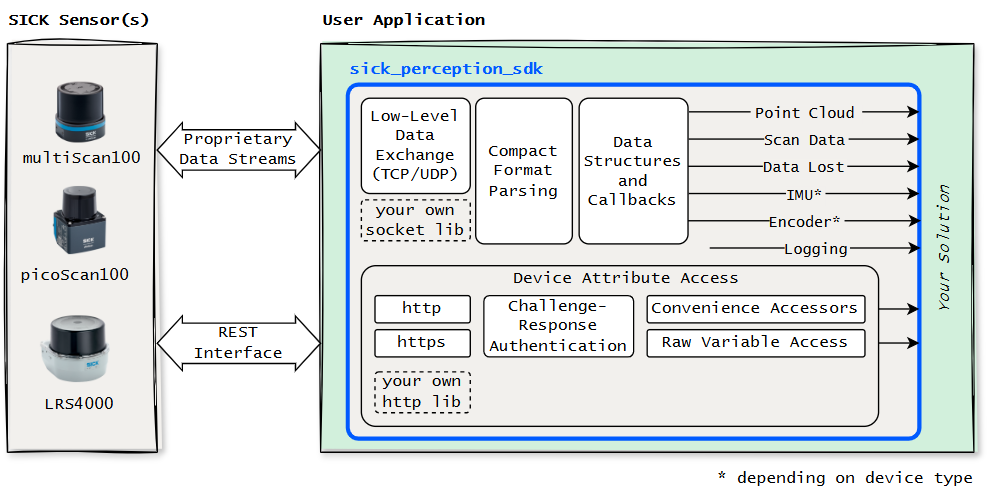
*sick_perception_sdk data streaming, REST-based configuration, and additional tools.*
## Supported Devices and Platforms
The SDK supports these device variants:
**Supported Devices and Platforms:** product family and variants.
| Product family | Variants |
| --- | --- |
| LRS4000 | LRS4581 |
| multiScan100 | multiScan136, multiScan165, multiScan166 |
| multiScan200 | multiScan270 |
| picoScan100 | picoScan120, picoScan150 |
The SDK's example build option targets `LRS4000`, `multiScan100`, `multiScan200`, or
`picoScan100`.
The project builds with CMake on Linux and Windows and supports x86_64 and
ARM64. Tested platforms are Ubuntu 22.04 LTS, Ubuntu 24.04 LTS, and
Windows 11. macOS is not a tested platform.
## Build and Integrate
The SDK uses CMake and Conan 2 is available for dependency
management. Follow the upstream [build instructions and CMake integration example](https://github.com/SICKAG/sick_perception_sdk/blob/main/README.md) for
the current options and dependencies. The example build can be selected for a
device family, and the CMake project exposes separate components for drivers,
sensor configuration, and Compact format.
## Receive and Record Data
The SDK receives event-driven scan, IMU, and encoder data using SICK's Compact
format over TCP or UDP. Scan data is exposed as point clouds (Public
[`PointField::DataType` API](https://github.com/SICKAG/sick_perception_sdk/blob/main/src/compact_format/include/sick_perception_sdk/compact_format/PointCloud/PointCloudAttributes.hpp)).
The Compact-format layer provides a `PointCloudToPCDConverter` helper for
converting scan-derived point clouds to PCD. There is ready-made recording
application; you can use it to write the PCD files from your own code. The `sensor_configuration` component provides REST-based access to sensor settings
and status.
## Threading, Diagnostics, and Logging
Data acquisition is thread-safe and event-driven, including when acquiring
from multiple sensors. The SDK includes diagnostic examples and built-in
diagnostic and logging capabilities. The default logger uses plog; applications
can provide a custom logger and set a minimum log level.
See the [SDK README](https://github.com/SICKAG/sick_perception_sdk/blob/main/README.md)
for current setup details, examples, and API documentation.
---
# Record LiDAR Scenarios with the SOPASair Data Recorder
> Record LRS4000, multiScan100, or picoScan100 measurement scenarios to .sc files with the SOPASair Data recorder.
Source: https://sickag.github.io/sick_lidar_developer_guide/recording/sopasair/
# SOPASair Recorder | .sc
Compatible with: LRS4000 multiScan100 picoScan100
The **SOPASair Data recorder** saves real LiDAR measurement scenarios as `.sc`
files for later analysis and replay.
## Open the Data Recorder
In the sensor's SOPASair web interface, open **Diagnostics → Data recorder**.
The page provides an installation file for a separate recorder application:
1. Download the data recorder installation file from SOPASair.
2. Unzip the downloaded ZIP file and start the recorder application.
3. In the Connection Wizard, connect the recorder to the device. The
recorder interface opens in a new window.
4. Use the recorder application to capture the measurement scenario and save
the `.sc` recording for later use.
The recorder runs on Windows and Linux. To replay a recording, connect the
recorder to the device and open the `.sc` file; the device plays back the
recorded data internally.
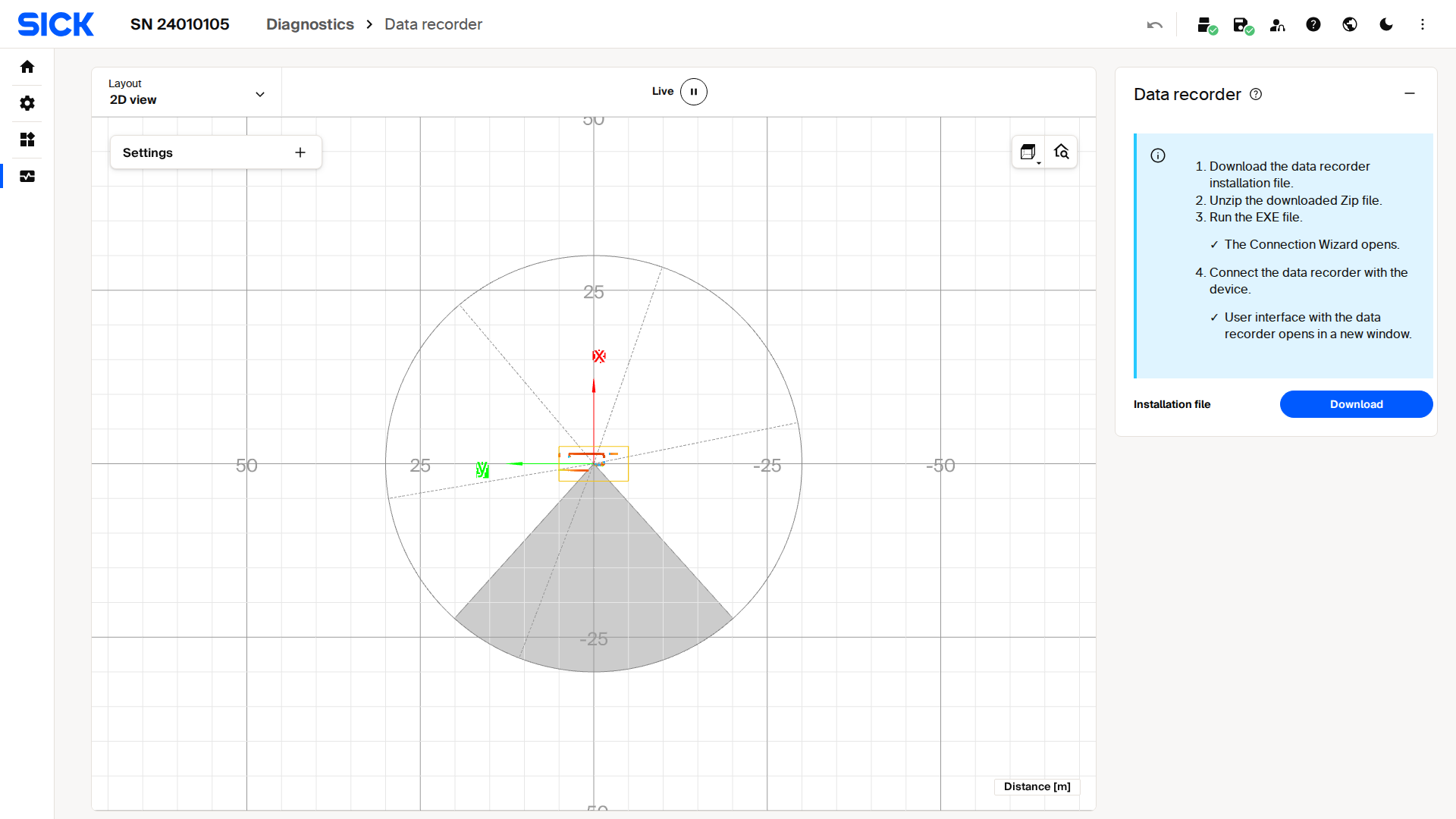
*The picoScan100 SOPASair Data recorder page links to the separate recorder application.*
picoScan100 example: Record and replay a measurement scenario as an `.sc` file with SOPASair. Menu labels and recorder availability may differ by software version.
## When to Use It
- Capture a real scene during operation to investigate an intermittent issue.
- Replay a captured measurement scenario to compare processing results across
application changes, rather than returning to the installation site.
- Share a recording with colleagues or SICK support for reproducible analysis.
Recordings capture a particular measurement scenario, not an entire device
configuration or raw Ethernet traffic. Save the relevant configuration and
firmware details separately when comparing behavior after changes. For a
complete device configuration, use [Backup & Restore](https://sickag.github.io/sick_lidar_developer_guide/configuration/configuration-backup-and-restore/);
for raw network traffic, use [Wireshark | pcap](https://sickag.github.io/sick_lidar_developer_guide/recording/wireshark-pcap/).
This is the **SOPASair** Data recorder workflow, not the separate legacy
[SOPAS ET](https://sickag.github.io/sick_lidar_developer_guide/visualization/sopas-et/) Excel/CSV recording workflow. The
availability of the recorder and replay functions may depend on device and
software version; the illustrated entry point is from picoScan100. LRS4000 and
multiScan100 also provide the SOPASair **Diagnostics → Data recorder** entry.
---
# Record and Decode LiDAR Traffic with Wireshark (pcap)
> Capture SICK LiDAR Ethernet traffic as .pcap or .pcapng with Wireshark and decode Compact data with the SICK Lua dissector.
Source: https://sickag.github.io/sick_lidar_developer_guide/recording/wireshark-pcap/
# Wireshark | pcap
Compatible with: LRS4000 multiScan100 multiScan200 picoScan100

Packet captures record the raw Ethernet communication between the sensor and a host computer, for protocol-level diagnostics, network troubleshooting, decoder development, and SICK support. Capture with Wireshark, tcpdump, or tshark and save as `.pcap` or `.pcapng`.
To decode Compact captures, install the [Wireshark Compact dissector](https://sickag.github.io/sick_lidar_developer_guide/data-streaming/compact-format/#wireshark-dissector).
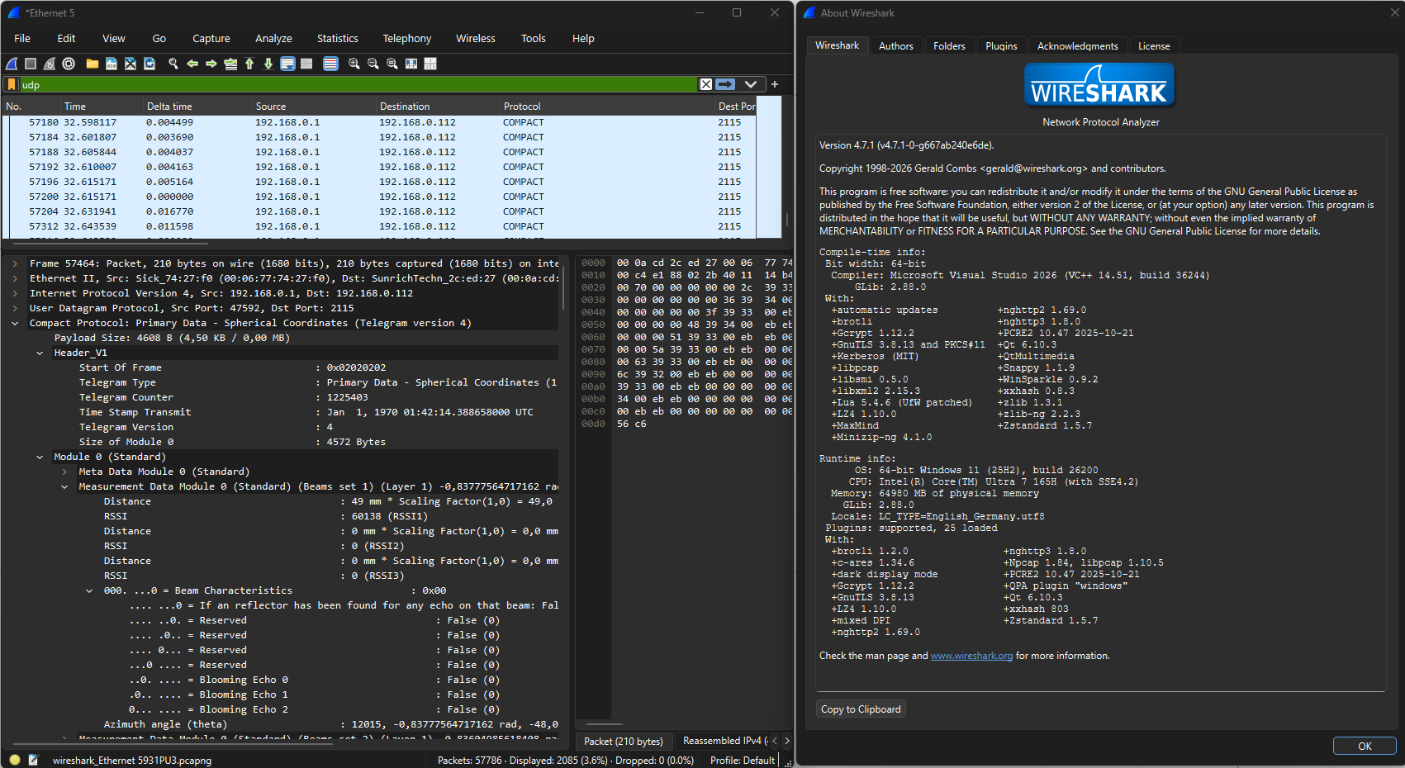
*Wireshark displaying decoded Compact measurement data with the SICK dissector.*
*picoScan100 example: Use the Wireshark dissector to decode Compact packets into readable fields when checking a capture before debugging your own decoder.*
---
# SICK LiDAR Device Guides
> Open the LRS4000, multiScan100, multiScan200, or picoScan100 guide for device-specific wiring, interfaces, downloads, and release notes.
Source: https://sickag.github.io/sick_lidar_developer_guide/device-specific/
# Device-Specific Guides
Choose your sensor family for wiring, web-interface walkthroughs, command
references, downloads, and firmware information.
* [LRS4000](https://sickag.github.io/sick_lidar_developer_guide/LRS4000/): long-range 2D LiDAR, including motor synchronization.
* [multiScan100](https://sickag.github.io/sick_lidar_developer_guide/multiScan100/): multi-layer 3D LiDAR, including multiScan136, multiScan165, and multiScan166.
* [multiScan200](https://sickag.github.io/sick_lidar_developer_guide/multiScan200/): 3D LiDAR, including multiScan270.
* [picoScan100](https://sickag.github.io/sick_lidar_developer_guide/picoScan100/): compact 2D LiDAR, including picoScan120 and picoScan150.
---
# LRS4000 Overview
> Developer entry point for the SICK LRS4000 long-range 2D LiDAR sensor: SOPASair, REST and CoLa, measurement data, synchronization, and applications.
Source: https://sickag.github.io/sick_lidar_developer_guide/LRS4000/
# LRS4000
The LRS4000 is a long-range 2D LiDAR sensor for demanding outdoor
applications. This developer section covers the LRS4581R. For a sensor and cable combination to get started, see the [Starter Kit](https://sickag.github.io/sick_lidar_developer_guide/LRS4000/starter-kit/).
[Specifications and data sheet on sick.com](https://www.sick.com/de/en/search?text=LRS4000)
*LRS4000: one scan plane, up to 360° depending on settings. Blue represents infrared; beam geometry, wall hits, and speed are schematic.*
Find firmware, EPLAN and CAD data, NVIDIA Isaac Sim models, and Milestone
XProtect plug-ins on the *Downloads* tab of your device variant's product page:
[search for LRS4000 on sick.com](https://www.sick.com/de/en/search?text=LRS4000).
Select the files for your device variant; see [Release Notes](https://sickag.github.io/sick_lidar_developer_guide/LRS4000/release-notes/)
for firmware changes.
*Inputs, onboard processing, and outputs of the **LRS4000**. Each column is an independent list.*
Use the Product ID
(PID) to find the exact product variant on [sick.com](https://www.sick.com/):
enter the part number (P/N) and optional serial number (S/N), for example
`1134610/25250710`. A complete [pid.sick.com](https://pid.sick.com/) URL is
also accepted.
---
# LRS4000 API | REST | OpenAPI V1.10.0
> Download the LRS4000 V1.10.0 OpenAPI description and search REST endpoints, request parameters, and response schemas.
Source: https://sickag.github.io/sick_lidar_developer_guide/LRS4000/api-rest-openapi/
# API | REST | OpenAPI

This page provides the searchable V1.10.0 REST reference and downloadable
OpenAPI description for LRS4000. For REST concepts, authentication, and request
patterns, see [REST API / OpenAPI](https://sickag.github.io/sick_lidar_developer_guide/configuration/rest-interface/).
[LRS4000_1.10.0.yaml (Download)](https://sickag.github.io/sick_lidar_developer_guide/assets/LRS4000/openapi/LRS4000_1.10.0.yaml)
Always match the file to your device's actual firmware version. Function
availability can vary by variant and installed software package.
### 1 - General
#### [POST /SetPassword](https://sickag.github.io/sick_lidar_developer_guide/LRS4000/api-rest-openapi/#rest-post-setpassword)
Sets the password for the CoLa A/B interface. In this example the password for userlevel service (4) is set to - test - (Integer value of the password hash - test -). For more details see https://github.com/SICKAG/sick_scan_rest_client.
**JSON example**
```json
{
"data": {
"siUserLevel": 4,
"udiNewPassword": 3410122659
}
}
```
**Try the request**
Protected requests need challenge-response authentication, so `curl` alone cannot send them; use the [Python script on the REST Interface page](https://sickag.github.io/sick_lidar_developer_guide/configuration/rest-interface/#challenge-response-authentication).
**Request body**
**Required:** true
**Media type: `application/json`**
`data`
**Example:**
```
{
"siUserLevel": 4,
"udiNewPassword": 3410122659
}
```
| `siUserLevel` |
**Type:** integer · **Format:** int8
|
| --- | --- |
| `udiNewPassword` |
**Type:** integer · **Format:** uint32
|
**Responses**
**Status `200`**
**Media type: `application/json`**
| `header` |
**Fields:** [ResponseHeader](https://sickag.github.io/sick_lidar_developer_guide/LRS4000/api-rest-openapi/#schema-responseheader)
|
| --- | --- |
| `data` |
`bSuccess`
**Type:** boolean · **Default:** false
|
#### [POST /getChallenge](https://sickag.github.io/sick_lidar_developer_guide/LRS4000/api-rest-openapi/#rest-post-getchallenge)
Returns a challenge for the challenge and response authentication method. For more details see https://github.com/SICKAG/sick_scan_rest_client
**JSON example**
```json
{
"data": {
"user": "Run"
}
}
```
**Try the request**
Protected requests need challenge-response authentication, so `curl` alone cannot send them; use the [Python script on the REST Interface page](https://sickag.github.io/sick_lidar_developer_guide/configuration/rest-interface/#challenge-response-authentication).
**Request body**
**Required:** true
**Media type: `application/json`**
`data`
`user`
**Fields:** [E_USER_LEVEL_TYPE](https://sickag.github.io/sick_lidar_developer_guide/LRS4000/api-rest-openapi/#schema-e-user-level-type)
**Responses**
**Status `200`**
**Media type: `application/json`**
| `header` |
**Fields:** [ResponseHeader](https://sickag.github.io/sick_lidar_developer_guide/LRS4000/api-rest-openapi/#schema-responseheader)
|
| --- | --- |
| `challenge` |
| `realm` |
**Type:** string · **Default:**
|
| `nonce` |
**Type:** string · **Default:**
|
| `opaque` |
**Type:** string · **Default:**
|
| `salt` |
**Default:**
```
[]
```
**Type:** array · **Minimum items:** 0 · **Maximum items:** 16
**Items:**
**Type:** integer
|
|
#### [POST /changePassword](https://sickag.github.io/sick_lidar_developer_guide/LRS4000/api-rest-openapi/#rest-post-changepassword)
Sets the password for the REST interface. For more details see https://github.com/SICKAG/sick_scan_rest_client.
**JSON example**
```json
{
"data": {
"encryptedMessage": [],
"userLevel": "Run"
}
}
```
**Try the request**
Protected requests need challenge-response authentication, so `curl` alone cannot send them; use the [Python script on the REST Interface page](https://sickag.github.io/sick_lidar_developer_guide/configuration/rest-interface/#challenge-response-authentication).
**Request body**
**Required:** true
**Media type: `application/json`**
`data`
| `encryptedMessage` |
**Default:**
```
[]
```
**Type:** array · **Minimum items:** 0 · **Maximum items:** 96
**Items:**
**Type:** integer · **Format:** uint8
|
| --- | --- |
| `userLevel` |
**Fields:** [E_USER_LEVEL_TYPE](https://sickag.github.io/sick_lidar_developer_guide/LRS4000/api-rest-openapi/#schema-e-user-level-type)
|
**Responses**
**Status `200`**
**Media type: `application/json`**
| `header` |
**Fields:** [ResponseHeader](https://sickag.github.io/sick_lidar_developer_guide/LRS4000/api-rest-openapi/#schema-responseheader)
|
| --- | --- |
| `data` |
`result`
**Allowed values:**
```
[
0,
2,
4,
5
]
```
**Type:** integer · **Format:** uint8 · **Default:** 0
Mapping:
* 0 - SUCCESS
* 2 - NOT_ACCEPTED
* 4 - PWD_NOT_CHANGABLE
* 5 - TIMELOCK_ACTIVE
|
#### [POST /WriteEeprom](https://sickag.github.io/sick_lidar_developer_guide/LRS4000/api-rest-openapi/#rest-post-writeeeprom)
Saves all parameters permanently.
**Editable JSON template**
```json
{
"header": {
"nonce": "",
"opaque": "",
"realm": "SICK Sensor",
"response": "",
"user": "Run"
}
}
```
**Try the request**
Protected requests need challenge-response authentication, so `curl` alone cannot send them; use the [Python script on the REST Interface page](https://sickag.github.io/sick_lidar_developer_guide/configuration/rest-interface/#challenge-response-authentication).
**Request body**
**Required:** true
**Media type: `application/json`**
`header`
**Fields:** [PostBodyHeader](https://sickag.github.io/sick_lidar_developer_guide/LRS4000/api-rest-openapi/#schema-postbodyheader)
**Responses**
**Status `200`**
**Media type: `application/json`**
| `header` |
**Fields:** [ResponseHeader](https://sickag.github.io/sick_lidar_developer_guide/LRS4000/api-rest-openapi/#schema-responseheader)
|
| --- | --- |
| `data` |
`Success`
**Type:** boolean · **Default:** false
|
#### [POST /SoftReset](https://sickag.github.io/sick_lidar_developer_guide/LRS4000/api-rest-openapi/#rest-post-softreset)
Reboots the device. All non-saved parameters are lost. This function requires the user level: Service.
**Editable JSON template**
```json
{
"header": {
"nonce": "",
"opaque": "",
"realm": "SICK Sensor",
"response": "",
"user": "Run"
},
"data": {
"ProcessorNbr": ""
}
}
```
**Try the request**
Protected requests need challenge-response authentication, so `curl` alone cannot send them; use the [Python script on the REST Interface page](https://sickag.github.io/sick_lidar_developer_guide/configuration/rest-interface/#challenge-response-authentication).
**Request body**
**Required:** true
**Media type: `application/json`**
| `header` |
**Fields:** [PostBodyHeader](https://sickag.github.io/sick_lidar_developer_guide/LRS4000/api-rest-openapi/#schema-postbodyheader)
|
| --- | --- |
| `data` |
`ProcessorNbr`
**Type:** integer · **Format:** uint16
|
**Responses**
**Status `200`**
**Media type: `application/json`**
`header`
**Fields:** [ResponseHeader](https://sickag.github.io/sick_lidar_developer_guide/LRS4000/api-rest-openapi/#schema-responseheader)
#### [POST /RebootDevice](https://sickag.github.io/sick_lidar_developer_guide/LRS4000/api-rest-openapi/#rest-post-rebootdevice)
Reboots the device and includes saving of all parameters. This function requires the user level: Service.
**Editable JSON template**
```json
{
"header": {
"nonce": "",
"opaque": "",
"realm": "SICK Sensor",
"response": "",
"user": "Run"
}
}
```
**Try the request**
Protected requests need challenge-response authentication, so `curl` alone cannot send them; use the [Python script on the REST Interface page](https://sickag.github.io/sick_lidar_developer_guide/configuration/rest-interface/#challenge-response-authentication).
**Request body**
**Required:** true
**Media type: `application/json`**
`header`
**Fields:** [PostBodyHeader](https://sickag.github.io/sick_lidar_developer_guide/LRS4000/api-rest-openapi/#schema-postbodyheader)
**Responses**
**Status `200`**
**Media type: `application/json`**
`header`
**Fields:** [ResponseHeader](https://sickag.github.io/sick_lidar_developer_guide/LRS4000/api-rest-openapi/#schema-responseheader)
#### [POST /LoadFactoryDefaults](https://sickag.github.io/sick_lidar_developer_guide/LRS4000/api-rest-openapi/#rest-post-loadfactorydefaults)
Resets all parameters to default. This function requires the user level: Service.
**Editable JSON template**
```json
{
"header": {
"nonce": "",
"opaque": "",
"realm": "SICK Sensor",
"response": "",
"user": "Run"
}
}
```
**Try the request**
Protected requests need challenge-response authentication, so `curl` alone cannot send them; use the [Python script on the REST Interface page](https://sickag.github.io/sick_lidar_developer_guide/configuration/rest-interface/#challenge-response-authentication).
**Request body**
**Required:** true
**Media type: `application/json`**
`header`
**Fields:** [PostBodyHeader](https://sickag.github.io/sick_lidar_developer_guide/LRS4000/api-rest-openapi/#schema-postbodyheader)
**Responses**
**Status `200`**
**Media type: `application/json`**
`header`
**Fields:** [ResponseHeader](https://sickag.github.io/sick_lidar_developer_guide/LRS4000/api-rest-openapi/#schema-responseheader)
#### [POST /LoadApplicationDefaults](https://sickag.github.io/sick_lidar_developer_guide/LRS4000/api-rest-openapi/#rest-post-loadapplicationdefaults)
Resets only the user parametrization of the fields, evaluation cases, and parameters under the section Application. Other parameters like interface settings, echo filter, etc. remain unchanged. This function requires the user level: Service.
**Editable JSON template**
```json
{
"header": {
"nonce": "",
"opaque": "",
"realm": "SICK Sensor",
"response": "",
"user": "Run"
}
}
```
**Try the request**
Protected requests need challenge-response authentication, so `curl` alone cannot send them; use the [Python script on the REST Interface page](https://sickag.github.io/sick_lidar_developer_guide/configuration/rest-interface/#challenge-response-authentication).
**Request body**
**Required:** true
**Media type: `application/json`**
`header`
**Fields:** [PostBodyHeader](https://sickag.github.io/sick_lidar_developer_guide/LRS4000/api-rest-openapi/#schema-postbodyheader)
**Responses**
**Status `200`**
**Media type: `application/json`**
`header`
**Fields:** [ResponseHeader](https://sickag.github.io/sick_lidar_developer_guide/LRS4000/api-rest-openapi/#schema-responseheader)
### 2 - Status
#### [GET /DeviceStatus](https://sickag.github.io/sick_lidar_developer_guide/LRS4000/api-rest-openapi/#rest-get-devicestatus)
Returns the device state (9 possible states).
**Try the request**
Copy this command into a terminal. In Windows PowerShell, use `curl.exe` instead of `curl`.
```bash
curl --request GET "http://192.168.0.1/api/DeviceStatus"
```
**Responses**
**Status `200`**
**Media type: `application/json`**
| `header` |
**Fields:** [ResponseHeader](https://sickag.github.io/sick_lidar_developer_guide/LRS4000/api-rest-openapi/#schema-responseheader)
|
| --- | --- |
| `data` |
`DeviceStatus`
**Fields:** [DeviceStatus](https://sickag.github.io/sick_lidar_developer_guide/LRS4000/api-rest-openapi/#schema-devicestatus)
|
#### [GET /SCdevicestate](https://sickag.github.io/sick_lidar_developer_guide/LRS4000/api-rest-openapi/#rest-get-scdevicestate)
Returns the device state (busy, ready, or error).
**Try the request**
Copy this command into a terminal. In Windows PowerShell, use `curl.exe` instead of `curl`.
```bash
curl --request GET "http://192.168.0.1/api/SCdevicestate"
```
**Responses**
**Status `200`**
**Media type: `application/json`**
| `header` |
**Fields:** [ResponseHeader](https://sickag.github.io/sick_lidar_developer_guide/LRS4000/api-rest-openapi/#schema-responseheader)
|
| --- | --- |
| `data` |
`SCdevicestate`
**Allowed values:**
```
[
0,
1,
2
]
```
**Type:** integer · **Format:** uint8 · **Default:** 0
Mapping:
* 0 - Busy
* 1 - Ready
* 2 - Error
|
### 3 - Device
#### [GET /DeviceIdent](https://sickag.github.io/sick_lidar_developer_guide/LRS4000/api-rest-openapi/#rest-get-deviceident)
Returns the device name and firmware version.
**Try the request**
Copy this command into a terminal. In Windows PowerShell, use `curl.exe` instead of `curl`.
```bash
curl --request GET "http://192.168.0.1/api/DeviceIdent"
```
**Responses**
**Status `200`**
**Media type: `application/json`**
| `header` |
**Fields:** [ResponseHeader](https://sickag.github.io/sick_lidar_developer_guide/LRS4000/api-rest-openapi/#schema-responseheader)
|
| --- | --- |
| `data` |
| `Name` |
**Type:** string · **Default:** LRSNAV · **Maximum length:** 20
|
| `Version` |
**Type:** string · **Default:** 1.10.0.0R · **Maximum length:** 32
|
|
#### [GET /LocationName](https://sickag.github.io/sick_lidar_developer_guide/LRS4000/api-rest-openapi/#rest-get-locationname)
Returns/sets the device name.
**Try the request**
Copy this command into a terminal. In Windows PowerShell, use `curl.exe` instead of `curl`.
```bash
curl --request GET "http://192.168.0.1/api/LocationName"
```
**Responses**
**Status `200`**
**Media type: `application/json`**
| `header` |
**Fields:** [ResponseHeader](https://sickag.github.io/sick_lidar_developer_guide/LRS4000/api-rest-openapi/#schema-responseheader)
|
| --- | --- |
| `data` |
`LocationName`
**Type:** string · **Default:** not defined · **Maximum length:** 16
|
#### [POST /LocationName](https://sickag.github.io/sick_lidar_developer_guide/LRS4000/api-rest-openapi/#rest-post-locationname)
Returns/sets the device name.
**Editable JSON template**
```json
{
"header": {
"nonce": "",
"opaque": "",
"realm": "SICK Sensor",
"response": "",
"user": "Run"
},
"data": {
"LocationName": "not defined"
}
}
```
**Try the request**
Protected requests need challenge-response authentication, so `curl` alone cannot send them; use the [Python script on the REST Interface page](https://sickag.github.io/sick_lidar_developer_guide/configuration/rest-interface/#challenge-response-authentication).
**Request body**
**Required:** true
**Media type: `application/json`**
| `header` |
**Fields:** [PostBodyHeader](https://sickag.github.io/sick_lidar_developer_guide/LRS4000/api-rest-openapi/#schema-postbodyheader)
|
| --- | --- |
| `data` |
`LocationName`
**Type:** string · **Default:** not defined · **Maximum length:** 16
|
**Responses**
**Status `200`**
**Media type: `application/json`**
`header`
**Fields:** [ResponseHeader](https://sickag.github.io/sick_lidar_developer_guide/LRS4000/api-rest-openapi/#schema-responseheader)
#### [GET /SerialNumber](https://sickag.github.io/sick_lidar_developer_guide/LRS4000/api-rest-openapi/#rest-get-serialnumber)
Returns the serial number.
**Try the request**
Copy this command into a terminal. In Windows PowerShell, use `curl.exe` instead of `curl`.
```bash
curl --request GET "http://192.168.0.1/api/SerialNumber"
```
**Responses**
**Status `200`**
**Media type: `application/json`**
| `header` |
**Fields:** [ResponseHeader](https://sickag.github.io/sick_lidar_developer_guide/LRS4000/api-rest-openapi/#schema-responseheader)
|
| --- | --- |
| `data` |
`SerialNumber`
**Type:** string · **Default:** 12345678 · **Maximum length:** 8
|
#### [GET /FirmwareVersion](https://sickag.github.io/sick_lidar_developer_guide/LRS4000/api-rest-openapi/#rest-get-firmwareversion)
Returns the current firmware version.
**Try the request**
Copy this command into a terminal. In Windows PowerShell, use `curl.exe` instead of `curl`.
```bash
curl --request GET "http://192.168.0.1/api/FirmwareVersion"
```
**Responses**
**Status `200`**
**Media type: `application/json`**
| `header` |
**Fields:** [ResponseHeader](https://sickag.github.io/sick_lidar_developer_guide/LRS4000/api-rest-openapi/#schema-responseheader)
|
| --- | --- |
| `data` |
`FirmwareVersion`
**Type:** string · **Default:** x.x.x.x · **Maximum length:** 32
|
#### [POST /FindMe](https://sickag.github.io/sick_lidar_developer_guide/LRS4000/api-rest-openapi/#rest-post-findme)
Sets the device LEDs into blinking mode for better identification.
**JSON example**
```json
{
"data": {
"uiDuration": 100
}
}
```
**Try the request**
Protected requests need challenge-response authentication, so `curl` alone cannot send them; use the [Python script on the REST Interface page](https://sickag.github.io/sick_lidar_developer_guide/configuration/rest-interface/#challenge-response-authentication).
**Request body**
**Required:** true
**Media type: `application/json`**
`data`
**Example:**
```
{
"uiDuration": 100
}
```
`uiDuration`
**Type:** integer · **Format:** uint16
**Responses**
**Status `200`**
**Media type: `application/json`**
`header`
**Fields:** [ResponseHeader](https://sickag.github.io/sick_lidar_developer_guide/LRS4000/api-rest-openapi/#schema-responseheader)
#### [GET /OrderNumber](https://sickag.github.io/sick_lidar_developer_guide/LRS4000/api-rest-openapi/#rest-get-ordernumber)
Returns the order number (SICK part number).
**Try the request**
Copy this command into a terminal. In Windows PowerShell, use `curl.exe` instead of `curl`.
```bash
curl --request GET "http://192.168.0.1/api/OrderNumber"
```
**Responses**
**Status `200`**
**Media type: `application/json`**
| `header` |
**Fields:** [ResponseHeader](https://sickag.github.io/sick_lidar_developer_guide/LRS4000/api-rest-openapi/#schema-responseheader)
|
| --- | --- |
| `data` |
`OrderNumber`
**Type:** string · **Default:** 1234567 · **Maximum length:** 32
|
#### [GET /DeviceType](https://sickag.github.io/sick_lidar_developer_guide/LRS4000/api-rest-openapi/#rest-get-devicetype)
Returns the device type.
**Try the request**
Copy this command into a terminal. In Windows PowerShell, use `curl.exe` instead of `curl`.
```bash
curl --request GET "http://192.168.0.1/api/DeviceType"
```
**Responses**
**Status `200`**
**Media type: `application/json`**
| `header` |
**Fields:** [ResponseHeader](https://sickag.github.io/sick_lidar_developer_guide/LRS4000/api-rest-openapi/#schema-responseheader)
|
| --- | --- |
| `data` |
`DeviceType`
**Type:** string · **Default:** LRSNAV · **Maximum length:** 18
|
### 4 - Basic settings
#### [GET /ScanConfig](https://sickag.github.io/sick_lidar_developer_guide/LRS4000/api-rest-openapi/#rest-get-scanconfig)
Configuration of angular resolution, scanning frequency, start- and stop angle.
**Try the request**
Copy this command into a terminal. In Windows PowerShell, use `curl.exe` instead of `curl`.
```bash
curl --request GET "http://192.168.0.1/api/ScanConfig"
```
**Responses**
**Status `200`**
**Media type: `application/json`**
| `header` |
**Fields:** [ResponseHeader](https://sickag.github.io/sick_lidar_developer_guide/LRS4000/api-rest-openapi/#schema-responseheader)
|
| --- | --- |
| `data` |
| `udiScanFreq` |
**Type:** integer · **Format:** uint32 · **Default:** 1250 · **Minimum:** 500 · **Maximum:** 2500
|
| `ScanRange` |
| `uiLength` |
**Type:** integer · **Format:** uint16 · **Default:** 1 · **Minimum:** 1 · **Maximum:** 1
|
| `aRange` |
**Type:** array · **Minimum items:** 1 · **Maximum items:** 1
**Items:**
| `udiAngleRes` |
**Type:** integer · **Format:** uint32 · **Default:** 1200 · **Minimum:** 200 · **Maximum:** 5000
|
| `diStartAngle` |
**Type:** integer · **Format:** int32 · **Default:** -1800000 · **Minimum:** -1800000 · **Maximum:** 1800000
|
| `diStopAngle` |
**Type:** integer · **Format:** int32 · **Default:** 1800000 · **Minimum:** -1800000 · **Maximum:** 1800000
|
|
|
|
#### [GET /SensitivityMode](https://sickag.github.io/sick_lidar_developer_guide/LRS4000/api-rest-openapi/#rest-get-sensitivitymode)
The sensitivity mode can be used to adjust the detection behavior. A higher sensitivity increases the scanning range. This setting should only be used when there is no direct sunlight and only low ambient light. A higher sensitivity increases the proneness to measurement noise and data loss. Ambient light can negatively affect the signal quality and impair the measurement performance.
**Try the request**
Copy this command into a terminal. In Windows PowerShell, use `curl.exe` instead of `curl`.
```bash
curl --request GET "http://192.168.0.1/api/SensitivityMode"
```
**Responses**
**Status `200`**
**Media type: `application/json`**
| `header` |
**Fields:** [ResponseHeader](https://sickag.github.io/sick_lidar_developer_guide/LRS4000/api-rest-openapi/#schema-responseheader)
|
| --- | --- |
| `data` |
`SensitivityMode`
**Allowed values:**
```
[
0,
1,
2
]
```
**Type:** integer · **Format:** uint8 · **Default:** 0
Mapping:
* 0 - NORMAL
* 1 - INCREASED
* 2 - HIGHEST
|
#### [POST /SensitivityMode](https://sickag.github.io/sick_lidar_developer_guide/LRS4000/api-rest-openapi/#rest-post-sensitivitymode)
The sensitivity mode can be used to adjust the detection behavior. A higher sensitivity increases the scanning range. This setting should only be used when there is no direct sunlight and only low ambient light. A higher sensitivity increases the proneness to measurement noise and data loss. Ambient light can negatively affect the signal quality and impair the measurement performance.
**Editable JSON template**
```json
{
"header": {
"nonce": "",
"opaque": "",
"realm": "SICK Sensor",
"response": "",
"user": "Run"
},
"data": {
"SensitivityMode": 0
}
}
```
**Try the request**
Protected requests need challenge-response authentication, so `curl` alone cannot send them; use the [Python script on the REST Interface page](https://sickag.github.io/sick_lidar_developer_guide/configuration/rest-interface/#challenge-response-authentication).
**Request body**
**Required:** true
**Media type: `application/json`**
| `header` |
**Fields:** [PostBodyHeader](https://sickag.github.io/sick_lidar_developer_guide/LRS4000/api-rest-openapi/#schema-postbodyheader)
|
| --- | --- |
| `data` |
`SensitivityMode`
**Allowed values:**
```
[
0,
1,
2
]
```
**Type:** integer · **Format:** uint8 · **Default:** 0
Mapping:
* 0 - NORMAL
* 1 - INCREASED
* 2 - HIGHEST
|
**Responses**
**Status `200`**
**Media type: `application/json`**
`header`
**Fields:** [ResponseHeader](https://sickag.github.io/sick_lidar_developer_guide/LRS4000/api-rest-openapi/#schema-responseheader)
#### [POST /SetScanConfigList](https://sickag.github.io/sick_lidar_developer_guide/LRS4000/api-rest-openapi/#rest-post-setscanconfiglist)
Set a new device scan resolution/frequency combination. Please note that configurations, starting with value 3x or 9x switch the device from standard to extended range mode and values starting with x, 1x, 6x, 7x switch the device from extended range to normal mode.
**Editable JSON template**
```json
{
"header": {
"nonce": "",
"opaque": "",
"realm": "SICK Sensor",
"response": "",
"user": "Run"
},
"data": {
"ScanConfigList": 1
}
}
```
**Try the request**
Protected requests need challenge-response authentication, so `curl` alone cannot send them; use the [Python script on the REST Interface page](https://sickag.github.io/sick_lidar_developer_guide/configuration/rest-interface/#challenge-response-authentication).
**Request body**
**Required:** true
**Media type: `application/json`**
| `header` |
**Fields:** [PostBodyHeader](https://sickag.github.io/sick_lidar_developer_guide/LRS4000/api-rest-openapi/#schema-postbodyheader)
|
| --- | --- |
| `data` |
**Example:**
```
{
"ScanConfigList": 1
}
```
`ScanConfigList`
**Fields:** [PerformanceProfiles_t](https://sickag.github.io/sick_lidar_developer_guide/LRS4000/api-rest-openapi/#schema-performanceprofiles-t)
|
**Responses**
**Status `200`**
**Media type: `application/json`**
| `header` |
**Fields:** [ResponseHeader](https://sickag.github.io/sick_lidar_developer_guide/LRS4000/api-rest-openapi/#schema-responseheader)
|
| --- | --- |
| `data` |
`eScanConfigError`
**Allowed values:**
```
[
0,
1,
2,
3,
4,
5
]
```
**Type:** integer · **Format:** uint8 · **Default:** 0
Mapping:
* 0 - SCE_OK
* 1 - SCE_ERROR_FREQ
* 2 - SCE_ERROR_RES
* 3 - SCE_ERROR_FREQ_RES_COMB
* 4 - SCE_ERROR_NUM_RANGE
* 5 - SCE_ERROR
|
#### [GET /LEDEnable](https://sickag.github.io/sick_lidar_developer_guide/LRS4000/api-rest-openapi/#rest-get-ledenable)
Returns/sets the LED mode (on/off).
**Try the request**
Copy this command into a terminal. In Windows PowerShell, use `curl.exe` instead of `curl`.
```bash
curl --request GET "http://192.168.0.1/api/LEDEnable"
```
**Responses**
**Status `200`**
**Media type: `application/json`**
| `header` |
**Fields:** [ResponseHeader](https://sickag.github.io/sick_lidar_developer_guide/LRS4000/api-rest-openapi/#schema-responseheader)
|
| --- | --- |
| `data` |
`LEDEnable`
**Type:** boolean · **Default:** true
|
#### [POST /LEDEnable](https://sickag.github.io/sick_lidar_developer_guide/LRS4000/api-rest-openapi/#rest-post-ledenable)
Returns/sets the LED mode (on/off).
**Editable JSON template**
```json
{
"header": {
"nonce": "",
"opaque": "",
"realm": "SICK Sensor",
"response": "",
"user": "Run"
},
"data": {
"LEDEnable": true
}
}
```
**Try the request**
Protected requests need challenge-response authentication, so `curl` alone cannot send them; use the [Python script on the REST Interface page](https://sickag.github.io/sick_lidar_developer_guide/configuration/rest-interface/#challenge-response-authentication).
**Request body**
**Required:** true
**Media type: `application/json`**
| `header` |
**Fields:** [PostBodyHeader](https://sickag.github.io/sick_lidar_developer_guide/LRS4000/api-rest-openapi/#schema-postbodyheader)
|
| --- | --- |
| `data` |
`LEDEnable`
**Type:** boolean · **Default:** true
|
**Responses**
**Status `200`**
**Media type: `application/json`**
`header`
**Fields:** [ResponseHeader](https://sickag.github.io/sick_lidar_developer_guide/LRS4000/api-rest-openapi/#schema-responseheader)
#### [POST /mStartMeasure](https://sickag.github.io/sick_lidar_developer_guide/LRS4000/api-rest-openapi/#rest-post-mstartmeasure)
Start motor, measurement and laser.
**Editable JSON template**
```json
{
"header": {
"nonce": "",
"opaque": "",
"realm": "SICK Sensor",
"response": "",
"user": "Run"
}
}
```
**Try the request**
Protected requests need challenge-response authentication, so `curl` alone cannot send them; use the [Python script on the REST Interface page](https://sickag.github.io/sick_lidar_developer_guide/configuration/rest-interface/#challenge-response-authentication).
**Request body**
**Required:** true
**Media type: `application/json`**
`header`
**Fields:** [PostBodyHeader](https://sickag.github.io/sick_lidar_developer_guide/LRS4000/api-rest-openapi/#schema-postbodyheader)
**Responses**
**Status `200`**
**Media type: `application/json`**
| `header` |
**Fields:** [ResponseHeader](https://sickag.github.io/sick_lidar_developer_guide/LRS4000/api-rest-openapi/#schema-responseheader)
|
| --- | --- |
| `data` |
`ErrorCode`
**Allowed values:**
```
[
0,
1
]
```
**Type:** integer · **Format:** uint8 · **Default:** 0
Mapping:
* 0 - SOPAS_ERR_NO_ERR
* 1 - SOPAS_ERR_STATE_CHANGE_NOT_PERMITTED
|
#### [POST /mStandby](https://sickag.github.io/sick_lidar_developer_guide/LRS4000/api-rest-openapi/#rest-post-mstandby)
Disable the laser.
**Editable JSON template**
```json
{
"header": {
"nonce": "",
"opaque": "",
"realm": "SICK Sensor",
"response": "",
"user": "Run"
}
}
```
**Try the request**
Protected requests need challenge-response authentication, so `curl` alone cannot send them; use the [Python script on the REST Interface page](https://sickag.github.io/sick_lidar_developer_guide/configuration/rest-interface/#challenge-response-authentication).
**Request body**
**Required:** true
**Media type: `application/json`**
`header`
**Fields:** [PostBodyHeader](https://sickag.github.io/sick_lidar_developer_guide/LRS4000/api-rest-openapi/#schema-postbodyheader)
**Responses**
**Status `200`**
**Media type: `application/json`**
| `header` |
**Fields:** [ResponseHeader](https://sickag.github.io/sick_lidar_developer_guide/LRS4000/api-rest-openapi/#schema-responseheader)
|
| --- | --- |
| `data` |
`ErrorCode`
**Allowed values:**
```
[
0,
1
]
```
**Type:** integer · **Format:** uint8 · **Default:** 0
Mapping:
* 0 - SOPAS_ERR_NO_ERR
* 1 - SOPAS_ERR_STATE_CHANGE_NOT_PERMITTED
|
### 5 - Date and system time
#### [GET /DeviceTime](https://sickag.github.io/sick_lidar_developer_guide/LRS4000/api-rest-openapi/#rest-get-devicetime)
Returns the current time of the internal clock (ms). The timer is 32 bit counter with a resolution of 1 ms.
**Try the request**
Copy this command into a terminal. In Windows PowerShell, use `curl.exe` instead of `curl`.
```bash
curl --request GET "http://192.168.0.1/api/DeviceTime"
```
**Responses**
**Status `200`**
**Media type: `application/json`**
| `header` |
**Fields:** [ResponseHeader](https://sickag.github.io/sick_lidar_developer_guide/LRS4000/api-rest-openapi/#schema-responseheader)
|
| --- | --- |
| `data` |
`DeviceTime`
**Type:** integer · **Format:** uint32 · **Default:** 0
|
#### [GET /TSCRole](https://sickag.github.io/sick_lidar_developer_guide/LRS4000/api-rest-openapi/#rest-get-tscrole)
Returns/sets the time synchronization role (none = 0 , NTP = 1 or PTP = 3).
**Try the request**
Copy this command into a terminal. In Windows PowerShell, use `curl.exe` instead of `curl`.
```bash
curl --request GET "http://192.168.0.1/api/TSCRole"
```
**Responses**
**Status `200`**
**Media type: `application/json`**
| `header` |
**Fields:** [ResponseHeader](https://sickag.github.io/sick_lidar_developer_guide/LRS4000/api-rest-openapi/#schema-responseheader)
|
| --- | --- |
| `data` |
`TSCRole`
**Allowed values:**
```
[
0,
1,
3,
4
]
```
**Type:** integer · **Format:** uint8 · **Default:** 0
Mapping:
* 0 - TX_NONE
* 1 - TX_CLIENT
* 3 - TX_PTP_SLAVE
* 4 - TX_PTP_MASTER
|
#### [POST /TSCRole](https://sickag.github.io/sick_lidar_developer_guide/LRS4000/api-rest-openapi/#rest-post-tscrole)
Returns/sets the time synchronization role (none = 0 , NTP = 1 or PTP = 3).
**Editable JSON template**
```json
{
"header": {
"nonce": "",
"opaque": "",
"realm": "SICK Sensor",
"response": "",
"user": "Run"
},
"data": {
"TSCRole": 0
}
}
```
**Try the request**
Protected requests need challenge-response authentication, so `curl` alone cannot send them; use the [Python script on the REST Interface page](https://sickag.github.io/sick_lidar_developer_guide/configuration/rest-interface/#challenge-response-authentication).
**Request body**
**Required:** true
**Media type: `application/json`**
| `header` |
**Fields:** [PostBodyHeader](https://sickag.github.io/sick_lidar_developer_guide/LRS4000/api-rest-openapi/#schema-postbodyheader)
|
| --- | --- |
| `data` |
`TSCRole`
**Allowed values:**
```
[
0,
1,
3,
4
]
```
**Type:** integer · **Format:** uint8 · **Default:** 0
Mapping:
* 0 - TX_NONE
* 1 - TX_CLIENT
* 3 - TX_PTP_SLAVE
* 4 - TX_PTP_MASTER
|
**Responses**
**Status `200`**
**Media type: `application/json`**
`header`
**Fields:** [ResponseHeader](https://sickag.github.io/sick_lidar_developer_guide/LRS4000/api-rest-openapi/#schema-responseheader)
#### [GET /TSCTCSrvAddr](https://sickag.github.io/sick_lidar_developer_guide/LRS4000/api-rest-openapi/#rest-get-tsctcsrvaddr)
Returns/sets the NTP time server's IP address.
**Try the request**
Copy this command into a terminal. In Windows PowerShell, use `curl.exe` instead of `curl`.
```bash
curl --request GET "http://192.168.0.1/api/TSCTCSrvAddr"
```
**Responses**
**Status `200`**
**Media type: `application/json`**
| `header` |
**Fields:** [ResponseHeader](https://sickag.github.io/sick_lidar_developer_guide/LRS4000/api-rest-openapi/#schema-responseheader)
|
| --- | --- |
| `data` |
`TSCTCSrvAddr`
**Default:**
```
[
192,
168,
0,
11
]
```
**Type:** array · **Minimum items:** 0 · **Maximum items:** 4
**Items:**
**Type:** integer · **Format:** uint8
|
#### [POST /TSCTCSrvAddr](https://sickag.github.io/sick_lidar_developer_guide/LRS4000/api-rest-openapi/#rest-post-tsctcsrvaddr)
Returns/sets the NTP time server's IP address.
**Editable JSON template**
```json
{
"header": {
"nonce": "",
"opaque": "",
"realm": "SICK Sensor",
"response": "",
"user": "Run"
},
"data": {
"TSCTCSrvAddr": [
192,
168,
0,
11
]
}
}
```
**Try the request**
Protected requests need challenge-response authentication, so `curl` alone cannot send them; use the [Python script on the REST Interface page](https://sickag.github.io/sick_lidar_developer_guide/configuration/rest-interface/#challenge-response-authentication).
**Request body**
**Required:** true
**Media type: `application/json`**
| `header` |
**Fields:** [PostBodyHeader](https://sickag.github.io/sick_lidar_developer_guide/LRS4000/api-rest-openapi/#schema-postbodyheader)
|
| --- | --- |
| `data` |
`TSCTCSrvAddr`
**Default:**
```
[
192,
168,
0,
11
]
```
**Type:** array · **Minimum items:** 0 · **Maximum items:** 4
**Items:**
**Type:** integer · **Format:** uint8
|
**Responses**
**Status `200`**
**Media type: `application/json`**
`header`
**Fields:** [ResponseHeader](https://sickag.github.io/sick_lidar_developer_guide/LRS4000/api-rest-openapi/#schema-responseheader)
#### [GET /TSCTCtimezone](https://sickag.github.io/sick_lidar_developer_guide/LRS4000/api-rest-openapi/#rest-get-tsctctimezone)
Returns/sets the NTP time zone.
**Try the request**
Copy this command into a terminal. In Windows PowerShell, use `curl.exe` instead of `curl`.
```bash
curl --request GET "http://192.168.0.1/api/TSCTCtimezone"
```
**Responses**
**Status `200`**
**Media type: `application/json`**
| `header` |
**Fields:** [ResponseHeader](https://sickag.github.io/sick_lidar_developer_guide/LRS4000/api-rest-openapi/#schema-responseheader)
|
| --- | --- |
| `data` |
`TSCTCtimezone`
**Allowed values:**
```
[
0,
1,
2,
3,
4,
5,
6,
7,
8,
9,
10,
11,
12,
13,
14,
15,
16,
17,
18,
19,
20,
21,
22,
23,
24,
25,
26,
27,
28,
29,
30,
31,
32,
33,
34,
35,
36,
37,
38,
39,
40,
41,
42,
43,
44,
45,
46,
47,
48,
49,
50,
51,
52,
53,
54,
55,
56,
57,
58,
59,
60,
61,
62,
63,
64,
65,
66,
67,
68,
69,
70,
71,
72,
73,
74,
75,
76,
77,
78,
79,
80,
81,
82,
83,
84,
85,
86,
87,
88,
89,
90,
91,
92,
93,
94,
95,
96,
97,
98,
99,
100,
101,
102,
103,
104
]
```
**Type:** integer · **Format:** uint8 · **Default:** 36
Mapping:
* 0 - DATE_LINE_STANDARD
* 1 - COORD_WORLD_TIME_11
* 2 - HAWAII
* 3 - ALASKA
* 4 - CALIFORNIA
* 5 - USA_CANADA
* 6 - ARIZONA
* 7 - LA_PAZ
* 8 - MOUNTAIN_TIME_USA
* 9 - CENTRAL_TIME_USA
* 10 - MEXICO_CITY
* 11 - MIDDLE_AMERICA
* 12 - SASKATCHEWAN
* 13 - BOGOTA_LIMA
* 14 - EASTERN_TIME_USA
* 15 - INDIANA
* 16 - CARACAS
* 17 - ASUNCION
* 18 - ATLANTIC_KANADA
* 19 - CUIABA
* 20 - LAPAZ_SANJUAN
* 21 - SANTIAGO
* 22 - NEUFUNDLAND
* 23 - BRASILIA
* 24 - BUENOS_AIRES
* 25 - CAYENNE_FORTALEZA
* 26 - GROENLAND
* 27 - MONTEVIDEO
* 28 - SALVADOR
* 29 - COORD_WORLD_TIME_02
* 30 - AZOREN
* 31 - KAP_VERDE
* 32 - CASABLANCA
* 33 - DUBLIN_LISSABON_LONDON
* 34 - COORD_WORLD_TIME
* 35 - MONROVIA_REYKJAVIK
* 36 - AMSTERDAM_BERLIN_ROM
* 37 - BELGRAD_BUDAPEST_PRAG
* 38 - BRUESSEL_MADRID_PARIS
* 39 - SARAJEVO_WARSCHAU
* 40 - WEST_CENTRAL_AFRICA
* 41 - WINDHUK
* 42 - AMMAN
* 43 - ATHEN_BUKAREST
* 44 - BEIRUT
* 45 - DAMASCUS
* 46 - HARARE_PRETORIA
* 47 - HELSINKI_KIEW_RIGA
* 48 - ISTANBUL
* 49 - JERUSALEM
* 50 - KAIRO
* 51 - KALININGRAD
* 52 - EASTERN_EUROPE
* 53 - TRIPOLIS
* 54 - BAGDAD
* 55 - KUWAIT_RIAD
* 56 - MINSK
* 57 - MOSKAU_PETERSBURG
* 58 - NAIROBI
* 59 - TEHERAN
* 60 - ABU_DHABI
* 61 - BAKU
* 62 - ERIWAN
* 63 - ISCHEWSK_SAMARA
* 64 - PORT_LOUIS
* 65 - TIFLIS
* 66 - KABUL
* 67 - ASCHGABET_TASCHKENT
* 68 - ISLAMABAD_KARATSCHI
* 69 - JEKATERINBURG
* 70 - MUMBAI_NEUDELHI
* 71 - SRI_JAYAWARDENEPURA
* 72 - KATMANDU
* 73 - ASTANA
* 74 - DAKKA
* 75 - NOWOSIBIRSK
* 76 - YANGON
* 77 - BANGKOK_HANOI_JAKARTA
* 78 - KRASNOJARSK
* 79 - IRKUTSK
* 80 - KUALA_LUMPUR_SINGAPUR
* 81 - PEKING_HONGKONG
* 82 - PERTH
* 83 - TAIPEH
* 84 - ULAN_BATOR
* 85 - JAKUTSK
* 86 - OSAKA_TOKIO
* 87 - SEOUL
* 88 - ADELAIDE
* 89 - DARWIN
* 90 - BRISBANE
* 91 - CANBERRA_SYDNEY
* 92 - GUAM_PORT_MORESBY
* 93 - HOBART
* 94 - MAGADAN
* 95 - WLADIWOSTOK
* 96 - SALOMONEN_KALEDONIEN
* 97 - TSCHOKURDACH
* 98 - ANADYR
* 99 - AUCKLAND_WELLINGTON
* 100 - FIDSCHI
* 101 - COORD_WORLD_TIME_12
* 102 - NAKUALOFA
* 103 - SAMOA
* 104 - KIRITIMATI
|
#### [POST /TSCTCtimezone](https://sickag.github.io/sick_lidar_developer_guide/LRS4000/api-rest-openapi/#rest-post-tsctctimezone)
Returns/sets the NTP time zone.
**Editable JSON template**
```json
{
"header": {
"nonce": "",
"opaque": "",
"realm": "SICK Sensor",
"response": "",
"user": "Run"
},
"data": {
"TSCTCtimezone": 36
}
}
```
**Try the request**
Protected requests need challenge-response authentication, so `curl` alone cannot send them; use the [Python script on the REST Interface page](https://sickag.github.io/sick_lidar_developer_guide/configuration/rest-interface/#challenge-response-authentication).
**Request body**
**Required:** true
**Media type: `application/json`**
| `header` |
**Fields:** [PostBodyHeader](https://sickag.github.io/sick_lidar_developer_guide/LRS4000/api-rest-openapi/#schema-postbodyheader)
|
| --- | --- |
| `data` |
`TSCTCtimezone`
**Allowed values:**
```
[
0,
1,
2,
3,
4,
5,
6,
7,
8,
9,
10,
11,
12,
13,
14,
15,
16,
17,
18,
19,
20,
21,
22,
23,
24,
25,
26,
27,
28,
29,
30,
31,
32,
33,
34,
35,
36,
37,
38,
39,
40,
41,
42,
43,
44,
45,
46,
47,
48,
49,
50,
51,
52,
53,
54,
55,
56,
57,
58,
59,
60,
61,
62,
63,
64,
65,
66,
67,
68,
69,
70,
71,
72,
73,
74,
75,
76,
77,
78,
79,
80,
81,
82,
83,
84,
85,
86,
87,
88,
89,
90,
91,
92,
93,
94,
95,
96,
97,
98,
99,
100,
101,
102,
103,
104
]
```
**Type:** integer · **Format:** uint8 · **Default:** 36
Mapping:
* 0 - DATE_LINE_STANDARD
* 1 - COORD_WORLD_TIME_11
* 2 - HAWAII
* 3 - ALASKA
* 4 - CALIFORNIA
* 5 - USA_CANADA
* 6 - ARIZONA
* 7 - LA_PAZ
* 8 - MOUNTAIN_TIME_USA
* 9 - CENTRAL_TIME_USA
* 10 - MEXICO_CITY
* 11 - MIDDLE_AMERICA
* 12 - SASKATCHEWAN
* 13 - BOGOTA_LIMA
* 14 - EASTERN_TIME_USA
* 15 - INDIANA
* 16 - CARACAS
* 17 - ASUNCION
* 18 - ATLANTIC_KANADA
* 19 - CUIABA
* 20 - LAPAZ_SANJUAN
* 21 - SANTIAGO
* 22 - NEUFUNDLAND
* 23 - BRASILIA
* 24 - BUENOS_AIRES
* 25 - CAYENNE_FORTALEZA
* 26 - GROENLAND
* 27 - MONTEVIDEO
* 28 - SALVADOR
* 29 - COORD_WORLD_TIME_02
* 30 - AZOREN
* 31 - KAP_VERDE
* 32 - CASABLANCA
* 33 - DUBLIN_LISSABON_LONDON
* 34 - COORD_WORLD_TIME
* 35 - MONROVIA_REYKJAVIK
* 36 - AMSTERDAM_BERLIN_ROM
* 37 - BELGRAD_BUDAPEST_PRAG
* 38 - BRUESSEL_MADRID_PARIS
* 39 - SARAJEVO_WARSCHAU
* 40 - WEST_CENTRAL_AFRICA
* 41 - WINDHUK
* 42 - AMMAN
* 43 - ATHEN_BUKAREST
* 44 - BEIRUT
* 45 - DAMASCUS
* 46 - HARARE_PRETORIA
* 47 - HELSINKI_KIEW_RIGA
* 48 - ISTANBUL
* 49 - JERUSALEM
* 50 - KAIRO
* 51 - KALININGRAD
* 52 - EASTERN_EUROPE
* 53 - TRIPOLIS
* 54 - BAGDAD
* 55 - KUWAIT_RIAD
* 56 - MINSK
* 57 - MOSKAU_PETERSBURG
* 58 - NAIROBI
* 59 - TEHERAN
* 60 - ABU_DHABI
* 61 - BAKU
* 62 - ERIWAN
* 63 - ISCHEWSK_SAMARA
* 64 - PORT_LOUIS
* 65 - TIFLIS
* 66 - KABUL
* 67 - ASCHGABET_TASCHKENT
* 68 - ISLAMABAD_KARATSCHI
* 69 - JEKATERINBURG
* 70 - MUMBAI_NEUDELHI
* 71 - SRI_JAYAWARDENEPURA
* 72 - KATMANDU
* 73 - ASTANA
* 74 - DAKKA
* 75 - NOWOSIBIRSK
* 76 - YANGON
* 77 - BANGKOK_HANOI_JAKARTA
* 78 - KRASNOJARSK
* 79 - IRKUTSK
* 80 - KUALA_LUMPUR_SINGAPUR
* 81 - PEKING_HONGKONG
* 82 - PERTH
* 83 - TAIPEH
* 84 - ULAN_BATOR
* 85 - JAKUTSK
* 86 - OSAKA_TOKIO
* 87 - SEOUL
* 88 - ADELAIDE
* 89 - DARWIN
* 90 - BRISBANE
* 91 - CANBERRA_SYDNEY
* 92 - GUAM_PORT_MORESBY
* 93 - HOBART
* 94 - MAGADAN
* 95 - WLADIWOSTOK
* 96 - SALOMONEN_KALEDONIEN
* 97 - TSCHOKURDACH
* 98 - ANADYR
* 99 - AUCKLAND_WELLINGTON
* 100 - FIDSCHI
* 101 - COORD_WORLD_TIME_12
* 102 - NAKUALOFA
* 103 - SAMOA
* 104 - KIRITIMATI
|
**Responses**
**Status `200`**
**Media type: `application/json`**
`header`
**Fields:** [ResponseHeader](https://sickag.github.io/sick_lidar_developer_guide/LRS4000/api-rest-openapi/#schema-responseheader)
#### [GET /TSCTCupdatetime](https://sickag.github.io/sick_lidar_developer_guide/LRS4000/api-rest-openapi/#rest-get-tsctcupdatetime)
Returns/sets the NTP update time.
**Try the request**
Copy this command into a terminal. In Windows PowerShell, use `curl.exe` instead of `curl`.
```bash
curl --request GET "http://192.168.0.1/api/TSCTCupdatetime"
```
**Responses**
**Status `200`**
**Media type: `application/json`**
| `header` |
**Fields:** [ResponseHeader](https://sickag.github.io/sick_lidar_developer_guide/LRS4000/api-rest-openapi/#schema-responseheader)
|
| --- | --- |
| `data` |
`TSCTCupdatetime`
**Type:** integer · **Format:** uint32 · **Default:** 600 · **Minimum:** 1 · **Maximum:** 3600
|
#### [POST /TSCTCupdatetime](https://sickag.github.io/sick_lidar_developer_guide/LRS4000/api-rest-openapi/#rest-post-tsctcupdatetime)
Returns/sets the NTP update time.
**Editable JSON template**
```json
{
"header": {
"nonce": "",
"opaque": "",
"realm": "SICK Sensor",
"response": "",
"user": "Run"
},
"data": {
"TSCTCupdatetime": 600
}
}
```
**Try the request**
Protected requests need challenge-response authentication, so `curl` alone cannot send them; use the [Python script on the REST Interface page](https://sickag.github.io/sick_lidar_developer_guide/configuration/rest-interface/#challenge-response-authentication).
**Request body**
**Required:** true
**Media type: `application/json`**
| `header` |
**Fields:** [PostBodyHeader](https://sickag.github.io/sick_lidar_developer_guide/LRS4000/api-rest-openapi/#schema-postbodyheader)
|
| --- | --- |
| `data` |
`TSCTCupdatetime`
**Type:** integer · **Format:** uint32 · **Default:** 600 · **Minimum:** 1 · **Maximum:** 3600
|
**Responses**
**Status `200`**
**Media type: `application/json`**
`header`
**Fields:** [ResponseHeader](https://sickag.github.io/sick_lidar_developer_guide/LRS4000/api-rest-openapi/#schema-responseheader)
#### [GET /DateTime](https://sickag.github.io/sick_lidar_developer_guide/LRS4000/api-rest-openapi/#rest-get-datetime)
Returns the current time of the device (years, months, days, hours, minutes, seconds, microseconds).
**Try the request**
Copy this command into a terminal. In Windows PowerShell, use `curl.exe` instead of `curl`.
```bash
curl --request GET "http://192.168.0.1/api/DateTime"
```
**Responses**
**Status `200`**
**Media type: `application/json`**
| `header` |
**Fields:** [ResponseHeader](https://sickag.github.io/sick_lidar_developer_guide/LRS4000/api-rest-openapi/#schema-responseheader)
|
| --- | --- |
| `data` |
`DateTime`
**Fields:** [DateTime_t](https://sickag.github.io/sick_lidar_developer_guide/LRS4000/api-rest-openapi/#schema-datetime-t)
|
#### [POST /mSetDateTime](https://sickag.github.io/sick_lidar_developer_guide/LRS4000/api-rest-openapi/#rest-post-msetdatetime)
Sets the time of the device (years, months, days, hours, minutes, seconds, microseconds).
**Editable JSON template**
```json
{
"header": {
"nonce": "",
"opaque": "",
"realm": "SICK Sensor",
"response": "",
"user": "Run"
},
"data": {
"DateTime": {
"uiYear": 0,
"usiMonth": 1,
"usiDay": 1,
"usiHour": 0,
"usiMinute": 0,
"usiSec": 0,
"udiUSec": 0
}
}
}
```
**Try the request**
Protected requests need challenge-response authentication, so `curl` alone cannot send them; use the [Python script on the REST Interface page](https://sickag.github.io/sick_lidar_developer_guide/configuration/rest-interface/#challenge-response-authentication).
**Request body**
**Required:** true
**Media type: `application/json`**
| `header` |
**Fields:** [PostBodyHeader](https://sickag.github.io/sick_lidar_developer_guide/LRS4000/api-rest-openapi/#schema-postbodyheader)
|
| --- | --- |
| `data` |
`DateTime`
**Fields:** [DateTime_t](https://sickag.github.io/sick_lidar_developer_guide/LRS4000/api-rest-openapi/#schema-datetime-t)
|
**Responses**
**Status `200`**
**Media type: `application/json`**
| `header` |
**Fields:** [ResponseHeader](https://sickag.github.io/sick_lidar_developer_guide/LRS4000/api-rest-openapi/#schema-responseheader)
|
| --- | --- |
| `data` |
`ErrorCode`
**Allowed values:**
```
[
0,
1
]
```
**Type:** integer · **Format:** uint8 · **Default:** 0
Mapping:
* 0 - SOPAS_ERR_NO_ERR
* 1 - SOPAS_ERR_STATE_CHANGE_NOT_PERMITTED
|
### 6 - Filter
#### [GET /FREchoFilter](https://sickag.github.io/sick_lidar_developer_guide/LRS4000/api-rest-openapi/#rest-get-frechofilter)
Returns/sets the multi-echo filter settings. Depending on the environment the sensor receives several measurement points on the same angular step (multi-echo). The filter can filter out the first echo, the last echo or all echoes.
**Try the request**
Copy this command into a terminal. In Windows PowerShell, use `curl.exe` instead of `curl`.
```bash
curl --request GET "http://192.168.0.1/api/FREchoFilter"
```
**Responses**
**Status `200`**
**Media type: `application/json`**
| `header` |
**Fields:** [ResponseHeader](https://sickag.github.io/sick_lidar_developer_guide/LRS4000/api-rest-openapi/#schema-responseheader)
|
| --- | --- |
| `data` |
`FREchoFilter`
**Allowed values:**
```
[
0,
1,
2
]
```
**Type:** integer · **Format:** uint8 · **Default:** 2
Mapping:
* 0 - FIRST_ECHO
* 1 - ALL_ECHOS
* 2 - LAST_ECHO
|
#### [POST /FREchoFilter](https://sickag.github.io/sick_lidar_developer_guide/LRS4000/api-rest-openapi/#rest-post-frechofilter)
Returns/sets the multi-echo filter settings. Depending on the environment the sensor receives several measurement points on the same angular step (multi-echo). The filter can filter out the first echo, the last echo or all echoes.
**Editable JSON template**
```json
{
"header": {
"nonce": "",
"opaque": "",
"realm": "SICK Sensor",
"response": "",
"user": "Run"
},
"data": {
"FREchoFilter": 2
}
}
```
**Try the request**
Protected requests need challenge-response authentication, so `curl` alone cannot send them; use the [Python script on the REST Interface page](https://sickag.github.io/sick_lidar_developer_guide/configuration/rest-interface/#challenge-response-authentication).
**Request body**
**Required:** true
**Media type: `application/json`**
| `header` |
**Fields:** [PostBodyHeader](https://sickag.github.io/sick_lidar_developer_guide/LRS4000/api-rest-openapi/#schema-postbodyheader)
|
| --- | --- |
| `data` |
`FREchoFilter`
**Allowed values:**
```
[
0,
1,
2
]
```
**Type:** integer · **Format:** uint8 · **Default:** 2
Mapping:
* 0 - FIRST_ECHO
* 1 - ALL_ECHOS
* 2 - LAST_ECHO
|
**Responses**
**Status `200`**
**Media type: `application/json`**
`header`
**Fields:** [ResponseHeader](https://sickag.github.io/sick_lidar_developer_guide/LRS4000/api-rest-openapi/#schema-responseheader)
#### [GET /ParticleFilter](https://sickag.github.io/sick_lidar_developer_guide/LRS4000/api-rest-openapi/#rest-get-particlefilter)
Returns/sets the particle filter settings. Filters out disturbances in the measurement data caused by particles such as dust, snowflakes, or similar. Configure the minimal threshold of the required distance step (mm) between the echo to be filtered and the echoes of surrounding beam angles.
**Try the request**
Copy this command into a terminal. In Windows PowerShell, use `curl.exe` instead of `curl`.
```bash
curl --request GET "http://192.168.0.1/api/ParticleFilter"
```
**Responses**
**Status `200`**
**Media type: `application/json`**
| `header` |
**Fields:** [ResponseHeader](https://sickag.github.io/sick_lidar_developer_guide/LRS4000/api-rest-openapi/#schema-responseheader)
|
| --- | --- |
| `data` |
| `bEnable` |
**Type:** boolean · **Default:** false
|
| `uiThreshold` |
**Type:** integer · **Format:** uint16 · **Default:** 1000 · **Minimum:** 500 · **Maximum:** 5000
|
|
#### [POST /ParticleFilter](https://sickag.github.io/sick_lidar_developer_guide/LRS4000/api-rest-openapi/#rest-post-particlefilter)
Returns/sets the particle filter settings. Filters out disturbances in the measurement data caused by particles such as dust, snowflakes, or similar. Configure the minimal threshold of the required distance step (mm) between the echo to be filtered and the echoes of surrounding beam angles.
**Editable JSON template**
```json
{
"header": {
"nonce": "",
"opaque": "",
"realm": "SICK Sensor",
"response": "",
"user": "Run"
},
"data": {
"ParticleFilter": {
"bEnable": false,
"uiThreshold": 1000
}
}
}
```
**Try the request**
Protected requests need challenge-response authentication, so `curl` alone cannot send them; use the [Python script on the REST Interface page](https://sickag.github.io/sick_lidar_developer_guide/configuration/rest-interface/#challenge-response-authentication).
**Request body**
**Required:** true
**Media type: `application/json`**
| `header` |
**Fields:** [PostBodyHeader](https://sickag.github.io/sick_lidar_developer_guide/LRS4000/api-rest-openapi/#schema-postbodyheader)
|
| --- | --- |
| `data` |
`ParticleFilter`
| `bEnable` |
**Type:** boolean · **Default:** false
|
| `uiThreshold` |
**Type:** integer · **Format:** uint16 · **Default:** 1000 · **Minimum:** 500 · **Maximum:** 5000
|
|
**Responses**
**Status `200`**
**Media type: `application/json`**
`header`
**Fields:** [ResponseHeader](https://sickag.github.io/sick_lidar_developer_guide/LRS4000/api-rest-openapi/#schema-responseheader)
#### [GET /MeanFilter](https://sickag.github.io/sick_lidar_developer_guide/LRS4000/api-rest-openapi/#rest-get-meanfilter)
Returns/sets the mean filter settings. This filter smooths the distance value by calculating the arithmetic mean from the configured number of scans.
**Try the request**
Copy this command into a terminal. In Windows PowerShell, use `curl.exe` instead of `curl`.
```bash
curl --request GET "http://192.168.0.1/api/MeanFilter"
```
**Responses**
**Status `200`**
**Media type: `application/json`**
| `header` |
**Fields:** [ResponseHeader](https://sickag.github.io/sick_lidar_developer_guide/LRS4000/api-rest-openapi/#schema-responseheader)
|
| --- | --- |
| `data` |
| `bEnable` |
**Type:** boolean · **Default:** false
|
| `uiScanNumber` |
**Type:** integer · **Format:** uint16 · **Default:** 10 · **Minimum:** 2 · **Maximum:** 100
|
| `eFilterMethod` |
**Allowed values:**
```
[
0
]
```
**Type:** integer · **Format:** uint8 · **Default:** 0
Mapping:
* 0 - ARITHMETIC
|
|
#### [POST /MeanFilter](https://sickag.github.io/sick_lidar_developer_guide/LRS4000/api-rest-openapi/#rest-post-meanfilter)
Returns/sets the mean filter settings. This filter smooths the distance value by calculating the arithmetic mean from the configured number of scans.
**Editable JSON template**
```json
{
"header": {
"nonce": "",
"opaque": "",
"realm": "SICK Sensor",
"response": "",
"user": "Run"
},
"data": {
"MeanFilter": {
"bEnable": false,
"uiScanNumber": 10,
"eFilterMethod": 0
}
}
}
```
**Try the request**
Protected requests need challenge-response authentication, so `curl` alone cannot send them; use the [Python script on the REST Interface page](https://sickag.github.io/sick_lidar_developer_guide/configuration/rest-interface/#challenge-response-authentication).
**Request body**
**Required:** true
**Media type: `application/json`**
| `header` |
**Fields:** [PostBodyHeader](https://sickag.github.io/sick_lidar_developer_guide/LRS4000/api-rest-openapi/#schema-postbodyheader)
|
| --- | --- |
| `data` |
`MeanFilter`
| `bEnable` |
**Type:** boolean · **Default:** false
|
| `uiScanNumber` |
**Type:** integer · **Format:** uint16 · **Default:** 10 · **Minimum:** 2 · **Maximum:** 100
|
| `eFilterMethod` |
**Allowed values:**
```
[
0
]
```
**Type:** integer · **Format:** uint8 · **Default:** 0
Mapping:
* 0 - ARITHMETIC
|
|
**Responses**
**Status `200`**
**Media type: `application/json`**
`header`
**Fields:** [ResponseHeader](https://sickag.github.io/sick_lidar_developer_guide/LRS4000/api-rest-openapi/#schema-responseheader)
#### [GET /LFPmedianfilter](https://sickag.github.io/sick_lidar_developer_guide/LRS4000/api-rest-openapi/#rest-get-lfpmedianfilter)
Returns/sets the median filter settings. This filter smooths the distance values by transmitting just the median value of the last X scans.
**Try the request**
Copy this command into a terminal. In Windows PowerShell, use `curl.exe` instead of `curl`.
```bash
curl --request GET "http://192.168.0.1/api/LFPmedianfilter"
```
**Responses**
**Status `200`**
**Media type: `application/json`**
| `header` |
**Fields:** [ResponseHeader](https://sickag.github.io/sick_lidar_developer_guide/LRS4000/api-rest-openapi/#schema-responseheader)
|
| --- | --- |
| `data` |
| `bEnable` |
**Type:** boolean · **Default:** false
|
| `uiMedianWidth` |
**Type:** integer · **Format:** uint16 · **Default:** 3 · **Minimum:** 3 · **Maximum:** 3
|
|
#### [POST /LFPmedianfilter](https://sickag.github.io/sick_lidar_developer_guide/LRS4000/api-rest-openapi/#rest-post-lfpmedianfilter)
Returns/sets the median filter settings. This filter smooths the distance values by transmitting just the median value of the last X scans.
**Editable JSON template**
```json
{
"header": {
"nonce": "",
"opaque": "",
"realm": "SICK Sensor",
"response": "",
"user": "Run"
},
"data": {
"LFPmedianfilter": {
"bEnable": false,
"uiMedianWidth": 3
}
}
}
```
**Try the request**
Protected requests need challenge-response authentication, so `curl` alone cannot send them; use the [Python script on the REST Interface page](https://sickag.github.io/sick_lidar_developer_guide/configuration/rest-interface/#challenge-response-authentication).
**Request body**
**Required:** true
**Media type: `application/json`**
| `header` |
**Fields:** [PostBodyHeader](https://sickag.github.io/sick_lidar_developer_guide/LRS4000/api-rest-openapi/#schema-postbodyheader)
|
| --- | --- |
| `data` |
`LFPmedianfilter`
| `bEnable` |
**Type:** boolean · **Default:** false
|
| `uiMedianWidth` |
**Type:** integer · **Format:** uint16 · **Default:** 3 · **Minimum:** 3 · **Maximum:** 3
|
|
**Responses**
**Status `200`**
**Media type: `application/json`**
`header`
**Fields:** [ResponseHeader](https://sickag.github.io/sick_lidar_developer_guide/LRS4000/api-rest-openapi/#schema-responseheader)
### 7 - Contamination indication
#### [GET /ContaminationConfig](https://sickag.github.io/sick_lidar_developer_guide/LRS4000/api-rest-openapi/#rest-get-contaminationconfig)
Returns/sets of the contamination indication settings such as sensitivity, response time, threshold for warning, and active sectors.
**Try the request**
Copy this command into a terminal. In Windows PowerShell, use `curl.exe` instead of `curl`.
```bash
curl --request GET "http://192.168.0.1/api/ContaminationConfig"
```
**Responses**
**Status `200`**
**Media type: `application/json`**
| `header` |
**Fields:** [ResponseHeader](https://sickag.github.io/sick_lidar_developer_guide/LRS4000/api-rest-openapi/#schema-responseheader)
|
| --- | --- |
| `data` |
| `eStrategy` |
**Allowed values:**
```
[
0,
1,
2
]
```
**Type:** integer · **Format:** uint8 · **Default:** 0
Mapping:
* 0 - CM_STRATEGY_INACTIVE
* 1 - CM_STRATEGY_HIGH_AVAILABLE
* 2 - CM_STRATEGY_SENSITIVE
|
| `usiResponseTime` |
**Type:** integer · **Format:** uint16 · **Default:** 3 · **Minimum:** 0 · **Maximum:** 60
|
| `eThreshold` |
**Allowed values:**
```
[
0,
1,
2
]
```
**Type:** integer · **Format:** uint8 · **Default:** 1
Mapping:
* 0 - CM_LOW
* 1 - CM_MID
* 2 - CM_HIGH
|
| `eCover` |
**Allowed values:**
```
[
0,
255,
128,
1,
2,
3,
4,
5
]
```
**Type:** integer · **Format:** uint8 · **Default:** 0
Mapping:
* 0 - CM_COVER_NONE
* 255 - CM_COVER_CUSTOM_SECTORS
* 128 - CM_COVER_REAR_MOUNTING_BRACKETS
* 1 - CM_COVER_210_NO_FLAPS
* 2 - CM_COVER_210_FLAP_LEFT
* 3 - CM_COVER_210_FLAP_RIGTH
* 4 - CM_COVER_210_BOTH_FLAPS
* 5 - CM_COVER_275
|
| `CustomSectors` |
**Type:** array · **Minimum items:** 12 · **Maximum items:** 12
**Items:**
**Type:** boolean · **Default:** false
|
| `bEnableWarning` |
**Type:** boolean · **Default:** true
|
| `bEnableError` |
**Type:** boolean · **Default:** true
|
|
#### [POST /ContaminationConfig](https://sickag.github.io/sick_lidar_developer_guide/LRS4000/api-rest-openapi/#rest-post-contaminationconfig)
Returns/sets of the contamination indication settings such as sensitivity, response time, threshold for warning, and active sectors.
**Editable JSON template**
```json
{
"header": {
"nonce": "",
"opaque": "",
"realm": "SICK Sensor",
"response": "",
"user": "Run"
},
"data": {
"ContaminationConfig": {
"eStrategy": 0,
"usiResponseTime": 3,
"eThreshold": 1,
"eCover": 0,
"CustomSectors": [
false
],
"bEnableWarning": true,
"bEnableError": true
}
}
}
```
**Try the request**
Protected requests need challenge-response authentication, so `curl` alone cannot send them; use the [Python script on the REST Interface page](https://sickag.github.io/sick_lidar_developer_guide/configuration/rest-interface/#challenge-response-authentication).
**Request body**
**Required:** true
**Media type: `application/json`**
| `header` |
**Fields:** [PostBodyHeader](https://sickag.github.io/sick_lidar_developer_guide/LRS4000/api-rest-openapi/#schema-postbodyheader)
|
| --- | --- |
| `data` |
`ContaminationConfig`
| `eStrategy` |
**Allowed values:**
```
[
0,
1,
2
]
```
**Type:** integer · **Format:** uint8 · **Default:** 0
Mapping:
* 0 - CM_STRATEGY_INACTIVE
* 1 - CM_STRATEGY_HIGH_AVAILABLE
* 2 - CM_STRATEGY_SENSITIVE
|
| `usiResponseTime` |
**Type:** integer · **Format:** uint16 · **Default:** 3 · **Minimum:** 0 · **Maximum:** 60
|
| `eThreshold` |
**Allowed values:**
```
[
0,
1,
2
]
```
**Type:** integer · **Format:** uint8 · **Default:** 1
Mapping:
* 0 - CM_LOW
* 1 - CM_MID
* 2 - CM_HIGH
|
| `eCover` |
**Allowed values:**
```
[
0,
255,
128,
1,
2,
3,
4,
5
]
```
**Type:** integer · **Format:** uint8 · **Default:** 0
Mapping:
* 0 - CM_COVER_NONE
* 255 - CM_COVER_CUSTOM_SECTORS
* 128 - CM_COVER_REAR_MOUNTING_BRACKETS
* 1 - CM_COVER_210_NO_FLAPS
* 2 - CM_COVER_210_FLAP_LEFT
* 3 - CM_COVER_210_FLAP_RIGTH
* 4 - CM_COVER_210_BOTH_FLAPS
* 5 - CM_COVER_275
|
| `CustomSectors` |
**Type:** array · **Minimum items:** 12 · **Maximum items:** 12
**Items:**
**Type:** boolean · **Default:** false
|
| `bEnableWarning` |
**Type:** boolean · **Default:** true
|
| `bEnableError` |
**Type:** boolean · **Default:** true
|
|
**Responses**
**Status `200`**
**Media type: `application/json`**
`header`
**Fields:** [ResponseHeader](https://sickag.github.io/sick_lidar_developer_guide/LRS4000/api-rest-openapi/#schema-responseheader)
#### [GET /ContaminationData](https://sickag.github.io/sick_lidar_developer_guide/LRS4000/api-rest-openapi/#rest-get-contaminationdata)
Returns the contamination state of all contamination sectors.
**Try the request**
Copy this command into a terminal. In Windows PowerShell, use `curl.exe` instead of `curl`.
```bash
curl --request GET "http://192.168.0.1/api/ContaminationData"
```
**Responses**
**Status `200`**
**Media type: `application/json`**
| `header` |
**Fields:** [ResponseHeader](https://sickag.github.io/sick_lidar_developer_guide/LRS4000/api-rest-openapi/#schema-responseheader)
|
| --- | --- |
| `data` |
`ContaminationData`
**Type:** array · **Minimum items:** 12 · **Maximum items:** 12
**Items:**
**Fields:** [ContaminationData_t](https://sickag.github.io/sick_lidar_developer_guide/LRS4000/api-rest-openapi/#schema-contaminationdata-t)
|
#### [GET /ContaminationActiveSectors](https://sickag.github.io/sick_lidar_developer_guide/LRS4000/api-rest-openapi/#rest-get-contaminationactivesectors)
Returns the active contamination sectors. Starts with right backside of the sensor when looking to the device on topside view and continues counterclockwise.
**Try the request**
Copy this command into a terminal. In Windows PowerShell, use `curl.exe` instead of `curl`.
```bash
curl --request GET "http://192.168.0.1/api/ContaminationActiveSectors"
```
**Responses**
**Status `200`**
**Media type: `application/json`**
| `header` |
**Fields:** [ResponseHeader](https://sickag.github.io/sick_lidar_developer_guide/LRS4000/api-rest-openapi/#schema-responseheader)
|
| --- | --- |
| `data` |
`ContaminationActiveSectors`
**Type:** array · **Minimum items:** 12 · **Maximum items:** 12
**Items:**
**Type:** boolean · **Default:** false
|
#### [GET /ContaminationResult](https://sickag.github.io/sick_lidar_developer_guide/LRS4000/api-rest-openapi/#rest-get-contaminationresult)
Returns the contamination indication state of the device.
**Try the request**
Copy this command into a terminal. In Windows PowerShell, use `curl.exe` instead of `curl`.
```bash
curl --request GET "http://192.168.0.1/api/ContaminationResult"
```
**Responses**
**Status `200`**
**Media type: `application/json`**
| `header` |
**Fields:** [ResponseHeader](https://sickag.github.io/sick_lidar_developer_guide/LRS4000/api-rest-openapi/#schema-responseheader)
|
| --- | --- |
| `data` |
| `warningActive` |
**Type:** boolean · **Default:** false
|
| `errorActive` |
**Type:** boolean · **Default:** false
|
|
### 8 - Ethernet
#### [GET /EtherIPAddress](https://sickag.github.io/sick_lidar_developer_guide/LRS4000/api-rest-openapi/#rest-get-etheripaddress)
Returns/sets used static IP address.
**Try the request**
Copy this command into a terminal. In Windows PowerShell, use `curl.exe` instead of `curl`.
```bash
curl --request GET "http://192.168.0.1/api/EtherIPAddress"
```
**Responses**
**Status `200`**
**Media type: `application/json`**
| `header` |
**Fields:** [ResponseHeader](https://sickag.github.io/sick_lidar_developer_guide/LRS4000/api-rest-openapi/#schema-responseheader)
|
| --- | --- |
| `data` |
`EtherIPAddress`
**Default:**
```
[
192,
168,
0,
1
]
```
**Type:** array · **Minimum items:** 4 · **Maximum items:** 4
**Items:**
**Type:** integer · **Format:** uint8
|
#### [POST /EtherIPAddress](https://sickag.github.io/sick_lidar_developer_guide/LRS4000/api-rest-openapi/#rest-post-etheripaddress)
Returns/sets used static IP address.
**Editable JSON template**
```json
{
"header": {
"nonce": "",
"opaque": "",
"realm": "SICK Sensor",
"response": "",
"user": "Run"
},
"data": {
"EtherIPAddress": [
192,
168,
0,
1
]
}
}
```
**Try the request**
Protected requests need challenge-response authentication, so `curl` alone cannot send them; use the [Python script on the REST Interface page](https://sickag.github.io/sick_lidar_developer_guide/configuration/rest-interface/#challenge-response-authentication).
**Request body**
**Required:** true
**Media type: `application/json`**
| `header` |
**Fields:** [PostBodyHeader](https://sickag.github.io/sick_lidar_developer_guide/LRS4000/api-rest-openapi/#schema-postbodyheader)
|
| --- | --- |
| `data` |
`EtherIPAddress`
**Default:**
```
[
192,
168,
0,
1
]
```
**Type:** array · **Minimum items:** 4 · **Maximum items:** 4
**Items:**
**Type:** integer · **Format:** uint8
|
**Responses**
**Status `200`**
**Media type: `application/json`**
`header`
**Fields:** [ResponseHeader](https://sickag.github.io/sick_lidar_developer_guide/LRS4000/api-rest-openapi/#schema-responseheader)
#### [GET /EtherIPGateAddress](https://sickag.github.io/sick_lidar_developer_guide/LRS4000/api-rest-openapi/#rest-get-etheripgateaddress)
Returns/sets default gateway address.
**Try the request**
Copy this command into a terminal. In Windows PowerShell, use `curl.exe` instead of `curl`.
```bash
curl --request GET "http://192.168.0.1/api/EtherIPGateAddress"
```
**Responses**
**Status `200`**
**Media type: `application/json`**
| `header` |
**Fields:** [ResponseHeader](https://sickag.github.io/sick_lidar_developer_guide/LRS4000/api-rest-openapi/#schema-responseheader)
|
| --- | --- |
| `data` |
`EtherIPGateAddress`
**Default:**
```
[
0,
0,
0,
0
]
```
**Type:** array · **Minimum items:** 4 · **Maximum items:** 4
**Items:**
**Type:** integer · **Format:** uint8
|
#### [POST /EtherIPGateAddress](https://sickag.github.io/sick_lidar_developer_guide/LRS4000/api-rest-openapi/#rest-post-etheripgateaddress)
Returns/sets default gateway address.
**Editable JSON template**
```json
{
"header": {
"nonce": "",
"opaque": "",
"realm": "SICK Sensor",
"response": "",
"user": "Run"
},
"data": {
"EtherIPGateAddress": [
0,
0,
0,
0
]
}
}
```
**Try the request**
Protected requests need challenge-response authentication, so `curl` alone cannot send them; use the [Python script on the REST Interface page](https://sickag.github.io/sick_lidar_developer_guide/configuration/rest-interface/#challenge-response-authentication).
**Request body**
**Required:** true
**Media type: `application/json`**
| `header` |
**Fields:** [PostBodyHeader](https://sickag.github.io/sick_lidar_developer_guide/LRS4000/api-rest-openapi/#schema-postbodyheader)
|
| --- | --- |
| `data` |
`EtherIPGateAddress`
**Default:**
```
[
0,
0,
0,
0
]
```
**Type:** array · **Minimum items:** 4 · **Maximum items:** 4
**Items:**
**Type:** integer · **Format:** uint8
|
**Responses**
**Status `200`**
**Media type: `application/json`**
`header`
**Fields:** [ResponseHeader](https://sickag.github.io/sick_lidar_developer_guide/LRS4000/api-rest-openapi/#schema-responseheader)
#### [GET /EtherIPMask](https://sickag.github.io/sick_lidar_developer_guide/LRS4000/api-rest-openapi/#rest-get-etheripmask)
Returns/sets the subnet mask.
**Try the request**
Copy this command into a terminal. In Windows PowerShell, use `curl.exe` instead of `curl`.
```bash
curl --request GET "http://192.168.0.1/api/EtherIPMask"
```
**Responses**
**Status `200`**
**Media type: `application/json`**
| `header` |
**Fields:** [ResponseHeader](https://sickag.github.io/sick_lidar_developer_guide/LRS4000/api-rest-openapi/#schema-responseheader)
|
| --- | --- |
| `data` |
`EtherIPMask`
**Default:**
```
[
255,
255,
255,
0
]
```
**Type:** array · **Minimum items:** 4 · **Maximum items:** 4
**Items:**
**Type:** integer · **Format:** uint8
|
#### [POST /EtherIPMask](https://sickag.github.io/sick_lidar_developer_guide/LRS4000/api-rest-openapi/#rest-post-etheripmask)
Returns/sets the subnet mask.
**Editable JSON template**
```json
{
"header": {
"nonce": "",
"opaque": "",
"realm": "SICK Sensor",
"response": "",
"user": "Run"
},
"data": {
"EtherIPMask": [
255,
255,
255,
0
]
}
}
```
**Try the request**
Protected requests need challenge-response authentication, so `curl` alone cannot send them; use the [Python script on the REST Interface page](https://sickag.github.io/sick_lidar_developer_guide/configuration/rest-interface/#challenge-response-authentication).
**Request body**
**Required:** true
**Media type: `application/json`**
| `header` |
**Fields:** [PostBodyHeader](https://sickag.github.io/sick_lidar_developer_guide/LRS4000/api-rest-openapi/#schema-postbodyheader)
|
| --- | --- |
| `data` |
`EtherIPMask`
**Default:**
```
[
255,
255,
255,
0
]
```
**Type:** array · **Minimum items:** 4 · **Maximum items:** 4
**Items:**
**Type:** integer · **Format:** uint8
|
**Responses**
**Status `200`**
**Media type: `application/json`**
`header`
**Fields:** [ResponseHeader](https://sickag.github.io/sick_lidar_developer_guide/LRS4000/api-rest-openapi/#schema-responseheader)
#### [GET /EtherAddressingMode](https://sickag.github.io/sick_lidar_developer_guide/LRS4000/api-rest-openapi/#rest-get-etheraddressingmode)
Returns/sets the mode for the IP address assignment (static or DHCP).
**Try the request**
Copy this command into a terminal. In Windows PowerShell, use `curl.exe` instead of `curl`.
```bash
curl --request GET "http://192.168.0.1/api/EtherAddressingMode"
```
**Responses**
**Status `200`**
**Media type: `application/json`**
| `header` |
**Fields:** [ResponseHeader](https://sickag.github.io/sick_lidar_developer_guide/LRS4000/api-rest-openapi/#schema-responseheader)
|
| --- | --- |
| `data` |
`EtherAddressingMode`
**Allowed values:**
```
[
0,
1
]
```
**Type:** integer · **Format:** uint8 · **Default:** 0
Mapping:
* 0 - TX_IP_STATIC
* 1 - TX_IP_DHCP
|
#### [POST /EtherAddressingMode](https://sickag.github.io/sick_lidar_developer_guide/LRS4000/api-rest-openapi/#rest-post-etheraddressingmode)
Returns/sets the mode for the IP address assignment (static or DHCP).
**Editable JSON template**
```json
{
"header": {
"nonce": "",
"opaque": "",
"realm": "SICK Sensor",
"response": "",
"user": "Run"
},
"data": {
"EtherAddressingMode": 0
}
}
```
**Try the request**
Protected requests need challenge-response authentication, so `curl` alone cannot send them; use the [Python script on the REST Interface page](https://sickag.github.io/sick_lidar_developer_guide/configuration/rest-interface/#challenge-response-authentication).
**Request body**
**Required:** true
**Media type: `application/json`**
| `header` |
**Fields:** [PostBodyHeader](https://sickag.github.io/sick_lidar_developer_guide/LRS4000/api-rest-openapi/#schema-postbodyheader)
|
| --- | --- |
| `data` |
`EtherAddressingMode`
**Allowed values:**
```
[
0,
1
]
```
**Type:** integer · **Format:** uint8 · **Default:** 0
Mapping:
* 0 - TX_IP_STATIC
* 1 - TX_IP_DHCP
|
**Responses**
**Status `200`**
**Media type: `application/json`**
`header`
**Fields:** [ResponseHeader](https://sickag.github.io/sick_lidar_developer_guide/LRS4000/api-rest-openapi/#schema-responseheader)
#### [GET /EtherDHCPFallback](https://sickag.github.io/sick_lidar_developer_guide/LRS4000/api-rest-openapi/#rest-get-etherdhcpfallback)
Returns/sets the mode for the DHCP fallback (retry or static).
**Try the request**
Copy this command into a terminal. In Windows PowerShell, use `curl.exe` instead of `curl`.
```bash
curl --request GET "http://192.168.0.1/api/EtherDHCPFallback"
```
**Responses**
**Status `200`**
**Media type: `application/json`**
| `header` |
**Fields:** [ResponseHeader](https://sickag.github.io/sick_lidar_developer_guide/LRS4000/api-rest-openapi/#schema-responseheader)
|
| --- | --- |
| `data` |
`EtherDHCPFallback`
**Allowed values:**
```
[
0,
1
]
```
**Type:** integer · **Format:** uint8 · **Default:** 1
Mapping:
* 0 - TX_USE_STATIC_IP
* 1 - TX_RETRY_DHCP
|
#### [POST /EtherDHCPFallback](https://sickag.github.io/sick_lidar_developer_guide/LRS4000/api-rest-openapi/#rest-post-etherdhcpfallback)
Returns/sets the mode for the DHCP fallback (retry or static).
**Editable JSON template**
```json
{
"header": {
"nonce": "",
"opaque": "",
"realm": "SICK Sensor",
"response": "",
"user": "Run"
},
"data": {
"EtherDHCPFallback": 1
}
}
```
**Try the request**
Protected requests need challenge-response authentication, so `curl` alone cannot send them; use the [Python script on the REST Interface page](https://sickag.github.io/sick_lidar_developer_guide/configuration/rest-interface/#challenge-response-authentication).
**Request body**
**Required:** true
**Media type: `application/json`**
| `header` |
**Fields:** [PostBodyHeader](https://sickag.github.io/sick_lidar_developer_guide/LRS4000/api-rest-openapi/#schema-postbodyheader)
|
| --- | --- |
| `data` |
`EtherDHCPFallback`
**Allowed values:**
```
[
0,
1
]
```
**Type:** integer · **Format:** uint8 · **Default:** 1
Mapping:
* 0 - TX_USE_STATIC_IP
* 1 - TX_RETRY_DHCP
|
**Responses**
**Status `200`**
**Media type: `application/json`**
`header`
**Fields:** [ResponseHeader](https://sickag.github.io/sick_lidar_developer_guide/LRS4000/api-rest-openapi/#schema-responseheader)
#### [POST /EthernetUpdate](https://sickag.github.io/sick_lidar_developer_guide/LRS4000/api-rest-openapi/#rest-post-ethernetupdate)
Applies the ethernet settings. This needs to be executed to actually change the ethernet settings.
**Editable JSON template**
```json
{
"header": {
"nonce": "",
"opaque": "",
"realm": "SICK Sensor",
"response": "",
"user": "Run"
}
}
```
**Try the request**
Protected requests need challenge-response authentication, so `curl` alone cannot send them; use the [Python script on the REST Interface page](https://sickag.github.io/sick_lidar_developer_guide/configuration/rest-interface/#challenge-response-authentication).
**Request body**
**Required:** true
**Media type: `application/json`**
`header`
**Fields:** [PostBodyHeader](https://sickag.github.io/sick_lidar_developer_guide/LRS4000/api-rest-openapi/#schema-postbodyheader)
**Responses**
**Status `200`**
**Media type: `application/json`**
`header`
**Fields:** [ResponseHeader](https://sickag.github.io/sick_lidar_developer_guide/LRS4000/api-rest-openapi/#schema-responseheader)
#### [GET /EtherIPAddressDHCP](https://sickag.github.io/sick_lidar_developer_guide/LRS4000/api-rest-openapi/#rest-get-etheripaddressdhcp)
Returns the assigned DHCP IP address.
**Try the request**
Copy this command into a terminal. In Windows PowerShell, use `curl.exe` instead of `curl`.
```bash
curl --request GET "http://192.168.0.1/api/EtherIPAddressDHCP"
```
**Responses**
**Status `200`**
**Media type: `application/json`**
| `header` |
**Fields:** [ResponseHeader](https://sickag.github.io/sick_lidar_developer_guide/LRS4000/api-rest-openapi/#schema-responseheader)
|
| --- | --- |
| `data` |
`EtherIPAddressDHCP`
**Default:**
```
[
192,
168,
0,
1
]
```
**Type:** array · **Minimum items:** 4 · **Maximum items:** 4
**Items:**
**Type:** integer · **Format:** uint8
|
#### [GET /EtherIPGateAddressDHCP](https://sickag.github.io/sick_lidar_developer_guide/LRS4000/api-rest-openapi/#rest-get-etheripgateaddressdhcp)
Returns the assigned DHCP default gateway address.
**Try the request**
Copy this command into a terminal. In Windows PowerShell, use `curl.exe` instead of `curl`.
```bash
curl --request GET "http://192.168.0.1/api/EtherIPGateAddressDHCP"
```
**Responses**
**Status `200`**
**Media type: `application/json`**
| `header` |
**Fields:** [ResponseHeader](https://sickag.github.io/sick_lidar_developer_guide/LRS4000/api-rest-openapi/#schema-responseheader)
|
| --- | --- |
| `data` |
`EtherIPGateAddressDHCP`
**Default:**
```
[
0,
0,
0,
0
]
```
**Type:** array · **Minimum items:** 4 · **Maximum items:** 4
**Items:**
**Type:** integer · **Format:** uint8
|
#### [GET /EtherIPMaskDHCP](https://sickag.github.io/sick_lidar_developer_guide/LRS4000/api-rest-openapi/#rest-get-etheripmaskdhcp)
Returns the assigned DHCP subnet mask.
**Try the request**
Copy this command into a terminal. In Windows PowerShell, use `curl.exe` instead of `curl`.
```bash
curl --request GET "http://192.168.0.1/api/EtherIPMaskDHCP"
```
**Responses**
**Status `200`**
**Media type: `application/json`**
| `header` |
**Fields:** [ResponseHeader](https://sickag.github.io/sick_lidar_developer_guide/LRS4000/api-rest-openapi/#schema-responseheader)
|
| --- | --- |
| `data` |
`EtherIPMaskDHCP`
**Default:**
```
[
255,
255,
255,
0
]
```
**Type:** array · **Minimum items:** 4 · **Maximum items:** 4
**Items:**
**Type:** integer · **Format:** uint8
|
#### [GET /EtherMACAddress](https://sickag.github.io/sick_lidar_developer_guide/LRS4000/api-rest-openapi/#rest-get-ethermacaddress)
Returns the MAC address of the ethernet interface.
**Try the request**
Copy this command into a terminal. In Windows PowerShell, use `curl.exe` instead of `curl`.
```bash
curl --request GET "http://192.168.0.1/api/EtherMACAddress"
```
**Responses**
**Status `200`**
**Media type: `application/json`**
| `header` |
**Fields:** [ResponseHeader](https://sickag.github.io/sick_lidar_developer_guide/LRS4000/api-rest-openapi/#schema-responseheader)
|
| --- | --- |
| `data` |
`EtherMACAddress`
**Default:**
```
[
0,
6,
119,
0,
0,
0
]
```
**Type:** array · **Minimum items:** 6 · **Maximum items:** 6
**Items:**
**Type:** integer · **Format:** uint8
|
#### [POST /EtherColaTransmitTimeout](https://sickag.github.io/sick_lidar_developer_guide/LRS4000/api-rest-openapi/#rest-post-ethercolatransmittimeout)
This parameter should only be changed in case the sensor is connected to a network where reconnections may be required caused by e.g. loose contact of the Ethernet cable. This command changes the Acknowledge timeout for TCP based CoLa protocols. Reducing the Acknowledge timeout allows a faster restart of data transmission after unwanted disconnects. In large networks with high amount of data traffic, a reduced Acknowledge timeout may lead to a port close, initiated by the sensor.
**Editable JSON template**
```json
{
"header": {
"nonce": "",
"opaque": "",
"realm": "SICK Sensor",
"response": "",
"user": "Run"
},
"data": {
"EtherColaTransmitTimeout": 15000
}
}
```
**Try the request**
Protected requests need challenge-response authentication, so `curl` alone cannot send them; use the [Python script on the REST Interface page](https://sickag.github.io/sick_lidar_developer_guide/configuration/rest-interface/#challenge-response-authentication).
**Request body**
**Required:** true
**Media type: `application/json`**
| `header` |
**Fields:** [PostBodyHeader](https://sickag.github.io/sick_lidar_developer_guide/LRS4000/api-rest-openapi/#schema-postbodyheader)
|
| --- | --- |
| `data` |
`EtherColaTransmitTimeout`
**Type:** integer · **Format:** uint16 · **Default:** 15000 · **Minimum:** 250 · **Maximum:** 15000
|
**Responses**
**Status `200`**
**Media type: `application/json`**
`header`
**Fields:** [ResponseHeader](https://sickag.github.io/sick_lidar_developer_guide/LRS4000/api-rest-openapi/#schema-responseheader)
### 9 - Legacy protocols
#### [GET /EtherAuxEnabled](https://sickag.github.io/sick_lidar_developer_guide/LRS4000/api-rest-openapi/#rest-get-etherauxenabled)
Enables/disables the legacy interface CoLa A/B. If enabled CoLa A uses port 2111 and CoLa B uses 2112.
**Try the request**
Copy this command into a terminal. In Windows PowerShell, use `curl.exe` instead of `curl`.
```bash
curl --request GET "http://192.168.0.1/api/EtherAuxEnabled"
```
**Responses**
**Status `200`**
**Media type: `application/json`**
| `header` |
**Fields:** [ResponseHeader](https://sickag.github.io/sick_lidar_developer_guide/LRS4000/api-rest-openapi/#schema-responseheader)
|
| --- | --- |
| `data` |
`EtherAuxEnabled`
**Type:** boolean · **Default:** true
|
#### [POST /EtherAuxEnabled](https://sickag.github.io/sick_lidar_developer_guide/LRS4000/api-rest-openapi/#rest-post-etherauxenabled)
Enables/disables the legacy interface CoLa A/B. If enabled CoLa A uses port 2111 and CoLa B uses 2112.
**Editable JSON template**
```json
{
"header": {
"nonce": "",
"opaque": "",
"realm": "SICK Sensor",
"response": "",
"user": "Run"
},
"data": {
"EtherAuxEnabled": true
}
}
```
**Try the request**
Protected requests need challenge-response authentication, so `curl` alone cannot send them; use the [Python script on the REST Interface page](https://sickag.github.io/sick_lidar_developer_guide/configuration/rest-interface/#challenge-response-authentication).
**Request body**
**Required:** true
**Media type: `application/json`**
| `header` |
**Fields:** [PostBodyHeader](https://sickag.github.io/sick_lidar_developer_guide/LRS4000/api-rest-openapi/#schema-postbodyheader)
|
| --- | --- |
| `data` |
`EtherAuxEnabled`
**Type:** boolean · **Default:** true
|
**Responses**
**Status `200`**
**Media type: `application/json`**
`header`
**Fields:** [ResponseHeader](https://sickag.github.io/sick_lidar_developer_guide/LRS4000/api-rest-openapi/#schema-responseheader)
#### [GET /EnableColaScan](https://sickag.github.io/sick_lidar_developer_guide/LRS4000/api-rest-openapi/#rest-get-enablecolascan)
Enables/disables the device search by SICK tools. If disabled, finding the device via device search and changing the IP address via SICK tools is not possible.
**Try the request**
Copy this command into a terminal. In Windows PowerShell, use `curl.exe` instead of `curl`.
```bash
curl --request GET "http://192.168.0.1/api/EnableColaScan"
```
**Responses**
**Status `200`**
**Media type: `application/json`**
| `header` |
**Fields:** [ResponseHeader](https://sickag.github.io/sick_lidar_developer_guide/LRS4000/api-rest-openapi/#schema-responseheader)
|
| --- | --- |
| `data` |
`EnableColaScan`
**Type:** boolean · **Default:** true
|
#### [POST /EnableColaScan](https://sickag.github.io/sick_lidar_developer_guide/LRS4000/api-rest-openapi/#rest-post-enablecolascan)
Enables/disables the device search by SICK tools. If disabled, finding the device via device search and changing the IP address via SICK tools is not possible.
**Editable JSON template**
```json
{
"header": {
"nonce": "",
"opaque": "",
"realm": "SICK Sensor",
"response": "",
"user": "Run"
},
"data": {
"EnableColaScan": true
}
}
```
**Try the request**
Protected requests need challenge-response authentication, so `curl` alone cannot send them; use the [Python script on the REST Interface page](https://sickag.github.io/sick_lidar_developer_guide/configuration/rest-interface/#challenge-response-authentication).
**Request body**
**Required:** true
**Media type: `application/json`**
| `header` |
**Fields:** [PostBodyHeader](https://sickag.github.io/sick_lidar_developer_guide/LRS4000/api-rest-openapi/#schema-postbodyheader)
|
| --- | --- |
| `data` |
`EnableColaScan`
**Type:** boolean · **Default:** true
|
**Responses**
**Status `200`**
**Media type: `application/json`**
`header`
**Fields:** [ResponseHeader](https://sickag.github.io/sick_lidar_developer_guide/LRS4000/api-rest-openapi/#schema-responseheader)
### 10 - Webserver settings
#### [POST /SetWebserverEnabled](https://sickag.github.io/sick_lidar_developer_guide/LRS4000/api-rest-openapi/#rest-post-setwebserverenabled)
Sets availability of the webserver (reboot required). If disabled, the webserver-based GUI and the REST interface can not be used anymore.
**Editable JSON template**
```json
{
"header": {
"nonce": "",
"opaque": "",
"realm": "SICK Sensor",
"response": "",
"user": "Run"
},
"data": {
"Enable": true
}
}
```
**Try the request**
Protected requests need challenge-response authentication, so `curl` alone cannot send them; use the [Python script on the REST Interface page](https://sickag.github.io/sick_lidar_developer_guide/configuration/rest-interface/#challenge-response-authentication).
**Request body**
**Required:** true
**Media type: `application/json`**
| `header` |
**Fields:** [PostBodyHeader](https://sickag.github.io/sick_lidar_developer_guide/LRS4000/api-rest-openapi/#schema-postbodyheader)
|
| --- | --- |
| `data` |
`Enable`
**Type:** boolean · **Default:** true
|
**Responses**
**Status `200`**
**Media type: `application/json`**
`header`
**Fields:** [ResponseHeader](https://sickag.github.io/sick_lidar_developer_guide/LRS4000/api-rest-openapi/#schema-responseheader)
### 11 - Inputs and outputs
#### [GET /InputState](https://sickag.github.io/sick_lidar_developer_guide/LRS4000/api-rest-openapi/#rest-get-inputstate)
Returns the state of all inputs.
**Try the request**
Copy this command into a terminal. In Windows PowerShell, use `curl.exe` instead of `curl`.
```bash
curl --request GET "http://192.168.0.1/api/InputState"
```
**Responses**
**Status `200`**
**Media type: `application/json`**
| `header` |
**Fields:** [ResponseHeader](https://sickag.github.io/sick_lidar_developer_guide/LRS4000/api-rest-openapi/#schema-responseheader)
|
| --- | --- |
| `data` |
| `uiVersionNumber` |
**Type:** integer · **Format:** uint16 · **Default:** 1
|
| `udiSystCount` |
**Type:** integer · **Format:** uint32
|
| `aDigitalIn` |
**Type:** array · **Minimum items:** 6 · **Maximum items:** 6
**Items:**
`IOState`
**Fields:** [IOState_t](https://sickag.github.io/sick_lidar_developer_guide/LRS4000/api-rest-openapi/#schema-iostate-t)
|
| `aTimeBlock` |
**Default:**
```
[]
```
**Type:** array · **Minimum items:** 0 · **Maximum items:** 1
**Items:**
**Fields:** [DateTime_t](https://sickag.github.io/sick_lidar_developer_guide/LRS4000/api-rest-openapi/#schema-datetime-t)
|
|
#### [GET /OutputState](https://sickag.github.io/sick_lidar_developer_guide/LRS4000/api-rest-openapi/#rest-get-outputstate)
Returns the state of all outputs.
**Try the request**
Copy this command into a terminal. In Windows PowerShell, use `curl.exe` instead of `curl`.
```bash
curl --request GET "http://192.168.0.1/api/OutputState"
```
**Responses**
**Status `200`**
**Media type: `application/json`**
| `header` |
**Fields:** [ResponseHeader](https://sickag.github.io/sick_lidar_developer_guide/LRS4000/api-rest-openapi/#schema-responseheader)
|
| --- | --- |
| `data` |
| `uiVersionNumber` |
**Type:** integer · **Format:** uint16 · **Default:** 1
|
| `udiSystCount` |
**Type:** integer · **Format:** uint32
|
| `aDigitalOut` |
**Type:** array · **Minimum items:** 6 · **Maximum items:** 6
**Items:**
| `IOState` |
**Fields:** [IOState_t](https://sickag.github.io/sick_lidar_developer_guide/LRS4000/api-rest-openapi/#schema-iostate-t)
|
| `udiCounter` |
**Type:** integer · **Format:** uint32
|
|
| `aTimeBlock` |
**Default:**
```
[]
```
**Type:** array · **Minimum items:** 0 · **Maximum items:** 1
**Items:**
**Fields:** [DateTime_t](https://sickag.github.io/sick_lidar_developer_guide/LRS4000/api-rest-openapi/#schema-datetime-t)
|
| --- | --- |
|
#### [GET /PortState](https://sickag.github.io/sick_lidar_developer_guide/LRS4000/api-rest-openapi/#rest-get-portstate)
Returns the state of the ports. PortState is preferred over OutputState.
**Try the request**
Copy this command into a terminal. In Windows PowerShell, use `curl.exe` instead of `curl`.
```bash
curl --request GET "http://192.168.0.1/api/PortState"
```
**Responses**
**Status `200`**
**Media type: `application/json`**
| `header` |
**Fields:** [ResponseHeader](https://sickag.github.io/sick_lidar_developer_guide/LRS4000/api-rest-openapi/#schema-responseheader)
|
| --- | --- |
| `data` |
| `uiVersionNumber` |
**Type:** integer · **Format:** uint16
|
| `udiSystCount` |
**Type:** integer · **Format:** uint32
|
| `aInternalPorts` |
**Default:**
```
[]
```
**Type:** array · **Minimum items:** 0 · **Maximum items:** 6
**Items:**
**Fields:** [PortStateAndCounter_t](https://sickag.github.io/sick_lidar_developer_guide/LRS4000/api-rest-openapi/#schema-portstateandcounter-t)
|
| `aExternalPorts` |
**Default:**
```
[]
```
**Type:** array · **Minimum items:** 0 · **Maximum items:** 6
**Items:**
**Fields:** [PortStateAndCounter_t](https://sickag.github.io/sick_lidar_developer_guide/LRS4000/api-rest-openapi/#schema-portstateandcounter-t)
|
| `aTimeBlock` |
**Default:**
```
[]
```
**Type:** array · **Minimum items:** 0 · **Maximum items:** 1
**Items:**
**Fields:** [DateTime_t](https://sickag.github.io/sick_lidar_developer_guide/LRS4000/api-rest-openapi/#schema-datetime-t)
|
|
#### [POST /mResetOutputCounter](https://sickag.github.io/sick_lidar_developer_guide/LRS4000/api-rest-openapi/#rest-post-mresetoutputcounter)
Resets the counter for the outputs.
**Editable JSON template**
```json
{
"header": {
"nonce": "",
"opaque": "",
"realm": "SICK Sensor",
"response": "",
"user": "Run"
}
}
```
**Try the request**
Protected requests need challenge-response authentication, so `curl` alone cannot send them; use the [Python script on the REST Interface page](https://sickag.github.io/sick_lidar_developer_guide/configuration/rest-interface/#challenge-response-authentication).
**Request body**
**Required:** true
**Media type: `application/json`**
`header`
**Fields:** [PostBodyHeader](https://sickag.github.io/sick_lidar_developer_guide/LRS4000/api-rest-openapi/#schema-postbodyheader)
**Responses**
**Status `200`**
**Media type: `application/json`**
| `header` |
**Fields:** [ResponseHeader](https://sickag.github.io/sick_lidar_developer_guide/LRS4000/api-rest-openapi/#schema-responseheader)
|
| --- | --- |
| `data` |
`ErrorCode`
**Allowed values:**
```
[
0,
1
]
```
**Type:** integer · **Format:** uint8 · **Default:** 0
Mapping:
* 0 - SOPAS_ERR_NO_ERR
* 1 - SOPAS_ERR_STATE_CHANGE_NOT_PERMITTED
|
#### [GET /PortConfiguration](https://sickag.github.io/sick_lidar_developer_guide/LRS4000/api-rest-openapi/#rest-get-portconfiguration)
Returns/sets the port configuration of all I/Os.
**Try the request**
Copy this command into a terminal. In Windows PowerShell, use `curl.exe` instead of `curl`.
```bash
curl --request GET "http://192.168.0.1/api/PortConfiguration"
```
**Responses**
**Status `200`**
**Media type: `application/json`**
| `header` |
**Fields:** [ResponseHeader](https://sickag.github.io/sick_lidar_developer_guide/LRS4000/api-rest-openapi/#schema-responseheader)
|
| --- | --- |
| `data` |
`PortConfiguration`
**Type:** array · **Minimum items:** 6 · **Maximum items:** 6
**Items:**
| `PortType` |
**Allowed values:**
```
[
0,
1
]
```
**Type:** integer · **Format:** uint8 · **Default:** 0
Mapping:
* 0 - INPUT
* 1 - OUTPUT
|
| `Name` |
**Type:** string · **Default:** IOx · **Maximum length:** 20
|
| `InputSettings` |
| `Logic` |
**Fields:** [Logic_t](https://sickag.github.io/sick_lidar_developer_guide/LRS4000/api-rest-openapi/#schema-logic-t)
|
| `Debounce` |
**Type:** integer · **Format:** uint16 · **Default:** 10 · **Minimum:** 5 · **Maximum:** 10000
|
| `Sensitivity` |
**Allowed values:**
```
[
0,
1
]
```
**Type:** integer · **Format:** uint8 · **Default:** 0
Mapping:
* 0 - EDGE
* 1 - LEVEL
|
| `Reserved1` |
**Type:** integer · **Format:** uint16 · **Default:** 0
|
| `Reserved2` |
**Type:** integer · **Format:** uint16 · **Default:** 0
|
|
| `OutputSettings` |
| `Logic` |
**Fields:** [Logic_t](https://sickag.github.io/sick_lidar_developer_guide/LRS4000/api-rest-openapi/#schema-logic-t)
|
| `OutputMode` |
**Allowed values:**
```
[
0,
1,
2
]
```
**Type:** integer · **Format:** uint8 · **Default:** 0
Mapping:
* 0 - PNP
* 1 - NPN
* 2 - PUSH_PULL
|
| `RestartType` |
**Allowed values:**
```
[
0,
1,
2
]
```
**Type:** integer · **Format:** uint8 · **Default:** 0
Mapping:
* 0 - RESTART_IMMEDATE
* 1 - RESTART_TIME
* 2 - RESTART_INPUT
|
| `RestartTime` |
**Type:** integer · **Format:** uint32 · **Default:** 200 · **Minimum:** 20 · **Maximum:** 600000
|
| `RestartInput` |
**Type:** integer · **Format:** uint16 · **Default:** 1 · **Minimum:** 1 · **Maximum:** 8
|
| `Combination` |
**Allowed values:**
```
[
0,
1,
2
]
```
**Type:** integer · **Format:** uint8 · **Default:** 1
Mapping:
* 0 - AND
* 1 - OR
* 2 - XOR
|
| `Reserved3` |
**Type:** integer · **Format:** uint16 · **Default:** 0
|
| `Reserved4` |
**Type:** integer · **Format:** uint16 · **Default:** 0
|
| `Sources` |
**Default:**
```
[]
```
**Type:** array · **Minimum items:** 0 · **Maximum items:** 20
**Items:**
| `Name` |
**Type:** string · **Default:** · **Minimum length:** 4 · **Maximum length:** 4
|
| `Invert` |
**Type:** boolean · **Default:** false
|
| `Reserved5` |
**Type:** integer · **Format:** uint8 · **Default:** 0
|
| `Reserved6` |
**Type:** integer · **Format:** uint8 · **Default:** 0
|
|
|
| `Reserved7` |
**Type:** integer · **Format:** uint16 · **Default:** 0
|
| --- | --- |
| `Reserved8` |
**Type:** integer · **Format:** uint16 · **Default:** 0
|
| `Reserved9` |
**Type:** integer · **Format:** uint16 · **Default:** 0
|
| `Reserved10` |
**Type:** integer · **Format:** uint16 · **Default:** 0
|
|
#### [POST /PortConfiguration](https://sickag.github.io/sick_lidar_developer_guide/LRS4000/api-rest-openapi/#rest-post-portconfiguration)
Returns/sets the port configuration of all I/Os.
**Editable JSON template**
```json
{
"header": {
"nonce": "",
"opaque": "",
"realm": "SICK Sensor",
"response": "",
"user": "Run"
},
"data": [
{
"PortType": 0,
"Name": "InOut1",
"InputSettings": {
"Logic": 0,
"Debounce": 5,
"Sensitivity": 1,
"Reserved1": 0,
"Reserved2": 0
},
"OutputSettings": {
"Logic": 1,
"OutputMode": 0,
"RestartType": 0,
"RestartTime": 200,
"RestartInput": 1,
"Combination": 1,
"Reserved3": 0,
"Reserved4": 0,
"Sources": []
},
"Reserved7": 0,
"Reserved8": 0,
"Reserved9": 0,
"Reserved10": 0
},
{
"PortType": 1,
"Name": "InOut2",
"InputSettings": {
"Logic": 0,
"Debounce": 10,
"Sensitivity": 1,
"Reserved1": 0,
"Reserved2": 0
},
"OutputSettings": {
"Logic": 1,
"OutputMode": 2,
"RestartType": 0,
"RestartTime": 200,
"RestartInput": 1,
"Combination": 1,
"Reserved3": 0,
"Reserved4": 0,
"Sources": [
{
"Name": "DRDY",
"Invert": false,
"Reserved5": 0,
"Reserved6": 0
}
]
},
"Reserved7": 0,
"Reserved8": 0,
"Reserved9": 0,
"Reserved10": 0
},
{
"PortType": 1,
"Name": "InOut3",
"InputSettings": {
"Logic": 0,
"Debounce": 10,
"Sensitivity": 1,
"Reserved1": 0,
"Reserved2": 0
},
"OutputSettings": {
"Logic": 0,
"OutputMode": 0,
"RestartType": 0,
"RestartTime": 200,
"RestartInput": 1,
"Combination": 1,
"Reserved3": 0,
"Reserved4": 0,
"Sources": [
{
"Name": "FE01",
"Invert": false,
"Reserved5": 0,
"Reserved6": 0
}
]
},
"Reserved7": 0,
"Reserved8": 0,
"Reserved9": 0,
"Reserved10": 0
},
{
"PortType": 0,
"Name": "InOut4",
"InputSettings": {
"Logic": 0,
"Debounce": 10,
"Sensitivity": 1,
"Reserved1": 0,
"Reserved2": 0
},
"OutputSettings": {
"Logic": 0,
"OutputMode": 0,
"RestartType": 0,
"RestartTime": 200,
"RestartInput": 1,
"Combination": 1,
"Reserved3": 0,
"Reserved4": 0,
"Sources": []
},
"Reserved7": 0,
"Reserved8": 0,
"Reserved9": 0,
"Reserved10": 0
},
{
"PortType": 0,
"Name": "InOut5",
"InputSettings": {
"Logic": 0,
"Debounce": 10,
"Sensitivity": 1,
"Reserved1": 0,
"Reserved2": 0
},
"OutputSettings": {
"Logic": 0,
"OutputMode": 0,
"RestartType": 0,
"RestartTime": 200,
"RestartInput": 1,
"Combination": 1,
"Reserved3": 0,
"Reserved4": 0,
"Sources": []
},
"Reserved7": 0,
"Reserved8": 0,
"Reserved9": 0,
"Reserved10": 0
},
{
"PortType": 0,
"Name": "InOut6",
"InputSettings": {
"Logic": 0,
"Debounce": 10,
"Sensitivity": 1,
"Reserved1": 0,
"Reserved2": 0
},
"OutputSettings": {
"Logic": 0,
"OutputMode": 0,
"RestartType": 0,
"RestartTime": 200,
"RestartInput": 1,
"Combination": 1,
"Reserved3": 0,
"Reserved4": 0,
"Sources": []
},
"Reserved7": 0,
"Reserved8": 0,
"Reserved9": 0,
"Reserved10": 0
}
]
}
```
**Try the request**
Protected requests need challenge-response authentication, so `curl` alone cannot send them; use the [Python script on the REST Interface page](https://sickag.github.io/sick_lidar_developer_guide/configuration/rest-interface/#challenge-response-authentication).
**Request body**
**Required:** true
**Media type: `application/json`**
| `header` |
**Fields:** [PostBodyHeader](https://sickag.github.io/sick_lidar_developer_guide/LRS4000/api-rest-openapi/#schema-postbodyheader)
|
| --- | --- |
| `data` |
**Example:**
```
[
{
"InputSettings": {
"Debounce": 5,
"Logic": 0,
"Reserved1": 0,
"Reserved2": 0,
"Sensitivity": 1
},
"Name": "InOut1",
"OutputSettings": {
"Combination": 1,
"Logic": 1,
"OutputMode": 0,
"Reserved3": 0,
"Reserved4": 0,
"RestartInput": 1,
"RestartTime": 200,
"RestartType": 0,
"Sources": []
},
"PortType": 0,
"Reserved10": 0,
"Reserved7": 0,
"Reserved8": 0,
"Reserved9": 0
},
{
"InputSettings": {
"Debounce": 10,
"Logic": 0,
"Reserved1": 0,
"Reserved2": 0,
"Sensitivity": 1
},
"Name": "InOut2",
"OutputSettings": {
"Combination": 1,
"Logic": 1,
"OutputMode": 2,
"Reserved3": 0,
"Reserved4": 0,
"RestartInput": 1,
"RestartTime": 200,
"RestartType": 0,
"Sources": [
{
"Invert": false,
"Name": "DRDY",
"Reserved5": 0,
"Reserved6": 0
}
]
},
"PortType": 1,
"Reserved10": 0,
"Reserved7": 0,
"Reserved8": 0,
"Reserved9": 0
},
{
"InputSettings": {
"Debounce": 10,
"Logic": 0,
"Reserved1": 0,
"Reserved2": 0,
"Sensitivity": 1
},
"Name": "InOut3",
"OutputSettings": {
"Combination": 1,
"Logic": 0,
"OutputMode": 0,
"Reserved3": 0,
"Reserved4": 0,
"RestartInput": 1,
"RestartTime": 200,
"RestartType": 0,
"Sources": [
{
"Invert": false,
"Name": "FE01",
"Reserved5": 0,
"Reserved6": 0
}
]
},
"PortType": 1,
"Reserved10": 0,
"Reserved7": 0,
"Reserved8": 0,
"Reserved9": 0
},
{
"InputSettings": {
"Debounce": 10,
"Logic": 0,
"Reserved1": 0,
"Reserved2": 0,
"Sensitivity": 1
},
"Name": "InOut4",
"OutputSettings": {
"Combination": 1,
"Logic": 0,
"OutputMode": 0,
"Reserved3": 0,
"Reserved4": 0,
"RestartInput": 1,
"RestartTime": 200,
"RestartType": 0,
"Sources": []
},
"PortType": 0,
"Reserved10": 0,
"Reserved7": 0,
"Reserved8": 0,
"Reserved9": 0
},
{
"InputSettings": {
"Debounce": 10,
"Logic": 0,
"Reserved1": 0,
"Reserved2": 0,
"Sensitivity": 1
},
"Name": "InOut5",
"OutputSettings": {
"Combination": 1,
"Logic": 0,
"OutputMode": 0,
"Reserved3": 0,
"Reserved4": 0,
"RestartInput": 1,
"RestartTime": 200,
"RestartType": 0,
"Sources": []
},
"PortType": 0,
"Reserved10": 0,
"Reserved7": 0,
"Reserved8": 0,
"Reserved9": 0
},
{
"InputSettings": {
"Debounce": 10,
"Logic": 0,
"Reserved1": 0,
"Reserved2": 0,
"Sensitivity": 1
},
"Name": "InOut6",
"OutputSettings": {
"Combination": 1,
"Logic": 0,
"OutputMode": 0,
"Reserved3": 0,
"Reserved4": 0,
"RestartInput": 1,
"RestartTime": 200,
"RestartType": 0,
"Sources": []
},
"PortType": 0,
"Reserved10": 0,
"Reserved7": 0,
"Reserved8": 0,
"Reserved9": 0
}
]
```
`PortConfiguration`
**Type:** array · **Minimum items:** 6 · **Maximum items:** 6
**Items:**
| `PortType` |
**Allowed values:**
```
[
0,
1
]
```
**Type:** integer · **Format:** uint8 · **Default:** 0
Mapping:
* 0 - INPUT
* 1 - OUTPUT
|
| `Name` |
**Type:** string · **Default:** IOx · **Maximum length:** 20
|
| `InputSettings` |
| `Logic` |
**Fields:** [Logic_t](https://sickag.github.io/sick_lidar_developer_guide/LRS4000/api-rest-openapi/#schema-logic-t)
|
| `Debounce` |
**Type:** integer · **Format:** uint16 · **Default:** 10 · **Minimum:** 5 · **Maximum:** 10000
|
| `Sensitivity` |
**Allowed values:**
```
[
0,
1
]
```
**Type:** integer · **Format:** uint8 · **Default:** 0
Mapping:
* 0 - EDGE
* 1 - LEVEL
|
| `Reserved1` |
**Type:** integer · **Format:** uint16 · **Default:** 0
|
| `Reserved2` |
**Type:** integer · **Format:** uint16 · **Default:** 0
|
|
| `OutputSettings` |
| `Logic` |
**Fields:** [Logic_t](https://sickag.github.io/sick_lidar_developer_guide/LRS4000/api-rest-openapi/#schema-logic-t)
|
| `OutputMode` |
**Allowed values:**
```
[
0,
1,
2
]
```
**Type:** integer · **Format:** uint8 · **Default:** 0
Mapping:
* 0 - PNP
* 1 - NPN
* 2 - PUSH_PULL
|
| `RestartType` |
**Allowed values:**
```
[
0,
1,
2
]
```
**Type:** integer · **Format:** uint8 · **Default:** 0
Mapping:
* 0 - RESTART_IMMEDATE
* 1 - RESTART_TIME
* 2 - RESTART_INPUT
|
| `RestartTime` |
**Type:** integer · **Format:** uint32 · **Default:** 200 · **Minimum:** 20 · **Maximum:** 600000
|
| `RestartInput` |
**Type:** integer · **Format:** uint16 · **Default:** 1 · **Minimum:** 1 · **Maximum:** 8
|
| `Combination` |
**Allowed values:**
```
[
0,
1,
2
]
```
**Type:** integer · **Format:** uint8 · **Default:** 1
Mapping:
* 0 - AND
* 1 - OR
* 2 - XOR
|
| `Reserved3` |
**Type:** integer · **Format:** uint16 · **Default:** 0
|
| `Reserved4` |
**Type:** integer · **Format:** uint16 · **Default:** 0
|
| `Sources` |
**Default:**
```
[]
```
**Type:** array · **Minimum items:** 0 · **Maximum items:** 20
**Items:**
| `Name` |
**Type:** string · **Default:** · **Minimum length:** 4 · **Maximum length:** 4
|
| `Invert` |
**Type:** boolean · **Default:** false
|
| `Reserved5` |
**Type:** integer · **Format:** uint8 · **Default:** 0
|
| `Reserved6` |
**Type:** integer · **Format:** uint8 · **Default:** 0
|
|
|
| `Reserved7` |
**Type:** integer · **Format:** uint16 · **Default:** 0
|
| --- | --- |
| `Reserved8` |
**Type:** integer · **Format:** uint16 · **Default:** 0
|
| `Reserved9` |
**Type:** integer · **Format:** uint16 · **Default:** 0
|
| `Reserved10` |
**Type:** integer · **Format:** uint16 · **Default:** 0
|
|
**Responses**
**Status `200`**
**Media type: `application/json`**
`header`
**Fields:** [ResponseHeader](https://sickag.github.io/sick_lidar_developer_guide/LRS4000/api-rest-openapi/#schema-responseheader)
#### [POST /SetOutput](https://sickag.github.io/sick_lidar_developer_guide/LRS4000/api-rest-openapi/#rest-post-setoutput)
Sets the output state for an individual output. Precondition: output source set to SOPAS command.
**Editable JSON template**
```json
{
"data": {
"Output": "",
"Value": ""
}
}
```
**Try the request**
Protected requests need challenge-response authentication, so `curl` alone cannot send them; use the [Python script on the REST Interface page](https://sickag.github.io/sick_lidar_developer_guide/configuration/rest-interface/#challenge-response-authentication).
**Request body**
**Required:** true
**Media type: `application/json`**
`data`
| `Output` |
**Type:** integer · **Format:** uint8
|
| --- | --- |
| `Value` |
**Type:** integer · **Format:** uint8
|
**Responses**
**Status `200`**
**Media type: `application/json`**
| `header` |
**Fields:** [ResponseHeader](https://sickag.github.io/sick_lidar_developer_guide/LRS4000/api-rest-openapi/#schema-responseheader)
|
| --- | --- |
| `data` |
`Success`
**Type:** boolean · **Default:** false
|
### 12 - Data output
#### [GET /DataOutputRange](https://sickag.github.io/sick_lidar_developer_guide/LRS4000/api-rest-openapi/#rest-get-dataoutputrange)
Select the start and stop angle of the measurement data output for the currently active configuration. Once a valid configuration is set, the device will transmit valid distance values between the selected start and stop angle and for all other angles zero values. The amount of transmitted data will not be reduced by using this function.
**Try the request**
Copy this command into a terminal. In Windows PowerShell, use `curl.exe` instead of `curl`.
```bash
curl --request GET "http://192.168.0.1/api/DataOutputRange"
```
**Responses**
**Status `200`**
**Media type: `application/json`**
| `header` |
**Fields:** [ResponseHeader](https://sickag.github.io/sick_lidar_developer_guide/LRS4000/api-rest-openapi/#schema-responseheader)
|
| --- | --- |
| `data` |
| `uiLength` |
**Type:** integer · **Format:** uint16 · **Default:** 1 · **Minimum:** 1 · **Maximum:** 1
|
| `aRange` |
**Type:** array · **Minimum items:** 1 · **Maximum items:** 1
**Items:**
| `udiAngleRes` |
**Type:** integer · **Format:** uint32 · **Default:** 1200 · **Minimum:** 200 · **Maximum:** 4800
|
| `diStartAngle` |
**Type:** integer · **Format:** int32 · **Default:** -1800000 · **Minimum:** -1800000 · **Maximum:** 1800000
|
| `diStopAngle` |
**Type:** integer · **Format:** int32 · **Default:** 1800000 · **Minimum:** -1800000 · **Maximum:** 1800000
|
|
|
#### [POST /DataOutputRange](https://sickag.github.io/sick_lidar_developer_guide/LRS4000/api-rest-openapi/#rest-post-dataoutputrange)
Select the start and stop angle of the measurement data output for the currently active configuration. Once a valid configuration is set, the device will transmit valid distance values between the selected start and stop angle and for all other angles zero values. The amount of transmitted data will not be reduced by using this function.
**Editable JSON template**
```json
{
"header": {
"nonce": "",
"opaque": "",
"realm": "SICK Sensor",
"response": "",
"user": "Run"
},
"data": {
"DataOutputRange": {
"uiLength": 1,
"aRange": [
{
"udiAngleRes": 1200,
"diStartAngle": -1800000,
"diStopAngle": 1800000
}
]
}
}
}
```
**Try the request**
Protected requests need challenge-response authentication, so `curl` alone cannot send them; use the [Python script on the REST Interface page](https://sickag.github.io/sick_lidar_developer_guide/configuration/rest-interface/#challenge-response-authentication).
**Request body**
**Required:** true
**Media type: `application/json`**
| `header` |
**Fields:** [PostBodyHeader](https://sickag.github.io/sick_lidar_developer_guide/LRS4000/api-rest-openapi/#schema-postbodyheader)
|
| --- | --- |
| `data` |
`DataOutputRange`
| `uiLength` |
**Type:** integer · **Format:** uint16 · **Default:** 1 · **Minimum:** 1 · **Maximum:** 1
|
| `aRange` |
**Type:** array · **Minimum items:** 1 · **Maximum items:** 1
**Items:**
| `udiAngleRes` |
**Type:** integer · **Format:** uint32 · **Default:** 1200 · **Minimum:** 200 · **Maximum:** 4800
|
| `diStartAngle` |
**Type:** integer · **Format:** int32 · **Default:** -1800000 · **Minimum:** -1800000 · **Maximum:** 1800000
|
| `diStopAngle` |
**Type:** integer · **Format:** int32 · **Default:** 1800000 · **Minimum:** -1800000 · **Maximum:** 1800000
|
|
|
**Responses**
**Status `200`**
**Media type: `application/json`**
`header`
**Fields:** [ResponseHeader](https://sickag.github.io/sick_lidar_developer_guide/LRS4000/api-rest-openapi/#schema-responseheader)
#### [GET /ScanDataScaleFactor](https://sickag.github.io/sick_lidar_developer_guide/LRS4000/api-rest-openapi/#rest-get-scandatascalefactor)
Configure the scaling factor for distance measurements when LMDscandata or Compact is selected as the data output format.
**Try the request**
Copy this command into a terminal. In Windows PowerShell, use `curl.exe` instead of `curl`.
```bash
curl --request GET "http://192.168.0.1/api/ScanDataScaleFactor"
```
**Responses**
**Status `200`**
**Media type: `application/json`**
| `header` |
**Fields:** [ResponseHeader](https://sickag.github.io/sick_lidar_developer_guide/LRS4000/api-rest-openapi/#schema-responseheader)
|
| --- | --- |
| `data` |
`ScanDataScaleFactor`
**Type:** number · **Format:** float · **Default:** 1.0 · **Minimum:** 0.1 · **Maximum:** 16.0
|
#### [POST /ScanDataScaleFactor](https://sickag.github.io/sick_lidar_developer_guide/LRS4000/api-rest-openapi/#rest-post-scandatascalefactor)
Configure the scaling factor for distance measurements when LMDscandata or Compact is selected as the data output format.
**Editable JSON template**
```json
{
"header": {
"nonce": "",
"opaque": "",
"realm": "SICK Sensor",
"response": "",
"user": "Run"
},
"data": {
"ScanDataScaleFactor": 1.0
}
}
```
**Try the request**
Protected requests need challenge-response authentication, so `curl` alone cannot send them; use the [Python script on the REST Interface page](https://sickag.github.io/sick_lidar_developer_guide/configuration/rest-interface/#challenge-response-authentication).
**Request body**
**Required:** true
**Media type: `application/json`**
| `header` |
**Fields:** [PostBodyHeader](https://sickag.github.io/sick_lidar_developer_guide/LRS4000/api-rest-openapi/#schema-postbodyheader)
|
| --- | --- |
| `data` |
`ScanDataScaleFactor`
**Type:** number · **Format:** float · **Default:** 1.0 · **Minimum:** 0.1 · **Maximum:** 16.0
|
**Responses**
**Status `200`**
**Media type: `application/json`**
`header`
**Fields:** [ResponseHeader](https://sickag.github.io/sick_lidar_developer_guide/LRS4000/api-rest-openapi/#schema-responseheader)
#### [GET /ScanDataFormat](https://sickag.github.io/sick_lidar_developer_guide/LRS4000/api-rest-openapi/#rest-get-scandataformat)
Returns/sets the scan data format (e.g. Compact format) or disable scan data transmission.
**Try the request**
Copy this command into a terminal. In Windows PowerShell, use `curl.exe` instead of `curl`.
```bash
curl --request GET "http://192.168.0.1/api/ScanDataFormat"
```
**Responses**
**Status `200`**
**Media type: `application/json`**
| `header` |
**Fields:** [ResponseHeader](https://sickag.github.io/sick_lidar_developer_guide/LRS4000/api-rest-openapi/#schema-responseheader)
|
| --- | --- |
| `data` |
`ScanDataFormat`
**Allowed values:**
```
[
0,
2,
3
]
```
**Type:** integer · **Format:** uint8 · **Default:** 3
Mapping:
* 0 - Deactivated
* 2 - Compact
* 3 - LMDscandata
|
#### [POST /ScanDataFormat](https://sickag.github.io/sick_lidar_developer_guide/LRS4000/api-rest-openapi/#rest-post-scandataformat)
Returns/sets the scan data format (e.g. Compact format) or disable scan data transmission.
**Editable JSON template**
```json
{
"header": {
"nonce": "",
"opaque": "",
"realm": "SICK Sensor",
"response": "",
"user": "Run"
},
"data": {
"ScanDataFormat": 3
}
}
```
**Try the request**
Protected requests need challenge-response authentication, so `curl` alone cannot send them; use the [Python script on the REST Interface page](https://sickag.github.io/sick_lidar_developer_guide/configuration/rest-interface/#challenge-response-authentication).
**Request body**
**Required:** true
**Media type: `application/json`**
| `header` |
**Fields:** [PostBodyHeader](https://sickag.github.io/sick_lidar_developer_guide/LRS4000/api-rest-openapi/#schema-postbodyheader)
|
| --- | --- |
| `data` |
`ScanDataFormat`
**Allowed values:**
```
[
0,
2,
3
]
```
**Type:** integer · **Format:** uint8 · **Default:** 3
Mapping:
* 0 - Deactivated
* 2 - Compact
* 3 - LMDscandata
|
**Responses**
**Status `200`**
**Media type: `application/json`**
`header`
**Fields:** [ResponseHeader](https://sickag.github.io/sick_lidar_developer_guide/LRS4000/api-rest-openapi/#schema-responseheader)
### 13 - IMU data output
#### [POST /EnableInertialMeasurementUnit](https://sickag.github.io/sick_lidar_developer_guide/LRS4000/api-rest-openapi/#rest-post-enableinertialmeasurementunit)
Enables/Disables IMU data streaming output on CoLa A/B protocol.
**Editable JSON template**
```json
{
"header": {
"nonce": "",
"opaque": "",
"realm": "SICK Sensor",
"response": "",
"user": "Run"
},
"data": {
"EnableInertialMeasurementUnit": false
}
}
```
**Try the request**
Protected requests need challenge-response authentication, so `curl` alone cannot send them; use the [Python script on the REST Interface page](https://sickag.github.io/sick_lidar_developer_guide/configuration/rest-interface/#challenge-response-authentication).
**Request body**
**Required:** true
**Media type: `application/json`**
| `header` |
**Fields:** [PostBodyHeader](https://sickag.github.io/sick_lidar_developer_guide/LRS4000/api-rest-openapi/#schema-postbodyheader)
|
| --- | --- |
| `data` |
`EnableInertialMeasurementUnit`
**Type:** boolean · **Default:** false
|
**Responses**
**Status `200`**
**Media type: `application/json`**
`header`
**Fields:** [ResponseHeader](https://sickag.github.io/sick_lidar_developer_guide/LRS4000/api-rest-openapi/#schema-responseheader)
#### [GET /InertialMeasurementUnit](https://sickag.github.io/sick_lidar_developer_guide/LRS4000/api-rest-openapi/#rest-get-inertialmeasurementunit)
Returns the current IMU data (e.g. Acceleration, Orientation, ... ). The data is given in the following coordinate system which is based on the DIN70000 system: The x-axis lies on the 90 degree beam of the 0 degree layer. The y-axis is perpendicular to the x-axis and lies in the 0 degree layer. The y-values are rising in the counterclockwise rotation direction (right-handed system). The z-axis is perpendicular to the x-y-plane and the scanner top points to rising z-values.
**Try the request**
Copy this command into a terminal. In Windows PowerShell, use `curl.exe` instead of `curl`.
```bash
curl --request GET "http://192.168.0.1/api/InertialMeasurementUnit"
```
**Responses**
**Status `200`**
**Media type: `application/json`**
| `header` |
**Fields:** [ResponseHeader](https://sickag.github.io/sick_lidar_developer_guide/LRS4000/api-rest-openapi/#schema-responseheader)
|
| --- | --- |
| `data` |
| `Acceleration` |
**Type:** array · **Minimum items:** 3 · **Maximum items:** 3
**Items:**
**Type:** number · **Format:** float · **Default:** 0.0
|
| `AngularVelocity` |
**Type:** array · **Minimum items:** 3 · **Maximum items:** 3
**Items:**
**Type:** number · **Format:** float · **Default:** 0.0
|
| `MagneticField` |
**Type:** array · **Minimum items:** 3 · **Maximum items:** 3
**Items:**
**Type:** number · **Format:** float · **Default:** 0.0
|
| `Orientation` |
**Type:** array · **Minimum items:** 4 · **Maximum items:** 4
**Items:**
**Type:** number · **Format:** float · **Default:** 0.0
|
| `TimeStamp` |
**Type:** integer · **Format:** uint32 · **Default:** 0
|
|
### 14 - Region of interest
#### [GET /LFPradialDistanceRangeFilter](https://sickag.github.io/sick_lidar_developer_guide/LRS4000/api-rest-openapi/#rest-get-lfpradialdistancerangefilter)
Returns/sets the scanning range filter settings. Restriction of the distance measurements to a specified distance range. Measurement distances outside of the specified distance are assigned the distance and RSSI value 0.
**Try the request**
Copy this command into a terminal. In Windows PowerShell, use `curl.exe` instead of `curl`.
```bash
curl --request GET "http://192.168.0.1/api/LFPradialDistanceRangeFilter"
```
**Responses**
**Status `200`**
**Media type: `application/json`**
| `header` |
**Fields:** [ResponseHeader](https://sickag.github.io/sick_lidar_developer_guide/LRS4000/api-rest-openapi/#schema-responseheader)
|
| --- | --- |
| `data` |
| `bEnable` |
**Type:** boolean · **Default:** false
|
| `ulDistMin` |
**Type:** integer · **Format:** int32 · **Default:** 0 · **Minimum:** 0 · **Maximum:** 300000
|
| `ulDistMax` |
**Type:** integer · **Format:** int32 · **Default:** 200000 · **Minimum:** 0 · **Maximum:** 300000
|
|
#### [POST /LFPradialDistanceRangeFilter](https://sickag.github.io/sick_lidar_developer_guide/LRS4000/api-rest-openapi/#rest-post-lfpradialdistancerangefilter)
Returns/sets the scanning range filter settings. Restriction of the distance measurements to a specified distance range. Measurement distances outside of the specified distance are assigned the distance and RSSI value 0.
**Editable JSON template**
```json
{
"header": {
"nonce": "",
"opaque": "",
"realm": "SICK Sensor",
"response": "",
"user": "Run"
},
"data": {
"LFPradialDistanceRangeFilter": {
"bEnable": false,
"ulDistMin": 0,
"ulDistMax": 200000
}
}
}
```
**Try the request**
Protected requests need challenge-response authentication, so `curl` alone cannot send them; use the [Python script on the REST Interface page](https://sickag.github.io/sick_lidar_developer_guide/configuration/rest-interface/#challenge-response-authentication).
**Request body**
**Required:** true
**Media type: `application/json`**
| `header` |
**Fields:** [PostBodyHeader](https://sickag.github.io/sick_lidar_developer_guide/LRS4000/api-rest-openapi/#schema-postbodyheader)
|
| --- | --- |
| `data` |
`LFPradialDistanceRangeFilter`
| `bEnable` |
**Type:** boolean · **Default:** false
|
| `ulDistMin` |
**Type:** integer · **Format:** int32 · **Default:** 0 · **Minimum:** 0 · **Maximum:** 300000
|
| `ulDistMax` |
**Type:** integer · **Format:** int32 · **Default:** 200000 · **Minimum:** 0 · **Maximum:** 300000
|
|
**Responses**
**Status `200`**
**Media type: `application/json`**
`header`
**Fields:** [ResponseHeader](https://sickag.github.io/sick_lidar_developer_guide/LRS4000/api-rest-openapi/#schema-responseheader)
### 15 - Field evaluation
#### [GET /FieldEvaluationResult](https://sickag.github.io/sick_lidar_developer_guide/LRS4000/api-rest-openapi/#rest-get-fieldevaluationresult)
Returns the state of all possible fields.
**Try the request**
Copy this command into a terminal. In Windows PowerShell, use `curl.exe` instead of `curl`.
```bash
curl --request GET "http://192.168.0.1/api/FieldEvaluationResult"
```
**Responses**
**Status `200`**
**Media type: `application/json`**
| `header` |
**Fields:** [ResponseHeader](https://sickag.github.io/sick_lidar_developer_guide/LRS4000/api-rest-openapi/#schema-responseheader)
|
| --- | --- |
| `data` |
`FieldEvaluationResult`
**Fields:** [FieldEvaluationResult_t](https://sickag.github.io/sick_lidar_developer_guide/LRS4000/api-rest-openapi/#schema-fieldevaluationresult-t)
|
#### [POST /ActivateEvaluationGroup](https://sickag.github.io/sick_lidar_developer_guide/LRS4000/api-rest-openapi/#rest-post-activateevaluationgroup)
Sets the activation condition for all existing evaluation groups, when activation is set to Telegram.
**JSON example**
```json
{
"data": {
"List": [
{
"GroupId": 1,
"Activate": true
},
{
"GroupId": 2,
"Activate": false
},
{
"GroupId": 3,
"Activate": true
}
]
}
}
```
**Try the request**
Protected requests need challenge-response authentication, so `curl` alone cannot send them; use the [Python script on the REST Interface page](https://sickag.github.io/sick_lidar_developer_guide/configuration/rest-interface/#challenge-response-authentication).
**Request body**
**Required:** true
**Media type: `application/json`**
`data`
**Example:**
```
{
"List": [
{
"Activate": true,
"GroupId": 1
},
{
"Activate": false,
"GroupId": 2
},
{
"Activate": true,
"GroupId": 3
}
]
}
```
`List`
**Default:**
```
[]
```
**Type:** array · **Minimum items:** 0 · **Maximum items:** 48
**Items:**
| `GroupId` |
**Type:** integer · **Format:** uint16 · **Default:** 1 · **Minimum:** 1 · **Maximum:** 48
|
| --- | --- |
| `Activate` |
**Type:** boolean · **Default:** false
|
**Responses**
**Status `200`**
**Media type: `application/json`**
| `header` |
**Fields:** [ResponseHeader](https://sickag.github.io/sick_lidar_developer_guide/LRS4000/api-rest-openapi/#schema-responseheader)
|
| --- | --- |
| `data` |
`Success`
**Default:**
```
[]
```
**Type:** array · **Minimum items:** 0 · **Maximum items:** 48
**Items:**
**Type:** boolean · **Default:** false
|
#### [POST /SetFieldEvaluationContour](https://sickag.github.io/sick_lidar_developer_guide/LRS4000/api-rest-openapi/#rest-post-setfieldevaluationcontour)
Sets the contour of an existing field.
**Editable JSON template**
```json
{
"header": {
"nonce": "",
"opaque": "",
"realm": "SICK Sensor",
"response": "",
"user": "Run"
},
"data": {
"EvaluationId": 1,
"LowerZLimit": 0,
"UpperZLimit": 0,
"Points": [
{
"x": 0,
"y": -1000
},
{
"x": 1000,
"y": -1000
},
{
"x": 1000,
"y": 1000
},
{
"x": 0,
"y": 1000
}
]
}
}
```
**Try the request**
Protected requests need challenge-response authentication, so `curl` alone cannot send them; use the [Python script on the REST Interface page](https://sickag.github.io/sick_lidar_developer_guide/configuration/rest-interface/#challenge-response-authentication).
**Request body**
**Required:** true
**Media type: `application/json`**
| `header` |
**Fields:** [PostBodyHeader](https://sickag.github.io/sick_lidar_developer_guide/LRS4000/api-rest-openapi/#schema-postbodyheader)
|
| --- | --- |
| `data` |
**Example:**
```
{
"EvaluationId": 1,
"LowerZLimit": 0,
"Points": [
{
"x": 0,
"y": -1000
},
{
"x": 1000,
"y": -1000
},
{
"x": 1000,
"y": 1000
},
{
"x": 0,
"y": 1000
}
],
"UpperZLimit": 0
}
```
| `EvaluationId` |
**Type:** integer · **Format:** uint16
|
| `Points` |
**Default:**
```
[]
```
**Type:** array · **Minimum items:** 0 · **Maximum items:** 100
**Items:**
| `x` |
**Type:** integer · **Format:** int32 · **Default:** 0
|
| `y` |
**Type:** integer · **Format:** int32 · **Default:** 0
|
|
| `LowerZLimit` |
**Type:** integer · **Format:** int32 · **Minimum:** -100000 · **Maximum:** 100000
|
| --- | --- |
| `UpperZLimit` |
**Type:** integer · **Format:** int32 · **Minimum:** -100000 · **Maximum:** 100000
|
|
**Responses**
**Status `200`**
**Media type: `application/json`**
| `header` |
**Fields:** [ResponseHeader](https://sickag.github.io/sick_lidar_developer_guide/LRS4000/api-rest-openapi/#schema-responseheader)
|
| --- | --- |
| `data` |
`ErrorCode`
**Allowed values:**
```
[
0,
1,
2,
3
]
```
**Type:** integer · **Format:** uint8 · **Default:** 0
Mapping:
* 0 - SOPAS_ERR_NO_ERR
* 1 - SOPAS_ERR_INVALID_EVALUATION_ID
* 2 - SOPAS_ERR_INVALID_POLYGON
* 3 - SOPAS_ERR_INVALID_ZLIM
|
#### [POST /GetFieldEvaluationContour](https://sickag.github.io/sick_lidar_developer_guide/LRS4000/api-rest-openapi/#rest-post-getfieldevaluationcontour)
Returns the contour of an existing field.
**Editable JSON template**
```json
{
"header": {
"nonce": "",
"opaque": "",
"realm": "SICK Sensor",
"response": "",
"user": "Run"
},
"data": {
"EvaluationId": ""
}
}
```
**Try the request**
Protected requests need challenge-response authentication, so `curl` alone cannot send them; use the [Python script on the REST Interface page](https://sickag.github.io/sick_lidar_developer_guide/configuration/rest-interface/#challenge-response-authentication).
**Request body**
**Required:** true
**Media type: `application/json`**
| `header` |
**Fields:** [PostBodyHeader](https://sickag.github.io/sick_lidar_developer_guide/LRS4000/api-rest-openapi/#schema-postbodyheader)
|
| --- | --- |
| `data` |
`EvaluationId`
**Type:** integer · **Format:** uint16
|
**Responses**
**Status `200`**
**Media type: `application/json`**
| `header` |
**Fields:** [ResponseHeader](https://sickag.github.io/sick_lidar_developer_guide/LRS4000/api-rest-openapi/#schema-responseheader)
|
| --- | --- |
| `data` |
`Contour`
**Default:**
```
[]
```
**Type:** array · **Minimum items:** 0 · **Maximum items:** 1
**Items:**
| `EvaluationId` |
**Type:** integer · **Format:** uint16
|
| `Points` |
**Default:**
```
[]
```
**Type:** array · **Minimum items:** 0 · **Maximum items:** 100
**Items:**
| `x` |
**Type:** integer · **Format:** int32 · **Default:** 0
|
| `y` |
**Type:** integer · **Format:** int32 · **Default:** 0
|
|
| `LowerZLimit` |
**Type:** integer · **Format:** int32 · **Minimum:** -100000 · **Maximum:** 100000
|
| --- | --- |
| `UpperZLimit` |
**Type:** integer · **Format:** int32 · **Minimum:** -100000 · **Maximum:** 100000
|
|
#### [GET /EvaluationGroupType](https://sickag.github.io/sick_lidar_developer_guide/LRS4000/api-rest-openapi/#rest-get-evaluationgrouptype)
Reads the evaluation group type whether it's a field evaluation or perpendicular distance.
**Try the request**
Copy this command into a terminal. In Windows PowerShell, use `curl.exe` instead of `curl`.
```bash
curl --request GET "http://192.168.0.1/api/EvaluationGroupType"
```
**Responses**
**Status `200`**
**Media type: `application/json`**
| `header` |
**Fields:** [ResponseHeader](https://sickag.github.io/sick_lidar_developer_guide/LRS4000/api-rest-openapi/#schema-responseheader)
|
| --- | --- |
| `data` |
`EvaluationGroupType`
**Type:** array · **Minimum items:** 48 · **Maximum items:** 48
**Items:**
**Allowed values:**
```
[
0,
1
]
```
**Type:** integer · **Format:** uint8 · **Default:** 0
Mapping:
* 0 - FIELD_EVALUATION
* 1 - PERPENDICULAR_DISTANCE
|
#### [POST /EvaluationGroupType](https://sickag.github.io/sick_lidar_developer_guide/LRS4000/api-rest-openapi/#rest-post-evaluationgrouptype)
Reads the evaluation group type whether it's a field evaluation or perpendicular distance.
**Editable JSON template**
```json
{
"header": {
"nonce": "",
"opaque": "",
"realm": "SICK Sensor",
"response": "",
"user": "Run"
},
"data": {
"EvaluationGroupType": [
0
]
}
}
```
**Try the request**
Protected requests need challenge-response authentication, so `curl` alone cannot send them; use the [Python script on the REST Interface page](https://sickag.github.io/sick_lidar_developer_guide/configuration/rest-interface/#challenge-response-authentication).
**Request body**
**Required:** true
**Media type: `application/json`**
| `header` |
**Fields:** [PostBodyHeader](https://sickag.github.io/sick_lidar_developer_guide/LRS4000/api-rest-openapi/#schema-postbodyheader)
|
| --- | --- |
| `data` |
`EvaluationGroupType`
**Type:** array · **Minimum items:** 48 · **Maximum items:** 48
**Items:**
**Allowed values:**
```
[
0,
1
]
```
**Type:** integer · **Format:** uint8 · **Default:** 0
Mapping:
* 0 - FIELD_EVALUATION
* 1 - PERPENDICULAR_DISTANCE
|
**Responses**
**Status `200`**
**Media type: `application/json`**
`header`
**Fields:** [ResponseHeader](https://sickag.github.io/sick_lidar_developer_guide/LRS4000/api-rest-openapi/#schema-responseheader)
#### [GET /FieldEvaluationGroupState](https://sickag.github.io/sick_lidar_developer_guide/LRS4000/api-rest-openapi/#rest-get-fieldevaluationgroupstate)
Returns the activation condition for all existing evaluation groups (not configured, active, or inactive).
**Try the request**
Copy this command into a terminal. In Windows PowerShell, use `curl.exe` instead of `curl`.
```bash
curl --request GET "http://192.168.0.1/api/FieldEvaluationGroupState"
```
**Responses**
**Status `200`**
**Media type: `application/json`**
| `header` |
**Fields:** [ResponseHeader](https://sickag.github.io/sick_lidar_developer_guide/LRS4000/api-rest-openapi/#schema-responseheader)
|
| --- | --- |
| `data` |
`FieldEvaluationGroupState`
**Type:** array · **Minimum items:** 48 · **Maximum items:** 48
**Items:**
**Allowed values:**
```
[
0,
1,
2
]
```
**Type:** integer · **Format:** uint8 · **Default:** 0
Mapping:
* 0 - NOT_CONFIGURED
* 1 - ACTIVE
* 2 - INACTIVE
|
#### [GET /FieldEvaluationApplicationState](https://sickag.github.io/sick_lidar_developer_guide/LRS4000/api-rest-openapi/#rest-get-fieldevaluationapplicationstate)
Get the field evaluation application state. It returns the information whether the field evaluation application is active, configuring or deactivated. 0 - Deactivated - no evaluation is set up. 1 - Activated - at least one active evaluation (group activation has no influence on that). 2 - Configuring - new calculation of the e.g. field geometries.
**Try the request**
Copy this command into a terminal. In Windows PowerShell, use `curl.exe` instead of `curl`.
```bash
curl --request GET "http://192.168.0.1/api/FieldEvaluationApplicationState"
```
**Responses**
**Status `200`**
**Media type: `application/json`**
| `header` |
**Fields:** [ResponseHeader](https://sickag.github.io/sick_lidar_developer_guide/LRS4000/api-rest-openapi/#schema-responseheader)
|
| --- | --- |
| `data` |
`FieldEvaluationApplicationState`
**Allowed values:**
```
[
0,
1,
2,
3
]
```
**Type:** integer · **Format:** uint8 · **Default:** 0
Mapping:
* 0 - DEACTIVATED
* 1 - ACTIVE
* 2 - CONFIGURING
* 3 - ERROR
|
#### [POST /StartTeachIn](https://sickag.github.io/sick_lidar_developer_guide/LRS4000/api-rest-openapi/#rest-post-startteachin)
Starts the teach in process.
**Editable JSON template**
```json
{
"header": {
"nonce": "",
"opaque": "",
"realm": "SICK Sensor",
"response": "",
"user": "Run"
}
}
```
**Try the request**
Protected requests need challenge-response authentication, so `curl` alone cannot send them; use the [Python script on the REST Interface page](https://sickag.github.io/sick_lidar_developer_guide/configuration/rest-interface/#challenge-response-authentication).
**Request body**
**Required:** true
**Media type: `application/json`**
`header`
**Fields:** [PostBodyHeader](https://sickag.github.io/sick_lidar_developer_guide/LRS4000/api-rest-openapi/#schema-postbodyheader)
**Responses**
**Status `200`**
**Media type: `application/json`**
`header`
**Fields:** [ResponseHeader](https://sickag.github.io/sick_lidar_developer_guide/LRS4000/api-rest-openapi/#schema-responseheader)
#### [POST /StopTeachIn](https://sickag.github.io/sick_lidar_developer_guide/LRS4000/api-rest-openapi/#rest-post-stopteachin)
Stops the teach in process.
**Editable JSON template**
```json
{
"header": {
"nonce": "",
"opaque": "",
"realm": "SICK Sensor",
"response": "",
"user": "Run"
}
}
```
**Try the request**
Protected requests need challenge-response authentication, so `curl` alone cannot send them; use the [Python script on the REST Interface page](https://sickag.github.io/sick_lidar_developer_guide/configuration/rest-interface/#challenge-response-authentication).
**Request body**
**Required:** true
**Media type: `application/json`**
`header`
**Fields:** [PostBodyHeader](https://sickag.github.io/sick_lidar_developer_guide/LRS4000/api-rest-openapi/#schema-postbodyheader)
**Responses**
**Status `200`**
**Media type: `application/json`**
`header`
**Fields:** [ResponseHeader](https://sickag.github.io/sick_lidar_developer_guide/LRS4000/api-rest-openapi/#schema-responseheader)
#### [GET /perpendicularDistanceResult](https://sickag.github.io/sick_lidar_developer_guide/LRS4000/api-rest-openapi/#rest-get-perpendiculardistanceresult)
Returns the perpendicular distance within a field.
**Try the request**
Copy this command into a terminal. In Windows PowerShell, use `curl.exe` instead of `curl`.
```bash
curl --request GET "http://192.168.0.1/api/perpendicularDistanceResult"
```
**Responses**
**Status `200`**
**Media type: `application/json`**
| `header` |
**Fields:** [ResponseHeader](https://sickag.github.io/sick_lidar_developer_guide/LRS4000/api-rest-openapi/#schema-responseheader)
|
| --- | --- |
| `data` |
| `timestamp` |
**Type:** integer · **Format:** uint64
|
| `evaluations` |
**Default:**
```
[]
```
**Type:** array · **Minimum items:** 0 · **Maximum items:** 48
**Items:**
| `evaluationId` |
**Type:** integer · **Format:** uint16
|
| `minimumDistance` |
**Type:** integer · **Format:** int32
|
| `maximumDistance` |
**Type:** integer · **Format:** int32
|
| `minimumDistancePosition` |
**Fields:** [Point3d_t](https://sickag.github.io/sick_lidar_developer_guide/LRS4000/api-rest-openapi/#schema-point3d-t)
|
| `maximumDistancePosition` |
**Fields:** [Point3d_t](https://sickag.github.io/sick_lidar_developer_guide/LRS4000/api-rest-openapi/#schema-point3d-t)
|
|
|
### 16 - Operating data
#### [GET /LastParaDate](https://sickag.github.io/sick_lidar_developer_guide/LRS4000/api-rest-openapi/#rest-get-lastparadate)
Returns the last date (e.g. 12.11.2024) when a permanent parameter save was executed.
**Try the request**
Copy this command into a terminal. In Windows PowerShell, use `curl.exe` instead of `curl`.
```bash
curl --request GET "http://192.168.0.1/api/LastParaDate"
```
**Responses**
**Status `200`**
**Media type: `application/json`**
| `header` |
**Fields:** [ResponseHeader](https://sickag.github.io/sick_lidar_developer_guide/LRS4000/api-rest-openapi/#schema-responseheader)
|
| --- | --- |
| `data` |
`LastParaDate`
**Type:** string · **Default:** DD.MM.YYYY · **Maximum length:** 10
|
#### [GET /LastParaTime](https://sickag.github.io/sick_lidar_developer_guide/LRS4000/api-rest-openapi/#rest-get-lastparatime)
Returns the last time (e.g. 13:24) when a permanent parameter save was executed.
**Try the request**
Copy this command into a terminal. In Windows PowerShell, use `curl.exe` instead of `curl`.
```bash
curl --request GET "http://192.168.0.1/api/LastParaTime"
```
**Responses**
**Status `200`**
**Media type: `application/json`**
| `header` |
**Fields:** [ResponseHeader](https://sickag.github.io/sick_lidar_developer_guide/LRS4000/api-rest-openapi/#schema-responseheader)
|
| --- | --- |
| `data` |
`LastParaTime`
**Type:** string · **Default:** HH:MM · **Maximum length:** 5
|
#### [GET /PowerOnCnt](https://sickag.github.io/sick_lidar_developer_guide/LRS4000/api-rest-openapi/#rest-get-poweroncnt)
Returns the number of power on cycles.
**Try the request**
Copy this command into a terminal. In Windows PowerShell, use `curl.exe` instead of `curl`.
```bash
curl --request GET "http://192.168.0.1/api/PowerOnCnt"
```
**Responses**
**Status `200`**
**Media type: `application/json`**
| `header` |
**Fields:** [ResponseHeader](https://sickag.github.io/sick_lidar_developer_guide/LRS4000/api-rest-openapi/#schema-responseheader)
|
| --- | --- |
| `data` |
`PowerOnCnt`
**Type:** integer · **Format:** uint32 · **Default:** 0
|
#### [GET /DailyOpHours](https://sickag.github.io/sick_lidar_developer_guide/LRS4000/api-rest-openapi/#rest-get-dailyophours)
Returns the runtime duration since the last power on (non-persistent).
**Try the request**
Copy this command into a terminal. In Windows PowerShell, use `curl.exe` instead of `curl`.
```bash
curl --request GET "http://192.168.0.1/api/DailyOpHours"
```
**Responses**
**Status `200`**
**Media type: `application/json`**
| `header` |
**Fields:** [ResponseHeader](https://sickag.github.io/sick_lidar_developer_guide/LRS4000/api-rest-openapi/#schema-responseheader)
|
| --- | --- |
| `data` |
`DailyOpHours`
**Type:** number · **Format:** float · **Default:** 0.0
|
#### [GET /OpHours](https://sickag.github.io/sick_lidar_developer_guide/LRS4000/api-rest-openapi/#rest-get-ophours)
Returns the total number of operating hours during the lifetime of the device. The resolution is a 1/10 hour.
**Try the request**
Copy this command into a terminal. In Windows PowerShell, use `curl.exe` instead of `curl`.
```bash
curl --request GET "http://192.168.0.1/api/OpHours"
```
**Responses**
**Status `200`**
**Media type: `application/json`**
| `header` |
**Fields:** [ResponseHeader](https://sickag.github.io/sick_lidar_developer_guide/LRS4000/api-rest-openapi/#schema-responseheader)
|
| --- | --- |
| `data` |
`OpHours`
**Type:** integer · **Format:** uint32 · **Default:** 0
|
#### [GET /CurrentTempDev](https://sickag.github.io/sick_lidar_developer_guide/LRS4000/api-rest-openapi/#rest-get-currenttempdev)
Returns the current device temperature.
**Try the request**
Copy this command into a terminal. In Windows PowerShell, use `curl.exe` instead of `curl`.
```bash
curl --request GET "http://192.168.0.1/api/CurrentTempDev"
```
**Responses**
**Status `200`**
**Media type: `application/json`**
| `header` |
**Fields:** [ResponseHeader](https://sickag.github.io/sick_lidar_developer_guide/LRS4000/api-rest-openapi/#schema-responseheader)
|
| --- | --- |
| `data` |
`CurrentTempDev`
**Type:** number · **Format:** float · **Default:** 20.0
|
### 17 - 3D scan recording
#### [POST /ScanMergerEnabled](https://sickag.github.io/sick_lidar_developer_guide/LRS4000/api-rest-openapi/#rest-post-scanmergerenabled)
Enable/ disable the Scan Merger functionality.
**Editable JSON template**
```json
{
"header": {
"nonce": "",
"opaque": "",
"realm": "SICK Sensor",
"response": "",
"user": "Run"
},
"data": {
"ScanMergerEnabled": false
}
}
```
**Try the request**
Protected requests need challenge-response authentication, so `curl` alone cannot send them; use the [Python script on the REST Interface page](https://sickag.github.io/sick_lidar_developer_guide/configuration/rest-interface/#challenge-response-authentication).
**Request body**
**Required:** true
**Media type: `application/json`**
| `header` |
**Fields:** [PostBodyHeader](https://sickag.github.io/sick_lidar_developer_guide/LRS4000/api-rest-openapi/#schema-postbodyheader)
|
| --- | --- |
| `data` |
`ScanMergerEnabled`
**Type:** boolean · **Default:** false
|
**Responses**
**Status `200`**
**Media type: `application/json`**
`header`
**Fields:** [ResponseHeader](https://sickag.github.io/sick_lidar_developer_guide/LRS4000/api-rest-openapi/#schema-responseheader)
#### [POST /ScanMergerSource](https://sickag.github.io/sick_lidar_developer_guide/LRS4000/api-rest-openapi/#rest-post-scanmergersource)
Select the source of the rotation that should be used to create the 3D point cloud.
**Editable JSON template**
```json
{
"header": {
"nonce": "",
"opaque": "",
"realm": "SICK Sensor",
"response": "",
"user": "Run"
},
"data": {
"ScanMergerSource": 0
}
}
```
**Try the request**
Protected requests need challenge-response authentication, so `curl` alone cannot send them; use the [Python script on the REST Interface page](https://sickag.github.io/sick_lidar_developer_guide/configuration/rest-interface/#challenge-response-authentication).
**Request body**
**Required:** true
**Media type: `application/json`**
| `header` |
**Fields:** [PostBodyHeader](https://sickag.github.io/sick_lidar_developer_guide/LRS4000/api-rest-openapi/#schema-postbodyheader)
|
| --- | --- |
| `data` |
`ScanMergerSource`
**Allowed values:**
```
[
0,
1
]
```
**Type:** integer · **Format:** uint8 · **Default:** 0
Mapping:
* 0 - IMU
* 1 - ENCODER
|
**Responses**
**Status `200`**
**Media type: `application/json`**
`header`
**Fields:** [ResponseHeader](https://sickag.github.io/sick_lidar_developer_guide/LRS4000/api-rest-openapi/#schema-responseheader)
#### [POST /ScanMergeTrigger](https://sickag.github.io/sick_lidar_developer_guide/LRS4000/api-rest-openapi/#rest-post-scanmergetrigger)
Select a trigger for the Scan Merger functionality.
**Editable JSON template**
```json
{
"header": {
"nonce": "",
"opaque": "",
"realm": "SICK Sensor",
"response": "",
"user": "Run"
},
"data": {
"ScanMergeTrigger": 0
}
}
```
**Try the request**
Protected requests need challenge-response authentication, so `curl` alone cannot send them; use the [Python script on the REST Interface page](https://sickag.github.io/sick_lidar_developer_guide/configuration/rest-interface/#challenge-response-authentication).
**Request body**
**Required:** true
**Media type: `application/json`**
| `header` |
**Fields:** [PostBodyHeader](https://sickag.github.io/sick_lidar_developer_guide/LRS4000/api-rest-openapi/#schema-postbodyheader)
|
| --- | --- |
| `data` |
`ScanMergeTrigger`
**Allowed values:**
```
[
0,
1
]
```
**Type:** integer · **Format:** uint8 · **Default:** 0
Mapping:
* 0 - METHOD
* 1 - DIGITAL_INPUT
|
**Responses**
**Status `200`**
**Media type: `application/json`**
`header`
**Fields:** [ResponseHeader](https://sickag.github.io/sick_lidar_developer_guide/LRS4000/api-rest-openapi/#schema-responseheader)
#### [GET /RotationOffset](https://sickag.github.io/sick_lidar_developer_guide/LRS4000/api-rest-openapi/#rest-get-rotationoffset)
Read/Write the current rotation offset of the scan merge in x, y and z direction in mm.
**Try the request**
Copy this command into a terminal. In Windows PowerShell, use `curl.exe` instead of `curl`.
```bash
curl --request GET "http://192.168.0.1/api/RotationOffset"
```
**Responses**
**Status `200`**
**Media type: `application/json`**
| `header` |
**Fields:** [ResponseHeader](https://sickag.github.io/sick_lidar_developer_guide/LRS4000/api-rest-openapi/#schema-responseheader)
|
| --- | --- |
| `data` |
| `x` |
**Type:** integer · **Format:** int32 · **Default:** 0 · **Minimum:** -100000 · **Maximum:** 100000
|
| `y` |
**Type:** integer · **Format:** int32 · **Default:** 0 · **Minimum:** -100000 · **Maximum:** 100000
|
| `z` |
**Type:** integer · **Format:** int32 · **Default:** 0 · **Minimum:** -100000 · **Maximum:** 100000
|
|
#### [POST /RotationOffset](https://sickag.github.io/sick_lidar_developer_guide/LRS4000/api-rest-openapi/#rest-post-rotationoffset)
Read/Write the current rotation offset of the scan merge in x, y and z direction in mm.
**Editable JSON template**
```json
{
"header": {
"nonce": "",
"opaque": "",
"realm": "SICK Sensor",
"response": "",
"user": "Run"
},
"data": {
"RotationOffset": {
"x": 0,
"y": 0,
"z": 0
}
}
}
```
**Try the request**
Protected requests need challenge-response authentication, so `curl` alone cannot send them; use the [Python script on the REST Interface page](https://sickag.github.io/sick_lidar_developer_guide/configuration/rest-interface/#challenge-response-authentication).
**Request body**
**Required:** true
**Media type: `application/json`**
| `header` |
**Fields:** [PostBodyHeader](https://sickag.github.io/sick_lidar_developer_guide/LRS4000/api-rest-openapi/#schema-postbodyheader)
|
| --- | --- |
| `data` |
`RotationOffset`
| `x` |
**Type:** integer · **Format:** int32 · **Default:** 0 · **Minimum:** -100000 · **Maximum:** 100000
|
| `y` |
**Type:** integer · **Format:** int32 · **Default:** 0 · **Minimum:** -100000 · **Maximum:** 100000
|
| `z` |
**Type:** integer · **Format:** int32 · **Default:** 0 · **Minimum:** -100000 · **Maximum:** 100000
|
|
**Responses**
**Status `200`**
**Media type: `application/json`**
`header`
**Fields:** [ResponseHeader](https://sickag.github.io/sick_lidar_developer_guide/LRS4000/api-rest-openapi/#schema-responseheader)
#### [POST /EncoderTransformationType](https://sickag.github.io/sick_lidar_developer_guide/LRS4000/api-rest-openapi/#rest-post-encodertransformationtype)
Select the Encoder type that is used to create the scan merge when the Scan Merger source is set to Encoder.
**Editable JSON template**
```json
{
"header": {
"nonce": "",
"opaque": "",
"realm": "SICK Sensor",
"response": "",
"user": "Run"
},
"data": {
"EncoderTransformationType": 0
}
}
```
**Try the request**
Protected requests need challenge-response authentication, so `curl` alone cannot send them; use the [Python script on the REST Interface page](https://sickag.github.io/sick_lidar_developer_guide/configuration/rest-interface/#challenge-response-authentication).
**Request body**
**Required:** true
**Media type: `application/json`**
| `header` |
**Fields:** [PostBodyHeader](https://sickag.github.io/sick_lidar_developer_guide/LRS4000/api-rest-openapi/#schema-postbodyheader)
|
| --- | --- |
| `data` |
`EncoderTransformationType`
**Allowed values:**
```
[
0,
1
]
```
**Type:** integer · **Format:** uint8 · **Default:** 0
Mapping:
* 0 - ROTATION
* 1 - TRANSLATION
|
**Responses**
**Status `200`**
**Media type: `application/json`**
`header`
**Fields:** [ResponseHeader](https://sickag.github.io/sick_lidar_developer_guide/LRS4000/api-rest-openapi/#schema-responseheader)
#### [POST /EncoderRotation](https://sickag.github.io/sick_lidar_developer_guide/LRS4000/api-rest-openapi/#rest-post-encoderrotation)
Set the start orientation when the encoder transformation type is set to rotation.
**Editable JSON template**
```json
{
"header": {
"nonce": "",
"opaque": "",
"realm": "SICK Sensor",
"response": "",
"user": "Run"
},
"data": {
"EncoderRotation": {
"yaw": 0,
"pitch": 0,
"roll": 0
}
}
}
```
**Try the request**
Protected requests need challenge-response authentication, so `curl` alone cannot send them; use the [Python script on the REST Interface page](https://sickag.github.io/sick_lidar_developer_guide/configuration/rest-interface/#challenge-response-authentication).
**Request body**
**Required:** true
**Media type: `application/json`**
| `header` |
**Fields:** [PostBodyHeader](https://sickag.github.io/sick_lidar_developer_guide/LRS4000/api-rest-openapi/#schema-postbodyheader)
|
| --- | --- |
| `data` |
`EncoderRotation`
| `yaw` |
**Type:** integer · **Format:** int32 · **Default:** 0 · **Minimum:** -3600000 · **Maximum:** 3600000
|
| `pitch` |
**Type:** integer · **Format:** int32 · **Default:** 0 · **Minimum:** -3600000 · **Maximum:** 3600000
|
| `roll` |
**Type:** integer · **Format:** int32 · **Default:** 0 · **Minimum:** -3600000 · **Maximum:** 3600000
|
|
**Responses**
**Status `200`**
**Media type: `application/json`**
`header`
**Fields:** [ResponseHeader](https://sickag.github.io/sick_lidar_developer_guide/LRS4000/api-rest-openapi/#schema-responseheader)
#### [POST /EncoderTranslation](https://sickag.github.io/sick_lidar_developer_guide/LRS4000/api-rest-openapi/#rest-post-encodertranslation)
Set the start orientation when the encoder transformation type is set to translation.
**Editable JSON template**
```json
{
"header": {
"nonce": "",
"opaque": "",
"realm": "SICK Sensor",
"response": "",
"user": "Run"
},
"data": {
"EncoderTranslation": {
"x": 0,
"y": 0,
"z": 0
}
}
}
```
**Try the request**
Protected requests need challenge-response authentication, so `curl` alone cannot send them; use the [Python script on the REST Interface page](https://sickag.github.io/sick_lidar_developer_guide/configuration/rest-interface/#challenge-response-authentication).
**Request body**
**Required:** true
**Media type: `application/json`**
| `header` |
**Fields:** [PostBodyHeader](https://sickag.github.io/sick_lidar_developer_guide/LRS4000/api-rest-openapi/#schema-postbodyheader)
|
| --- | --- |
| `data` |
`EncoderTranslation`
| `x` |
**Type:** integer · **Format:** int32 · **Default:** 0 · **Minimum:** -100000 · **Maximum:** 100000
|
| `y` |
**Type:** integer · **Format:** int32 · **Default:** 0 · **Minimum:** -100000 · **Maximum:** 100000
|
| `z` |
**Type:** integer · **Format:** int32 · **Default:** 0 · **Minimum:** -100000 · **Maximum:** 100000
|
|
**Responses**
**Status `200`**
**Media type: `application/json`**
`header`
**Fields:** [ResponseHeader](https://sickag.github.io/sick_lidar_developer_guide/LRS4000/api-rest-openapi/#schema-responseheader)
#### [POST /StartScanMerge](https://sickag.github.io/sick_lidar_developer_guide/LRS4000/api-rest-openapi/#rest-post-startscanmerge)
Start the recording of a scan merge when the Scan Merger functionality is enabled. The recording time is limited to 15 or 30 seconds, depending on the selected scan configuration.
**Editable JSON template**
```json
{
"header": {
"nonce": "",
"opaque": "",
"realm": "SICK Sensor",
"response": "",
"user": "Run"
}
}
```
**Try the request**
Protected requests need challenge-response authentication, so `curl` alone cannot send them; use the [Python script on the REST Interface page](https://sickag.github.io/sick_lidar_developer_guide/configuration/rest-interface/#challenge-response-authentication).
**Request body**
**Required:** true
**Media type: `application/json`**
`header`
**Fields:** [PostBodyHeader](https://sickag.github.io/sick_lidar_developer_guide/LRS4000/api-rest-openapi/#schema-postbodyheader)
**Responses**
**Status `200`**
**Media type: `application/json`**
`header`
**Fields:** [ResponseHeader](https://sickag.github.io/sick_lidar_developer_guide/LRS4000/api-rest-openapi/#schema-responseheader)
#### [POST /StopScanMerge](https://sickag.github.io/sick_lidar_developer_guide/LRS4000/api-rest-openapi/#rest-post-stopscanmerge)
Stop the recording of a running scan merge.
**Editable JSON template**
```json
{
"header": {
"nonce": "",
"opaque": "",
"realm": "SICK Sensor",
"response": "",
"user": "Run"
}
}
```
**Try the request**
Protected requests need challenge-response authentication, so `curl` alone cannot send them; use the [Python script on the REST Interface page](https://sickag.github.io/sick_lidar_developer_guide/configuration/rest-interface/#challenge-response-authentication).
**Request body**
**Required:** true
**Media type: `application/json`**
`header`
**Fields:** [PostBodyHeader](https://sickag.github.io/sick_lidar_developer_guide/LRS4000/api-rest-openapi/#schema-postbodyheader)
**Responses**
**Status `200`**
**Media type: `application/json`**
`header`
**Fields:** [ResponseHeader](https://sickag.github.io/sick_lidar_developer_guide/LRS4000/api-rest-openapi/#schema-responseheader)
### 18 - Motor synchronization
#### [POST /SyncMode](https://sickag.github.io/sick_lidar_developer_guide/LRS4000/api-rest-openapi/#rest-post-syncmode)
synchronisation mode e.g. no synchronisation, hardware synchronisation, CAN synchronisation or CLOCK synchronisation (LRS4000 only supports Clock-Sync and wire sync).
**Editable JSON template**
```json
{
"header": {
"nonce": "",
"opaque": "",
"realm": "SICK Sensor",
"response": "",
"user": "Run"
},
"data": {
"SyncMode": 0
}
}
```
**Try the request**
Protected requests need challenge-response authentication, so `curl` alone cannot send them; use the [Python script on the REST Interface page](https://sickag.github.io/sick_lidar_developer_guide/configuration/rest-interface/#challenge-response-authentication).
**Request body**
**Required:** true
**Media type: `application/json`**
| `header` |
**Fields:** [PostBodyHeader](https://sickag.github.io/sick_lidar_developer_guide/LRS4000/api-rest-openapi/#schema-postbodyheader)
|
| --- | --- |
| `data` |
`SyncMode`
**Allowed values:**
```
[
0,
1,
3
]
```
**Type:** integer · **Format:** uint8 · **Default:** 0
Mapping:
* 0 - NO_SYNC
* 1 - SYNC_BY_WIRE
* 3 - SYNC_BY_CLOCK
|
**Responses**
**Status `200`**
**Media type: `application/json`**
`header`
**Fields:** [ResponseHeader](https://sickag.github.io/sick_lidar_developer_guide/LRS4000/api-rest-openapi/#schema-responseheader)
#### [POST /SyncPhase](https://sickag.github.io/sick_lidar_developer_guide/LRS4000/api-rest-openapi/#rest-post-syncphase)
synchronisation phase difference between master and slave.
**Editable JSON template**
```json
{
"header": {
"nonce": "",
"opaque": "",
"realm": "SICK Sensor",
"response": "",
"user": "Run"
},
"data": {
"SyncPhase": 180
}
}
```
**Try the request**
Protected requests need challenge-response authentication, so `curl` alone cannot send them; use the [Python script on the REST Interface page](https://sickag.github.io/sick_lidar_developer_guide/configuration/rest-interface/#challenge-response-authentication).
**Request body**
**Required:** true
**Media type: `application/json`**
| `header` |
**Fields:** [PostBodyHeader](https://sickag.github.io/sick_lidar_developer_guide/LRS4000/api-rest-openapi/#schema-postbodyheader)
|
| --- | --- |
| `data` |
`SyncPhase`
**Type:** integer · **Format:** int16 · **Default:** 180 · **Minimum:** -180 · **Maximum:** 180
|
**Responses**
**Status `200`**
**Media type: `application/json`**
`header`
**Fields:** [ResponseHeader](https://sickag.github.io/sick_lidar_developer_guide/LRS4000/api-rest-openapi/#schema-responseheader)
#### [GET /MotorSyncStatus](https://sickag.github.io/sick_lidar_developer_guide/LRS4000/api-rest-openapi/#rest-get-motorsyncstatus)
Check if PTP master and slave are synced.
**Try the request**
Copy this command into a terminal. In Windows PowerShell, use `curl.exe` instead of `curl`.
```bash
curl --request GET "http://192.168.0.1/api/MotorSyncStatus"
```
**Responses**
**Status `200`**
**Media type: `application/json`**
| `header` |
**Fields:** [ResponseHeader](https://sickag.github.io/sick_lidar_developer_guide/LRS4000/api-rest-openapi/#schema-responseheader)
|
| --- | --- |
| `data` |
`MotorSyncStatus`
**Allowed values:**
```
[
0,
1,
2
]
```
**Type:** integer · **Format:** uint8 · **Default:** 0
Mapping:
* 0 - NO_CLOCK_AND_ROT_SYNC
* 1 - ONLY_TIME_SYNCED
* 2 - SYNCED
|
### 19- Encoder
#### [POST /EncSetting](https://sickag.github.io/sick_lidar_developer_guide/LRS4000/api-rest-openapi/#rest-post-encsetting)
Select the encoder type.
**Editable JSON template**
```json
{
"header": {
"nonce": "",
"opaque": "",
"realm": "SICK Sensor",
"response": "",
"user": "Run"
},
"data": {
"EncSetting": 0
}
}
```
**Try the request**
Protected requests need challenge-response authentication, so `curl` alone cannot send them; use the [Python script on the REST Interface page](https://sickag.github.io/sick_lidar_developer_guide/configuration/rest-interface/#challenge-response-authentication).
**Request body**
**Required:** true
**Media type: `application/json`**
| `header` |
**Fields:** [PostBodyHeader](https://sickag.github.io/sick_lidar_developer_guide/LRS4000/api-rest-openapi/#schema-postbodyheader)
|
| --- | --- |
| `data` |
`EncSetting`
**Allowed values:**
```
[
0,
1,
2,
3
]
```
**Type:** integer · **Format:** uint8 · **Default:** 0
Mapping:
* 0 - TX_OFF
* 1 - TX_INCREMENT1
* 2 - TX_DIR_PHASE12
* 3 - TX_DIR_LEVEL12
|
**Responses**
**Status `200`**
**Media type: `application/json`**
`header`
**Fields:** [ResponseHeader](https://sickag.github.io/sick_lidar_developer_guide/LRS4000/api-rest-openapi/#schema-responseheader)
#### [POST /EncResolution](https://sickag.github.io/sick_lidar_developer_guide/LRS4000/api-rest-openapi/#rest-post-encresolution)
Set the encoder resolution in mm/Inc.
**Editable JSON template**
```json
{
"header": {
"nonce": "",
"opaque": "",
"realm": "SICK Sensor",
"response": "",
"user": "Run"
},
"data": {
"EncResolution": 10
}
}
```
**Try the request**
Protected requests need challenge-response authentication, so `curl` alone cannot send them; use the [Python script on the REST Interface page](https://sickag.github.io/sick_lidar_developer_guide/configuration/rest-interface/#challenge-response-authentication).
**Request body**
**Required:** true
**Media type: `application/json`**
| `header` |
**Fields:** [PostBodyHeader](https://sickag.github.io/sick_lidar_developer_guide/LRS4000/api-rest-openapi/#schema-postbodyheader)
|
| --- | --- |
| `data` |
`EncResolution`
**Type:** number · **Format:** float · **Default:** 10 · **Minimum:** 0.001 · **Maximum:** 2000
|
**Responses**
**Status `200`**
**Media type: `application/json`**
`header`
**Fields:** [ResponseHeader](https://sickag.github.io/sick_lidar_developer_guide/LRS4000/api-rest-openapi/#schema-responseheader)
#### [GET /ActualEncSpeed](https://sickag.github.io/sick_lidar_developer_guide/LRS4000/api-rest-openapi/#rest-get-actualencspeed)
Read encoder speed in m/s.
**Try the request**
Copy this command into a terminal. In Windows PowerShell, use `curl.exe` instead of `curl`.
```bash
curl --request GET "http://192.168.0.1/api/ActualEncSpeed"
```
**Responses**
**Status `200`**
**Media type: `application/json`**
| `header` |
**Fields:** [ResponseHeader](https://sickag.github.io/sick_lidar_developer_guide/LRS4000/api-rest-openapi/#schema-responseheader)
|
| --- | --- |
| `data` |
`ActualEncSpeed`
**Type:** number · **Format:** float
|
### 20-Diagnostic file
#### [POST /DoDiagnosisDump](https://sickag.github.io/sick_lidar_developer_guide/LRS4000/api-rest-openapi/#rest-post-dodiagnosisdump)
Creates a diagnostic file (zip file) for further analysis.
**Editable JSON template**
```json
{
"header": {
"nonce": "",
"opaque": "",
"realm": "SICK Sensor",
"response": "",
"user": "Run"
},
"data": {
"DoRunlevelLoop": true,
"Output": "file"
}
}
```
**Try the request**
Protected requests need challenge-response authentication, so `curl` alone cannot send them; use the [Python script on the REST Interface page](https://sickag.github.io/sick_lidar_developer_guide/configuration/rest-interface/#challenge-response-authentication).
**Request body**
**Required:** true
**Media type: `application/json`**
| `header` |
**Fields:** [PostBodyHeader](https://sickag.github.io/sick_lidar_developer_guide/LRS4000/api-rest-openapi/#schema-postbodyheader)
|
| --- | --- |
| `data` |
**Example:**
```
{
"DoRunlevelLoop": true,
"Output": "file"
}
```
| `DoRunlevelLoop` |
**Type:** boolean · **Default:** false
|
| `Output` |
**Type:** string · **Default:** · **Maximum length:** 64
|
|
**Responses**
**Status `200`**
**Media type: `application/json`**
| `header` |
**Fields:** [ResponseHeader](https://sickag.github.io/sick_lidar_developer_guide/LRS4000/api-rest-openapi/#schema-responseheader)
|
| --- | --- |
| `data` |
`Successful`
**Type:** boolean · **Default:** false
|
#### [POST /GetDiagnosisDumpInfo](https://sickag.github.io/sick_lidar_developer_guide/LRS4000/api-rest-openapi/#rest-post-getdiagnosisdumpinfo)
Returns additional meta-information about the diagnostic file.
Build the JSON body from the request schema below.
**Try the request**
Protected requests need challenge-response authentication, so `curl` alone cannot send them; use the [Python script on the REST Interface page](https://sickag.github.io/sick_lidar_developer_guide/configuration/rest-interface/#challenge-response-authentication).
**Request body**
**Required:** true
**Media type: `application/json`**
**Type:** object · **Nullable:** true
**Responses**
**Status `200`**
**Media type: `application/json`**
| `header` |
**Fields:** [ResponseHeader](https://sickag.github.io/sick_lidar_developer_guide/LRS4000/api-rest-openapi/#schema-responseheader)
|
| --- | --- |
| `data` |
| `DiagDumpExists` |
**Type:** boolean · **Default:** false
|
| `DiagDumpTimestamp` |
**Type:** integer · **Format:** uint32
|
|
### 21 - Detection History
#### [GET /EnableDetectionHistory](https://sickag.github.io/sick_lidar_developer_guide/LRS4000/api-rest-openapi/#rest-get-enabledetectionhistory)
Returns/sets the detection history.
**Try the request**
Copy this command into a terminal. In Windows PowerShell, use `curl.exe` instead of `curl`.
```bash
curl --request GET "http://192.168.0.1/api/EnableDetectionHistory"
```
**Responses**
**Status `200`**
**Media type: `application/json`**
| `header` |
**Fields:** [ResponseHeader](https://sickag.github.io/sick_lidar_developer_guide/LRS4000/api-rest-openapi/#schema-responseheader)
|
| --- | --- |
| `data` |
`EnableDetectionHistory`
**Type:** boolean · **Default:** true
|
#### [POST /EnableDetectionHistory](https://sickag.github.io/sick_lidar_developer_guide/LRS4000/api-rest-openapi/#rest-post-enabledetectionhistory)
Returns/sets the detection history.
**Editable JSON template**
```json
{
"header": {
"nonce": "",
"opaque": "",
"realm": "SICK Sensor",
"response": "",
"user": "Run"
},
"data": {
"EnableDetectionHistory": true
}
}
```
**Try the request**
Protected requests need challenge-response authentication, so `curl` alone cannot send them; use the [Python script on the REST Interface page](https://sickag.github.io/sick_lidar_developer_guide/configuration/rest-interface/#challenge-response-authentication).
**Request body**
**Required:** true
**Media type: `application/json`**
| `header` |
**Fields:** [PostBodyHeader](https://sickag.github.io/sick_lidar_developer_guide/LRS4000/api-rest-openapi/#schema-postbodyheader)
|
| --- | --- |
| `data` |
`EnableDetectionHistory`
**Type:** boolean · **Default:** true
|
**Responses**
**Status `200`**
**Media type: `application/json`**
`header`
**Fields:** [ResponseHeader](https://sickag.github.io/sick_lidar_developer_guide/LRS4000/api-rest-openapi/#schema-responseheader)
#### [GET /EvaluationsToLog](https://sickag.github.io/sick_lidar_developer_guide/LRS4000/api-rest-openapi/#rest-get-evaluationstolog)
Returns/sets the evaluations which are logged (if they are in use).
**Try the request**
Copy this command into a terminal. In Windows PowerShell, use `curl.exe` instead of `curl`.
```bash
curl --request GET "http://192.168.0.1/api/EvaluationsToLog"
```
**Responses**
**Status `200`**
**Media type: `application/json`**
| `header` |
**Fields:** [ResponseHeader](https://sickag.github.io/sick_lidar_developer_guide/LRS4000/api-rest-openapi/#schema-responseheader)
|
| --- | --- |
| `data` |
`EvaluationsToLog`
**Type:** array · **Minimum items:** 48 · **Maximum items:** 48
**Items:**
**Type:** boolean · **Default:** true
|
#### [POST /EvaluationsToLog](https://sickag.github.io/sick_lidar_developer_guide/LRS4000/api-rest-openapi/#rest-post-evaluationstolog)
Returns/sets the evaluations which are logged (if they are in use).
**Editable JSON template**
```json
{
"header": {
"nonce": "
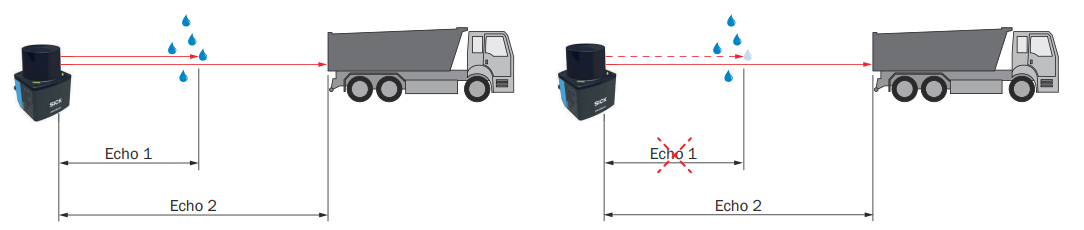 *Example of retaining or suppressing an echo caused by ambient conditions.*
*picoScan100 example: Use multi-echo to suppress a glass-pane return and retain measurements of objects behind it.*
## Particle Filter
Compatible with: LRS4000 multiScan100 multiScan200 picoScan100
The particle filter suppresses small, irrelevant reflection pulses caused by
dust, raindrops, snowflakes, and similar particles. The filter settings differ
by device.
*Example of retaining or suppressing an echo caused by ambient conditions.*
*picoScan100 example: Use multi-echo to suppress a glass-pane return and retain measurements of objects behind it.*
## Particle Filter
Compatible with: LRS4000 multiScan100 multiScan200 picoScan100
The particle filter suppresses small, irrelevant reflection pulses caused by
dust, raindrops, snowflakes, and similar particles. The filter settings differ
by device.
